
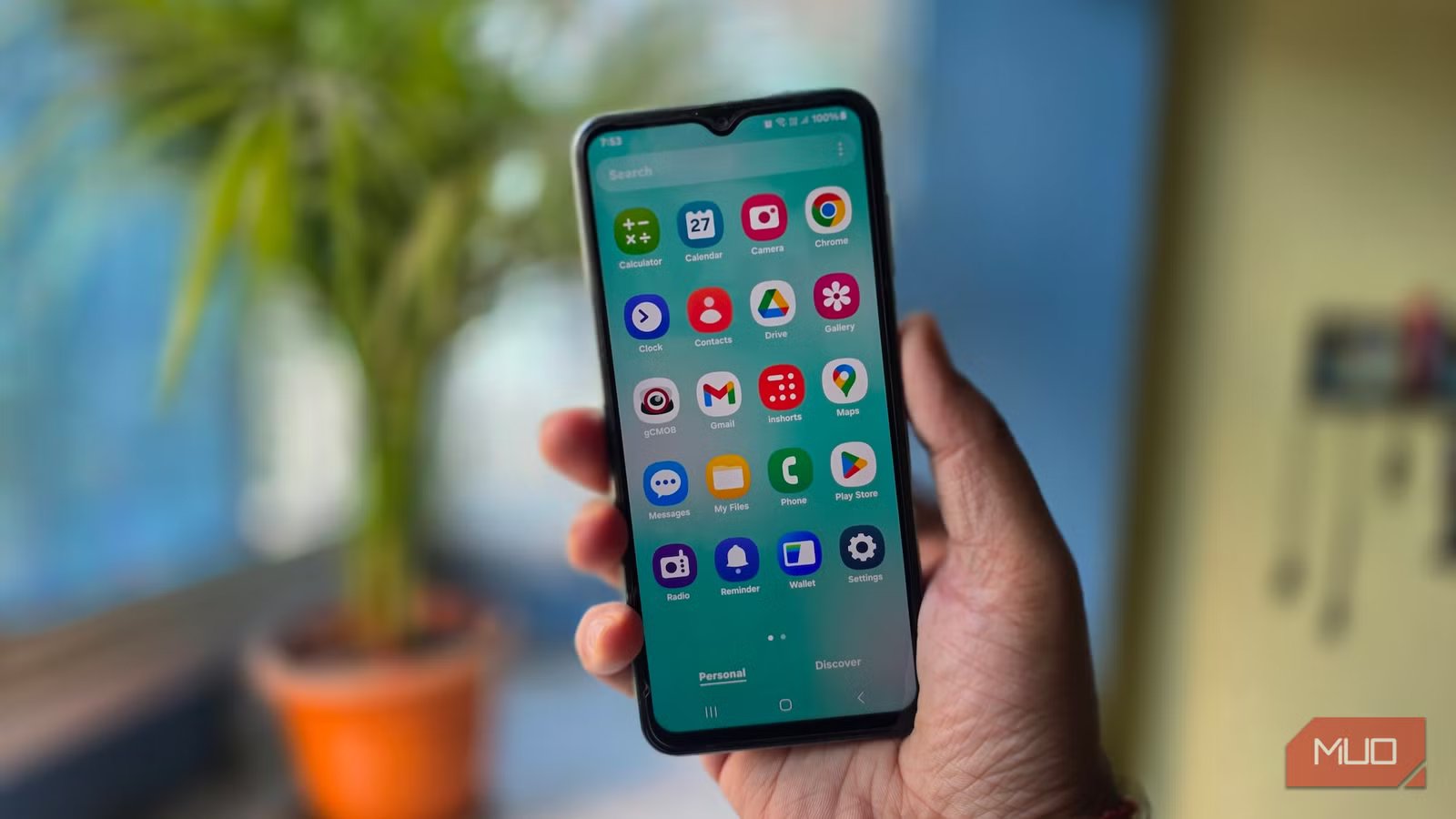
Budget Galaxy phones handle the basics well when they are new. Messaging, social media, YouTube — all fine. A few months in, the keyboard starts lagging behind your thumbs, and apps take longer to open. It gets worse over time, not better, even if you are careful about what you install.
Samsung ships these phones with software defaults designed for its flagships, and on a phone with 4GB of RAM, those defaults slowly eat away at the speed you had on day one. Adjusting a few of these defaults does not require new hardware or third-party apps; everything is already inside your Settings menu.
Reduce the animation scale
Make every tap feel faster
Samsung plays a short transition animation whenever you open an app, switch windows, or pull down the notification shade. These animations look smooth on a flagship chip such as the Snapdragon 8 Elite, but low-end hardware struggles to keep up. On a phone like the Galaxy A05, which uses a modest MediaTek Helio G85 chip, those animations take up processing power that makes every tap feel slower than it needs to.
The animation controls are found inside Developer Options, which Samsung hides by default. To unlock it, open Settings, then go to About phone -> Software information. Tap Build number seven times until a toast confirms the menu is active. Once Developer Options appears, scroll down to three entries: Window animation scale, Transition animation scale, and Animator duration scale. At 0.5x, transitions still play but run twice as fast as the default. Setting all three to Animation off removes them entirely, so the phone jumps straight from screen to screen.

5 features I disable on Samsung phones before I do anything else
Stop your Galaxy phone from tracking, interrupting, and slowing you down.
Disable the apps you never asked for
Stop unwanted apps from running

Low-end Galaxy phones ship with pre-installed apps that start running in the background from the first boot: Facebook, OneDrive, Samsung Free, and often a few trial games. You may never open most of these, but they still use RAM and battery in the background.
The quickest way to remove Samsung’s bloatware is through Settings -> Apps. Scroll through the full list and tap Uninstall on third-party applications like Netflix or Spotify trials. Samsung won’t let you uninstall system-level apps, but tapping Disable stops them from running or sending notifications.
Skip anything with system, framework, or service in its name. These are core components that keep the operating system running, and disabling them can break basic features or force you to undo the change later.
Put background apps to sleep
Give active apps more room
Removing bloatware helps, but apps you actually use can be just as demanding in the background. Instagram, Amazon, and most games refresh content, sync data, and check for notifications even when you are not using them. On a low-end phone with 4 GB of RAM, that background activity eats into your available RAM and keeps the battery draining all day.
Limit this under Settings -> Battery -> Background usage limits. Sleeping apps can still wake occasionally to sync. Deep sleeping apps are blocked from running in the background until you open them. Shopping apps, games, and social media that you do not check constantly are safe to add to this list. Just keep Phone, Messages, and any app you rely on for notifications off it.
Stop nearby scanning from running all day
Save battery from silent scans
Background apps are not the only things running when your phone is sitting idle. Samsung also keeps a few scanning features active, so your phone can detect nearby devices and improve location accuracy. That is useful on a flagship, but on a low-end Galaxy, it is another background task running on hardware that already has limited RAM and battery.
Nearby device scanning is found under Settings -> Connections -> More connection settings. This lets your phone keep looking for nearby Bluetooth and Wi-Fi devices, even when you are not actively pairing anything. If you don’t regularly connect new accessories like earbuds or watches, turn it off. Your saved Bluetooth devices will still work; you may just need to pair new ones manually.
Then check Wi-Fi scanning and Bluetooth scanning under Settings -> Location -> Location services. These let apps use nearby Wi-Fi networks and Bluetooth signals to improve location accuracy, even when Wi-Fi or Bluetooth appears to be off. Turning them off may slightly reduce accuracy in maps or location-based apps, especially indoors, but it will not affect calls, messaging, or browsing.
Schedule automatic restarts
Let your phone refresh itself
A phone that stays on for weeks can build up stuck background tasks, cached data, and small glitches that only clear after a restart. On a low-end Galaxy with limited RAM, this is why the phone feels slower over time, even when you have not installed anything new.
Samsung has a restart scheduler under Settings -> Device care -> Auto optimization -> Auto restart. Restart when needed lets Samsung schedule an automatic restart during idle hours, so it does not interrupt normal use. The second option, Restart on schedule, lets you pick specific days and a time for the phone to restart automatically. You can select any combination of days from Sunday to Saturday and set it to any time.
After the restart, you will need to unlock the phone before notifications and alarms from some apps start coming through again. So if you wake up at 7 AM, scheduling the restart at 6 AM gives the phone enough time to finish before your first alarm.
Keep One UI updated
These five changes target the biggest drains on a budget Galaxy, but how you use the phone daily shapes its speed. Apps like Facebook, Instagram, and Messenger have Lite versions built for phones with limited RAM and slower processors. They look slightly different from the full versions, but they use less storage and consume less RAM in the background.
It is also worth checking Settings -> Software update once a month. Samsung also pushes One UI updates regularly, and some include performance fixes that never sound exciting in the changelog. None of these changes will turn a budget Galaxy into a flagship, but they can help it feel closer to the phone you bought on day one.



