We may earn a commission from links on this page.
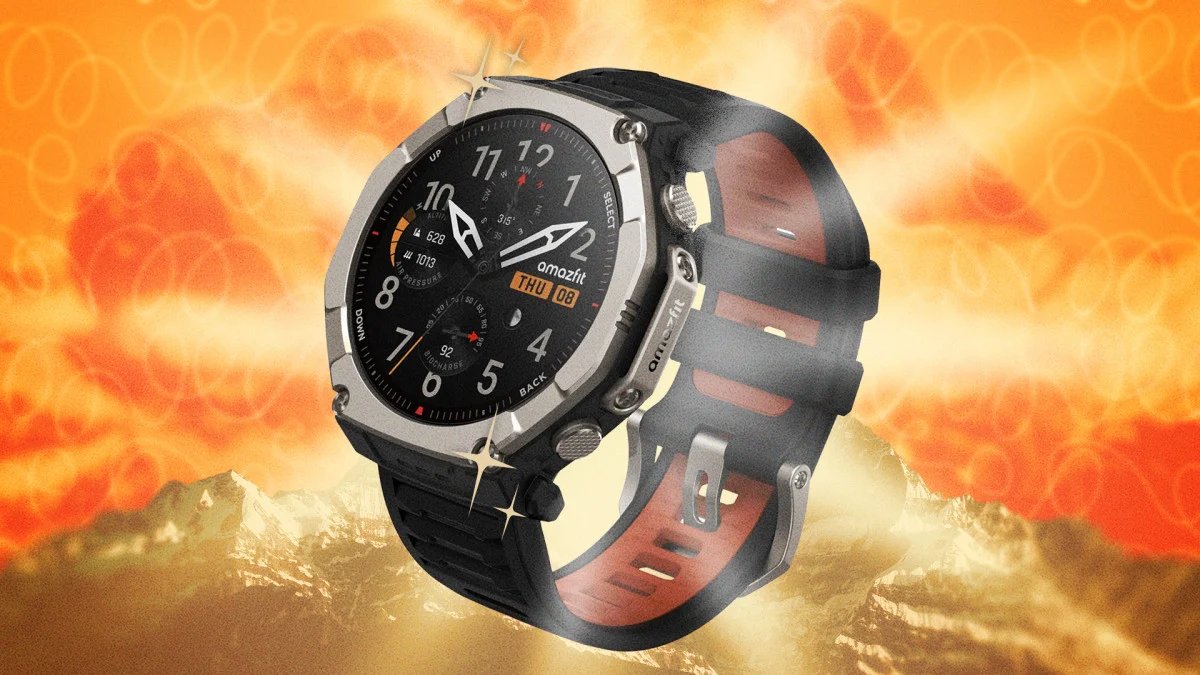
When I raced Hyrox last month, I opted for my Amazfit Cheetah 2 Pro—and I was quite pleased with the results. Over the past year now, I’ve been keeping an eye on how Amazfit (and its parent ecosystem, Zepp) is steadily gaining a loyal following among people who want serious fitness data without a $400 price tag. And now, I’ve discovered that most Amazfit owners are barely scratching the surface of what their watch can actually do.
Below are five hacks that go beyond the manual, whether you’re using something like the budget-friendly Bip 6, a rugged T-Rex 3, an advanced trainer Balance 3, or any of the Amazfit options in between.

Unlock a secret developer mode in your Amazfit watch
In the Zepp app, go to Profile > Settings > About, then tap the Zepp logo seven times. Voilà: You’ve just unlocked developer mode. Here’s what you can do with this under-the-radar hack:
Install custom watch faces via QR code. This lets you bypass the existing native watch face library and upload a custom face on your computer, scan a generated QR code, and install it directly onto your watch.
Cross-load watch faces between compatible models. If you own multiple Amazfit models that share a screen resolution with each other (the Bip 6, Active, and Cheetah are one such group), developer mode lets you move watch faces between them. Similar to the hack above, this effectively expands your design options beyond what any single model officially supports.
View live device logs. See real-time debugging information for app performance, crashes, and Bluetooth connectivity issues, straight from your phone or computer.
Take true screenshots. Tap the screenshot icon to capture exactly what’s on your watch face, saved automatically to your phone’s photo gallery.
Enable Developer Bridge Mode, which connects the Zepp app’s runtime to desktop development tools like the Zepp CLI or Watchface Maker, for more advanced customization projects.
Not every user needs all five of these tools—I know I don’t. But even if you don’t plan on investigating bugs on your own, something like the QR code watch face installer makes the seven-tap trick worth it.
Make your Amazfit work with your schedule
For instance, think about when you typically charge your electronics. If you’re using your Amazfit to track your sleep, that means charging has to happen somewhere else in your day. The fix: Keep a charger in your bathroom. A 10-minute top-up while you shower or get ready in the morning is more than enough to keep most Amazfit batteries topped off, and it happens during the exact window you’re not wearing the watch anyway.
In the same vein, I recommend re-scheduling your wrist-wake settings. If you’ve ever been woken up by your own watch flashing on because you rolled over, this one’s for you. Instead of leaving “Lift wrist to view info” running 24/7, set it to operate only during your actual waking hours. Whatever hours you set for yourself, the display simply won’t activate on wrist movement. This not only stops the middle-of-the-night light attack, but it’s also a great way to save battery, since display is one of the biggest power drains on any smartwatch.
Save battery (and stop over-measuring metrics you’re not using)
Amazfit watches default to fairly frequent data collection, well beyond what you really need to know. If you’re not actively training for something, dial it back like this:
When you’re not actively exercising, reduce heart rate measurement frequency from every one minute down to every five or 10 minutes.
Turn off “Automatic Stress Monitoring” and “Auto Blood Oxygen” tracking unless you specifically rely on that data.
Disable continuous location tracking and heart rate logging when you’re not working out. Just remember to re-enable both when you start a workout.
These quick settings changes are help stop your watch from unnecessarily draining battery in the background, and you really aren’t sacrificing much in terms of data.
And when it comes to heart rate, rather than letting your watch collect data every minute, I highly recommend investing in a chest strap. Wrist-based optical heart rate sensors are convenient, but they’re not perfect, especially during high-intensity intervals or activities with lots of wrist movement. If accuracy actually matters to you (say, for zone training), it’s worth pairing your watch with an external chest strap like this COOSPO one here. Once paired, enable Heart Rate Push in your sensor settings, and your Amazfit will pull HRM data directly from the strap during workouts instead of relying on its built-in sensor.
Take advantage of surprisingly nifty third-party apps
The native Zepp app ecosystem covers the basics, but I’ve been scouring multiple Reddit threads to collect the best third-party apps to level up your Amazfit:
What do you think so far?
Navigation Wear syncs Google Maps directions straight to your wrist, so you can follow turn-by-turn directions without needing your phone.
Remotify (and similar apps) store music locally on the watch, letting you control playback without needing your phone nearby.
RuWeather replaces Amazfit’s so-so stock weather app with more detailed, accurate forecasting. You can install it using a QR code from GitHub here.
Beeper lets you reply to messages from WhatsApp, Slack, Telegram, and more.
Together, these apps close a lot of the gap between Amazfit and pricier smartwatch ecosystems.
Know about these Amazfit features right out of the gate
Amazfit has plenty of useful features, but they’re only useful if you know about them now, before you really need them.
Fix Amazfit’s accidental workout pauses
One thing I’ve noticed about my Amazfit over other stop watches is that the crown (aka the top right button) is either bigger or more sensitive, meaning the watch thinks I’m constantly pausing mid-workout whenever I accidentally bump against it.
Here’s my fix: Head into Workout Settings and switch the pause mechanism from a simple press to Long Press. The long press did take me some getting used to, but I’m grateful that I don’t have to worry about any more accidental pauses caused by natural wrist movement.
Never lose your phone again
Make sure to go into your Bluetooth settings and set a disconnection alert, so that your watch will notify you the moment your phone’s Bluetooth connection drops. This alert could save you from leaving your phone on a restaurant table or a gym bench.
Clear water out quickly and easily
After getting caught in the rain, water can linger in your watch’s microphone and speaker ports, muffling sound or triggering false touches. Amazfit’s fix is a built-in water ejection feature: Swipe down from the main screen to open the Control Center, tap the Droplet icon, and hold your watch with the speaker facing downward. The watch will vibrate at specific frequencies designed to physically push moisture out of the ports. Like so many of the hacks above, this is one of those features it’s good to know about now, so you’re ready for the moment you really need it.