: frontier AI models are increasingly at risk of being locked behind strict export controls or mounting API costs.
As this technology embeds itself into our daily lives, the open-source movement isn’t just a philosophical preference, it is a necessary mechanism to keep AI in the hands of everyday users. We aren’t at parity yet; the proprietary models from the massive tech labs still hold a commanding lead in pure performance. But, we can hope that the gap is closing fast. Around the clock, an independent community of researchers and developers is pushing to ensure this technology is accessible to anyone with a computer.
Today, the foundation for true democratization is already here: you can run a highly capable model entirely on your own laptop. For today’s experiment, I set out to find a large language model that can run entirely on my laptop — and use it for the simple tasks I’d normally hand off to a big lab model.
We’ll install Qwen 3 8B on my MacBook Air, run it fully offline, and finally have a language model living on my own machine instead of a distant datacenter. The Qwen family of models have been trained by Alibaba (the chinese company) and are fully open source, available on the internet for everyone to download. The model has 9 billion weights and takes up around 6gb of your RAM when loaded.
What follows now is a practical, start-to-finish guide to running a proper local LLM on an Apple Silicon Mac and it includes the terminal commands you need. But before we open the terminal, we need to talk about why this is worth doing at all.
Why Do This?
Most of the time, cloud models are better and easier. I’m not going to pretend an 8-billion parameter model on a laptop beats frontier AI. It doesn’t and I will keep using the massive cloud models for heavy lifting.
But the constant pricing and sovereignity wars around AI may make open source and local models very relevant for a future where having access to the technology will make a huge difference. Every time you use Claude or ChatGPT, you are sending your data to some remote servers where the access can be blocked at any time.
“Digital sovereignty” is a grand phrase for a very ordinary desire: we may want to own the thing that reads our most sensitive thoughts, the same way you own a physical notebook or keep some cash at home.
A local model answers that cleanly in the AI world. Once it’s downloaded, nothing leaves the machine. No API keys, no shifting terms of service, no quiet data retention policies. You can pull the Wi-Fi card out and it keeps working. For the highly sensitive part of your work, that alone may be worth the price of admission.
People love to say local models are “democratizing” AI. I want that to be true, but we aren’t there yet. Running this stack still assumes you own a €1,500 laptop with massive unified memory and you’re comfortable in a command line. That’s a narrow, lucky slice of the world.
But the trajectory is democratizing. Two years ago, running a decent offline model required a dedicated workstation and serious technical pain. This weekend, it took me a couple of hours and 5 gigabytes of disk space.
So let’s install the thing.
The Machine and the Specs
I built this on a MacBook Air M4 with 24 GB of unified memory and about 235 GB of free storage. This was a fresh start: no Homebrew, no Python environment nightmares.
The number that actually matters here is the 24 GB. Apple Silicon’s “unified memory” is the magic trick that makes Macs so exceptionally good at this. Because the CPU and GPU share the exact same memory pool, massive neural network weights don’t have to be sluggishly shuttled back and forth.
An 8B model takes up about 5 GB on disk and sits at roughly 6 GB in memory when loaded. On a 24 GB machine, that’s deeply comfortable. You could run a 14B model and still keep dozens of browser tabs open. (If you’re on an 8 GB Mac, stick to the 1.5B or 3B models and close your other apps).
Why Ollama?
There are a dozen ways to run local AI, and most of them ask you to care about compiler flags and dependency trees. You shouldn’t have to.
Ollama is an open source framework and tool that just works. It’s a single binary that bundles a highly optimized model runner (llama.cpp using Apple’s Metal for GPU acceleration), a Docker-style model registry, and a local HTTP API. You install it, you pull a model, and you talk to it. That’s it!
Step 1: Install Ollama (No Homebrew Required)
Ollama ships as a standard macOS app in a zip file. The command-line interface (CLI) lives secretly inside the app bundle, so we can set it up entirely by hand.
# Download the Apple Silicon build
cd ~/Downloads
curl -L -o Ollama-darwin.zip https://ollama.com/download/Ollama-darwin.zip
# Unzip and move the app into your Applications folder
unzip -o -q Ollama-darwin.zip
mv Ollama.app /Applications/
If you don’t know how to open the terminal, just go to your Mac applications and search for “terminal”:

Step 2: Put Ollama on Your PATH
I didn’t want to fight with sudo permissions in /usr/local/bin, so I symlinked the bundled CLI into a local directory I own — this is just a handy shortcut to speed up the installation and spin up the LLM.
# Create a local bin directory and symlink the CLI
mkdir -p ~/.local/bin
ln -sf /Applications/Ollama.app/Contents/Resources/ollama ~/.local/bin/ollama

# Make it permanent in your zsh profile
echo 'export PATH="$HOME/.local/bin:$PATH"' >> ~/.zshrc
# Apply it to your current shell
export PATH="$HOME/.local/bin:$PATH"
ollama --version
Step 3: Start the Server
Ollama runs a lightweight background server to expose the API and manage your computer’s memory.
# Start the server and log output
mkdir -p ~/.ollama/logs
nohup ollama serve > ~/.ollama/logs/serve.log 2>&1 &

# Ping it to check if it's alive
curl -s http://127.0.0.1:11434/api/version
If the command above returns a “version”, ollama is set up!
Note: You can also just double-click the Ollama app in your Applications folder to run this server via your menu bar. I did it via terminal to see exactly what was happening under the hood.
Step 4: Pull the Model
Well this one is as easy as it gets:
ollama pull qwen3:8b
ollama list
Go make a coffee. The download is about 5.2 GB.
After running ollama list, you’ll see the model available for you:
Step 5: Talk to the new digital Brain in your Computer
You have three distinct ways to interact with your new local model.
1. Interactive Chat (The Easiest)
ollama run qwen3:8bRunning the following command will launch the interactive chat:
In the default mode, the model will spill out the “thinking tokens”, something that is normally abstracted and hidden in most commercial tools.
I’m going to start by asking my local model what it thinks about open source models:
The light grey text represents the model’s internal reasoning process. These models perform extensive calculation before generating a response, and for local models, this thinking phase accounts for a significant portion of the total time until the model spews out a response.
After doing the thinking process, here is the answer from the model:
Was with most tools, these models also retain some context from previous interactions:
The model is outputting 5.7 tokens per second because I’m in battery saving mode. If I turn it down, we will probably see a value of 15–20 tokens per second.
2. One-Shot Terminal Commands
To interact with your local model, you can also provide the question outside of the interactive mode:
ollama run qwen3:8b "write a python script that tells me how many vowels a word has"Here’s the script that our local large language model built:
```python
# Prompt the user for a word
word = input("Enter a word: ")

# Define the set of vowels
vowels = {'a', 'e', 'i', 'o', 'u'}

# Initialize a counter
count = 0

# Convert the word to lowercase and check each character
for char in word.lower():
    if char in vowels:
        count += 1

# Output the result
print(f"Number of vowels: {count}")
3. The HTTP API (For Scripts and Apps)
Can you only use this within the terminal commands?
Of course not! If you are comfortable with Python, you can build any local script using your local model:
import json, urllib.request

req = urllib.request.Request(
    "http://127.0.0.1:11434/api/generate",
    data=json.dumps({
        "model": "qwen3:8b",
        "prompt": "Give me three uses for a local LLM.",
        "stream": False,
        "think": False,
    }).encode(),
    headers={"Content-Type": "application/json"},
)
print(json.loads(urllib.request.urlopen(req).read())["response"])
Here is the answer from the model after running this Python script:
Sure! Here are three common and practical uses for a **local LLM (Large Language Model)**:

1. **Personalized Assistance and Productivity**
A local LLM can act as a private AI assistant, helping with tasks like email drafting, scheduling, note-taking, and even coding. Since it runs locally, it maintains user privacy and doesn't rely on internet connectivity.

2. **Content Creation and Language Processing**
You can use a local LLM to generate creative content such as blog posts, stories, scripts, or marketing copy. It can also assist with language translation, grammar checking, and summarizing text.

3. **Custom Applications and Integration**
A local LLM can be integrated into custom applications or workflows, such as chatbots, customer support systems, or data analysis tools. This allows for tailored solutions without exposing sensitive data to external servers.

Let me know if you'd like examples of how to implement these uses!
Cool! You can now create your own applications with your own local model quite easily.
Fine-Tuning the Experience — Taming the “Thinking” Tokens
Qwen 3 is a hybrid reasoning model. By default, it generates a verbose
Here is how you bypass the reasoning pass:
- Disable it entirely:
ollama run qwen3:8b --think=false - Run it, but hide it from the UI:
ollama run qwen3:8b --hidethinking - In scripts: Pass
"think": falsein your JSON payload.
A Warning About Web Search
Models are static up until their training data. That means that they can’t access data after they were trained, and companies have been relying on web search tools to augment the capability of the models. For example for our local model:
But, Ollama allows you to hand the model a web-search tool. This sounds incredible but there’s a catch.
The search itself executes on Ollama’s hosted cloud service. The moment you enable it, your prompts are being sent over the internet to fetch search results. The model stays local, but your queries do not. This may violate the principle of privacy you want to guarantee with the setup.
Bonus: VS Code Integration
The ultimate endgame for me was getting an offline coding assistant. The cleanest, entirely free path for this is the Continue.dev extension.
- Install VS Code and the Continue extension.
- Open Continue’s configuration file at
~/.continue/config.yaml. - Point it at your local Ollama server:
name: Local Assistant
version: 1.0.0
models:
  - name: Qwen3 8B (local)
    provider: ollama
    model: qwen3:8b
    roles:
      - chat
      - edit
      - apply
  - name: Qwen3 8B Autocomplete
    provider: ollama
    model: qwen3:8b
    roles:
      - autocomplete
Pro-tip: An 8B model is slightly too heavy for the split-second latency you want for inline code autocomplete. I highly recommend pulling a smaller model specifically for that task (ollama pull qwen2.5-coder:1.5b-base), mapping it to the autocomplete role, and letting Qwen3 8B handle the heavier chat tasks.
What if I have a Windows Computer?
As I’m not on a windows for this tutorial, I haven’t tried it extensively. But the good news is that the Ollama package is available for Windows computers here.
The install process may differ a bit, but the logic behind using Ollama and pulling the models will be exactly the same.
Where This Leaves Me
My total footprint for this project was 156 MB for the software and 5.2 GB for the model itself.
I now have a highly capable language model living permanently on my hard drive. For public, complex work, I will still reach for the cloud. But for the drafts I don’t want ingested into training data, the offline flights, and the legally bound client documents? This intelligence is now on my computer.
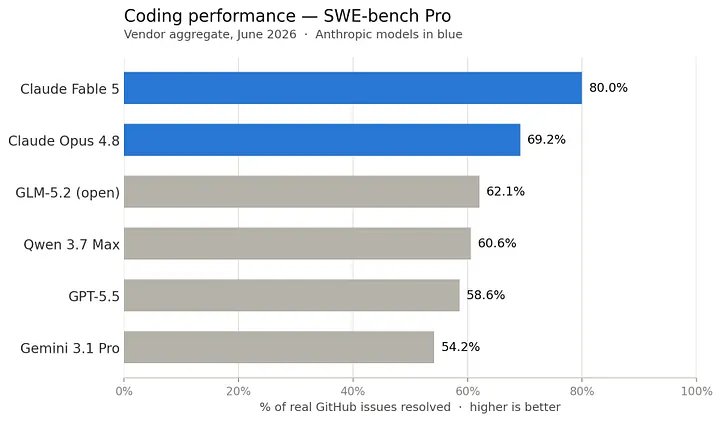
This may be a bit too techy for most people still, but things are becoming more democratized. And it’s not just about availability. On the performance front, open-source models are improving at a staggering pace, delivering results that make the future of local AI look incredibly promising. For example, GLM 5.2 and Qwen 3.7 Max are catching up to the big labs’ models performance:
As the technical floor keeps dropping, “owning your own AI” is going to stop being a luxury reserved for developers with expensive laptops. That is the version of AI democratization I actually believe in.
Go give your laptop another brain this weekend and long live open source!