
I hate Windows. Full stop. I have to use it for work, like many of you, but it’s just a mess to use. It’s become a product that continues to treat us all like the thing being sold instead of the customer. There are ads in the Start menu, telemetry that’s hard to disable, and an AI assistant we’re still not asking for. Through it all, though, what keeps me using Microsoft’s bloated OS is gaming. Even though I tend to think of myself as a console gamer, I have a pretty decent Steam library. For years, Linux (and macOS, which I truly prefer), just wasn’t an option.
That’s changing, though. Proton, Valve’s compatibility layer for running Windows games on Linux, continues to add more and more games from the Steam catalog. Bazzite is a gaming-focused Linux distribution built on Fedora Atomic that ships with everything this gamer needs (and more), pre-configured and ready to go, including Nvidia drivers, Steam and Proton all ready out of the box. I installed Bazzite on my MSI Cyborg mid-range gaming laptop alongside Windows to find out if it’s finally good enough to make the dual-booting a thing of the past. After some testing, I have an answer, though it comes with a word or two of caution.
What you need before you start
Get your Windows machine ready before you touch the BIOS

The first thing I needed to do was disable Fast Startup, which saves a partial system state to disk on shutdown to speed up boot times. It can cause problems when dual-booting. I hit Win + S, searched for Choose a power plan, clicked Choose what the power buttons do, then Change settings that are currently unavailable. I then unchecked Turn on fast startup.
Next I had to disable Secure Boot. After a restart, I made my way into the BIOS by hitting F2 over and over, then used the arrow keys to get to the Security tab. I set Secure Boot to Disabled, as on my MSI, it’s an easy toggle in the BIOS screen.
Then I tried to shrink my Windows partition to get Bazzite on it. That’s where things got annoying. Windows would only let me shrink a tiny fraction of my drive because of some unmovable system files. I tried disabling hibernation with powercfg /h off in an Administrator Command Prompt, restarted, and tried again. Still no luck. Finally, I just decided to let the Bazzite installer manage the partitioning, and that went a lot better.
I grabbed the ISO from https://bazzite.gg/, chose the options that fit my Nvidia GPU machine (Other Laptop, Nvidia, KDE, and Desktop), and skipped Steam Gaming Mode. The ISO was around 5 GB, so I made sure my USB drive had at least that much (I used an old 32 GB drive).
Creating a bootable USB and installing Bazzite
Flashing the ISO and installing is fairly straightforward

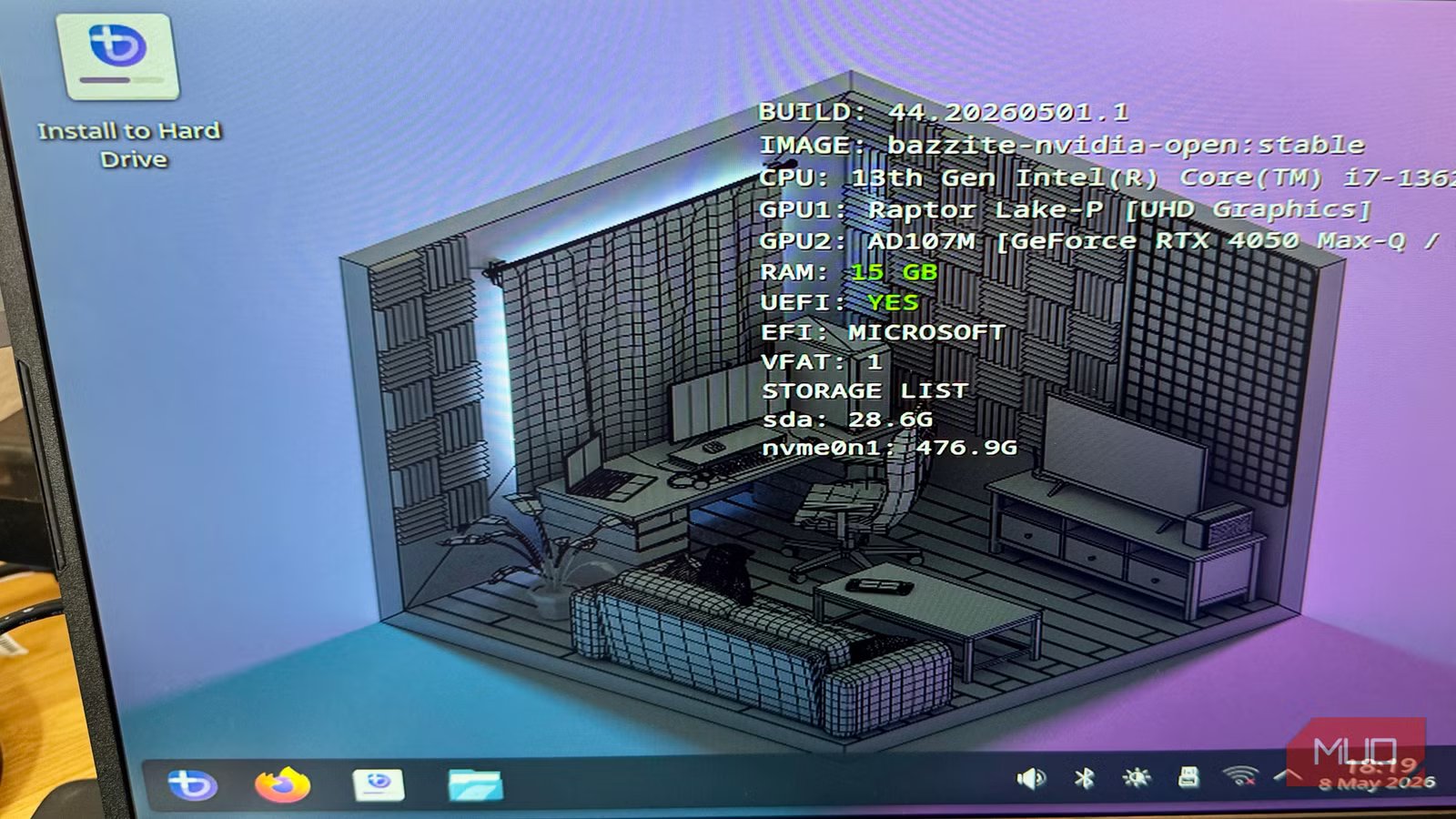
I used Rufus on Windows to flash the drive. It warned me that the ISO needed DD image mode, which I was able to confirm, then ignore. The whole process only took a few minutes. Once the drive was ready, I restarted my PC and hit F11 over and over to get to the boot menu. I selected my USB drive and let it load up into the Bazzite live environment, something Linux uses to let you try before you buy, so to speak. The first screen showed my hardware specs, and I could see that the Intel Iris Xe and the RTX 4050 I have onboard were already detected. I launched Install to Hard Drive on the desktop, launching the Anaconda installer. I chose my language, set my username and password, connected to Wi-Fi, and went to the partitioning step. I selected the main drive in the machine, and chose custom partitioning. I allocated half the drive to Bazzite, leaving the other half — 244 GB — for Windows in case I need to grab some screenshots for work later. The installer flagged a warning, recommending I use 500GB minimum, but I just ignored it. All worked out OK. I hit Begin Installation and waited. It finished up pretty quickly, and then I pulled the USB drive and restarted. The reboot started up Bazzite on its own, and I was ready to roll.
Getting Steam and games running
Steam comes pre-installed
Steam just launched automatically on my first boot into Bazzite. I didn’t have to download, install, or anything else. It was just there, waiting for my Steam login. I used the QR code via my Steam mobile app to sign in without typing a password, and it just worked. My entire Steam library was there immediately.
For games with a native Linux build, it should be easy to install, launch, and play. For Windows-only games, you need to enable Proton. Go to Steam > Settings > Compatibility and toggle on Enable Steam Play for all other titles. On Bazzite this may already be enabled by default. I tested it with Palworld (a Windows-only title with no native Linux build) and it launched without a single prompt or warning. Proton handled everything in the background invisibly.
My other test was Baldur’s Gate 3, which has a native Linux build. First launch triggered two rounds of shader compilation, which took a few minutes — normal on Linux and a one-time process that won’t repeat on subsequent launches. It launched and even brought up my existing save from Steam Cloud from August of 2025. The game looked and performed the same way it does on Windows on this same laptop, giving me 60-70 fps when actively playing on the RTX 4050 with default settings, no graphics configuration needed.
The DualSense controller from my PS5 connected via Bluetooth more easily than it ever did on Windows, and the game recognized it instantly, changing all the button prompts to PlayStation buttons without having to touch a single setting.
Sadly, Easy Anti-Cheat games like Rust and 7 Days to Die, two of my favorite games to play with friends, don’t work reliably on Linux. Rust’s developer has even said there are no plans to support Linux or Proton. So if I want to keep playing those, I need to keep them on the Windows side.
Bazzite could be my daily driver, too
The desktop experience is pretty great

KDE Plasma is the default desktop environment on Bazzite, and it’s probably the most Windows-like DE I’ve used. The taskbar sits at the bottom, the system tray looks and behaves the way you’d expect, and the app launcher is like the Start menu. I didn’t feel lost at the interface once, everything was either where I thought it would be or it was an easy intuitive find.
Everyday apps are easily installed with Bazzite’s Bazaar app store, which pulls from Flathub, the main Flatpak repository. Discord installed like it does on any other app store, though Bazaar did flag it as “high risk” because it uses the legacy X11 windowing system and its proprietary nature. That’s not a dealbreaker, of course, that’s just how Discord works. It is nice, though, to see a stronger commitment to privacy than other OSes I use daily.
Should you ditch Windows for Bazzite on your gaming laptop?
If I had a second Windows machine, I totally would. My Steam library, minus the two mentioned games above, is fairly single player and co-op without aggressive anti-cheat features. Bazzite is genuinely ready for me to use it all the time. My RTX 4050 was recognized automatically, the DualSense controller paired faster than usual, and Steam was already there.
The install process took longer than it should, though that was more Windows’ fault than Bazzite’s.
If you’re a Windows-only gamer that has a lot of Proton-capable titles in your library, give Bazzite a try and see what you think. I know I’m done dual-booting for my gaming activities for good.



