
I use Windows Notepad the way most people do: paste something in, strip out weird formatting, glance at a config file, and close it. That’s the deal. It’s not glamorous, but for years it’s been sufficient. Then Microsoft apparently decided sufficient wasn’t ambitious enough.
Since 2023, Notepad has picked up tabs, session restore, spell check, and Markdown support. By early 2026, Microsoft had layered in AI features like Write, Rewrite, and Summarize, plus streaming responses that start generating text before the full result is finished. To be fair, some of it is useful, especially if you know how to supercharge Windows 11’s Notepad with Copilot to quickly decode an error log. Some of it also sits behind Microsoft 365 or Copilot Pro subscriptions. But taken together, it creates a faint but persistent feeling that Notepad is drifting away from what made me like it in the first place.
If you’ve felt the same way, I have something for you. It’s called Notepads, it’s sitting right there on the Microsoft Store, and it’s been the right answer all along.

Built by a Microsoft employee — just not Microsoft
A passion project with a corporate badge in its pocket

The developer behind Notepads, Jiaqi Liu, who goes by 0x7c13 on GitHub, does work at Microsoft, but this isn’t some secret internal side project. Notepads is entirely their own thing, built in their spare time under the MIT License. They’re not part of the Windows team or any official UX group, and Microsoft isn’t sponsoring or backing the project in any formal way. The project started from a pretty relatable frustration: waiting for someone to make a Windows text editor that is clean, lightweight, and actually pleasant to use.
That idea makes a lot of sense once you try it. Editors like Notepad++, VS Code, and Sublime Text are all excellent, but I think they are overkill when all you want to do is jot something down, clean up a snippet of text, or quickly inspect a config file. There’s a certain visual and cognitive heft to them. If you are searching for the best Windows Notepad alternatives, Notepads lands somewhere between bare-bones and over-engineered, without trying too hard to impress you.
It’s also fully open-source and free on the Microsoft Store. More importantly, the developer has been direct about privacy. According to the project’s policy, the app doesn’t collect personal data, track keystrokes, inspect your file names or paths, or send anything off to third parties.
Tabs, previews, and a diff viewer walk into a text editor
These features earn their keep
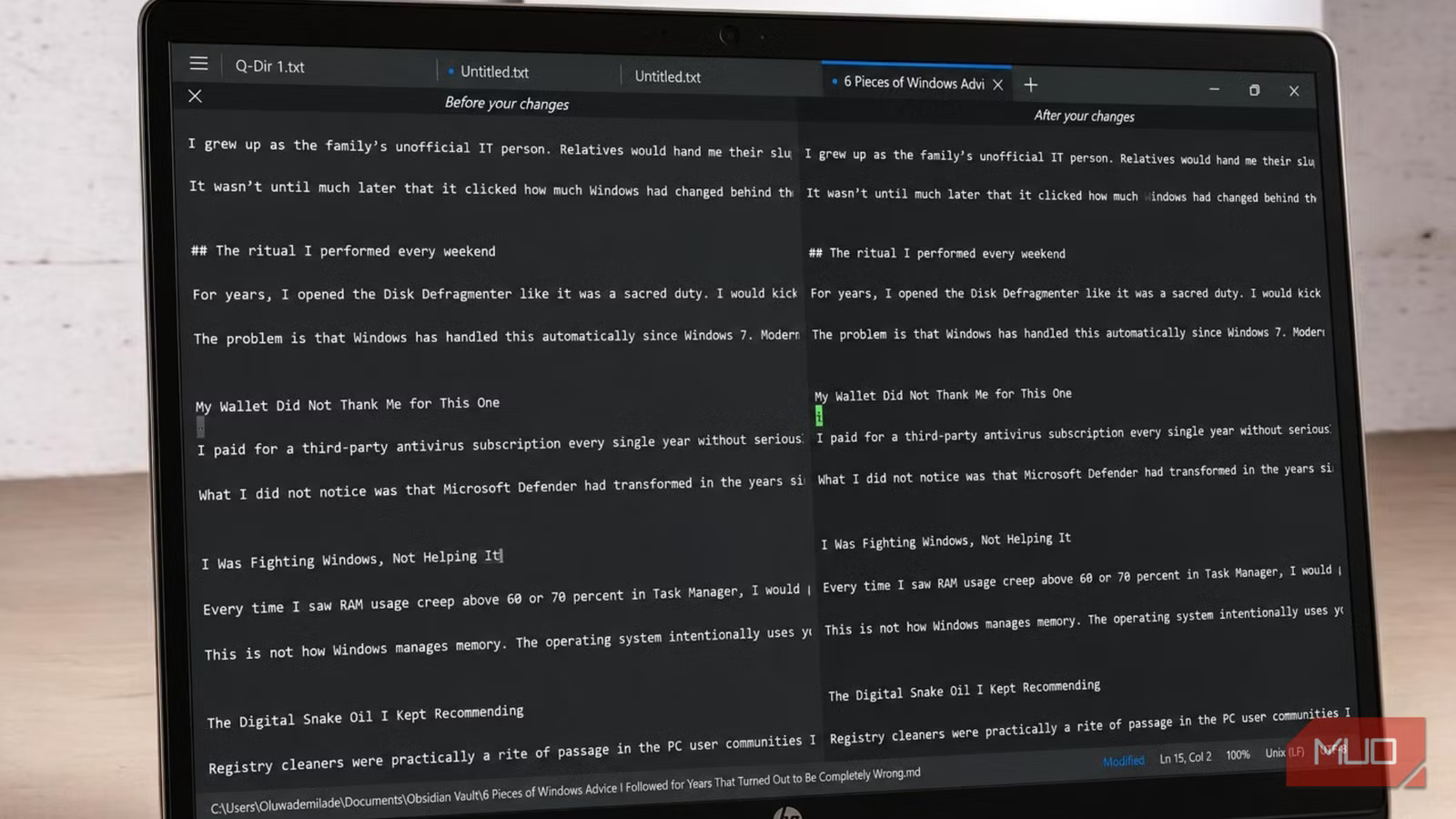
Notepads comes with a feature set that is thoughtfully assembled instead of bloated for the sake of a changelog. There’s a built-in tab system wrapped in Fluent Design touches such as acrylic transparency and soft shadows, a live Markdown preview panel, a side-by-side diff viewer for comparing changes, and session snapshots that preserve your work if the app closes unexpectedly or your system decides it’s time for a restart.
Given that I’ve largely ditched Microsoft Word to write everything in Markdown, I probably use the Markdown preview the most. When I hit Alt + P, the window splits cleanly in two: raw Markdown on one side, fully rendered output on the other, without ever opening a browser or a dedicated Markdown app. The diff checker is another nice surprise. If I press Alt + D, I can compare changes side by side without the interface turning into a developer cockpit.Navigation is packed with little conveniences as well. You can cycle through tabs with Ctrl + Shift + Tab, jump directly to one using Ctrl + 1 through Ctrl + 9, zoom text with the usual Ctrl + Plus and Ctrl + Minus shortcuts, and switch between left-to-right and right-to-left text flow using Ctrl + L or Ctrl + R. That RTL support, by the way, is something the built-in Windows Notepad still handles awkwardly by comparison.
You can also launch Notepads directly from the command line or PowerShell by typing “notepads” or “notepads” followed by a file path
Go on, give Notepad the day off
If you regularly deal with massive text files or edit system scripts directly in place, sticking with Notepad++ or replacing it with another lightweight editor is still the better fit for that kind of work. But for everything else, drafting notes, editing config files, writing quick bits of Markdown, Notepads handles it with very little friction.You can install it straight from the Microsoft Store just by searching the name, or, if you no longer use the Microsoft Store to install Windows apps, use Windows Package Manager withwinget install Notepads.Notepads. Either way, you’re looking at a download that takes less time than reading this sentence twice.That said, Notepads isn’t perfect, and it’s worth knowing where its edges are before you commit. The app has a 1MB file size limit, so it’s not built for giant text dumps or sprawling log files. Because it’s a UWP app, it also runs inside Microsoft’s sandboxing system, which means it can’t save directly into protected folders like Windows or System32. For the same reason, it won’t associate itself with certain file types like .cmd or .bat. None of these are deal breakers for the kind of lightweight work the app is designed around, but they do define the edges of what it’s trying to be.

- OS
-
Windows
- Developer
-
Jackie Liu
- Price model
-
Free (open-source)
Notepads is a modern replacement for Windows Notepad with tabs, Markdown support, autosave, and a polished Fluent Design interface. It keeps the simplicity of a lightweight text editor while adding useful features for everyday writing and coding.



