
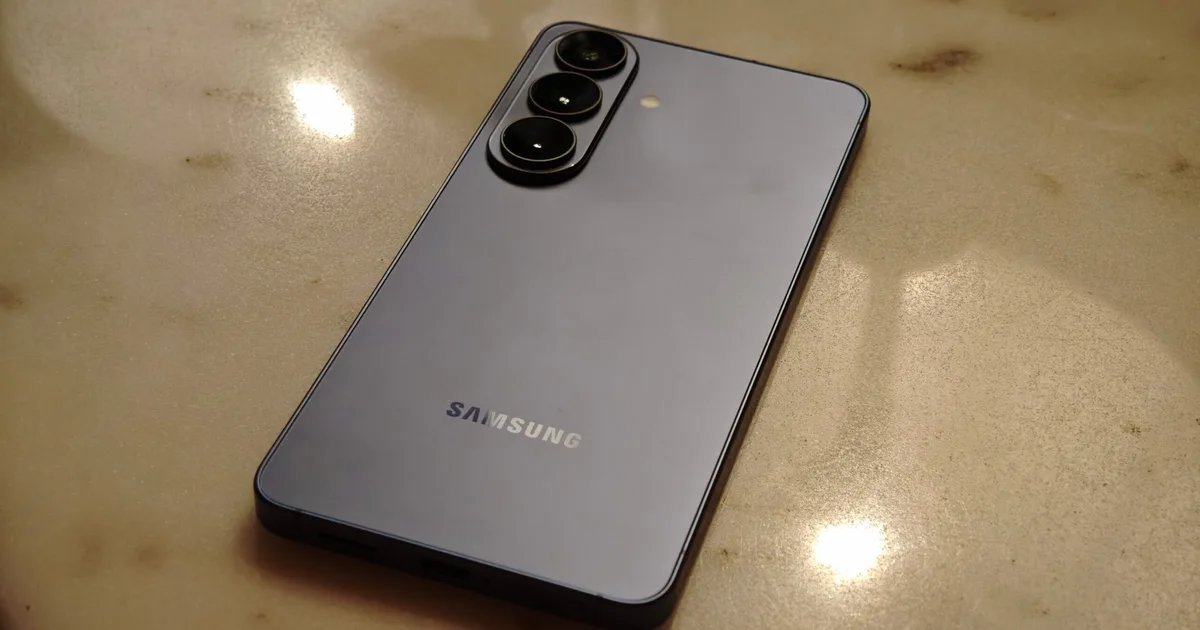
I have never been particularly good at managing my phone’s battery health. I know all the advice by now — avoid charging past 80 percent, do not let the battery drain completely, try not to leave the phone plugged in overnight. I know these habits the same way I know I should probably drink more water or sleep earlier. In theory, they make perfect sense. In practice, I rarely stick to them consistently.
So when I started using the Galaxy S26 and realized that Device Care’s optimization features were quietly handling a lot of this for me, my first reaction was skepticism. Phones have offered “smart” protection tools for years now, and most of them tend to disappear into the background after you switch them on once. Half the time, I forget those settings even exist. This felt different, though. Not because it was flashy or constantly reminding me it was there, but because I could actually feel it adapting to how I used my phone, rather than forcing me to change my habits around it.
The battery babysitter I never had to babysit
Device Care on the Galaxy S26 does a lot more than simply stopping charging at 80 percent and calling it a day. Over time, it learns your charging habits and quietly adapts around them. So if you usually plug your phone in overnight, it will charge up to a certain point, pause there for a while, and then finish topping up closer to the time you normally wake up. The idea is to reduce the time the battery spends at 100%, since that is one of the biggest contributors to long-term battery wear.

But the experience goes beyond charging habits. Device Care also keeps an eye on apps running in the background, flags those draining battery, and optimizes performance in subtle ways that don’t constantly interrupt you. In fact, most of the changes were so seamless that I barely noticed them happening. The only reason I realized something was different was when I checked my battery stats and saw how much steadier the battery drain looked compared to the phones I had been using before. Together, it creates the kind of thoughtful, behind-the-scenes experience that actually matters over time. It is about helping your phone age better without requiring you to completely change how you use it every day.
Set it once, forget it gloriously
Setting it up takes less than a minute, and once it is enabled, you mostly never have to think about it again. Here is where to find everything:

- Open Settings and scroll down to Device Care.
- Tap Battery, and scroll down here to see the battery settings.
- Turn on the features you use every day.
- While you are there, you can also enable Battery Protection if you prefer a stricter approach that caps charging at a percentage level you set.
After that, head back to the main Device Care screen and turn on Auto Optimization. This automatically runs a quick system check for issues such as unnecessary background activity, battery drain, and storage problems. And honestly, that is pretty much it. Once the settings are in place, the Galaxy S26 handles the rest in the background without constantly asking for your attention.
In the end, I’d say just enable the features that genuinely match how you use your phone and make your everyday experience easier.
The hardest part was letting go of control
The strange part, honestly, was learning to trust the feature in the first place. There is something slightly uncomfortable about handing over battery management to your phone and letting it decide when to slow charge or stop before 100 percent. Even when you understand the logic behind it, your brain still has that little moment of panic when you wake up and see 97 percent instead of a fully topped-up battery. For the first few days, I kept checking to make sure something was not broken.

But once I stopped second-guessing it, the benefits became pretty obvious. My battery health has held up noticeably better during my time with the Galaxy S26 than it ever did when I was trying — and mostly failing — to manage charging habits on my own. And I think that is what makes this feature work so well for me: it removes the need for constant discipline. At some point, I just had to admit something simple — the phone is better at managing its battery than I am.
The S26 became the adult in the room again
What surprised me most was not just the impact on battery health, but how much mental clutter this feature removed from my day. I stopped constantly checking my phone’s charge percentage, stopped debating whether to plug it in now or wait a little longer, and stopped worrying about accidentally leaving it charging overnight.

That is what Device Care gets right. It takes over the small decisions, so you no longer have to think about them all the time. And honestly, that is exactly what good software should do — solve a problem so smoothly that it fades into the background of your life. If you are the kind of person who reads battery health advice, fully agrees with it, and then forgets to follow it three days later, this feature feels absolutely perfect. It basically handles the discipline part for you. And apparently, that was exactly what I needed.



