
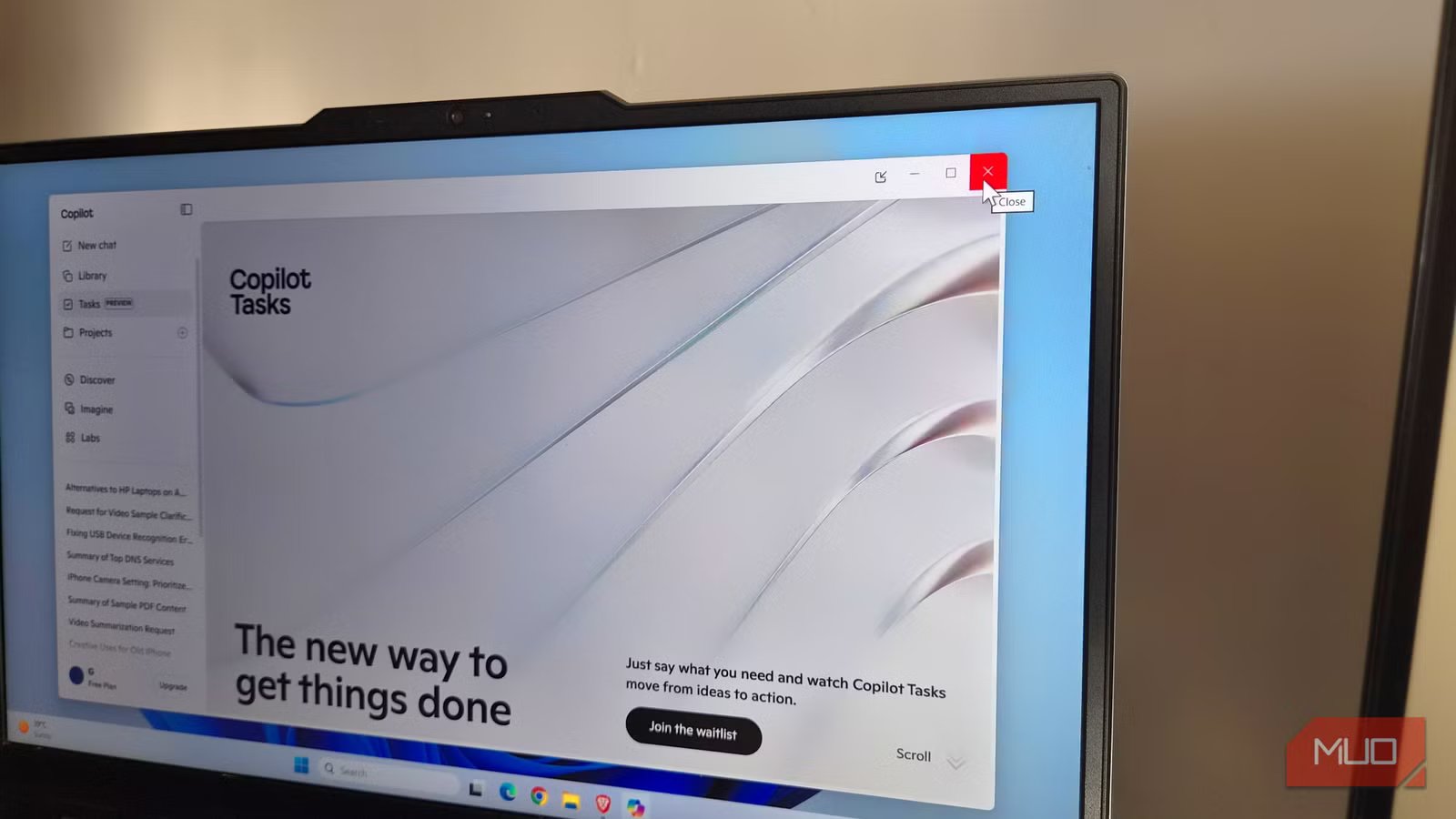
Closing an app on your PC is a simple thing, right? Click the X icon, and it’s gone. It’s something we have all done for years. But the thing is, clicking the X icon often only closes the window, not the app itself. That means it continues to use system resources in the background, which usually affects whatever you’re actually doing. It’s simple. The more apps running behind the scenes, the harder your PC has to work.
Thankfully, there are a couple of easy ways to deal with this. You can fully close apps from the taskbar or stop them from running in the background altogether. Neither approach takes much effort, but can make a big difference in how your PC performs.

I disabled these Windows services Microsoft recommends – and everything works better
Not everything enabled by default is essential.
That X button doesn’t do what most people think
And it’s hurting your PC’s performance in a big way

On Windows, that X button is often more of a polite “step aside” than a full shutdown. The window disappears, but the app stays alive, running in the background. Sure, not every app does this, but the behavior is more common than you’d think. Apps that are designed to launch quickly or stay synced are the usual culprit here.
And this matters more than you realize. If you switch between a lot of apps, those “closed” apps can pile up and continue to use system resources like RAM and CPU. Of course, their impact isn’t the same as when they’re fully active, but still, you shouldn’t ignore it. A lightweight note-taking app might barely make a dent, but something heavier — like a game launcher — can take up a noticeable chunk of resources even when you’re not using it.
It’s not just about performance either. Those background apps can also chip away at battery life. And if you’re someone who rarely shuts down or reboots their PC, those lingering processes can hang around for days and slow everything down.
The “End task” option is the way to go
Close it for real
The good thing is you don’t always have to rely on that X button. There’s another way to close apps, and it’s far more thorough. The End task option on Windows can completely close the app and all its instances in one go. It’s perfect for any app you don’t plan to return to anytime soon or don’t need running in the background.
In the older versions of Windows, ending a task meant opening the Task Manager, finding the app, and clicking “End task.” Thankfully, that’s not your only option anymore. Windows now lets you kill apps directly from the taskbar.
Head to Settings > System > Advanced and turn on the End task option. Once you do this, things get much simpler. Any time you want to close an app completely, just right-click its icon on the taskbar and choose End task.
If you’ve already clicked the X icon and closed the window, you can check the system tray instead. Many apps that keep running in the background usually show up there. From there, you can right-click an app icon and choose Quit or Exit.
The End task option doesn’t ask questions. It kills the app instantly, which means if there’s unsaved work or data that hasn’t synced yet, it’ll be gone. So it’s best to use this option when you’re done with the app and everything important is saved.
Or, cut off background access for unwanted apps
Take away the background pass

If you don’t want to risk using the End task option and stick with the usual X button, there’s another option. You can simply stop apps from running in the background.
Head to Settings > Apps > Installed apps. Find the app you want to manage, click the three-dot icon next to it and choose Advanced options. Then set the background app permission to Never. This effectively stops the app from running in the background when you’re not using it, which means less RAM usage, fewer random CPU spikes, and better battery life.
The only thing is that Windows doesn’t give you an easy way to manage background permission, so you’ll have to repeat this for each app individually. So yes, it’s a bit tedious, especially if you have a lot installed. The good news, though, is that you only need to do it once.
Of course, not every app deserves this treatment
Don’t get me wrong. I’m not saying you should shut an app completely every time you’re done using it. That’s because not all apps are trying to waste resources in the background. Some rely on background activity to be actually useful. For instance, apps like Slack and Outlook need to keep running to sync new messages and notify you. Tools like PowerToys and Windhawk need to be running to support the features you use.
The goal here isn’t to micromanage every single app, but only close the unnecessary ones the right way. Once you do, your PC will feel much lighter and responsive.



