
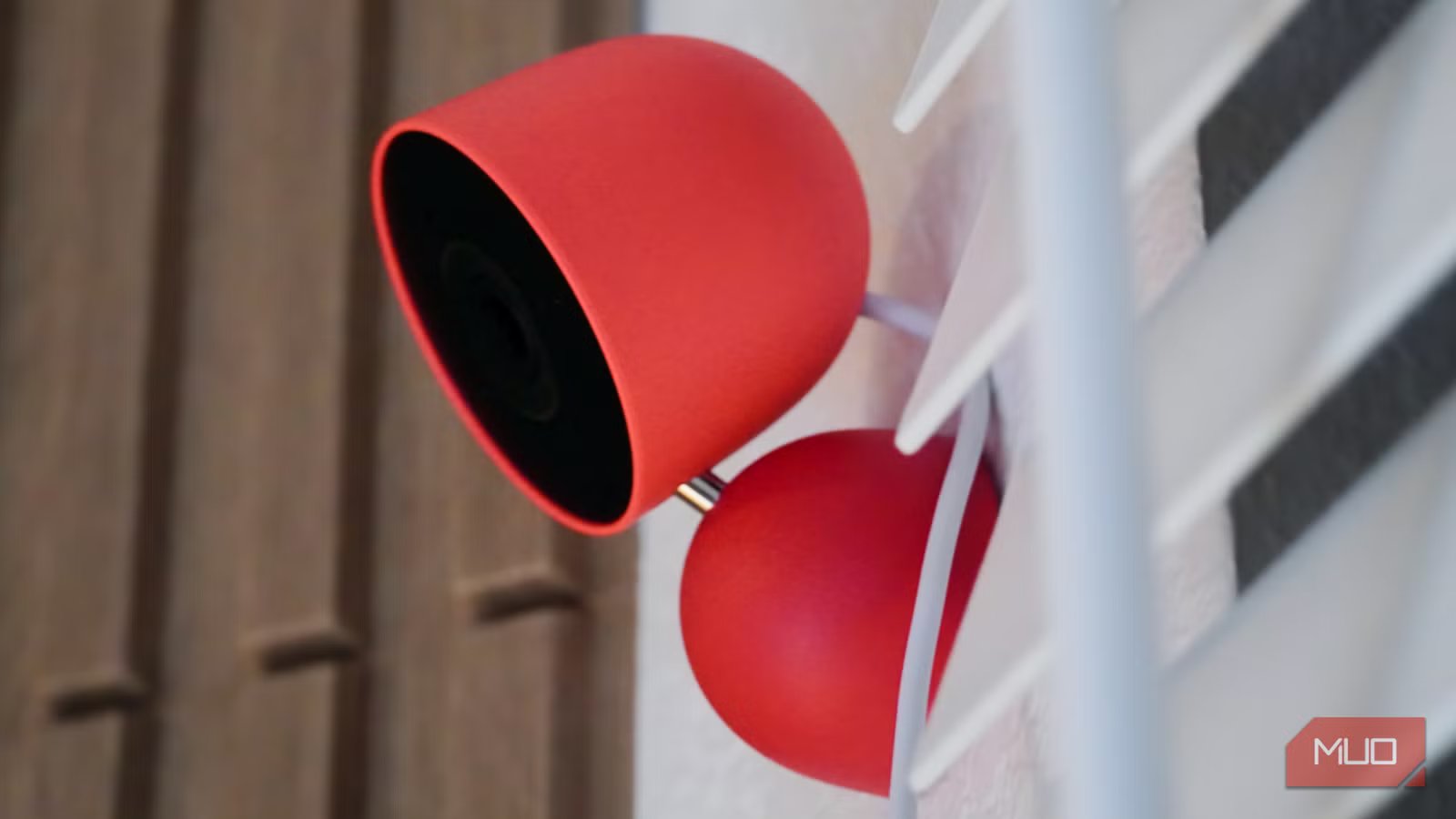
It’s not uncommon to ask a home Wi-Fi network to handle upwards of 100 connected devices in 2026. You might be wondering how that could be, but think about every type of device with a Wi-Fi connection in your home right now. There are the obvious answers, like phones, tablets, and computers — these categories could account for tens of devices on their own, depending on the size of your household. Now, move onto your TVs, streaming boxes, and game consoles. Then, consider your smart home gadgets, including lights, appliances, thermostats, and more. You get the idea.
By default, the electronics in your home that need faster speeds the most may be competing with things like smart lights or switches for bandwidth. If you have fast internet but never seem to get the maximum speeds marketed by your ISP, a congested 2.4GHz band could be the culprit. This is the networking band used by a wide range of smart home devices, and the band’s congestion and interference issues make it less than ideal for phones, tablets, computers, and even TVs or streaming boxes.
To fix your bandwidth woes, you need to get crucial devices off the 2.4GHz band and onto the 5GHz or 6GHz bands instead. Luckily, there are two easy ways to do just that.

Why I’m waiting for Wi-Fi 8 instead of upgrading my router today
The gap between Wi-Fi 6E, Wi-Fi 7, and Wi-Fi 8 is narrower than you might expect — if you don’t need to upgrade now, wait for the next generation.
Smart home gadgets consume bandwidth
You only have so much, and these static devices are using it up
Home networks usually use a dual-or tri-band Wi-Fi setup. If you have a Wi-Fi 5 or Wi-Fi 6 router, your home network probably has the 2.4GHz and 5GHz bands available for device connections. Some devices prefer certain bands, and each band has specific benefits. For example, the 2.4GHz band offers better range and can enable connections with devices behind physical obstructions (think walls or floors). Meanwhile, the 5GHz band is faster at short distances, and excels when connected devices are positioned relatively close to a router. This sums up why smart home devices need the 2.4GHz band — long range is critical for responsive home control.
A third 6GHz band might be in the mix if you have a Wi-Fi 6E or Wi-Fi 7 router. This band is even faster than 5GHz, and can be understood as a “fast lane” for wireless connectivity. Since client devices need to have Wi-Fi 6E or Wi-Fi 7 support to connect with a 6GHz wireless band, only the newest products are able to. You won’t find things like smart home gadgets congesting your Wi-Fi network’s 6Ghz band, freeing up bandwidth and speed for the Wi-Fi 6E and Wi-Fi 7 devices that require it.
This all sounds simple enough, but problems arise when your devices and router don’t handle dual- or tri-band switching smoothly. In theory, you can have one Wi-Fi network SSID (Service Set Identifier; i.e., your Wi-Fi network name) that every device can automatically connect with. A smart light automatically connects to the 2.4GHz band, while a laptop automatically connects to the 5GHz band. It doesn’t always play out that way in real-world setups. Devices that can only use 2.4GHz networks might refuse to connect with certain dual- or tri-band networks. Or, devices that can use 5GHz or 6GHz bands could connect to more congested frequencies by mistake.

4 smart home mistakes that are slowing down your Wi-Fi
These smart home moves are making your connection worse.
Splitting your Wi-Fi bands is the solution
Create dedicated SSIDs for 2.4GHz and 5GHz

The simple fix is to split your home network’s 2.4GHz and 5GHz bands into separate SSIDs. Essentially, this process gives the 2.4GHz and 5GHz bands separate network names, which makes it easier to manually choose which band a connected device uses. If you’ve ever seen a Wi-Fi network with duplicate names that have “2.4” or “5” at the end of the SSID, it used split bands instead of a dual-band setup. Splitting your Wi-Fi bands is a quick process that guarantees which devices use the 2.4GHz or 5GHz bands. With a combined dual-band network, which devices use the 2.4GHz or 5GHz bands is out of your hands.
Unfortunately, the process for splitting bands is different for every router — and some won’t support split bands at all. My Google Nest Wi-Fi Pro, for instance, only supports a dual-band SSD rather than offering a split-band option. If your router does support split 2.4GHz and 5GHz bands, open your Wi-Fi router’s network management portal on the web or open its mobile companion app. You’re looking for a Wireless, Wi-Fi, or Network Settings menu. Open it, and find a networking setting called Smart Connect, Band Steering, or similar.
Turn this setting off to split your network’s 2.4GHz and 5GHz bands into two separate SSIDs. Then, make sure each SSID has a unique name. After you’re finished, make sure all your smart home devices are connected to the SSID for the 2.4GHz network, and confirm the devices that need faster speeds are on the 5GHz or 6GHz network.

I split my Wi-Fi and had to reconnect every smart home device — one setting would have saved me
I thought I was saving my network but I created more work for myself.
Use and prefer 6GHz whenever possible
Then, you don’t have to worry about 2.4GHz and 5GHz usage
Another option is to change a setting on your client devices that forces them to connect to a specific networking band. This allows your network to retain a unified dual- or tri-band setup while ensuring certain devices use the “fast lane” 5GHz or 6GHz bands. For example, Windows 11 has a “Preferred band” feature that lets you prioritize the 5GHz or 6GHz band for Wi-Fi networks. If the goal is to make your Windows PC or laptop get faster speeds, setting the 5GHz or 6GHz band as your preference can be an easier solution than trying to split your entire home’s network into two bands.
However, only a few operating systems — like Windows — allow for easy device-side band preferences. That’s why separating 2.4GHz and 5GHz bands is usually a better fix for slow or congested Wi-Fi networks. If you have a lot of smart home gadgets, your 2.4GHz network is likely crowded by numerous devices, and you want speed-hungry devices on 5GHz or 6GHz bands instead.



