
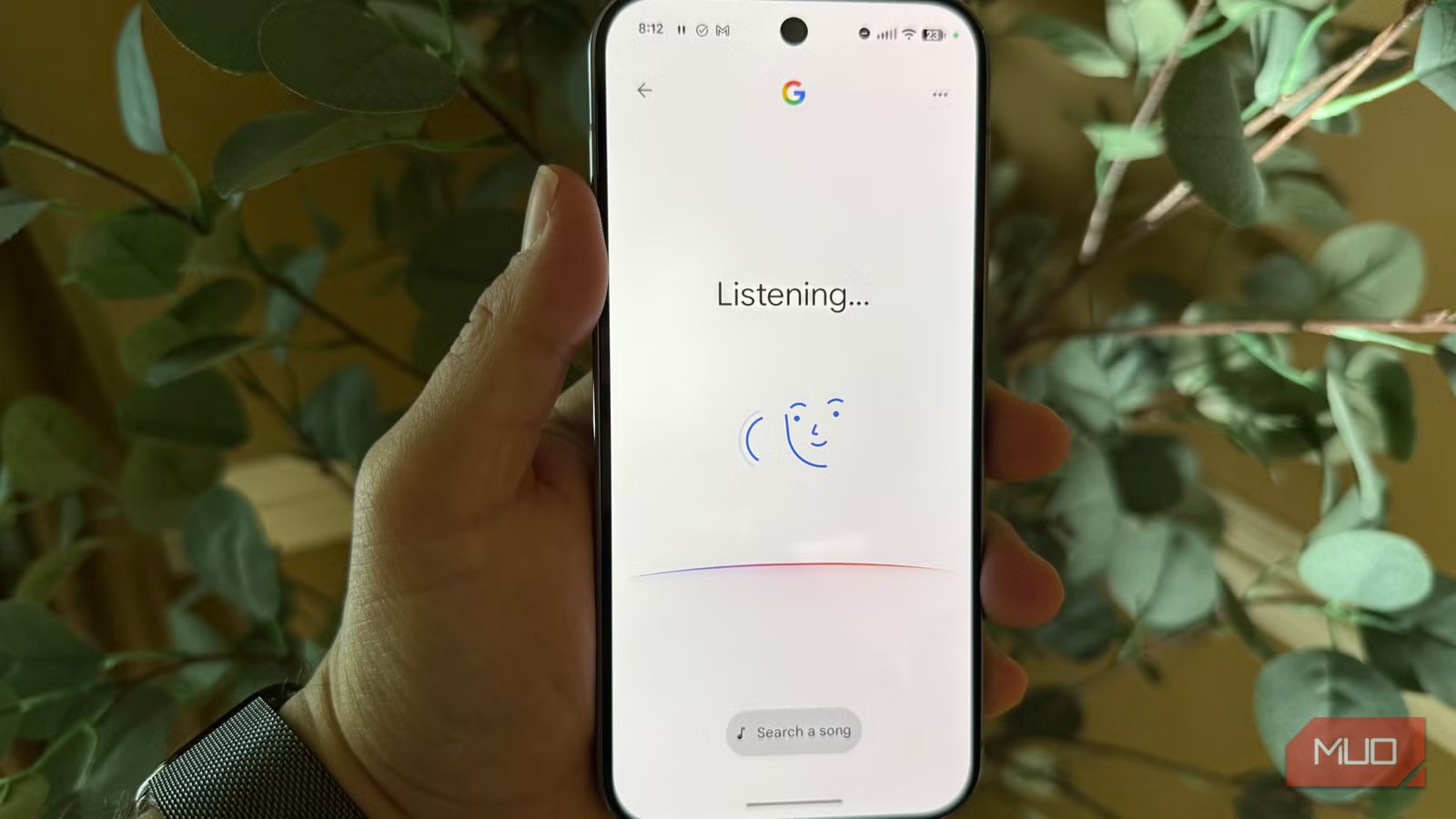
There’s a lot your voice assistant can do that you don’t know about.
After writing about this topic recently, I was surprised to learn that most people don’t know about some these incredibly useful voice commands (and this covers both Gemini which is getting a huge upgrade and Google Assistant on Android, but also Siri on iOS).
So here are more incredibly useful things you can do via voice on your phone that you probably never knew about.
As usual, you can trigger your voice assistant by pressing and holding the power button on your phone, or by using the wake word “Hey Siri” or “Hey Google” if you have that set up. Most of these commands also work with your smartwatch (which you can tweak to have better battery life) by pressing and holding the main button on your watch to bring up the voice command.

Your phone can do this with voice, and you probably never knew
Start using these simple voice commands on Android and iPhone and save time.
Do math with your voice
Without opening calculator

I’m always doing quick calculations on my phone, but you don’t have to hunt for the calculator app. Instead, trigger your voice assistant and just dictate a math sentence, and you’ll get the answer both by voice and with an overlay on your screen. I love this because you don’t have to leave the app you’re working on to do a quick calculation—using the voice assistant to do math presents the results on top of what you’re currently doing. Brilliant.
This also works great for conversions, like “Convert 200 euros to USD” or “How many grams are in five pounds?” or “How many teaspoons are in one cup?” This is very useful, especially while cooking and when you need to go hands-free, since you can just say “Hey Siri, how many fluid ounces are in one quart?”
Take a selfie
Or quickly launch into any camera mode

Certainly you can bring up your camera quickly by double tapping your power button (or, if you have an iPhone, by double-tapping the Camera Control button if you have that set up via Settings > Camera > Camera Control > Launch Camera Double Click). But if your hands are busy, or you just want to save time, you can just as well say “Hey Google, take a selfie” or “Hey Google, take a panorama” and the phone will both launch your camera app but also change the mode.
Another cool thing you can do, and this is handy when taking a family picture, is trigger a picture by voice with a countdown, like “Hey Google take a picture with a ten second countdown.”
Add any event to your calendar
Automatically fills in date, time, and event name

I use this very often because it saves me so much time.
Your phone can parse language for adding an event into a calendar event by breaking it up into event time, date, and label. This is instead of going into your calendar app, pressing New Event, then painstakingly selecting the data and time and typing in an event name.
Instead, just say “Hey Google, new appointment / June 22 / 10:30am / dentist appointment.” I use this anytime I have to be somewhere at a specific time—because if an event is not in my calendar, I’m going to miss it. So whenever I have to be somewhere at a specific time, I immediately bring up my voice assistant to add it to my calendar just with natural language, and boom, it’s on my calendar and synced across all of my devices.
Another cool thing you can do is ask for a summary of events on a particular day, which is super handy in the car or while using wireless headphones. Just say “Hey Google, what’s on my agenda for tomorrow?” and you’ll get a read-out of your day.
Get a read-out of your messages
Perfect for while driving or walking

If you are like me, you probably have 13 unread text messages that you haven’t gotten the time to respond to. Using your voice assistant, almost like a secretary, you can have your phone go through and read all of your unreads and then give you a chance to respond to each one if you want. This is a perfect task to do while driving and connected to Android Auto or Apple CarPlay, or while working out with earbuds, as the entire back-and-forth can happen in your car or through your wireless earbuds (which you should properly clean).
A few more very useful things you can do with voice command
Save more time with these commands

But wait—there’s more. Here are a few other things you can do with voice commands that will save you time.
- Open a specific settings page: “Open Bluetooth settings”
- Start a hands-free interpreter conversion: “Be my Spanish interpreter”
- Check flight status: “What is the status of United flight 697?”

- SoC
-
Google Tensor G4
- Display
-
6.3-inch Actua pOLED display, 1080 x 2424 resolution, 60-120Hz, 3000 nits peak brightness
Have you discovered any useful voice commands lately? Drop a comment below and share!



