
“Browser OS” has always, at least to me, been shorthand for stripped-down disappointment wrapped in a polished UI. ChromeOS gets away with the idea because it ships on dedicated hardware, but operating systems that run entirely inside a browser tab shouldn’t be tools you’d voluntarily rely on, right?
PuterOS wants to challenge that idea, and after spending a few hours poking around in it, I’ll say this: it does a better job than it has any right to. It’s open source, free to start, and far more usable than I expected from an operating system running entirely in a browser window. Here is what that actually looks like.
Wait, that’s a desktop in my browser tab?
Yes, it really is
As soon as I entered puter.com into my browser’s address bar (and really, you can do this in just about any browser), I landed straight on a working desktop. I didn’t even need to create an account. You get a temporary guest session with a randomly generated username, a colorful gradient wallpaper, a taskbar on the left, and a desktop you can populate with app shortcuts.
Now, before diving into the applications, I spent considerable time exploring the Dashboard, the nerve center of this “personal internet computer.” Navigating to the Files section reveals a full file manager with dedicated folders for Documents, Pictures, Public, Videos, and Desktop. I uploaded a folder containing nine .docx files totaling about 515KB to test it, and the upload went through cleanly. A prompt appeared right after, reminding me to save my session before those files vanished. This walks you through creating a full account with a username, email, and password, followed by a six-digit email confirmation code. Standard stuff, handled gracefully.

Once authenticated, the usage panel immediately displays your free-tier status, including the exact 100 megabytes of cloud storage allocated. If you ever need more space for serious professional workloads, you can easily step up to a $10/month Basic plan for 100GB, a $25/month Professional tier for 500GB, or a $50/month Business plan with a massive 2TB of capacity.
The security tab is a dedicated session management panel that shows active logins across devices. If you forget to sign out on a shared computer, like a library machine or a hotel workstation, a click of the red revoke button terminates that specific alphanumeric session string instantly and securely.
Out of the box and already useful
You get preinstalled apps that take care of your immediate needs
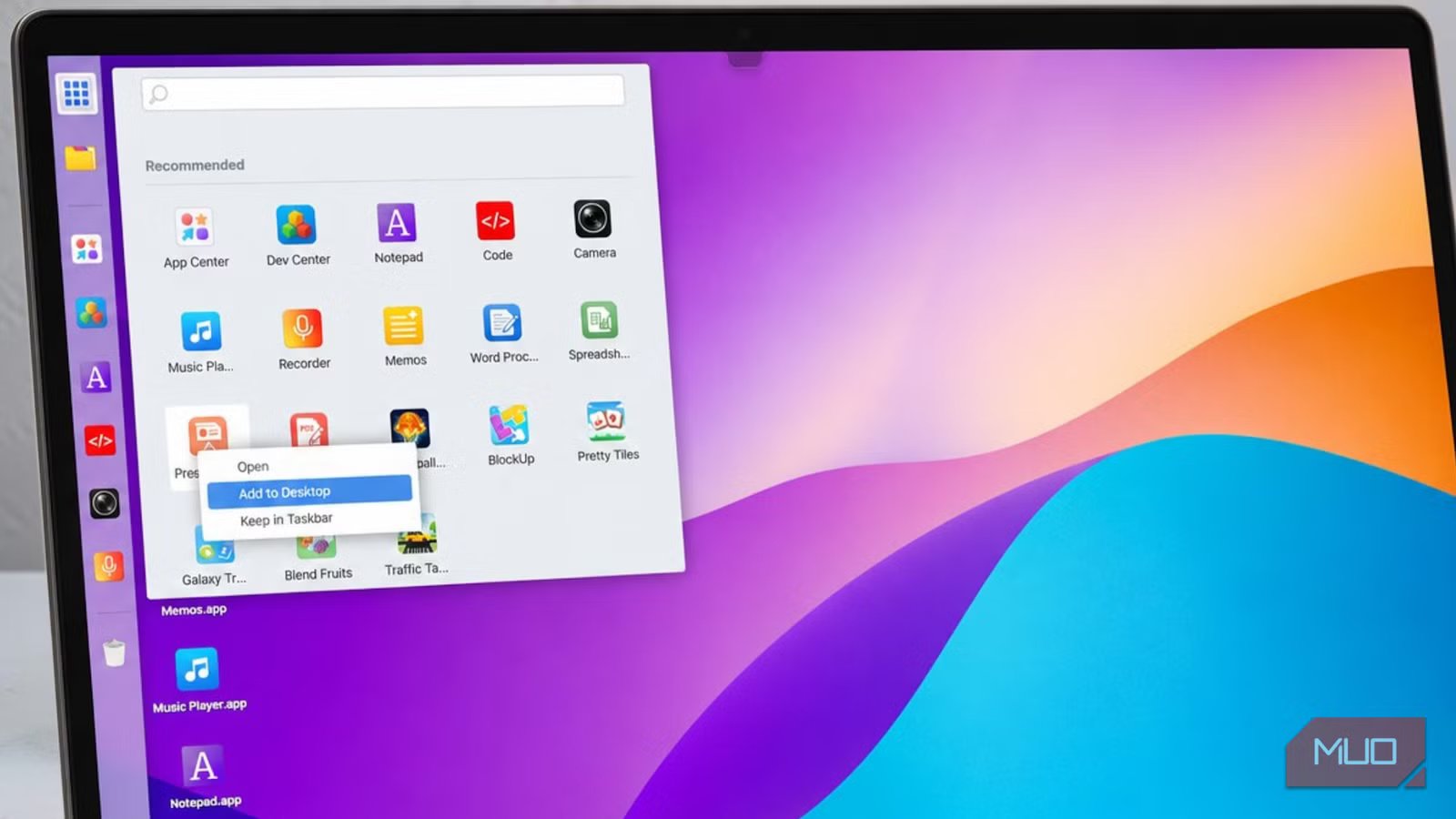
Transitioning from the administrative dashboard to the desktop interface reveals a colorful, highly responsive visual workspace. Opening the main app drawer exposes a generous suite of preinstalled applications ready to use immediately without any additional downloads. These include a Word Processor powered by ONLYOFFICE, a Spreadsheet, a Presentation app, a PDF Editor, a Code editor, a Camera, a Recorder, and a Music Player. I opened one of my uploaded documents directly in the Word Processor, and it rendered cleanly, with full formatting intact and all the familiar menus in place.

I stopped using LibreOffice and switched to this open-source office suite
LibreOffice rocks, but there are things about it that don’t make it my go-to solution.
I also found fully functional low-pressure games like Galaxy Troops, Basketball Tap, BlockUp, Traffic Tap Puzzle, and Pretty Tiles sitting right next to serious productivity tools. Naturally, I opened Galaxy Troops for “testing purposes,” and ended up more impressed by how smoothly the arcade physics handled the glowing projectiles and rising numbered shapes. In fact, I briefly forgot this was happening inside what is essentially a website pretending to be a computer.
At some point, curiosity got the better of me, and I checked how much of my actual computer this whole experiment was consuming. Running inside Chrome, the Puter tab alone was using around 483MB of memory according to Chrome’s Task Manager. That’s not catastrophic, but it’s also not trivial. If your browser already looks like a graveyard of open tabs and half-finished tasks, you’ll probably notice the extra weight and might need to look into ways to reduce Google Chrome’s memory usage and free up RAM.
If the built-in apps aren’t enough, there’s also a marketplace that expands the platform pretty dramatically. It is highly organized, breaking software down into clear categories including Games, Productivity, Photo and Video, Developer Tools, Graphics and Design, Utilities, Music and Audio, Business, Entertainment, Finance, Education, and Lifestyle. Browsing through these sections gave me the impression that there’s a real ecosystem forming around this OS.
A browser that browses one place, and an AI that finds everything
Not all tabs open where you’d expect
One of the stranger parts of the experience was the built-in Puter Browser. Anytime I open it, I get dropped directly onto eBay’s homepage, which seems to be the default landing page for some reason. The browser itself includes the usual navigation bar along with bookmarks for YouTube and what’s called Puter Networking, so at first glance, it looks usable.
Then I actually tried browsing.
Attempts to open other sites, including MakeUseOf, repeatedly ran into “Load error” messages alongside HTTP 301 redirects. Even clicking around inside eBay produced the same result. I never quite figured out whether the browser was partially broken, restricted by design, or simply expecting some extra configuration step I’d missed. Either way, I decided not to disappear into that particular rabbit hole for the rest of the day.
The most futuristic part of Puter, though, is the AI assistant built directly into the desktop sidebar. I started by asking it what MakeUseOf was, mostly as a quick test, and it returned a fairly accurate summary focused on tech and productivity coverage. The assistant has two modes, Fast and Smart, which essentially trade speed for depth depending on what you need.
More interestingly, it is how tightly integrated the AI is with the Puter file system itself. I asked it to find the last document I’d worked on, and instead of giving a vague response, it immediately offered to search my directories. It scanned my home folder and common locations, then surfaced the only folder in my Documents directory, along with every Word file in it.
Remember, all of this was happening inside a Chrome tab.
Close your apps, but keep just this tab
Puter is not going to replace your operating system, and to be fair, it’s not really trying to. Technically, it still depends on an existing OS underneath it to function at all. But that almost misses the point. As a free, open-source computing environment that lives entirely in the cloud and runs from virtually any browser without requiring installation, it should earn a permanent spot in the bookmarks.
So, if you’re a developer looking for a lightweight platform to build or host apps, a student who occasionally needs a full document editor on a shared computer, or just someone curious about where this whole web-as-an-operating-system idea might actually be heading, Puter is worth paying attention to.



