
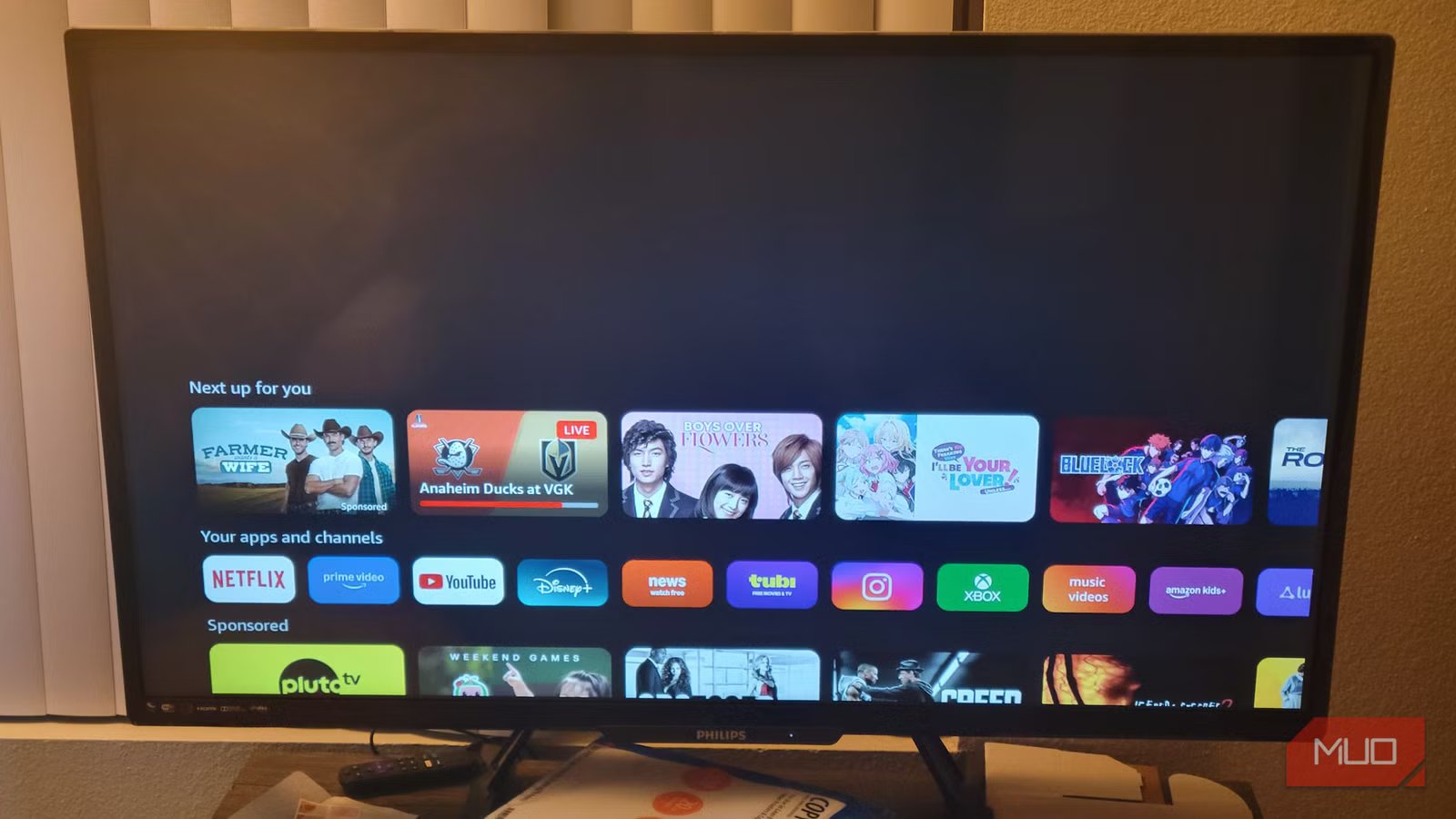
Smart TVs cost a lot of money, so you expect a good experience from them. Unfortunately, you’re not going to get the speed you could until you start looking at how you can stop advertisers in their tracks. You paid for the hardware, don’t let yourself get treated like the product. Changing your DNS settings is important, and one of the easiest ways to push back against that.

Change These Settings to Instantly Make Your Smart TV More Private
With just a few small tweaks, you can boost your smart TV privacy.
Your smart TV has too many ads
Hardware you own shouldn’t be a billboard for tracking and digital junk
A smart TV can cost anywhere from hundreds to thousands of dollars. You would expect that you now own this device and don’t need to worry about sales and finances, but the moment you boot up these devices, your screen is hijacked by intrusive advertisements, sponsored content, and auto-playing videos. It’s even recording what you choose to watch and when.
Manufacturers are just trying to make more money by selling your attention. Unfortunately, this also extends to gaming, streaming sticks, and other devices. They’re just distractions that are actively taking your data just to give you more ads, which is something you don’t want to see to begin with.
That’s the main issue; other than banner ads and sponsored recommendations, these devices also harvest a lot of data across all your apps. You likely spend a lot of time on smart TVs, and so it can get really aggressive. Without you knowing, these TVs transmit your information, including your device ID, your ZIP code, your viewing history, and your demographic profile to advertisers.
Trying to sideload unverified applications or use modified firmware is not only hard but dangerous. You can accidentally void warranties, break your applications, and add security risks like malware. However, there is a solution that you may not know about.
DNS is how devices access your information; it’s like the internet’s phone book. It changes a human-readable website address into the numerical Internet Protocol addresses that computers and networks use to communicate. Normally, your devices connect to the internet using your ISP’s default DNS servers, and these servers resolve every request your device makes. That’s where the issue is.
When you turn on your smart TV or launch a game console, the device makes dozens of background requests for the content you want to see, but also for tracking telemetry, malicious scripts, and invasive advertisements.
By manually configuring the DNS settings directly within your console’s or television’s network menus, you can change how the hardware communicates with the internet. Instead of using a standard connection that goes through your internet provider’s default servers, you’re letting a specialized server like NextDNS, AdGuard DNS, or Control D check every network request on your device.
A simple network change can block tracking
Change your DNS to stop those ads
Every time your smart TV or console tries to load an app, video, or menu, it fires off DNS queries to find the servers it needs. The specialized DNS server quickly compares these incoming requests against large, updated blocklists with advertisements, trackers, and malware domains.
If the requested domain is safe and legitimate, the server resolves it normally and lets your media load. However, if the device tries to query a known advertising or tracking domain, the filtering server intercepts the request using a technique known as DNS sinkholing.
To add this DNS switch without installing any software, you need to update the network configuration on either your router or your console and smart TVs. For the router, choose a reliable filtering DNS provider and write down their primary and secondary Internet Protocol addresses. I use AdGuard DNS, which uses 94.140.14.14 and 94.140.15.15 for its default, but you can use CleanBrowsing with 185.228.168.168 and 185.228.169.168.
Just type your default gateway address into a web browser from a connected device; this is usually 192.168.1.1 or 192.168.0.1. But you can just Google “what is my IP address?” and get it immediately. Otherwise, go to your cmd and type in ipconfig.
After logging in with your router’s administration credentials, find the DNS settings, which you’ll usually find under the Network, Internet, LAN, or Advanced setup menus.
For gaming consoles, be really careful because my Xbox was kind of weird at first, and I wasn’t that comfortable after doing it, but it was much faster. Go to your settings, then General, and pick Network settings. You’ll find your DNS settings in your Advanced settings menu.
If you own a Smart TV or an Amazon TV, you have to find your DNS settings in Network and switch it to manual. For Amazon, you’ll need to disconnect from Wi-Fi, then sign back in and pick Advanced after typing out your password but before submitting it.
Regardless of which you picked, make sure to enter your chosen primary and secondary DNS addresses, save your changes, and reboot the router to flush the DNS cache. Once that is done, you’ll notice the difference. Roku doesn’t let you do this at the TV level, so you’ll have to do it on the router level in this case.
What to keep in mind before switching
Network filters are powerful, but they can’t catch every ad
Changing your DNS settings is a great way to block network-level junk without installing software on individual devices; it’s worth understanding the trade-offs before you commit. Since DNS filtering operates purely at the domain resolution level, it lacks the surgical precision of a browser-based extension and can’t perform cosmetic filtering.
Basically, instead of removing an ad and rearranging a webpage or app interface to look natural, a DNS sinkhole prevents the advertisement content from downloading. So you’re looking at blank spaces or broken frames across your smart television or game console. DNS blocking is also practically useless against first-party advertisement injection, a technique used by platforms like YouTube, Hulu, and Twitch.
In these environments, server-side ad insertion stitches the ad directly into the main video feed from the same domain as the content you actually want to watch. Since the advertisement and the video originate from the same source, a DNS-level block can’t distinguish between the two, and blocking the advertisement domain would break the entire streaming service.
That said, DNS filtering still delivers real, measurable improvements across every device on your network the moment you save the settings. You don’t need to install anything, create an account on each device, or dig through application menus one by one.
A single change at the router level silently cleans up the network traffic for every smart television, gaming console, and streaming stick in your home at once. That’s exactly what you want when you’re just trying to enjoy television.
The performance gains are noticeable, too. Since your devices never connect to advertising and tracking servers, they skip the bandwidth. Games load faster, streaming applications feel more responsive, and your television’s menus snap between screens without the usual lag.
I noticed that on my older TVs, this difference was more obvious since those devices were never built to handle the volume of ads they have to deal with.
Stop being a product
A DNS change at the router level takes about ten minutes and immediately cleans up the network traffic for every smart TV, console, and streaming stick in your house at once. You won’t get rid of every ad, since platforms like YouTube and Twitch stitch their ads directly into the video feed in a way DNS blocking can’t touch. The difference across everything else is noticeable: menus load faster, tracking drops off significantly, and you stop seeing the banner ads and sponsored recommendations that have no business being on hardware you already paid for.



