
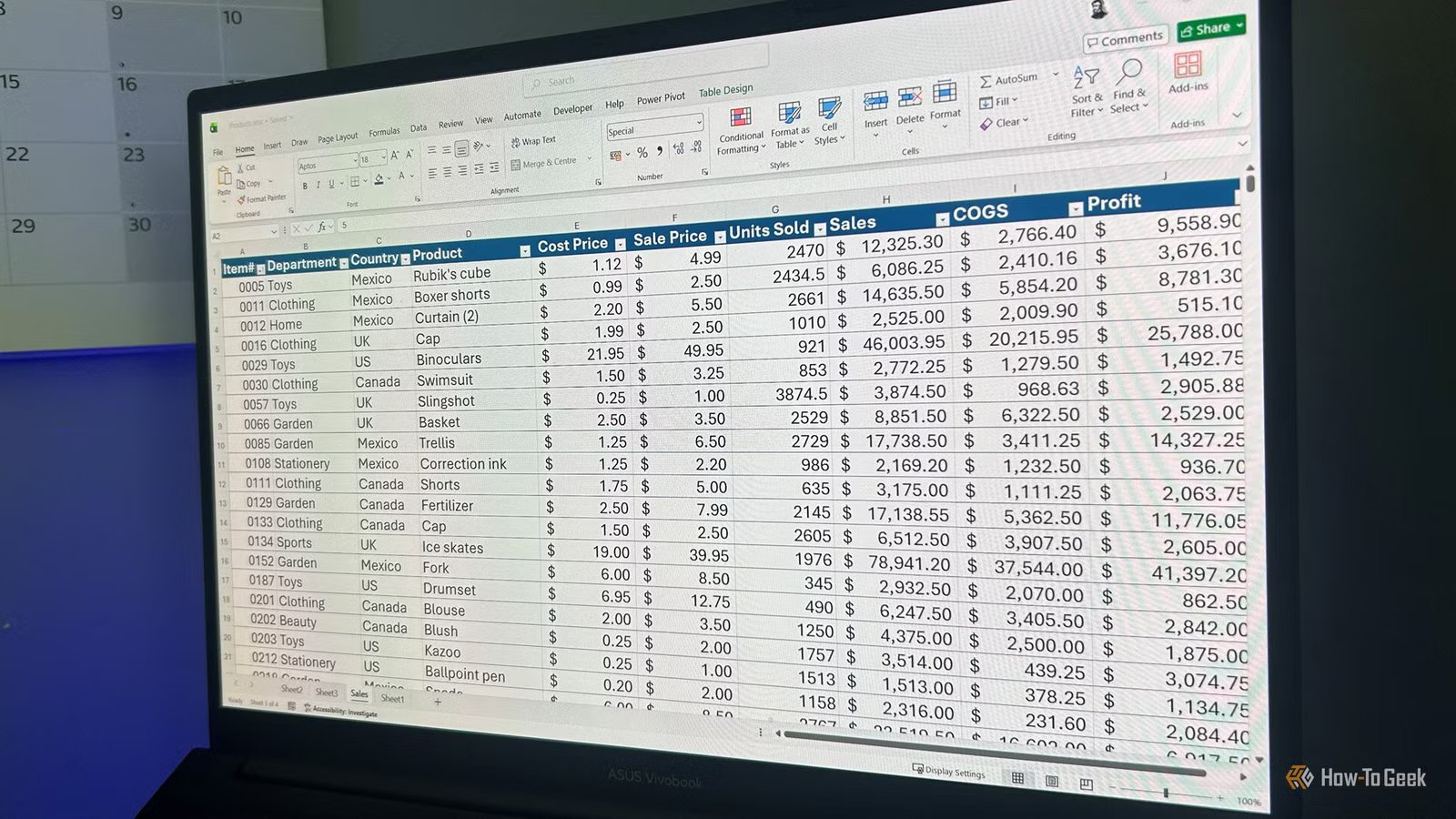
For years, named ranges were the “pro” way to structure Excel data. But modern spreadsheets have moved on. Tables now handle what named ranges only simulate—without the manual upkeep or hidden breakpoints waiting to surface.
The difference becomes clear when you look at how each one handles structure, change, and long-term maintenance.
The old habit that still lingers in Excel
Named ranges aren’t “wrong”—but they’re outdated for datasets
For a long time, named ranges were a genuine step up from raw cell references. Instead of writing B2:B504, you could define something like Sales_Amount and use it in formulas. That alone made spreadsheets easier to read and slightly less fragile. But that era quietly ended when Excel tables (Ctrl+T) became a core feature.
The issue isn’t that named ranges are broken. It’s that they were designed for a world where Excel didn’t understand structure. They are labels attached to coordinates, not data-aware objects. And that difference matters more than it used to.
In modern spreadsheets, especially anything that grows over time, named ranges are no longer the natural starting point. They’re a workaround that, for some, is still treated as a best practice.
But tables quietly became the default.
Why named ranges feel powerful but break quietly
Static references don’t adapt when data changes
Named ranges give the illusion of structure. You assign a meaningful name, use it in formulas, and everything feels more controlled. But under the hood, nothing about them is dynamic.
A named range like Sales_Amount is still just a fixed address in memory. If your data grows beyond that boundary, Excel doesn’t adjust it unless you go around the houses to create a dynamic named range, or open the Name Manager and adjust the Refers to field manually. This is where problems start to arise. Formulas still “work,” but they’re no longer working on complete data. Totals stop matching expectations, but because you don’t get an alert to tell you, it’s easy to miss.
Tables avoid this class of failure entirely. Instead of pointing to a fixed block of cells, they grow with your data, while named ranges do not. In short, named ranges are fixed at the moment you create them, while tables are dynamic by design.

- OS
-
Windows, macOS, iPhone, iPad, Android
- Free trial
-
1 month
Microsoft 365 includes access to Office apps like Word, Excel, and PowerPoint on up to five devices, 1 TB of OneDrive storage, and more.
The hidden maintenance cost of Name Manager workflows
Every update becomes a manual task
Using named ranges for datasets creates an ongoing administrative burden most users underestimate. Every time data changes shape, you have to:
- Open the Name Manager
- Find the correct range
- Update the cell references
- Verify nothing shifted incorrectly
It’s a small friction, but it compounds quickly in real-world workbooks. And things get even worse in shared workbooks—one person adds data, another assumes the named range will include it, and suddenly formulas start producing incomplete results.
Tables eliminate this entire workflow. When you add a new row inside a table, the structure expands automatically. No menus, no redefinition, and no hidden dependency tracking.
Tables make formulas easier to understand
Structured references replace positional thinking
One of the biggest upgrades tables introduce to Excel is more cognitive than technical. Instead of formulas tied to cell positions like:
=B4-B5
you get:
=[@Sales]-[@COGS]
At first, that might look like a simple syntax change, but the meaning underneath is completely different. Rather than being anchored to worksheet coordinates, the formula is anchored to fields within a dataset.
Named ranges don’t change that underlying model. They still point to blocks of cells, and formulas that use them still rely on positional assumptions inside those blocks. You might avoid raw coordinates, but you’re still thinking in terms of ranges like “the third column” or “the second field in this block.”
Tables remove that layer entirely. Columns become explicit entities with names, not just positions. That shift to describing relationships between data fields is what makes formulas self-documenting.
When named ranges still make sense
They’re great for single values and constants
This is where the distinction matters most. Named ranges aren’t obsolete—they’re just specialized. They still work when you’re naming a single, stable value, like:
- Tax rates
- Configuration flags
- Threshold values
- Fixed constants used across a workbook
In those cases, a named range improves readability without introducing structural complexity. The problem only starts when named ranges are used to manage datasets—lists that grow, change, or feed analysis tools. That’s where tables take over completely.
The difference between tables and named ranges becomes clearer when you see them side by side:
Feature |
Named ranges |
Excel tables |
|---|---|---|
Data growth | Static, fixed ranges | Expands automatically |
Formula style | Coordinates hidden behind names | Structured field-based references |
Maintenance | Requires manual updates in Name Manager | No upkeep required |
Error risk | Silent drift when data changes | Self-adjusting structure |
Best use case | Single constants | Full datasets and workflows |
Better spreadsheets start with better structure
Named ranges aren’t obsolete, but they’re no longer the best default for managing live datasets. Tables reduce the invisible maintenance work that causes formulas, summaries, and analysis tools to quietly drift out of sync over time. The real advantage is structural: tables encourage cleaner, more disciplined spreadsheets from the start, especially when paired with habits like keeping data in consistent columns, avoiding blank rows, and storing one value per cell. That foundation matters far more than most flashy Excel tricks, which is why improving your spreadsheet structure overall is just as important as switching to tables in the first place.



