
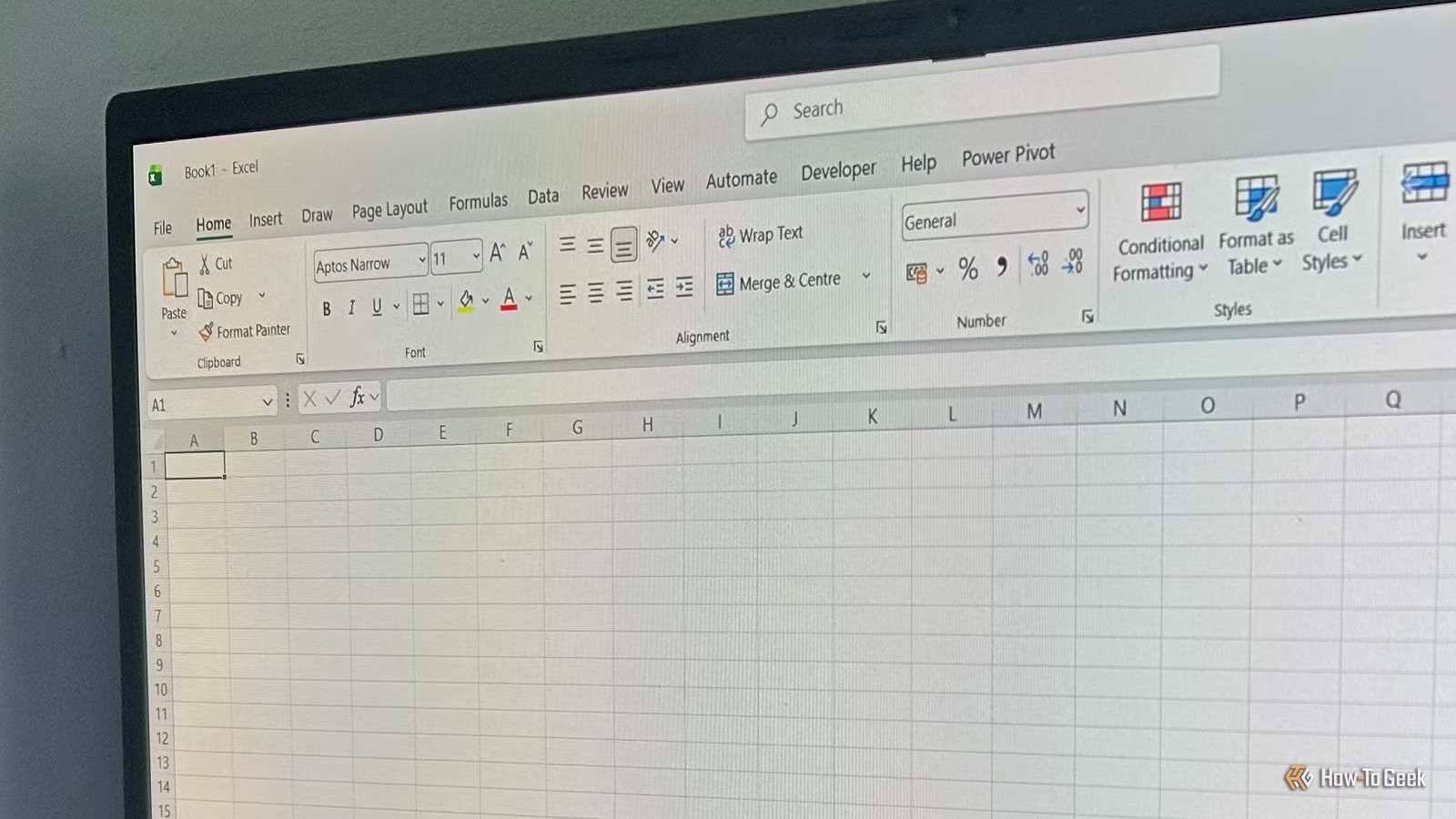
Most people use about 10% of Excel’s actual capabilities, yet beginners often feel pressured to learn the other 90% immediately. That’s a recipe for burnout. If you want to actually get work done, skip the noise, ignore the shiny distractions, and focus on the basics that make spreadsheets useful.
Your ribbon is a cluttered mess of traps
Focus on the essentials to save your sanity

The big hurdle to mastering Excel usually comes down to the sheer volume of niche tools cluttering the interface. Microsoft has spent decades turning Excel into an all-in-one utility for everyone from accountants to engineers. But for a beginner, this means the app is packed with features designed for specialized data science—3D maps, complex macros, and esoteric statistical functions. These are often just distractions that lead to unnecessary confusion before you’ve even entered your first row of data.
To move forward, you should categorize the interface and learn what to ignore. Features tucked away in the Developer, Power Pivot, or Automate tabs are for automation and data modeling workflows that the vast majority of people won’t ever touch. Even the Data tab, while useful for sorting, contains tools like What-If Analysis that can wait until you’re much further down the line. Treating these specialist zones as background noise removes the friction of the learning curve and lets you see Excel for what it really is at heart: a grid for storing and manipulating data. Once you strip away the specialized fluff, the software becomes a much more approachable tool.
Instead of trying to learn every menu item, focus on the parts of the ribbon you will actually use. The Home tab covers most formatting and basic calculations, and the Insert tab is mainly for adding tables and charts. Most other elements can be treated as optional until you specifically need them. This approach keeps the interface manageable while you build confidence.

The 10 Most Common Excel Charts and What They’re Used For
Choose the best way to visualize your data.
Professional spreadsheets start with clean data
Set a foundation to prevent headaches
Before you write your first formula, you need to understand how Excel interprets information. A common mistake involves treating cells like a Word document—mixing dates, currency, and text without a plan. If Excel thinks a date entry is actually a string of text because you typed “Jan 5th” instead of using a standardized date format, your formulas will break. Mastering the Number Format drop-down menu in the Home tab is the single most important habit you can develop.
To keep your data structurally sound, you should follow the “flat” data principle:
- Each column should be a single “field” (a consistent type of data like names or prices) with a single header at the top.
- Each row should be a “record” (all the data related to one specific item).
- Every cell should contain only one data point. Cramming two pieces of information into one cell—like a price and a currency symbol as text—is a surefire way to break your filters and charts.
- Avoid leaving entire columns or rows blank within your dataset. Blank spaces create physical breaks that prevent Excel from understanding where your data begins and ends.
When your data is contiguous and properly formatted, Excel behaves predictably, making future automation possible.

- OS
-
Windows, macOS, iPhone, iPad, Android
- Free trial
-
1 month
Microsoft 365 includes access to Office apps like Word, Excel, and PowerPoint on up to five devices, 1 TB of OneDrive storage, and more.
Tables are the most important beginner shortcut
Let Excel handle the organization
The most effective “advanced” feature a beginner can adopt immediately is the Ctrl+T shortcut (or Insert > Table) to create a table. While many beginners manually color rows or add borders for readability, tables handle formatting automatically. When you convert a range into a table, Excel treats that data as a coherent, dynamic object rather than a collection of disconnected cells.
Tables provide immediate, practical benefits:
- They add automatic filters to your headers, allowing you to sort or hide data with a single click.
- They also style your rows for readability—applying “banded rows” without you having to manually format a single cell.
- They automatically expand your formulas and number formatting to new rows, removing the manual labor of dragging formulas down a column each time you add data.
If you aren’t using tables, you are essentially using Excel as an expensive digital notebook. Embracing the table structure lets Excel manage the organization while you focus on the content, turning a static grid into a smart database that is much easier to maintain.

The 5 stages of becoming a true Excel power user
What starts as simple number tracking gradually becomes a journey into logic, visualization, automation, and data architecture.
Organize your work before you crunch the numbers
Manage your workbook with confidence
Before diving into complex math, you need to know how to navigate the environment.
A single Excel file is a workbook, and these can contain multiple worksheets. Beginners often try to cram unrelated projects into one giant grid, which quickly becomes unmanageable. Instead, use the plus icon (+) at the bottom of the screen to add a new sheet for different types of data.
To keep things organized, rename each worksheet by right-clicking the tabs at the bottom. There, you can also color-code each sheet. This small bit of housekeeping makes it much easier to find your data as your project grows.
Mastering these basic navigational moves keeps your workspace tidy, preventing the overwhelming wall-of-data feeling that causes most people to close Excel in frustration.
Master Excel’s core functions
Simple math covers most daily needs
You don’t need to memorize Excel’s sprawling function library to be proficient. On the Home tab, you’ll find the AutoSum drop-down menu, which gives you quick access to common functions like SUM, AVERAGE, and COUNT without needing to type a single line of code.
Once you’re comfortable with basic totals, you can move on to more logical options like the IF function. This allows Excel to check a condition and return a specific result, such as flagging a cost as too expensive.

The Beginner’s Guide to Excel’s Formulas and Functions
Everything you need to know about Excel’s engine room.
If you’re ever unsure of how to write a formula, don’t guess—click the fx icon next to the formula bar to open the Insert Function helper, where you can type a brief description of what you want to do, and Excel will guide you through the arguments needed to get the job done.
Mastering Excel is about knowing how to apply these workhorses effectively. If you can total your data, find an average, and use the function helper to create a logical check, you can manage the vast majority of common spreadsheet tasks.
The path to spreadsheet mastery
If you focus on tables, clean data, and core formulas, you’ve successfully bypassed the feature overload that trips up most beginners. Excel becomes much easier once you focus on a small set of essential tools and let the rest fade into the background. Then, when your spreadsheets inevitably outgrow these foundational basics, taking your first steps with Power Query is the natural next move.



