
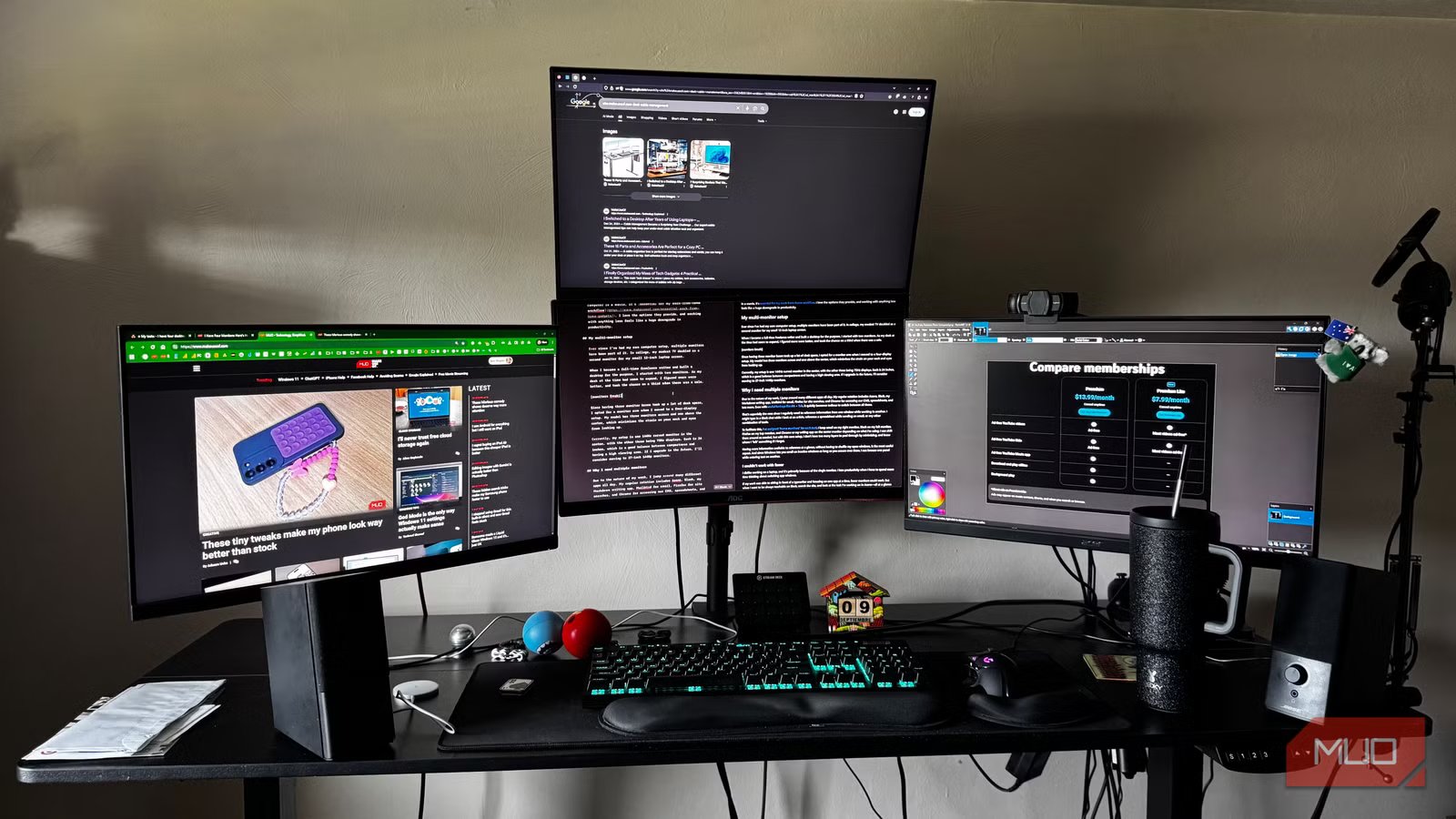
I was a freelance computer animator for a little bit, and one thing that was hard to get over was how different models looked on separate monitors. Working on multiple displays that don’t match is one of the most frustrating things when you rely on color-matching. I thought I’d need a really advanced way to fix this, but you can fix it with just your smartphone and an app.

I made my second monitor twice as useful by adjusting these 5 settings
Open source or built-in software, and everything in between
The difficulty of matching colors across different screens
It is usually a battle to get displays to look the same

I know how it feels to spend hours meticulously tweaking the color palette of a 3D render or dialing in the lighting for an animation sequence on your primary monitor, only to drag the window over to your secondary screen and watch those colors morph into something different. I don’t own a monitor just for graphic design, so this was a big issue.
The shadows suddenly look washed out or gray, and the highlights take on an unintended color cast. It’s common for projects to look flawless on your primary screen compared to a secondary one or a mobile device. Sometimes, you could be playing a video game or just looking at images, and get frustrated that they’ll look different depending on your screen.
The difference between the colors your monitor shows and the true reference color is measured using a metric called Delta E. If you work for Pixar or another professional studio, you will want a Delta E of less than two and a color accurate monitor. This level makes color differences nearly invisible to the human eye, though most monitors have much higher, noticeable values.
Also, displays use different backlights and color filters, so colors are seen differently depending on the display’s underlying technology. This goes further than you would think.
This is why there are different screen technologies, like variations between IPS, VA, and OLED panels, which reproduce colors, contrast ratios, and black levels differently. Even two identical monitors straight out of the box will rarely look the same due to manufacturing variances.
Basically, every screen handles color spaces, backlighting, and color fidelity differently. Even with all that said, you don’t have to deal with it. There are ways to fix it, and you probably should dedicate some time to it.
You want to know that the image, which looks perfect on your calibrated display, will look the same when showing someone else on a laptop. When you need to be precise, it’s not enough just to know that they are similar.
Using your phone camera to calibrate a monitor
This is a great way to save money
There is an expensive and cheap way to fix the colors on your monitors. If you want it to be professional grade, then you’ll need a dedicated colorimeter. This is a physical color measurement tool that usually costs from $170 to over $300. For professional photographers and high-end colorists, this investment is necessary. However, most people don’t want to spend money on a dedicated colorimeter for casual use or standard office setups.
You’ll need an iPhone for this. I used my sister-in-law’s when I needed this, so it doesn’t really have to be your own. As long as you can connect to your app, you’re good to go.
The TruHu app is what you should use instead. It’s reliable software that lets you use your phone camera to measure screen output instead of needing expensive hardware. TruHu is not free; it’s about $40 a year, but you can use the free trial to get your color profile, you just can’t use it.
When you run TruHu, it guides you through the process entirely, so you won’t get lost. You just need to take two photos of your monitor using your phone: one of a grayscale target and one of a colorful target. To make sure it’s accurate, the app bypasses the phone’s image processing software. It accesses the RAW CMOS sensor data and gets a linear representation of the light intensity coming from your screen. This data is then uploaded, and finally, you’ll be told what you need to do based on what it saw.
Whether you’re on macOS or Windows, this custom International Color Consortium profile adds directly to the system-level color management pipeline. It corrects inaccuracies, making sure your monitor shows color correctly. With multiple screens, it helps your different brands look more similar. It brings different displays into the same visual range without needing anything else.
TruHu does this by checking a huge internal database of over 10,000 monitors. The software adjusts for your display panel’s specific chemistry. This prevents inaccuracies and saves you from needing to know your exact monitor model.
If you want to use a real colorimeter, you’ll get better results, but not to the point where it is worth it for everyone. It means plugging in a physical device, going through complicated settings, and waiting up to fifteen minutes while the sensor reads hundreds of color patches. It took about ten to twenty minutes to do with TruHu, but today I’d probably use Colorimeter because I have an Android.
Realistic expectations for software calibration
It works well but has physical limits
When you calibrate a monitor using just a smartphone and an app like TruHu, you should have realistic expectations about what the technology can actually do. An app using a smartphone camera works by bypassing the phone’s image processor to capture raw sensor data.
Algorithms and database cross-referencing then translate this data into color values. It’s complicated, but despite how complex it sounds, we all know that a smartphone camera isn’t as accurate as the professional, dedicated hardware tools made specifically for this.
Devices like high-end colorimeters and spectrophotometers use specialized glass or organic optical filters made to replicate human vision, and they can measure luminance levels up to 10,000 nits for advanced HDR workflows. I am not saying that professional-grade equipment isn’t worth it; I’m saying it is only worth it if you absolutely need it. At the end of the day, a smartphone lens doesn’t have this level of precision and has trouble with things like ambient glare or extreme peak brightness levels.
If you work for a top-level studio like Pixar, it won’t let you get away with smartphone-based software calibration. If you are a professional, you will need tools that can objectively verify exact Delta E color deviations down to microscopic fractions, check for perfect screen uniformity, and set precise ISO-standard luminance targets.
Even still, you’re likely not going to need this level of perfection. If your issue is that the two monitors on your desk look completely different from one another, with one casting a yellow hue while the other shows a cool blue, this app can be a big help.
Change the colors in your monitors
You should use TruHu if you want color fidelity. There are no physical devices to lose, no USB-C adapters to mess with, and no confusing menus asking you to type out your monitor’s backlight type. You just connect your mobile app to your desktop app, take the time needed photos, and add the newly generated color profile.

- Publisher(s)
-
TruHu
- Platform(s)
-
Windows, Linux, Mac
TruHu is a monitor calibration tool that uses software to adjust your colors without needing to pay hefty fees for a real colorimeter.



