
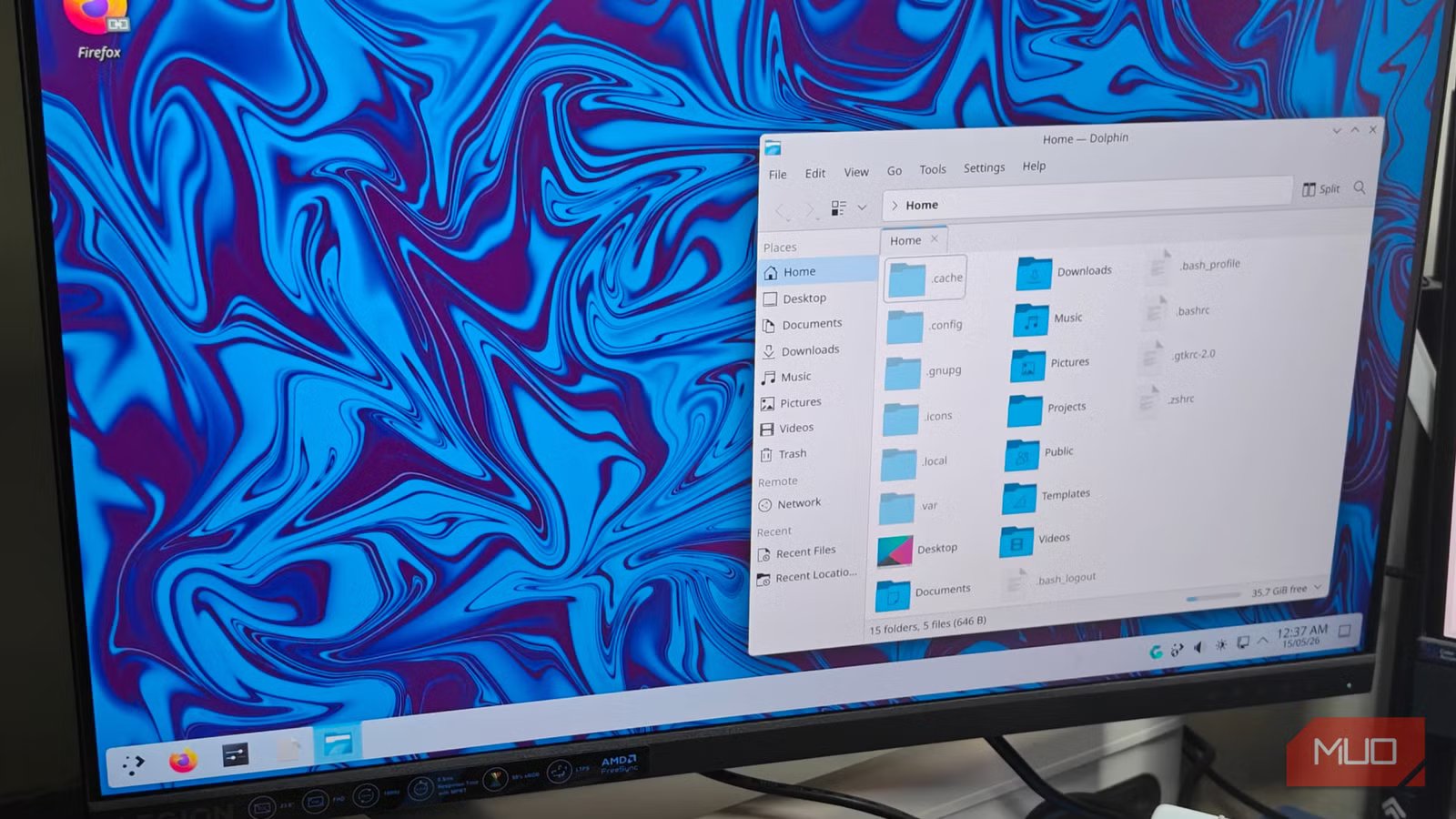
KDE Plasma is already pretty much the perfect desktop environment for those switching from Windows 10 or 11, but a few tweaks make everything run much more smoothly.
It does, in a way, feel liberating when moving over from the Copilot-infested waters of Windows 11, and there is much to be said about KDE’s extensive configurations, themes, and overall snappiness.
There’s still a lot that can be done, though — and I’ll be going over a few recommended settings and tweaks that can make you a power user in a matter of minutes.

KDE makes some of the best free Windows apps nobody talks about
KDE’s free Windows apps are criminally underrated.
KDE works pretty well out of the box
Bringing cohesiveness with a few simple tweaks
KDE Plasma already behaves like Windows 11 out of the box, and there’s not a whole lot of dependencies to install. Windows 11 users should feel right at home here, although you might want to install the qt5ct and qt6ct packages to keep the theming consistent.
paru -S qt5ct qt6ctIf you want to keep the Windows 11 layout consistent, there are two major tweaks to do. The first would be to slightly modify the panel layout. The default bottom panel is a good place to start.
If you also want to keep that familiar Start Menu look, right-click on the KDE start menu icon, and select “Show Alternatives.” Change it to Application Menu to bring back the classic Windows 7 search bar, which is much more clutter-free.
Next, you’ll want to turn your attention to the keyboard shortcuts, which are slightly different from those in stock Windows. Set the values in the Shortcuts section of System Settings to the following:
- Open Launcher — Meta Key (Win)
- Show Desktop — Meta + D
- Lock Screen — Meta + L
- Task Switcher — Alt + Tab
This should make moving around the user interface feel a lot more consistent. Changing the default shortcuts is arguably the most important part of the whole process, and the neat bit about KDE is that it lets you try out whatever combination you wish. Feel free to experiment!
Snap tiling
Bring one of the few good features of Windows 11

I love tiling. So much so that I’ve used multiple tiling window managers extensively before ultimately switching to Niri for my main machine. While Windows 11 doesn’t exactly offer a traditional auto-tiling feature, its snap tiling comes really close.
Simply put, there is simply nothing as intuitive as snap tiling available out of the box on either macOS or Linux. KDE has manual tiling, yes, but it is nowhere near as good as Windows.
Thankfully, we can use KZones, a handy KWin script that lets users snap in the Windows 11 layout. It even has the same interface as Windows’ own snap tiler, and supports keyboard shortcuts along with edge-to-edge snapping.
paru -S kwin-scripts-kzonesInstalling the appropriate package from the AUR, we can head on over to the KZones section of the KWin Scripts menu. This is located under Window Management in the System Settings menu.
Tap the cog wheel icon to open the settings page and configure it to your liking.
Sewing it all together
A few minor tweaks and changes

A few minor cosmetic changes, and we should be mostly done. First, make sure to move the notification pop-up window to the bottom-right corner. This can be accessed via the Notifications tab of the System Settings menu.
Next, we’ll turn our attention to the default bottom panel. Right-click on it to enter the Panel Configuration menu. Set an appropriate panel height (I’d recommend 44) and set its Opacity to Translucent. Optionally, the panel can be automatically hidden after a set amount of idle time.
Finally, we’ll want to turn our attention to KDE’s built-in file manager, Dolphin. Dolphin already works pretty well out of the box, but a few tweaks help out greatly:
- Under Folders & Tabs, enable Always show tab bar.
- Make sure to enable view hidden folders.
- Install the Open Dolphin as a root plugin to manage root folder access better.
Make sure to change the View Mode to Compact to get a more concise overview as well. This isn’t necessarily a 1:1 Windows 11 File Explorer experience, but one that aims to offer far greater functionality.
KDE Plasma is a far superior Windows 11 experience
Not to sound controversial, but KDE Plasma has so far been a more enjoyable Windows-like experience than Windows 11 itself. There’s no annoying bloatware or nagware, and everything just works.
It’s responsive and doesn’t slow down the system, and KDE Plasma has so far been a joy to use. It’s also surprisingly light on RAM usage, staying well under 5 gigabytes on my laptop with everything loaded in.
Most of KDE Plasma already mimics a traditional Windows layout, so switching over from Windows 11 shouldn’t be much of a hassle. In many ways, stock KDE is a lot more powerful than Windows has been in recent years, so power users have a lot to look forward to with the (optional) extension system as well.



