
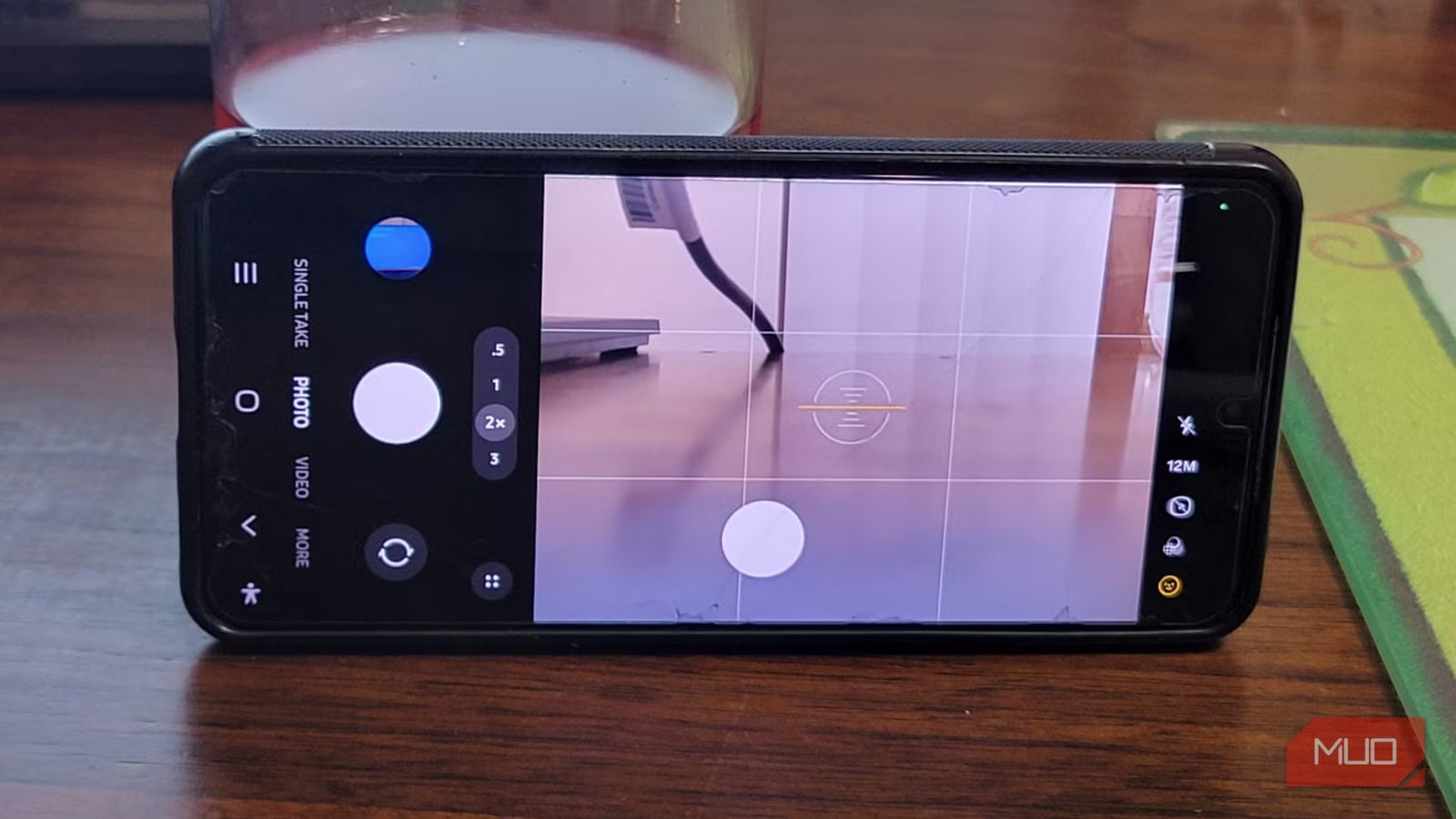
Androids can be frustrating, thanks to losing perfectly timed shots and having blurry, delayed images. This isn’t because it’s dirty or anything like that. The time between pressing the shutter button and the picture being taken is too long. Samsung phones are notorious for this lag, but you don’t have to deal with it. There’s an officially supported way to remove that lag entirely.

Shutter lag shouldn’t be a feature
The worst change in Androids was the shutter lag

The thing I hate most about owning an Android is the shutter lag. I’ll line up the perfect shot of my kid’s laugh, a nice moment, or a wave crashing against the rocks, only to wait seconds after I’ve already pressed the button for anything to happen. By the time the camera actually captures the image, the expression has vanished; the subject has moved out of the frame, or the action is done.
This has led to far too many blurry and disappointing photographs. I assumed that this lag was something I had to live with. Androids are famous for ruining photos this way. This wasn’t so bad that I’d switch to an iPhone, but it wasn’t something I was going to live with.
This is a deliberate software design choice regarding how the camera registers your touch. By default, Samsung devices are programmed to capture a photograph after you lift your finger off the screen, not when your finger initially touches the shutter button.
It sounds counterintuitive, but this touch-release mechanism was made so that you can hold the button down to record a video instead. That is silly to me, and it adds an unavoidable latency of 50 to 100 milliseconds to every single photo you take. I constantly struggled with random delays until I learned how Samsung handles this input.
It isn’t something you can fix in the regular settings, which doesn’t make much sense either. You can change so many things about your phone and how it handles media from your settings, but not remove a feature that likely causes more headaches than it fixes.
Fortunately, you don’t need to upgrade your phone to improve the quality of the camera. There’s an app to help you get past this issue. It’s also officially supported, so you don’t have to worry about third-party issues.
Quick shutter feature
Action shots don’t exist until you use this app

Go to your Galaxy Store and look for an app called Camera Assistant. This does not replace your stock camera. It adds a new settings menu directly inside it. Once it’s installed, you gain access to camera behaviors that Samsung hides by default to keep the standard UI simple.
The most important setting it unlocks is Quick Tap Shutter. This will finally fix the issue of Samsung phones capturing a photo when you lift your finger off the shutter button instead of when you press it. Turning on Quick Tap Shutter makes the sensor fire the moment your finger makes contact.
It will make your phone camera work like it should, rather than as a way to push an unnecessary, faster video-capture feature.
Camera Assistant also gives you control over how the phone handles the trade-off between speed and image quality. The Capture Speed setting lets you tell the camera to skip heavy processing like noise reduction and HDR calculations, so photos get taken immediately instead of freezing while the phone thinks.
You can also turn off Prioritize Focus Over Speed, which stops the camera from holding the shutter open just to guarantee a perfect focus lock. That’s a useful change when you’re shooting anything that moves unpredictably.
The app also gives you control over many other automated behaviors that Samsung normally handles on its own. You can turn off Auto Lens Switching, which prevents the phone from using digital zoom on the main sensor when it thinks the light is too low for the telephoto lens.
You can also disable Video Recording in Photo Mode, which stops the camera from accidentally starting a video if you hold the shutter a fraction too long. I’ve only ever used this feature by accident, so I turned it off immediately.
Speed and quality balance
You can choose what you want
Before you mess with more settings than you need to for speed, remember there is a delicate balance between image processing speed and visual quality. A modern smartphone camera needs a slight delay to give you a clear picture. That fraction of a section is used to lock onto the subject, calculate the best exposure, and process complex HDR images.
Your phone needs to process everything from multi-frame noise reduction to local tone mapping. This requires processing power and time, particularly when working with high-resolution sensors like those found in Samsung’s Galaxy devices.
Letting the camera processor have the time it needs does give you a photo with better dynamic range, color accuracy, and sharp focus. This gives you a cleaner photo.
It is hard to argue that a slightly better picture is always necessary. Missing a moment leads to a worse result than just a minor drop in processing. A flawlessly exposed, perfectly noise-reduced photograph isn’t worth the time it took if the subject of your picture is gone.
When you are forced to wait for the camera software to finish thinking and analyzing the scene, you end up with a beautifully clear image of the moment immediately after the one you actually wanted to preserve. A memory captured exactly at the right second, even if it lacks maximum HDR processing, is far more valuable than a pristine shot of a missed opportunity.
So you should decide what features you want. There’s no perfect way to set the rest of the app up. As long as you switch how the picture is taken, you can change the other parts on your own.
Stop letting lag ruin your pictures
Changing hidden software settings to fix a stock camera isn’t the right move for everyone, since you’re taking on the responsibility of balancing image processing against capture speed. If you prefer a device that handles everything right out of the box, standard defaults are still a reasonable option. However, if you’d rather take direct control of your hardware and avoid missing important moments, Camera Assistant is one of the cleaner ways to do it.

- OS
-
Android
- Platform
-
Android Galaxy
This app gives you more features to use in your regular camera that comes with your Android Galaxy.



