

HP OmniBook Ultra (Snapdragon X2 Plus) review: I almost forgot this was a Windows on Arm laptop
[post_content]
Disclaimer: This article has been automatically aggregated from
HP OmniBook Ultra 14 (kg000)
MSRP $1,799.00

“A premium Windows laptop that gets the basics right, and looks good doing it.”
Pros
- Amazing 10-12 hour real-world battery life
- Premium, lightweight aluminum construction
- Vibrant OLED touchscreen
- Great haptic touchpad
- Comfortable keyboard
- Extremely fast Gen5 SSD
Cons
- 60Hz display is disappointing at this price
- No USB-A, HDMI, or card reader
- Graphics performance has a clear ceiling
- 16GB RAM is soldered
- Glossy display can get reflective
Quick Summary
There comes a point while reviewing a laptop where I stop thinking about the hardware inside and simply use it to get my work done. With the HP OmniBook Ultra 14, that happened surprisingly quickly. If it can’t handle even the basics, like browsing, media consumption, and solid battery life, it becomes hard to recommend. Of course, dedicated gaming and creative-productivity-based laptops are the exception. Still, to get a good idea, I tend to use it as my main laptop, and the OmniBook was my daily driver for two weeks. It replaced my Ryzen AI 300-powered Zenbook 14 without any hiccups.
My workload involved a lot of Firefox tabs, WordPress, writing, meetings, YouTube, Spotify, and general multitasking. Somewhere during that period, I almost forgot that I was using another Windows on Arm laptop. The OmniBook Ultra 14 is not chasing impressive benchmark numbers with my Snapdragon X2 Plus configuration. Its appeal lies in other, but just as useful, factors. It is light, sturdy, has a good OLED display, and lasts an incredibly long time away from the charger. The base display is stuck at 60Hz. There is no USB-A port. GPU performance falls well short of the faster Snapdragon X2 Elite and Intel Arc B390 machines I have recently tested.
Even then, I could very easily see myself continuing to use this laptop after the review period.
HP OmniBook Ultra 14 specifications
| Processor | Qualcomm Snapdragon X2 Plus X2P-64-100, 10 cores, up to 4.0GHz |
| Graphics | Qualcomm Adreno integrated graphics |
| NPU | Qualcomm Hexagon, 80 TOPS |
| Memory | 16GB LPDDR5x onboard |
| Storage | 512GB PCIe Gen5 NVMe M.2 SSD |
| Display | 14-inch OLED touchscreen, 1920 x 1200, 60Hz |
| Brightness | 300 nits |
| Color gamut | 100% DCI-P3 claimed |
| Ports | 3x USB-C 40Gbps, 3.5mm audio |
| Wireless | Wi-Fi 7, Bluetooth 5.4 |
| Webcam | 5MP IR |
| Speakers | Quad speakers, Poly Studio, HP Audio Boost |
| Battery | 70Wh |
| Charger | 65W USB-C GaN |
| Dimensions | 12.25 x 8.49 x 0.42 inches |
| Weight | 2.83 pounds |
| Color | Stone Blue |
| OS | Windows 11 |
| Price tested | $1,249.99 |
HP OmniBook Ultra design: Premium without becoming precious
Quick take: The OmniBook Ultra 14 is light enough to carry everywhere and sturdy enough that I rarely worried about doing exactly that.
At 2.83 pounds, the OmniBook Ultra 14 is pretty light. It looks a little heavier than it actually is, so picking it up for the first time is slightly surprising. The aluminum body is reassuringly solid and premium. There is barely any flex around the lid or keyboard deck, while the bottom has only a small amount of give. The hinge holds the display securely and, importantly, I can open the lid with one hand.
I also appreciate how resistant the Stone Blue finish has been to fingerprints. My XPS 14 constantly reminded me where I had touched it. This HP remained far cleaner during regular use. The design itself is mostly minimalist, but HP has added some personality through the shiny polished sections running along the sides and rear. This might divide people, but I quite like the extra character, even if it can look slightly flashy beside the otherwise understated body.
The Zenbook A14 remains noticeably lighter at under a kilogram. The HP makes up some ground by coming across as more substantial in the hand. Dell’s XPS 14 still has another level of CNC-machined solidity, though it comes at the cost of being heavier and much more expensive. Port selection is where the minimalist approach goes too far. You get three 40Gbps USB-C ports and a headphone jack. Two USB-C ports sit on the right, and one sits on the left–all three support charging, which is a nice touch of flexibility.
I would still trade one of them for USB-A immediately. My wireless mouse alone was enough to make me reach for an adapter. The Zenbook A14 does considerably better here with USB-A and HDMI alongside its USB-C connections
Design score: 9/10
HP OmniBook Ultra display: Good OLED, wrong refresh rate
Quick take: OLED gives the base panel excellent contrast and punchy colors, but 60Hz is becoming increasingly difficult to defend on a premium laptop.
My review unit uses the 14-inch 1920 x 1200 OLED touchscreen, while HP has an optional 3K 120Hz panel. All in all, it still looks good. Colors are bright and punchy, black levels have the depth you expect from OLED, and the 16:10 aspect ratio works well for writing and browsing. Touch input is accurate too. I do not use touch constantly on laptops, but having it available is convenient.
The 1200p resolution is also perfectly usable at 14 inches. My own Zenbook has a 2.8K OLED panel, so the difference in sharpness is apparent when they sit beside each other. I rarely found the HP lacking during ordinary work. Sure, the text doesn’t look as crisp, but it’s not something that would become a big dealbreaker–at least for most people.
For brightness, HP’s OmniBook Ultra 14 rates the panel at 300 nits. It remained legible through most of my testing, but the glossy touchscreen catches reflections, and bright daylight can make that 300-nit ceiling apparent. The refresh rate, on the other hand, is a bigger offender here. I have tested enough 120Hz and 144Hz laptops recently that dropping back to 60Hz is immediately noticeable.
Don’t get me wrong, scrolling and animations are perfectly usable. But you’re not getting that fluidity I now associate with premium Windows notebooks. So if you can afford the higher-end variant, consider getting the 2880 x 1800 OLED option that also comes with up to 120Hz, 500 nits SDR brightness, and 1,100 nits HDR.
Display score: 8/10
HP OmniBook Ultra keyboard and touchpad: One of HP’s stronger areas
Quick take: The keyboard took almost no adjustment, and the haptic touchpad adds exactly the kind of polish I want from an expensive ultraportable.
Keyboard travel is around 1.3mm, which does not sound particularly generous. In practice, I settled into it pretty quickly. The keys land somewhere between crisp and soft, with enough resistance that long writing sessions remained comfortable. Key spacing is generous, the deck barely flexes (except oddly in the middle), and HP includes useful function-row shortcuts. The arrow keys are wider than they are tall, so they remain a little cramped. Though it never became a major annoyance. Backlighting is bright enough and illuminates the legends properly.
But what sits underneath the keyboard is the real star. A large, smooth, and accurate haptic trackpad. I’m glad HP is moving away from a conventional diving-board mechanism. Clicking anywhere across the surface is consistent, and there is none of the hollow sound or rattling I sometimes get from mechanical touchpads.
I liked it as much as the Zenbook A14’s keyboard setup, and I would take this keyboard over the one on my XPS 14. The touchpad itself gets remarkably close to Dell’s far more expensive implementation.
Keyboard and touchpad score: 9/10
HP OmniBook Ultra performance: Plenty for everyday work, but not much else
Quick take: Snapdragon X2 Plus is more than quick enough for everyday productivity. Heavier CPU and GPU workloads make the higher-tier alternatives look much more attractive.
The 10-core Snapdragon X2 Plus X2P-64-100 is paired with 16GB of memory in my review unit. Honestly, the performance on offer here is pretty much good for the everyday user. I have absolutely no complaints about regular performance. Firefox stayed responsive with plenty of tabs open. WordPress, meetings, streaming, file management, and ordinary Windows multitasking all ran smoothly. Wake and resume were quick too, and I did not encounter any crashes or standby problems during my two weeks with it.
So what happens when you push it in benchmarks? Well, you can check out the results in the table below:
| Benchmark | HP OmniBook Ultra 14 (Snapdragon X2 Plus) |
|---|---|
| Geekbench 6 single-core | 3,155 |
| Geekbench 6 multi-core | 14,506 |
| 3DMark Time Spy | 2,609 |
| 3DMark Time Spy Graphics | 2,320 |
| 3DMark Time Spy CPU | 8,920 |
| 3DMark Night Raid | 33,365 |
| 3DMark Solar Bay | 13,266 |
| 3DMark Steel Nomad | 682 |
Geekbench 6 gives the HP a surprisingly strong 3,155 single-core result. That places it ahead of the 2,847 I recorded on the XPS 14. Multi-core performance reverses the order, with the HP’s 14,506 sitting below Dell’s 16,720. Apple’s M5 MacBook Air remains faster in both workloads at 4,171 and 16,325.
Interestingly, the OmniBook scored 682 in the full Steel Nomad test and 13,266 in Solar Bay, beating the Intel Core Ultra 7 356H variant of the OmniBook Ultra, which returned 474 and 10,391, respectively; it also beat the Dell 14S in those same tests. But compared to true flagship models, the gap is quite noticeable. The XPS 14 is considerably faster, with 1,605 in Steel Nomad and 29,936 in Solar Bay. The M5 MacBook Air also leads with 932 and 19,975.
The Snapdragon X2 Elite Zenbook A14 that I reviewed a while back also makes for an interesting comparison. It scored 3,659 in Time Spy, 44,394 in Night Raid, 968 in Steel Nomad, and 20,010 in Solar Bay during my previous testing. The X2 Plus HP scored 2,609, 33,365, 682, and 13,266, respectively. Surprisingly, HP’s latest thin-and-light notebook excels in storage.
CrystalDiskMark recorded an excellent 9,423MB/s read and 6,413MB/s write, which beats out the slower drives in the Zenbook A14, Dell 14S, or XPS 14.
Gaming is possible within reason. GTA V ran between roughly 40 and 55fps at the native 1920 x 1200 resolution using the High preset without upscaling. So for an occasional light gaming session, it won’t struggle to run an old game like this, or some other casual titles, but I would never buy this laptop primarily for gaming.
Thermals are handled through HP’s compact vapor chamber and dual-fan cooling system. HP has advertised this system, and I admit that the cooling mechanism is quite capable. The laptop stayed practically silent during writing and browsing.
Fans became audible during benchmarks and GTA V, yet the pitch never became particularly annoying. Heat concentrated around the upper half of the keyboard, leaving the palm rests and WASD region comfortable.
Performance score: 7.5/10
HP OmniBook Ultra software: Windows on ARM is becoming more seamless
Snapdragon-powered Windows laptops still have their fair share of compatibility issues. But during my time with the OmniBook Ultra, all my usual apps and launchers, like Steam, Epic Games, and Ubisoft, worked perfectly well. I do understand that certain kernel-level anti-cheat, such as Riot Vanguard for Valorant, can’t run on Windows on ARM. Most usual apps have no such issues.
Things do get more tricky for creators who use various plugins, old drivers, or specialized production hardware. For everyone else, I am reaching the point where I no longer think Windows on ARM needs to come with a dedicated warning. The 80-TOPS NPU does very little to change my recommendation. Copilot+ features are here, and HP naturally promotes the AI hardware heavily. I still care far more about battery life, display quality, and keyboard comfort.
The company’s MyHP app is a lot more useful. It essentially works as the control center for the laptop, putting audio, display profiles, performance modes, touchpad settings, presence sensing, gestures, and a handful of productivity features in one place. I particularly liked the touchpad controls, which can turn the edges of the pad into sliders for brightness and volume. You can even adjust the haptic feedback intensity from there. HP also lets you change display profiles and system performance without digging through several Windows menus.
That’s not all. Buried under the settings is Task Groups, which can save a collection of apps, along with their size and position, and reopen them together, while Smart Displays can use gaze detection to move the cursor or an active window toward the display you are looking at on supported setups. Presence sensing links into Windows’ detection settings as well. I did not find all of these equally useful, but MyHP comes across as one of the better preinstalled laptop utilities because many of its controls actually relate to hardware I interacted with every day.
HP OmniBook Ultra Battery life: Exactly why Snapdragon fits so well on Windows
Quick take: Ten to twelve hours of actual screen-on use is far more useful to me than an enormous manufacturer video-playback claim.
With brightness generally between 40% and 60%, Wi-Fi active, Firefox running throughout the day, and YouTube or Spotify playing in the background every now and then, I comfortably passed 10 hours of screen-on time. On lighter days, I reached around 12 hours. After a normal full workday, I could still have roughly 20% remaining.
Standby behavior was equally reliable, while overnight drain generally stayed around 5%. Sleep worked properly, and leaving the lid closed did not produce that annoying battery surprise Windows laptops have been infamous for. The 70Wh battery also charges reasonably quickly. HP claims around 50% in 45 minutes, which broadly matched my results. A complete charge took over an hour and a half. Charging remained reasonably quick while I continued using the laptop.
Battery score: 9.5/10
HP OmniBook Ultra webcam, speakers, and everyday extras
The 5MP IR webcam is good enough for the job. In decent lighting, colors looked reasonably accurate, and detail was fine for meetings. Low light washes things out, and strong backlighting can throw off exposure. However, I’ve used plenty of Windows laptops with much cheaper webcams and worse overall quality, and this one definitely wasn’t as bad. For security, you get Windows Hello, which was fast and reliable throughout our testing, and the physical camera shutter is always welcome.
Audio has been that one area where Windows laptops have fallen short and often get compared to Apple’s MacBooks. But the quad speakers here are a healthy surprise. They get decently loud, vocals remain clear, and the low end avoids becoming muddy. Bass is limited, and 100% volume introduces some distortion. I still watched YouTube and movies without immediately reaching for an external speaker. They sound better than the Zenbook A14 to me, though I think the XPS 14 remains ahead.
Wi-Fi 7 and Bluetooth 5.4 also behaved exactly as I wanted them to. I had no unexpected disconnects with Wi-Fi or wireless earbuds during my testing. HP uses Qualcomm’s FastConnect 7800 platform here.
Should you buy?
I started appreciating the OmniBook Ultra 14 when I started noticing the little things that made it feel more akin to an ultra-premium Windows PC like the Dell XPS 14, rather than an endurance-focused model like the ASUS Zenbook A14. The speakers, haptic touchpad, and overall build made it feel a lot more expensive than it actually is. There is no single big feature doing all the work. The light body, solid OLED panel, and battery life that rivals MacBooks really round out the experience.
It is currently listed for $1,799, which is difficult to swallow considering that you’re only getting 16GB of RAM and a 60Hz 1200p display. But looking at the current state of the market, I’m not really surprised by how bad it is. Still, HP also faces aggressive competition: the Zenbook A14 with Snapdragon X2 Elite costs $1,349, while the M5 MacBook Air now starts at $1,299.
The HP counters with touch support, an excellent haptic touchpad, a more substantial chassis than the ASUS, OLED over the MacBook Air’s IPS panel, very fast storage, and the flexibility of Windows. Office workers, students, frequent travelers, writers, and anyone considering a MacBook Air primarily because they want a premium everyday laptop should have the OmniBook Ultra on their shortlist.
Gamers and demanding creative professionals should look elsewhere. People accustomed to 120Hz displays should also seriously consider paying for HP’s upgraded panel. For my own workload, I could happily keep using it. Between this and the Zenbook A14, Snapdragon laptops are getting better and better.
Overall score: 8/10
Why not try
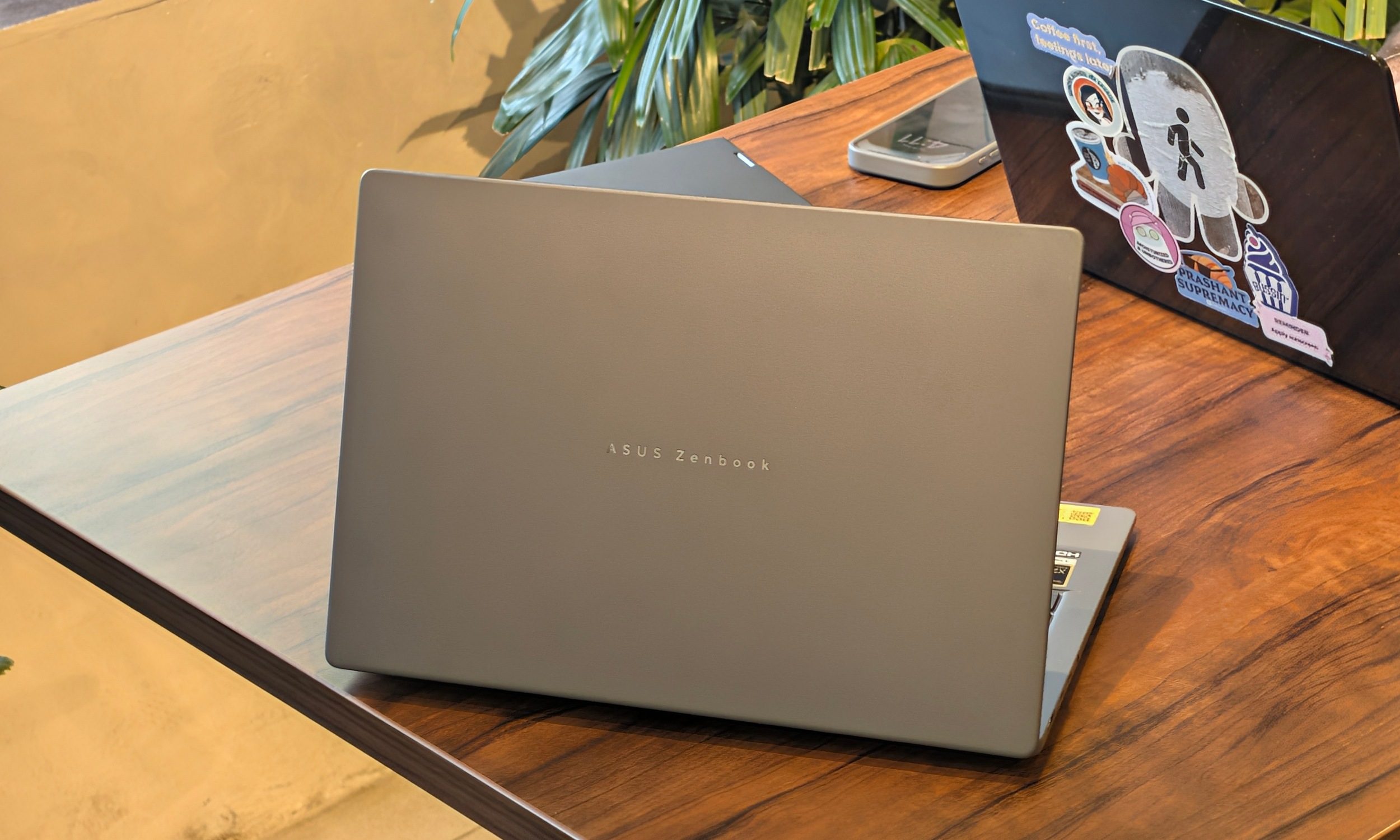
ASUS Zenbook A14 UX3407NA: This is the alternative I would look at first. It is even lighter. The Snapdragon X2 Elite has more CPU and GPU headroom, and the port selection is better. The HP counters with touch support, a haptic touchpad, and a chassis that comes across as more substantial.
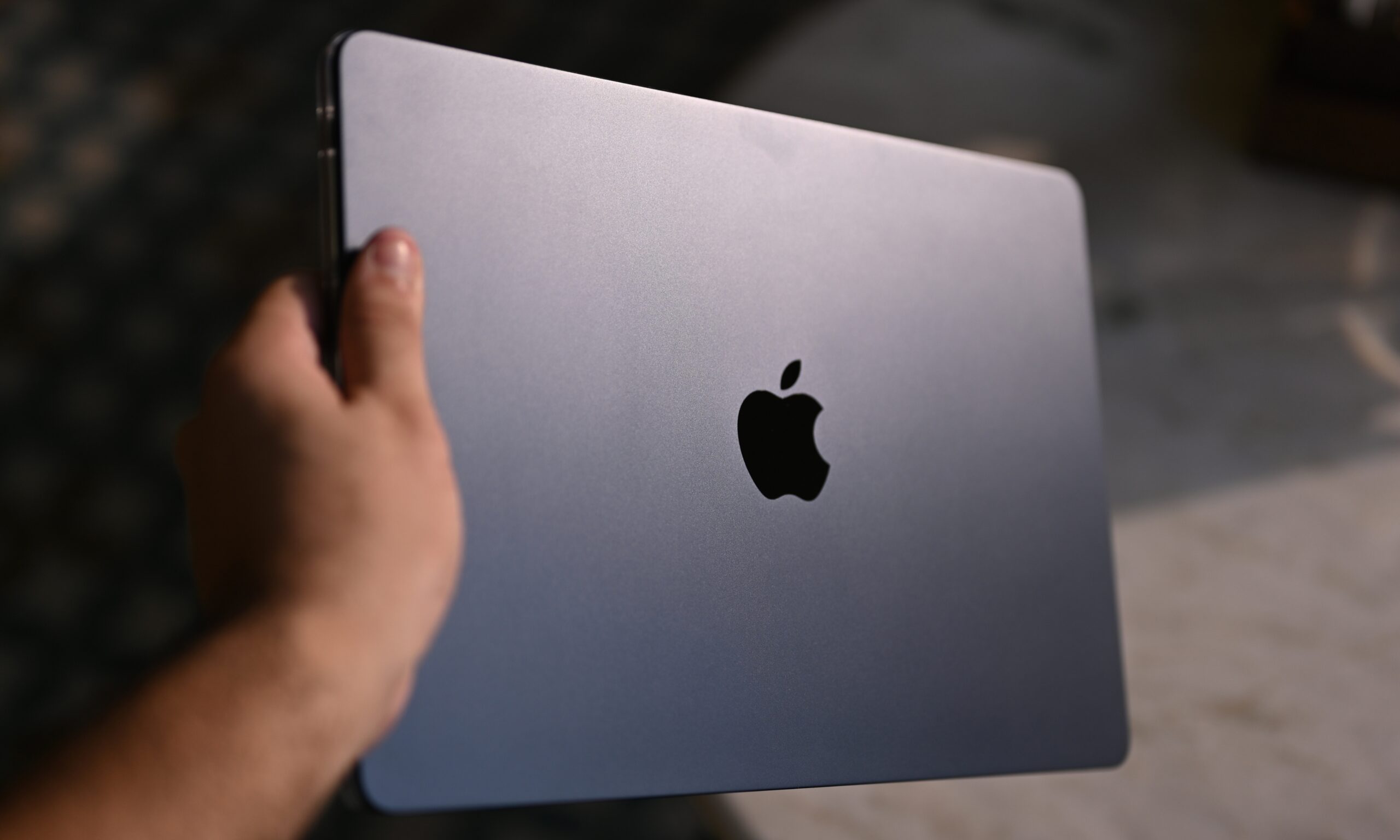
Apple MacBook Air M5: Apple’s laptop is faster, lighter, fanless, and starts for less money. Its excellent battery life and mature ARM ecosystem remain difficult to argue against. The OmniBook gives Windows users OLED, touch support, and greater flexibility with external software and hardware.
HP OmniBook Ultra 14 with Intel Core Ultra 7: HP’s own Intel model is worth considering if Windows on Arm still makes you nervous. The 3K 120Hz OLED is a major display upgrade, and the SSD is slightly faster. My Snapdragon model actually beat that Core Ultra 7 356H configuration in Steel Nomad and Solar Bay, while offering the endurance advantage that made this review unit so easy to live with.
How we tested
I used the HP OmniBook Ultra 14 kg000 as my primary laptop for roughly two weeks. My Stone Blue review unit came with the Snapdragon X2 Plus X2P-64-100, 16GB of memory, a 512GB Gen5 SSD, and the 14-inch 1920 x 1200 OLED touchscreen. My regular workload included writing, WordPress, heavy Firefox use, meetings, research, Spotify, YouTube, and general Windows multitasking. Battery observations were made primarily at 40% to 60% brightness over Wi-Fi.
Performance benchmarks were run while plugged in with Windows set to Best Performance. Testing included Geekbench 6, CrystalDiskMark, 3DMark Time Spy, Night Raid, Steel Nomad, and Solar Bay. I also tested GTA V at the native 1920 x 1200 resolution using its High preset.
FAQ (Frequently Asked Questions)
How long does the HP OmniBook Ultra 14 battery last?
In my normal productivity workload, the laptop regularly delivered more than 10 hours of screen-on use and could stretch to around 12 hours on lighter days. That included Wi-Fi, browser work, writing, and media playback.
Is the Snapdragon X2 Plus fast enough?
For normal productivity, absolutely. Windows remained responsive with heavy browser use, WordPress, meetings, streaming, and multitasking. Heavy CPU and GPU workloads expose a clear performance gap against Snapdragon X2 Elite, Intel’s faster Arc configurations, and Apple’s M5.
Can you game on the HP OmniBook Ultra 14?
Light gaming is possible. GTA V ran at around 40 to 55fps at native 1200p using the High preset. More demanding games, compatibility issues, and the comparatively modest Adreno GPU make this a poor choice for someone buying primarily for gaming.
Can you upgrade the RAM and SSD?
The RAM is soldered and cannot be upgraded. HP’s service documentation lists the M.2 2280 SSD as replaceable, so storage can be swapped later.
Is the HP OmniBook Ultra 14 better than the Zenbook A14?
They target almost exactly the same buyer. The Zenbook A14 is lighter, faster with its X2 Elite chip, and has better ports. The OmniBook has a sturdier character, touchscreen support, and an excellent haptic touchpad. My choice would depend heavily on their sale prices.
for informational purposes only. We do not claim ownership, accuracy, or liability for the content provided. All rights belong to the original publisher.