
I ignored my PC’s second Ethernet port for years (until it fixed my home network)
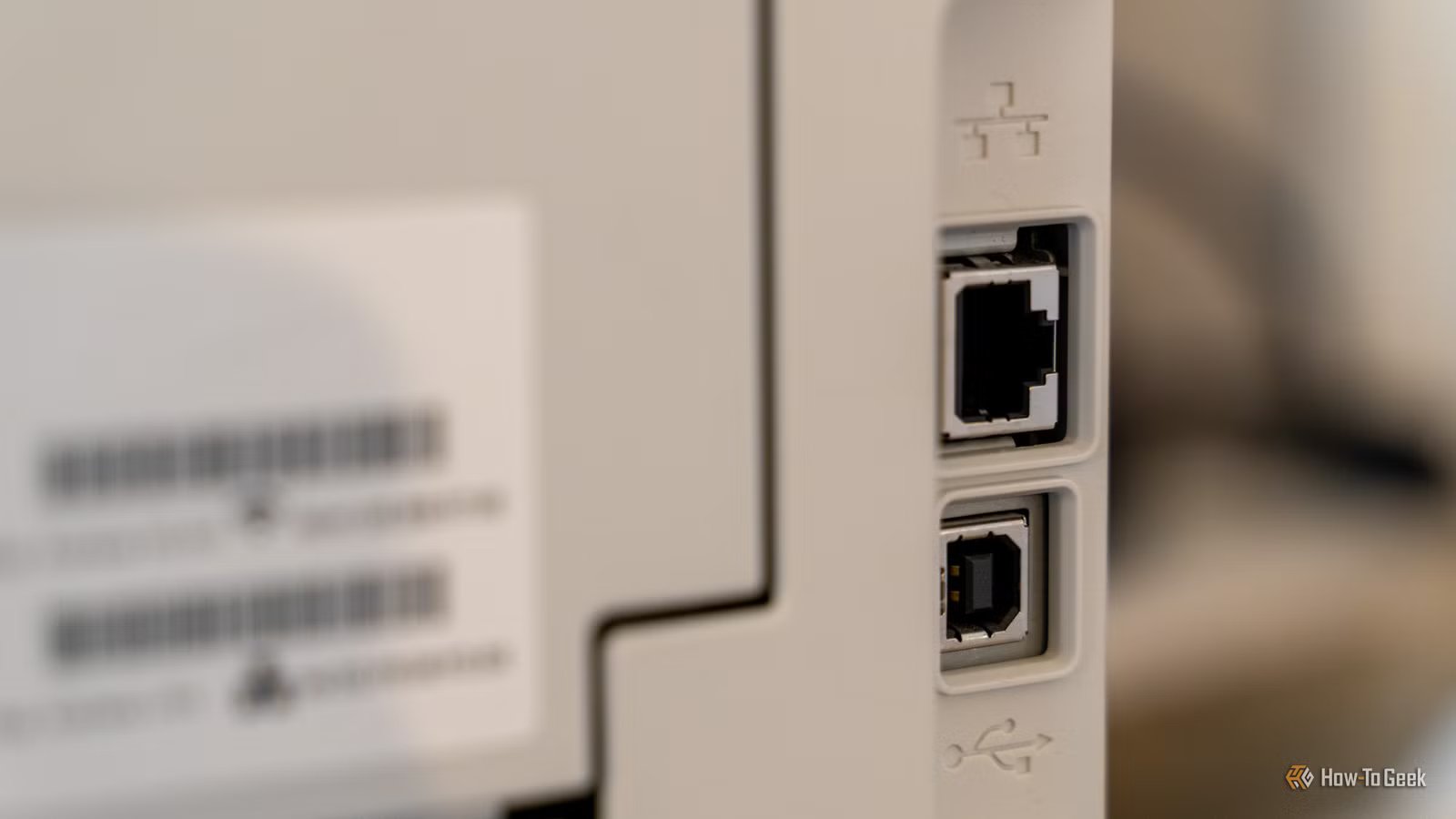
That extra Ethernet port on the back of your motherboard is one of the most underrated bits of hardware on a modern PC. Most people glance at it once during the build, plug a cable into the other one, and forget it exists for the rest of the system’s life. I did just the same thing, never caring for it much.
That’s a shame, because a second LAN port can do a surprising amount of heavy lifting. Whether you’re running a NAS, juggling two networks, or just want a sanity-saving backup when your main connection throws a tantrum, there are plenty of good reasons to put that port to work.
Your motherboard’s second LAN port is more useful than you think
It’s not just a spare for show
Surprise, surprise: Manufacturers don’t slap a second Ethernet port on a motherboard just to fill space. Dual LAN setups exist because they solve real problems, from network redundancy to direct device-to-device connections. The catch is that most of us never bother to learn what those problems are, so the port just sits there gathering dust.
It also doesn’t help that a lot of the advice online treats dual Ethernet as some kind of niche enterprise feature. Sure, a few of the use cases lean that way, but plenty of them are genuinely practical for a regular home setup. And if your motherboard doesn’t have a second port, a cheap USB Ethernet adapter gets you the same functionality for around ten bucks. I found that out for myself when it became one of my favorite networking purchases ever. No, I’m not exaggerating.
 Quiz
QuizEthernet history and quirky facts
Trivia challenge
From coaxial cables to gigabit speeds — how much do you really know about the tech keeping the world connected?
HistoryStandardsHardwareInventorsFun Facts
Who is widely credited as the primary inventor of Ethernet?
Correct! Robert Metcalfe invented Ethernet in 1973 while working at Xerox PARC. He co-developed it alongside David Boggs, and the technology was inspired by the ALOHAnet radio network used in Hawaii.
Not quite — the answer is Robert Metcalfe. He invented Ethernet in 1973 at Xerox PARC alongside David Boggs. Metcalfe later went on to co-found 3Com, a company that helped commercialize Ethernet worldwide.
What was the original data transfer speed of Ethernet when it was first developed in 1973?
Correct! The original Ethernet ran at approximately 2.94 Mbps, a speed chosen to align with the clock rate of the Alto computer at Xerox PARC. It wasn’t until the commercial 10BASE5 standard in 1980 that Ethernet was bumped up to 10 Mbps.
Not quite — the original Ethernet ran at about 2.94 Mbps, not a round number. This oddly specific speed was tied to the Alto computer’s internal clock at Xerox PARC. The familiar 10 Mbps speed came later with the first commercial Ethernet standard in 1980.
The name ‘Ethernet’ was inspired by a 19th-century scientific concept. What was it?
Correct! Robert Metcalfe named Ethernet after the ‘luminiferous ether,’ a substance 19th-century physicists believed permeated all of space and carried electromagnetic waves. The Michelson-Morley experiment in 1887 disproved its existence, but the name lived on in networking history.
Not quite! The name Ethernet comes from the ‘luminiferous ether,’ a now-debunked scientific concept that physicists once believed filled the universe and carried light. Metcalfe liked the idea of a shared, invisible medium carrying data — just as ether was once thought to carry light.
What does the ’10BASE-T’ in the classic Ethernet standard name actually mean?
Correct! In 10BASE-T, ’10’ refers to 10 Mbps transmission speed, ‘BASE’ means baseband signaling (as opposed to broadband), and ‘T’ stands for twisted-pair copper cable. This naming convention applies across many Ethernet standards, like 100BASE-TX and 1000BASE-T.
Not quite — 10BASE-T breaks down as 10 Mbps speed, BASE for baseband signaling, and T for twisted-pair cable. This logical naming convention was carried forward into later standards like Fast Ethernet (100BASE-TX) and Gigabit Ethernet (1000BASE-T).
What type of cable did the original ‘Thick Ethernet’ (10BASE5) standard use, earning it a colorful nickname?
Correct! 10BASE5 used thick, rigid yellow coaxial cable that network engineers affectionately called the ‘frozen yellow garden hose.’ It was notoriously stiff and difficult to route through buildings, which is why the thinner and more flexible 10BASE2 (‘Thinnet’) became so popular later.
The answer is the yellow coaxial cable nicknamed ‘frozen yellow garden hose.’ Early thick Ethernet cable was stiff, bulky, and awkward to install — hence the humorous nickname. Its inflexibility was one of the key reasons engineers pushed to develop thinner, more manageable alternatives.
In what year did the IEEE officially ratify the 802.3 Ethernet standard, cementing it as an industry specification?
Correct! The IEEE 802.3 standard was officially ratified in 1983, a decade after Metcalfe’s original invention. The standardization process was critical for making Ethernet interoperable across different vendors and hardware, which fueled its massive commercial success throughout the 1980s and beyond.
Not quite — the IEEE 802.3 standard was ratified in 1983. While Ethernet was invented in 1973 and commercially launched in 1980, it took until 1983 for the IEEE to formalize the specification. That standardization was a turning point that allowed multiple vendors to build compatible networking hardware.
Robert Metcalfe famously predicted the collapse of the internet in 1995 and promised to eat his words if he was wrong. What did he actually do?
Correct! At the 1997 WWW Conference, Metcalfe literally blended a printed copy of his 1995 InfoWorld column predicting the internet’s collapse and drank the resulting slurry in front of the audience. It remains one of the most memorable ‘eating your words’ moments in tech history.
Not quite — Metcalfe took the phrase ‘eat your words’ very literally. At the 1997 WWW Conference, he blended a physical copy of his doom-predicting column with liquid and drank it on stage. It’s become a legendary moment of self-aware humor in the tech world.
What is the maximum cable length for a standard Cat5e or Cat6 Ethernet cable before signal degradation becomes a significant problem?
Correct! The IEEE 802.3 standard specifies a maximum run length of 100 meters (about 328 feet) for twisted-pair Ethernet cables like Cat5e and Cat6. Beyond that distance, signal attenuation causes errors and speed drops. Network installers use switches or repeaters to extend connections over longer distances.
The correct answer is 100 meters. The 100-meter limit is a fundamental rule of thumb in Ethernet networking and applies to Cat5e, Cat6, and Cat6a cables. If you need to go further, you’ll need a network switch or a fiber-optic connection to bridge the gap without signal loss.
Your Score
/ 8
Thanks for playing!
7 ways to actually put that second Ethernet port to work
Some of these might genuinely change how you use your PC

I’ll be honest, not every use case here is going to apply to every person. But I’d bet that at least two or three of them will make you want to dig out a spare cable the moment you finish reading!
1. Connect directly to a NAS
This is probably my favorite use, and it’s the one I recommend most often. Plugging your budget NAS directly into your PC’s second Ethernet port creates an isolated link between the two devices, completely separate from the rest of your network. That means your massive file transfers don’t clog up the rest of your home network, and you get the full speed of the connection without any switch or router in the middle.

- CPU
-
Intel Pentium Gold 8505 5-Core
- Memory
-
8GB DDR5
Having a NAS helps you sort out your backup, run your own media server, and more. It’s the best way to store your files.
3. Do a direct PC-to-PC connection for fast file transfers
Want to move hundreds of gigabytes between two computers without dealing with USB drives or cloud uploads? Run a single Ethernet cable between them, and you’ve got yourself a private, high-speed pipe. It’s a clean way to transfer huge files in minutes, and it’s also handy for setting up a quick LAN party with a friend.
4. Separate your traffic into different paths

This one is a bit more advanced, but bear with me. You can dedicate one port to your regular internet traffic and the other to something specific, like your NAS, a home lab, or a separate VLAN. Separating your traffic into different paths like this stops the two from stepping on each other’s toes, and it’s especially useful if you’re running a home server or want certain devices on an isolated network.
5. Turn your PC into a router or pass-through
Got one Ethernet jack in the room and two devices that need a wired connection? Your PC can act as a pass-through, routing traffic from one port to the other so a second device (a console, a smart TV, another PC) gets a wired connection too. It’s not the most elegant long-term solution, but it works in a pinch and saves you from buying a switch.
6. Connect to legacy hardware like network printers

Old network printers, label makers, and other vintage office gear often only speak Ethernet, and sometimes they don’t play nicely on a modern Wi-Fi network. A direct connection to your second port lets you talk to that hardware without dragging it onto your main LAN. The same goes for any odd device with an Ethernet jack that you’d rather keep off the wider network.
7. Use it as a troubleshooting tool
This one surprised me until I actually tried it. When your internet starts misbehaving, plugging into the second port (or a USB Ethernet adapter) gives you a clean, alternate path to test with. If the second connection works fine, you know the issue is somewhere in your usual setup. If it doesn’t, your ISP is probably to blame. It’s a stupidly simple way to narrow down problems in seconds.
A second Ethernet port is one of the easiest networking upgrades you can make
You probably already have everything you need
The best part about most of these use cases is that they don’t cost a thing if your motherboard already has dual LAN. All you really need is a spare cable and a few minutes to set things up. Even if you don’t have a second port built in, a USB Ethernet adapter covers the same ground for next to nothing.
Pick the use case that fits your setup
You don’t need to do all seven of these. Heck, you probably won’t want to. But there’s almost certainly at least one scenario in this list that genuinely makes your day-to-day life easier, whether that’s faster NAS transfers, a rock-solid backup connection, or just a better way to figure out why your Wi-Fi keeps dropping. That second port has been waiting patiently the whole time. Might as well give it something to do.