
The router is my scapegoat when websites randomly stall, Discord drops and recovers unpredictably, or I experience latency spikes during gaming sessions that disappear even before I start investigating.
However, for several of these problems, I didn’t see any real change after restarting the router, changing my DNS, or switching browsers. Even reducing the distance from the Wi-Fi router did not work. This is because the router isn’t always the problem. After investigating, I realized my OS was the culprit, and just one simple network reset fixed the instability.
The symptoms looked exactly like a router problem
Every other device on the network worked fine

These problems were easy to misdiagnose because of certain inconsistencies. I had full signal strength on my computer, yet mid-download I encountered hanging pages. YouTube was buffering unpredictably, but none of the signs seemed to warrant serious investigation, and that’s exactly why the problem remained.
I thought my router might be overheating, then later suspected DNS issues and ISP throttling. However, when I noticed my other laptop and phone on the same network did not have the same issue, I could narrow down the instability to my Windows computer. I confirmed it was a Windows problem when the issues persisted on a different network on the same computer.
Another telling sign was that even after switching to an Ethernet connection, the problems did not go away. It wasn’t a question of signal or coverage. This table may guide your fixes if you experience similar network problems:
Symptom | Suggests router/ISP issue | Suggests Windows issue |
|---|---|---|
All devices lose connection simultaneously | Yes | No |
Only one PC struggles while others work | No | Yes |
Ethernet and Wi-Fi both unstable on same PC | Unlikely | Common |
Problem follows the PC to a different network | No | Yes |
Router restart gives brief relief, then returns | Yes | Occasionally |
I stopped troubleshooting my router when I confirmed it was a Windows problem.

I changed one 2.4GHz Wi-Fi setting and my connection got much more stable
A simple change in my Wi-Fi setting fixed the issue, and the connection has been consistent ever since.
What Windows network resets actually repair
Mine was probably caused by months of VPN installs and virtual adapters

Between your physical network and your ISP, Windows includes several software layers, and any of them can create these problems when they become corrupted or are misconfigured. These layers include:
- Winsock (Windows Sockets)
- The TCP/IP stack
- The DNS cache (resolver cache)
- Network adapters (physical and virtual)
Corruption could come from regular use. In my case, it was likely a result of several months of installing and uninstalling VPN clients. It could have left behind adapter remnants that the OS never cleaned up. However, if you use antivirus tools that have network filtering, they could also be a factor. Virtual network adapters created by Hyper-V or VirtualBox can conflict with physical ones, and networking components that are in a partially modified state because of WSL (Windows Subsystem for Linux) and failed Windows updates can also cause this kind of instability.
These are all tricky situations because none of them gets flagged by Windows as damage. Windows writes third-party networking changes to the same configuration location as intentional settings, so it may not flag them as problems.
Each software layer has its own specific reset method:
Reset method | What it touches | What it actually fixes |
|---|---|---|
DNS flush | Cached domain lookups only | Sites resolving to wrong/outdated IPs |
Winsock reset | The layer apps use to access networking | Apps losing connectivity while the browser still works |
TCP/IP reset | The core protocol stack | Widespread instability affecting all network traffic |
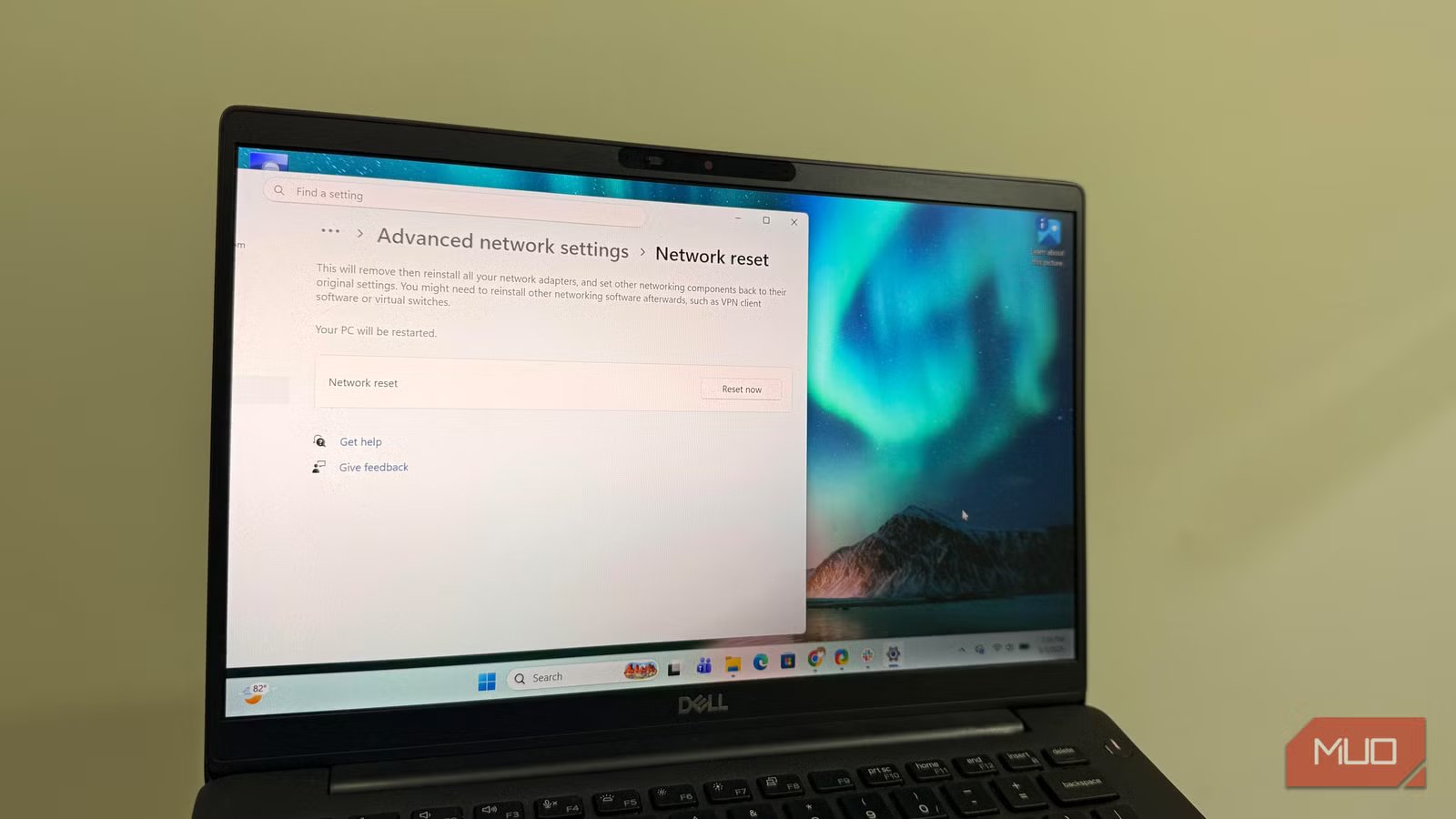
Full Windows Network Reset (Settings) | All adapters, configs, and saved networks | Deep corruption (but also wipes VPN adapters and saved Wi-Fi) |
When you use a full Settings reset, you will need to reconfigure VPN software, custom DNS, and saved networks because it removes and reinstalls all network adapters. This makes targeted CLI resets often the better option.
The commands that finally fixed it
Running them in sequence clears different layers without overlap
I started with targeted command-line resets. They are the faster and less disruptive option. To use them, open the Command Prompt with administrator privileges and run these commands in order:
netsh winsock resetnetsh int ip reset
ipconfig /flushdns
ipconfig /release
ipconfig /renew
These are important commands any network troubleshooter should know. When you run them in this order, you reset the networking layers with the first two, and you clean and refresh configurations that sit on those layers with the last three. If you switch the order, you may end up reapplying stale configurations to a bad foundation. The table below gives more clarity:
Command | What it resets | The problem it targets |
|---|---|---|
netsh winsock reset | Winsock catalog | Apps losing internet while the browser partially works |
netsh int ip reset | TCP/IP stack | General instability from driver conflicts or update remnants |
ipconfig /flushdns | DNS cache | Domains resolving incorrectly or taking too long |
ipconfig /release | Current DHCP lease | Forces Windows to drop a potentially corrupted IP assignment |
ipconfig /renew | DHCP lease | Requests a clean configuration from the router |
You can skip the /release and /renew commands if you assign your IP statically, since they only apply to DHCP connections.
The reset fixed problems I’d slowly stopped questioning
Once I had done this reset, the results were instant. I observed those tiny random network issues disappear. I had adapted to the network degradation, but it finally felt liberating to see my network behave more predictably.
My internet speed remained constant, and the Wi-Fi signals were the same, but downloads stopped stalling midway, and my VPN sessions remained stable. This simple Windows network reset resolved connection issues I had been blaming on my router.



