
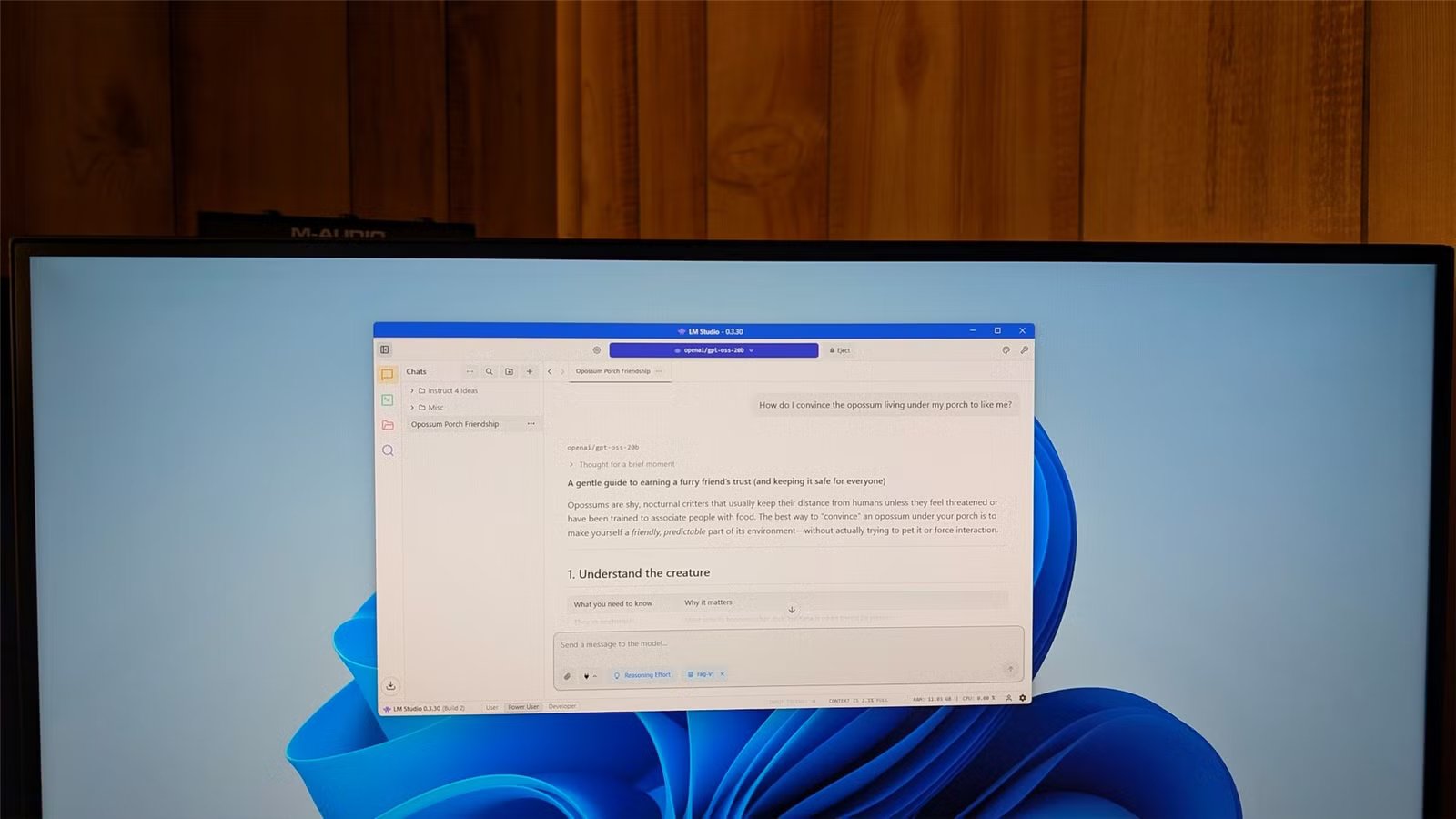
Cloud AI is powerful but not private. Local AI is private but less powerful. That trade-off is real, and trying to pick one over the other is the wrong framework. A better use of your time is to find tasks that require privacy, but not as much model intelligence, and then have local AI models automate them for you. Here are three such tasks that I’ve automated using on-device LLMs.
What is the local AI setup I’m using?
The hardware and software stack behind all three workflows
I’m using LM Studio as the main interface. It’s a simple graphical app that lets you download and run language models locally without touching a terminal. The model I’m running is Qwen 3.5 9B at 4-bit quantization, and I’m using it because it supports both vision (so it can analyze images) and tool calling (so it can actually do things, like write to files or talk to apps).
My machine is a Ryzen 5 5600G with 32GB of RAM and an RTX 3060 with 12GB of VRAM. If yours is in the same ballpark, these workflows should run fine. If you have a smaller GPU, you can try a smaller model. Qwen comes in different sizes and most of these workflows work even at lower parameter counts.
On top of LM Studio, I’ve also set up MCP (Model Context Protocol) servers. These are what give the model access to different tools, like your computer’s filesystem, or external apps like Notion and Asana. Without MCPs, the model can only talk to you—but with MCPs, it can actually do things for you.
Finally, I have an AI layer for voice processing and transcriptions. For this, I’m using Whisper with the RealtimeSTT Python library. It’s terminal-based, which can sound intimidating, but it’s fast and reliable. I used Claude to vibe code a Python script that lets me either drop in an audio file and get a transcription, or speak in real-time and have it transcribed when I’m done talking. That said, if you don’t want to deal with coding or the terminal, you can try OpenWhispr. It’s a bit slower in my experience, but completely graphical, and extremely user-friendly.

5 free, open-source apps that save me hundreds of dollars and hours of work
Your wallet called. It wants you to read this.
Log all your receipts into a budgeting CSV without typing a single thing
Screenshots in—spreadsheets out

Traditional budget tracking involves sitting with all your receipts at the end of the day—or at the end of the week—and jotting down all your spending in a notebook or a spreadsheet. While some people genuinely love doing this and even find it meditative, for others this is an absolute chore—and a bore. If you feel negatively about punching numbers into a cell, but would prefer a comprehensive overview of your spending and finances, then you can use LLMs to help you out.
The first step is having a list of everywhere you spent money. Most payments leave some kind of trail. If you paid on your phone, the transactions should be logged inside your Apple Pay or Google Pay. Simply grab a screenshot of the payment confirmation. If you paid with cash, you should have a paper receipt. You can snap a picture of that.
Next, drop all of those screenshots and photos into LM Studio with Qwen 3.5 loaded. With an instructive prompt, the LLM can scan through those images one by one, read the relevant information—merchant, date, amount, category—and write that data directly to a CSV file using the filesystem MCP server. If the CSV already exists, it appends new rows—if it doesn’t, it creates one.
Here’s the prompt I use for this:
You have access to the filesystem. In this path I keep all my finances: [full file path]

I'm attaching a set of receipt images or payment screenshots. For each one, extract the following:
- merchant name
- date
- total amount
- category (e.g. food, transport, utilities, entertainment).

Once you've extracted the data from all images, append it to the budgeting CSV file in the provided path in the format: Date, Merchant, Amount, Category. If the file doesn't exist, create it with those column headers first.

Don't ask for confirmation. Just process each image and write the data.
One thing worth knowing: crumpled receipts or ones with handwritten totals can occasionally be misread. I give the output a quick scan before closing the file—takes maybe 30 seconds but ensures there are no errors.
Turn unstructured voice recordings into structured written notes
Give your messy transcription a Zettelkasten makeover

I prefer talking to typing when I’m working through a big idea. It’s faster and less strenuous on my wrists. The problem is that my voice dumps tend to be extremely unstructured, filled with filler words, and just terrible for storage and retrieval. If you can relate to this problem, then this workflow will is for you.
First, record your voice using your phone or dedicated voice recorder, whatever you prefer. Then transcribe it using Whisper, which will leave you with your messy thought dump written in text. Finally, push that messy thought dump through an LLM to structure it.
Depending on the content, especially if it was a really long thought dump, you can instruct the LLM to break it up into multiple Zettlekasten-style atomic notes—small, self-contained notes that each cover one idea. That format works well if you’re building a knowledge base rather than just capturing a one-off thought.
From there, the model can either save the notes directly to my computer as markdown files using the filesystem MCP server, or push them into Notion using the Notion MCP server. If you use Obsidian, pointing the filesystem MCP at your vault folder means your notes land there automatically, ready to link and build on.
Here’s the prompt I use:
Below is a raw voice transcription. It's unstructured and may be repetitive or rambling—that's expected.

Your job is to reorganize this into clear, structured notes. Break it into logical sections with headers. Under each header, use bullet points for the key ideas.

If the content contains distinct self-contained ideas, also produce a set of atomic notes at the end—each one a single idea with a short title, written in 2-4 sentences.

Save the structured notes as a markdown file at [YOUR FOLDER PATH]/notes/[auto-generate a descriptive filename based on the content].md

Transcription:
[PASTE TRANSCRIPTION HERE]
The result isn’t always perfect, but it’s consistently useful. Even if I need to edit 20% of what comes out, I’m still spending far less time than I would typing out these notes.

How Claude fixed my messy Obsidian vault in 5 minutes (prompts included)
Your second brain has become a second junk drawer. Claude can fix that.
Use local AI as your personal task router
Stop manually triaging tasks across apps—let the model do it

If you’re anything like me, you probably use multiple productivity apps—Notion for project planning, Asana for work tasks, Todoist for quick personal to-dos, and Google Calendar for anything time-sensitive. Each of these apps is better at something than the others. There’s no app that is just objectively better at everything. In fact, I’d argue most people stick to using just one app not because they want to, but because maintaining multiple apps is just too much work.
If you share my sentiments, then you’d be happy to know that a local LLM can work as a task router.
The idea is straightforward. You dump your tasks—in whatever form they’re in, rough or structured—into the model. With the right prompt and the MCP servers connected, it distributes those tasks across your apps automatically. Professional tasks go to Asana, personal projects go to Notion, and deadlines go to Google Calendar. You describe your preferences once, and it handles the sorting from there.
The way I use this ties directly into the previous workflow. My voice recordings, once processed into structured notes, get saved to my Obsidian vault. That vault acts as my source of truth—the place where everything lands before it goes anywhere else. From there, the LLM reads the new notes, identifies anything that’s an actionable task, and routes it to the right app based on my preferences.
If the apps you use have MCP servers available—and a lot of them do—connecting them to LM Studio takes a few minutes. However, if an app doesn’t have an official MCP server but has an API, you can potentially build a custom one. Vibe coding an MCP server is more approachable than it sounds, and Claude is particularly good at helping with it—especially considering Anthropic (Claude’s developers) developed this standard.
We shouldn’t be dependent on ChatGPT for everything
All three of these workflows have the same thing in common—they involve working with data I wouldn’t want to feed into a third-party AI service. I don’t want ChatGPT or Gemini to know where I’m spending my money, or about my thoughts and projects. Running a local model means I get intelligent processing on that data without it leaving my machine.



