
Dropbox has been a top-tier cloud storage service for years. It’s faster, uses the maximum bandwidth available, lets you stream videos without needing to download them first, and is overall a reliable solution. However, over time, it started to feel expensive, and the free tier was basically non-existent with its free 2GB limit. Then there was a slow realization that my files were sitting on someone else’s server. So I decided to go self-hosted.
Initially, I tried Nextcloud paired with Google Drive as a hybrid cloud setup, and while it worked, it always felt like a heavy groupware suite pretending to be a sync tool. Looking for a more lightweight solution, I tried Seafile, which turned out to be an excellent alternative to Dropbox with a solid sync that many self-hosted solutions lacked.
Seafile is light on resources
A focused tool instead of a full groupware suite

The first thing I noticed after setting up Seafile was how little it asked of an old laptop, especially compared to Nextcloud, which is basically a Swiss Army knife. It ships calendars, contacts, chat, an office suite, and a huge apps catalog, all running on the same PHP stack. Versatile indeed, but it also makes the server feel slow and resource-heavy, especially on modest hardware.
Seafile, on the other hand, has a lighter footprint. It focuses on file sync and share, and leaves everything else to other tools. There’s no app store bolted on top, or extra background jobs for calendars or chat, and the web UI shows you libraries and files instead of a wall of app icons.

Nextcloud didn’t expect competition like this
A file server so lightweight and clever, it makes Nextcloud look overengineered.
In practice, that translates to lower idle RAM and CPU usage on the same machine, fewer moving parts to update, and a noticeably snappier web interface. If you’ve ever opened a Nextcloud tab and watched it think for a few seconds before showing your files, Seafile will feel like a different category of software.
Block-level sync just works
Only the changed parts of a file go over the wire

Sync engines are where Seafile pulls ahead. Most self-hosted tools push entire files when something changes inside them. Seafile uses block-level sync, which splits each file into small chunks and only transfers the chunks that actually changed.
This is most apparent when working with large files. For instance, when editing a video project, tweaking a virtual machine image, or saving changes inside a big archive doesn’t force a full re-upload. Seafile hashes the file, figures out which blocks are different, and pushes only those.
The desktop client behaves like a normal two-way sync folder, the same model Dropbox uses. You pick a folder, mark it as a sync library, and from then on, any change is detected and pushed automatically. There’s a drive client too, which mounts your libraries as a virtual drive and only downloads files when you open them, similar to Dropbox Smart Sync or OneDrive’s Files On-Demand.
Libraries beat folders
Each project is its own encrypted, versioned unit
Libraries are the feature most people don’t appreciate until they use them. In Dropbox, everything lives inside one giant folder tree, and permissions get messy fast. In Seafile, every top-level container is a library, and each library has its own sync rules, share settings, version history, and optional encryption.
This may not sound like a major deafferenting factor, but it does affect how you organize files. You can keep a separate library for client work, another for personal documents, and another for media assets. Each one has its own access controls, its own trash, and its own version history that you can roll back without touching anything else.
With Seafile, encryption is also a per-library decision. For sensitive documents, you can turn on client-side encryption and set a passphrase that the server itself never sees. For media libraries where server-side search matters, leaving encryption off makes more sense. The point is that you make the call once per library instead of fighting with folder-level flags.
Libraries also back wikis and shared workspaces. Creating a wiki in Seafile is just spinning up another library with a different view, which keeps the mental model simple.
It’s not all smooth — the setup tax
You’re trading a subscription for an hour of configuration

This is where Dropbox earns its money. With Dropbox, you install an app, sign in, and you’re done. With Seafile, you’re the admin, the network engineer, and the support team rolled into one. The good news is that Seafile’s official Docker setup is short enough to finish over coffee.
The cleanest way to run it on Windows is the Community Edition in Docker, with all data kept on a separate drive so it doesn’t fight with the system partition.
Start by installing Docker Desktop on Windows 10 or 11. Open PowerShell as Administrator and run wsl --install --no-distribution followed by winget install -e --id Docker.DockerDesktop. Reboot, launch Docker Desktop, and wait for the whale icon in the system tray to show “Docker Desktop is running.”
Next, find your PC’s LAN IP with ipconfig and note it down. This is the address you’ll use everywhere, both in the config file and from the clients.
Now create a folder for the install, for example E:\seafile. Inside it, save Seafile’s official sample docker-compose.yml file from the Seafile 11 Docker manual. Open it in any text editor and adjust three things: set a strong MYSQL_ROOT_PASSWORD and DB_ROOT_PASSWD (they need to match), point the data volumes at folders on E:\ instead of /opt, and set SEAFILE_SERVER_HOSTNAME to your LAN IP. That’s it. No JWT key, no separate .env file.
With the compose file ready, open PowerShell, navigate to E:\seafile, and run:
docker compose up -dThis is the command that installs Seafile. Docker reads docker-compose.yml, pulls the MariaDB and Seafile images from Docker Hub, and starts them as containers in the background. The Seafile container then bootstraps itself on first run and creates its database schema. The whole process takes two to four minutes. You can watch the progress with docker compose logs -f seafile, and the all-clear is when the line “Seahub is started” appears.
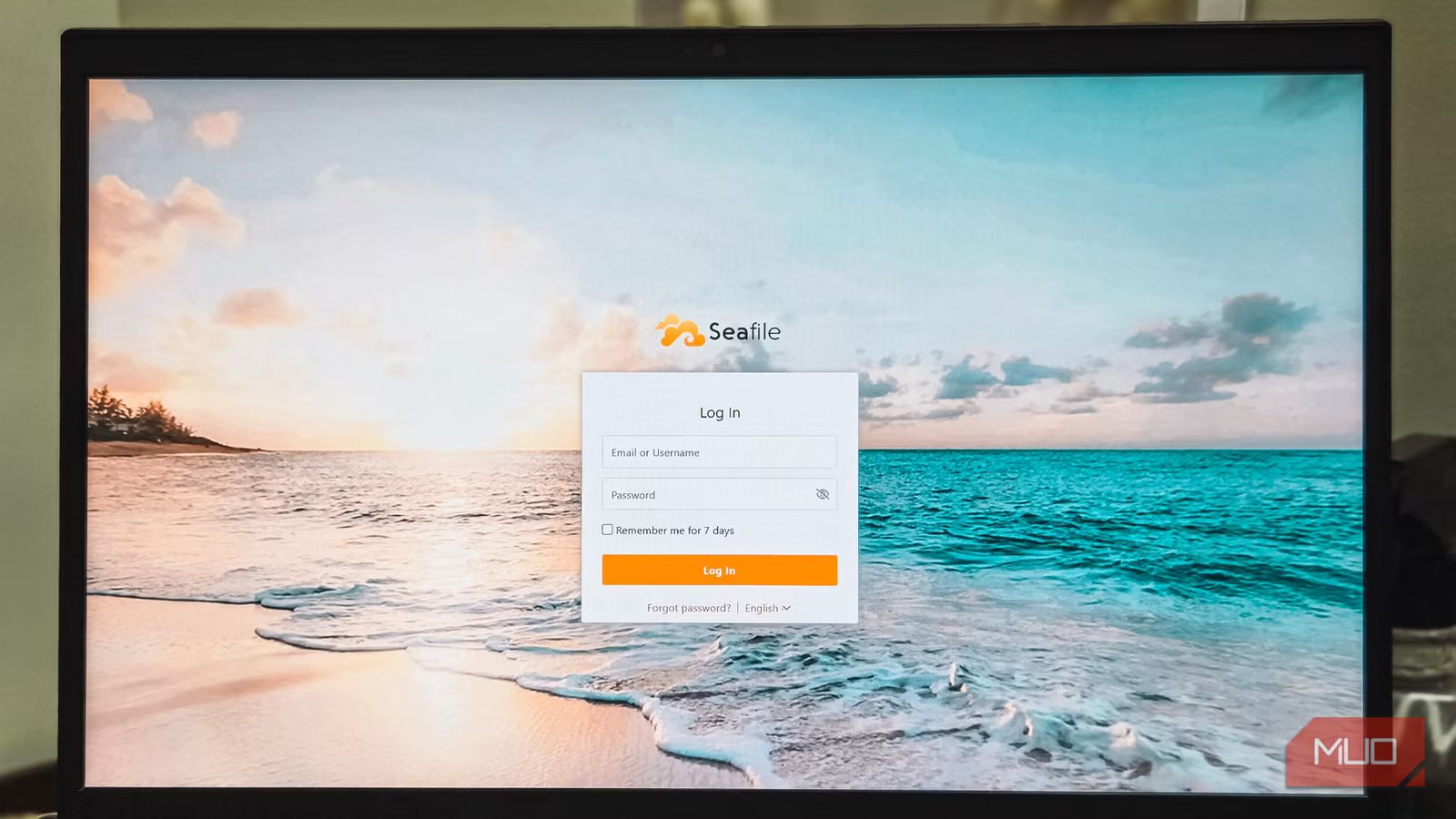
Now open http://YOUR_PC_IP in any browser. Seafile shows its own web UI on first boot. The default admin email is me@example.com with the password asecret . But you should change that immediately from inside the web UI. Then create your first library to confirm everything works.
To reach the server from your phone on the same Wi-Fi, add a Windows Firewall rule for TCP port 80 on the Private profile, either through the GUI or with New-NetFirewallRule in an elevated PowerShell. After that, install the Seafile Sync Client or the Seafile Drive Client on Windows from seafile.com, and the Seafile app on Android or iOS. In every client, the server address is http://YOUR_PC_IP, with the admin account.
Self-hosting also means owning your backups. A weekly job that stops the Docker stack and copies the data folders to an external drive covers the basics, and pairing Seafile with a free cross-platform tool like Duplicati lets you push encrypted copies to cloud storage as a second layer. Dropbox handles all of this for you. With Seafile, it’s on you.

- OS
-
Windows, Android, macOS, iOS, Linux
- Developer
-
Seafile Ltd.
Seafile is an enterprise-ready, open-source file syncing solution offering self-hosted control and high performance. It features end-to-end encryption and a virtual drive client, serving as a private, reliable alternative to Dropbox.
Seafile is the closest thing to a self-hosted Dropbox right now
Seafile isn’t trying to be Nextcloud, and that’s exactly the point. If you want calendars, contacts, an office suite, and a full personal cloud OS, you’ll need something heavier, or you can run Seafile alongside separate tools for those jobs. For purely peer-to-peer sync with no central server, Syncthing is a better fit for keeping files moving between devices.
But for a self-hosted Dropbox alternative, fast block-level sync, mature clients, a lean web UI, and libraries that respect how you organize your work, Seafile is the closest thing out there. The setup tax is real, and you’re now your own IT department. A free weekend and an old laptop got me the sync experience I’d been paying Dropbox for, and I’m not going back.



