
Like many, I’ve never given Samsung Notes—which is preloaded on every Samsung Galaxy—any serious consideration. For taking notes, I either use Google Keep or Google Drive (which has hidden features to make file storage better) because they integrate so nicely into the Android/Google ecosystem. I also tend to use dedicated note-taking devices like the reMarkable 2, so for me to like a note-taking app, the bar is high.
But a bunch of recent additions to Samsung Notes with the inclusion of multiple AI tools has made it very compelling if you’re like me and you need help turning your chaotic notes into something useable and easy to follow.
Not only can Samsung Notes instantly organize your stream of consciousness into structured notes, but it can visually organize them and even turn your rambling thoughts into coherent summaries with the help of Samsung’s AI.

6 smart prompts that make NotebookLM way more useful
You’re missing out on NotebookLM’s full potential.
It’s now a great productivity app

In the latest version of Samsung Notes, you’ll get an AI button (the one with the two little stars) at the top of every note.
From here, you can choose Auto-Format (which instantly structures your notes into bullets, paragraphs and headlines), you can tap Summarize (which turns your notes into a concise summary), then there’s Spelling and Grammer (which is a very powerful grammar checker), and finally Translate (which requires the free download of a language pack, of which many are available like Arabic, Chinese, Hindi, German, Russian, multiple forms of Spanish, and more) that can translate your notes into other languages.
Instantly clean up your notes
Samsung Notes uses AI to format your messy thoughts

This tool is fantastic: when I take notes, I don’t like to take the time to format my thoughts, but instead I just type or record thoughts as they pop into my head. With Samsung Notes’ AI Auto Format, you can instantly turn your thoughts into a properly-formatted output that neatly organizes your thoughts.
You can swipe left and right within the Auto Format box to preview different styles (with different fonts and layouts), and when you find the one you like, you can copy the contents to a new note or add it to the end of the existing note. You can even turn the newly formatted note into a clean PDF from within Samsung Notes by tapping the + icon > PDF.
Summarize your notes in one tap
Samsung turns chaos into order

Similar to Auto-Format, the Auto-Summarize feature of Samsung Notes takes a messy note and turns it into a brilliant summary. This is especially helpful if you’re doing research for a particular topic, and are using Notes as a dumping bin for all of your research — in one tap you can turn thousands of words of notes into a quick summary. You can pick between a Standard or Detailed summary.
The Standard summary gives you a smaller number of shorter bullets, whereas the Detailed summary gives you longer bullets. Once you summarize, you have the option to replace your note with the summary or add it to a new note. You can even translate the summary in one tap to other languages,
Organize your notes with custom covers
Avoid the endless list or grid view

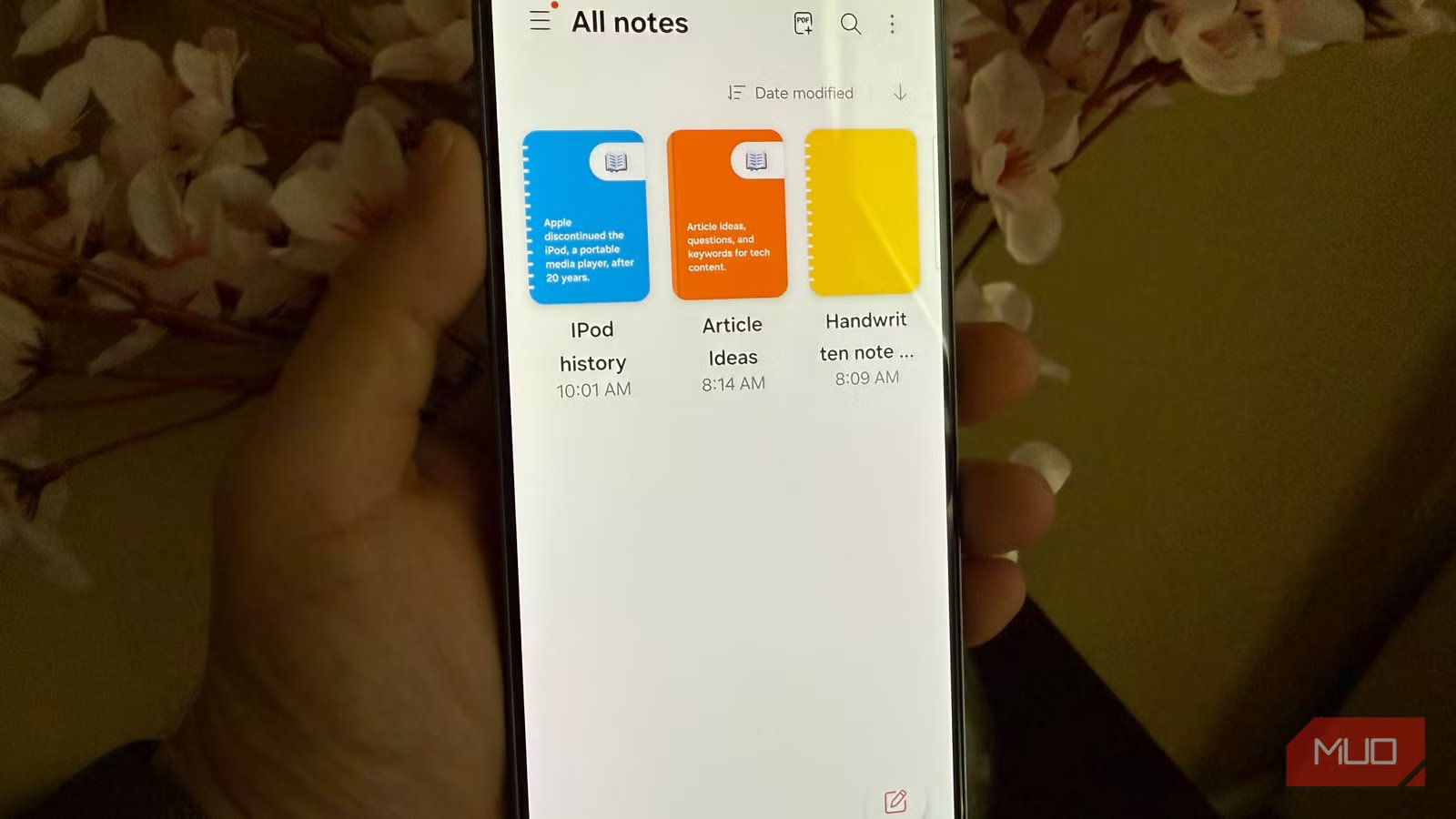
By default, Samsung Notes gives you little previews of each of your notes from the home screen of the notes app. But a much better approach is to let Samsung auto-generate for you a stylized cover for your notes, which really cleans things up. To do this, tap and hold a note > More > Generate Cover. Samsung Notes will generate a little spiral-bound notebook dynamically.
Customize your notebook covers

If you don’t like the output and want to customize or color-code your notebook covers (ideal for organization), you can tap and hold a cover > three dots > Edit cover. From here, you can customize the color of the cover, and even pick the notebook style (like spiral bound, composition, or plain), and you can even adorn your notebook with stickers.
You can set the notebook cover to a variety of patterns (again, like an old-school composition book), or pick an illustration. I prefer the solid colors, though, so that I can color-code notebooks cleanly by category.
It’s become one of my favorite productivity apps

I’ll be first to admit that I have mostly ignored Samsung Notes until recently. Instead, I stuck to Google Keep and Google Drive, which have their own suite of tools and AI features that helps to keep notes organized.
But there is something compelling about Samsung Notes, the way that it’s built from the ground up to be a “dumping ground” for note-taking workflows where you don’t want to worry about formatting and styles and outputs.
Something I didn’t cover here is how Samsung Notes is optimized for pen input. If you have an S-Pen, you’re going to get even more benefits from using Samsung notes, like the ability to annotate PDFs directly, the ability to mix handwriting with text within the same note (and still get the same AI organization and summary tools).
Handwriting recognition on Samsung devices has gotten so much better with AI. If you’re an S-Pen user, or even if you just want a more productive note-taking experience, Samsung Notes deserves serious consideration.

- SoC
-
Snapdragon 8 Elite Gen 5
- Display
-
6.3-inch Dynamic AMOLED 2x



