
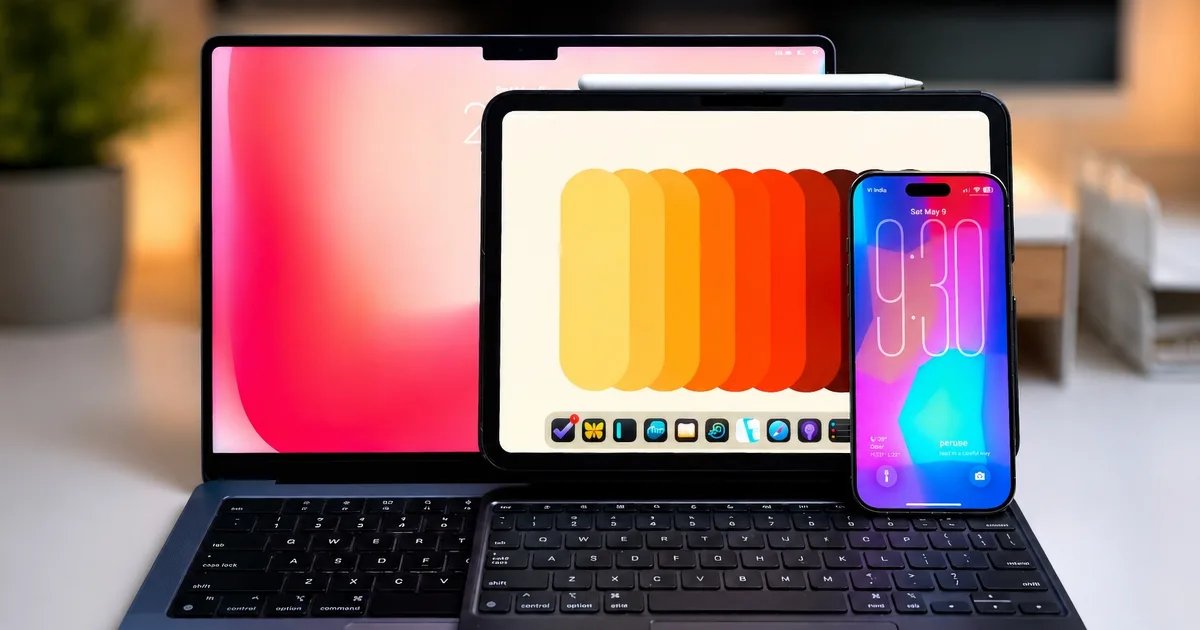
Windows and Android platforms have been trying to catch up to Apple’s ecosystem. And honestly, in some areas, they have succeeded. But replicating a feature here and there is very different from pulling off what Apple has built. The seamless, almost invisible way all of Apple’s devices work together is genuinely hard to replicate.
Apple calls these Continuity features. You can use these features to seamlessly transition from one device to another, unlock devices without entering passwords, transfer files, and much more.
Even if you hate Apple for its price gouging or locked-in ecosystem, once you learn about these Continuity features, you won’t be able to deny the benefits. Having settled into the Apple ecosystem for over a decade, I find that whenever I switch to an Android smartphone or a Windows PC, they feel incomplete.
So, let’s talk about my favorite Apple Continuity features and why they make it impossible for me to switch to other platforms.
Universal Clipboard: copy here, paste there
This is the continuity feature I use the most, and it works exactly how it sounds. Copy something on your iPhone and paste it on your Mac, or vice versa. Even after using it for years, it still amazes me.
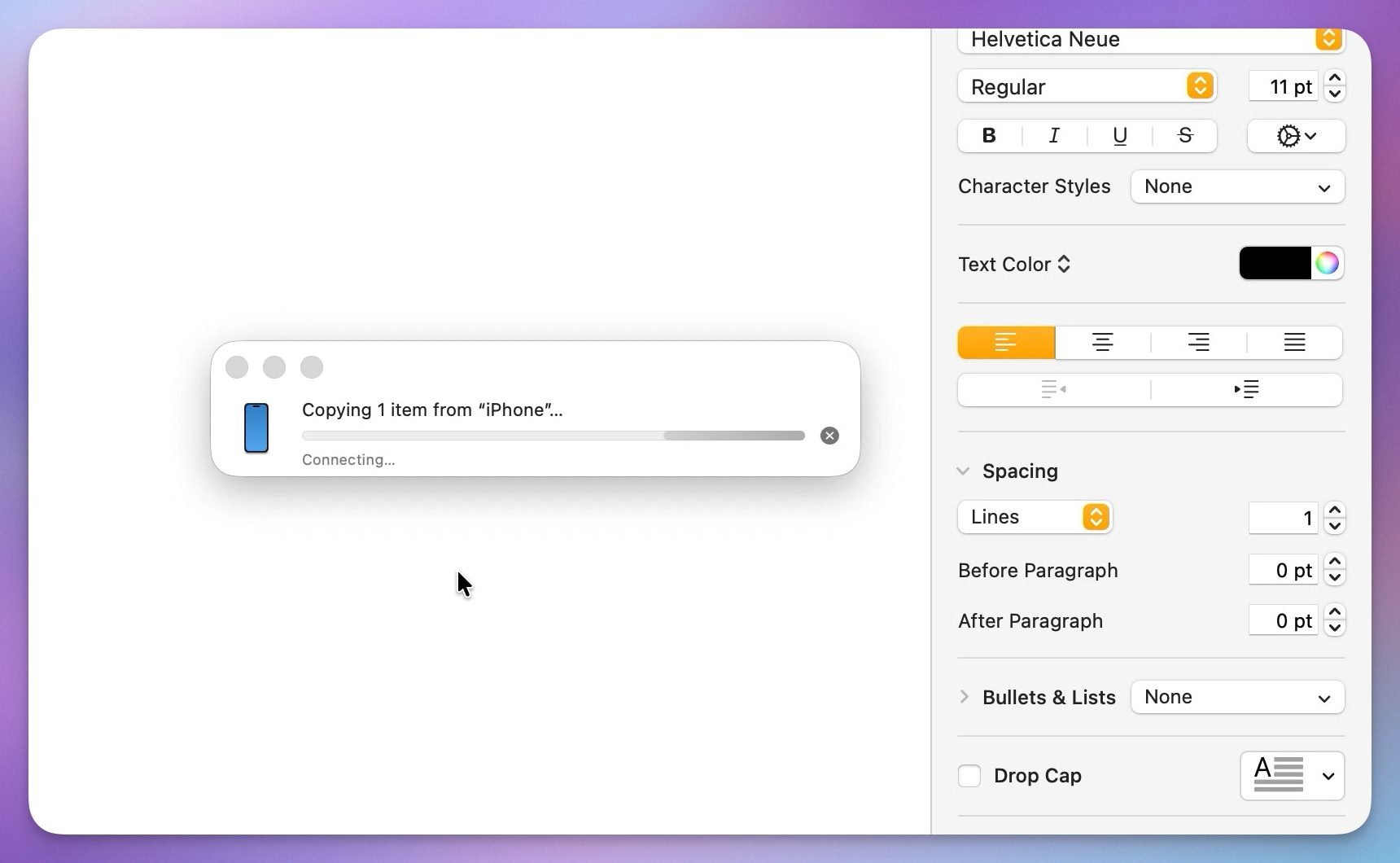
It makes entering OTPs for logging into my accounts a breeze. And it’s not just text, I can also copy images and files from one device and paste them into another. Once you use Universal Clipboard, it’s impossible to use a device without one.
AirDrop: the best way to share files
AirDrop is probably the first thing people think of when they talk about the Apple ecosystem, and for good reason. You can share files, photos, and even contact information between your own devices or with someone nearby.

While Android devices have started replicating this and even allow you to transfer files from an Android to an iPhone or Mac, the execution is still limited to a few popular Android smartphones.
Also, AirDrop works seamlessly. You don’t need to set up anything or download an app. I’ve transferred multi-gigabyte files countless times, and apart from occasional hiccups, the process has never failed me.
Messages and FaceTime: your iPhone calls and messages, on your Mac
You have been able to receive iPhone calls and messages on your Mac for a while now. Both FaceTime and Messages work seamlessly, allowing you to start a conversation on your iPhone and move seamlessly to your Mac or iPad.

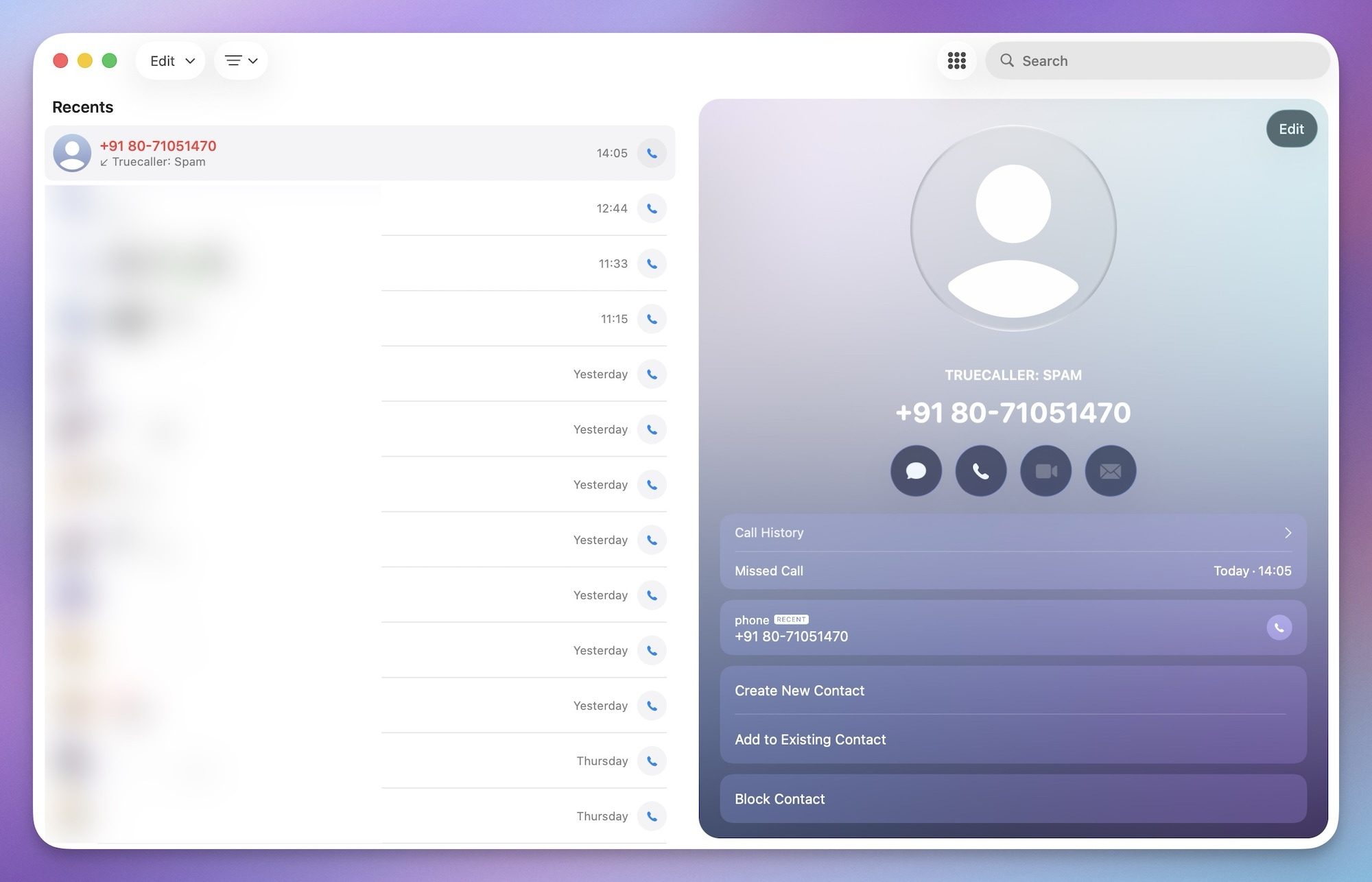
With macOS 26, Apple even added a dedicated Phone app that lets you dial out directly from your Mac using your iPhone’s cellular connection. Now, try using your Windows PC to make a call through your Android device – it won’t work.
The tight integration of software and hardware across its device portfolio allows Apple to deliver features that other platforms just can’t replicate.
Handoff: pick up where you left off
Handoff is one of those features that sounds simple but saves you more time than you might expect. I cannot count the number of times I have started reading something on my iPhone while away from my desk, walked back to my Mac, and just continued right where I left off without having to find the page again.

This works with Safari and a bunch of other Apple apps, plus some third-party ones. For example, you can start working on a Pages document on your iPad and finish it on your Mac.
Handoff works in the background and makes it seamless to switch between different devices. It has become so ingrained in my habit that most of the time I don’t even realize I am using it.
Continuity Camera: your iPhone as a Mac camera and scanner
Continuity Camera is genuinely one of the most underrated features in the Apple lineup. At its most basic, it lets you use your iPhone as a webcam for your Mac, which is a big deal if you have a Mac Mini or just want better camera quality on video calls.

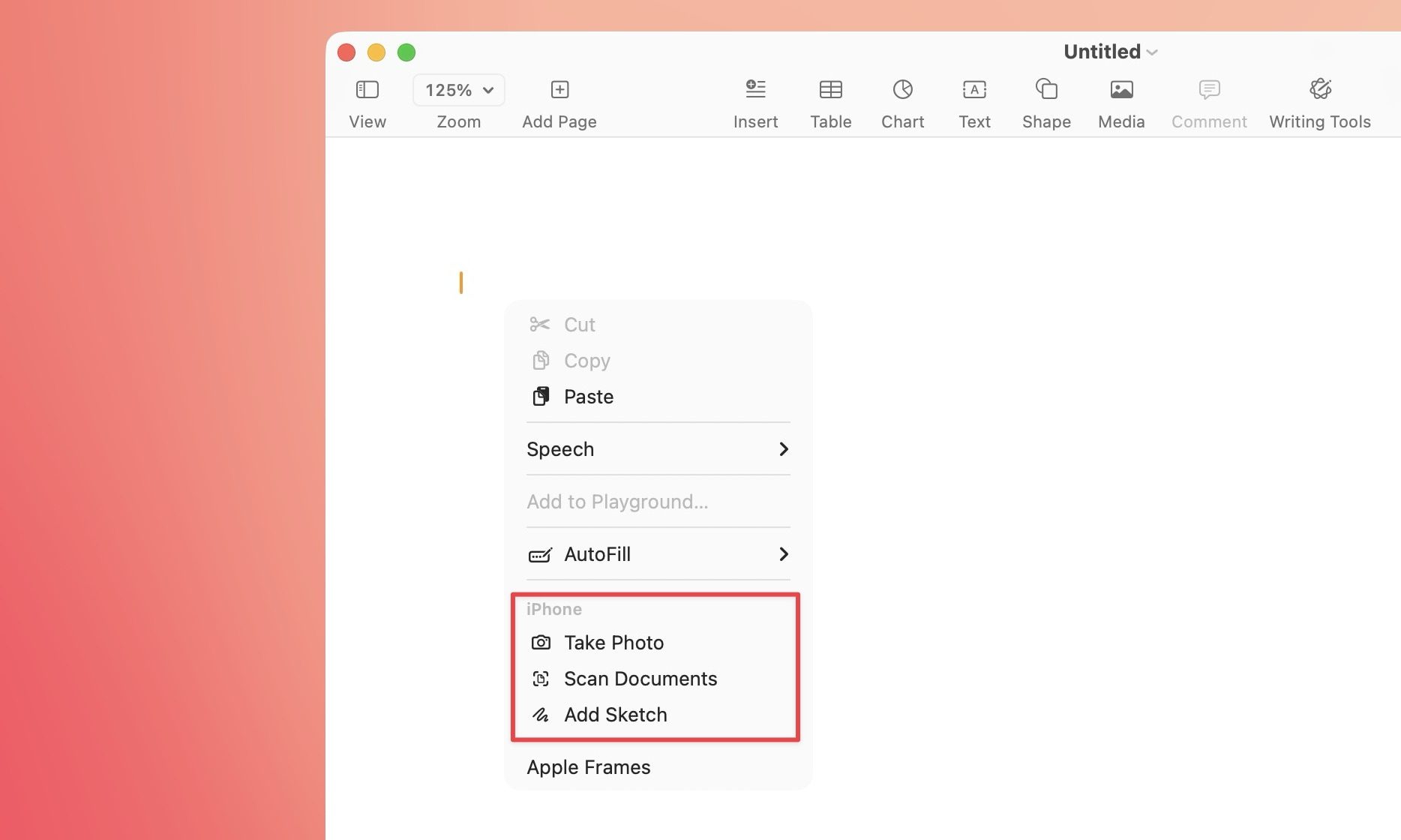
But that is just the start. In apps like Notes, Pages, Keynote, and Freeform, you can use your iPhone to insert a photo, scan a document, or even add a sketch from your iPad.
iPhone Mirroring: your iPhone, on your Mac screen
iPhone Mirroring lets you use your iPhone directly from your Mac, with your phone’s screen locked. Just open the iPhone Mirroring app on your Mac, enter your passcode on the iPhone when prompted, and your phone screen appears in a window you can interact with fully.

This allows me to use my iPhone even without picking it up. If an app is only available on iPhone, I can still use it on my Mac with iPhone Mirroring. The best part is that it works without any lag or stutter.
Universal Control: one keyboard, two screens
Universal Control is magic the first time you see it. Move your cursor to the edge of your Mac screen, and it slides right onto your iPad sitting next to it. Same keyboard, same mouse, two completely separate devices.

Not only that, but you can also drag and drop files between devices and use most of the trackpad gestures. This allows me to control both my iPad and Mac with one single mouse and keyboard.
Sidecar: turn your iPad into a second monitor
If using two different devices is a bit too much, Sidecar is the simpler version. It turns your iPad into a secondary display for your Mac. You can move an app’s window from your Mac to iPad by dragging and dropping, or right-clicking the green dot and choosing the “Move to iPad” option.

It works wirelessly, and the setup takes seconds. I use it mostly when traveling, as I don’t have access to an external monitor. I can use my iPad as a secondary display to keep reference materials while I continue working on my Mac.
Device unlocking: unlock one Apple device with another
I might have overused the word magic a couple of times in this article, but that’s how some of these fathers feel. If you have an Apple Watch, you can use it to automatically unlock your Mac without entering a password.
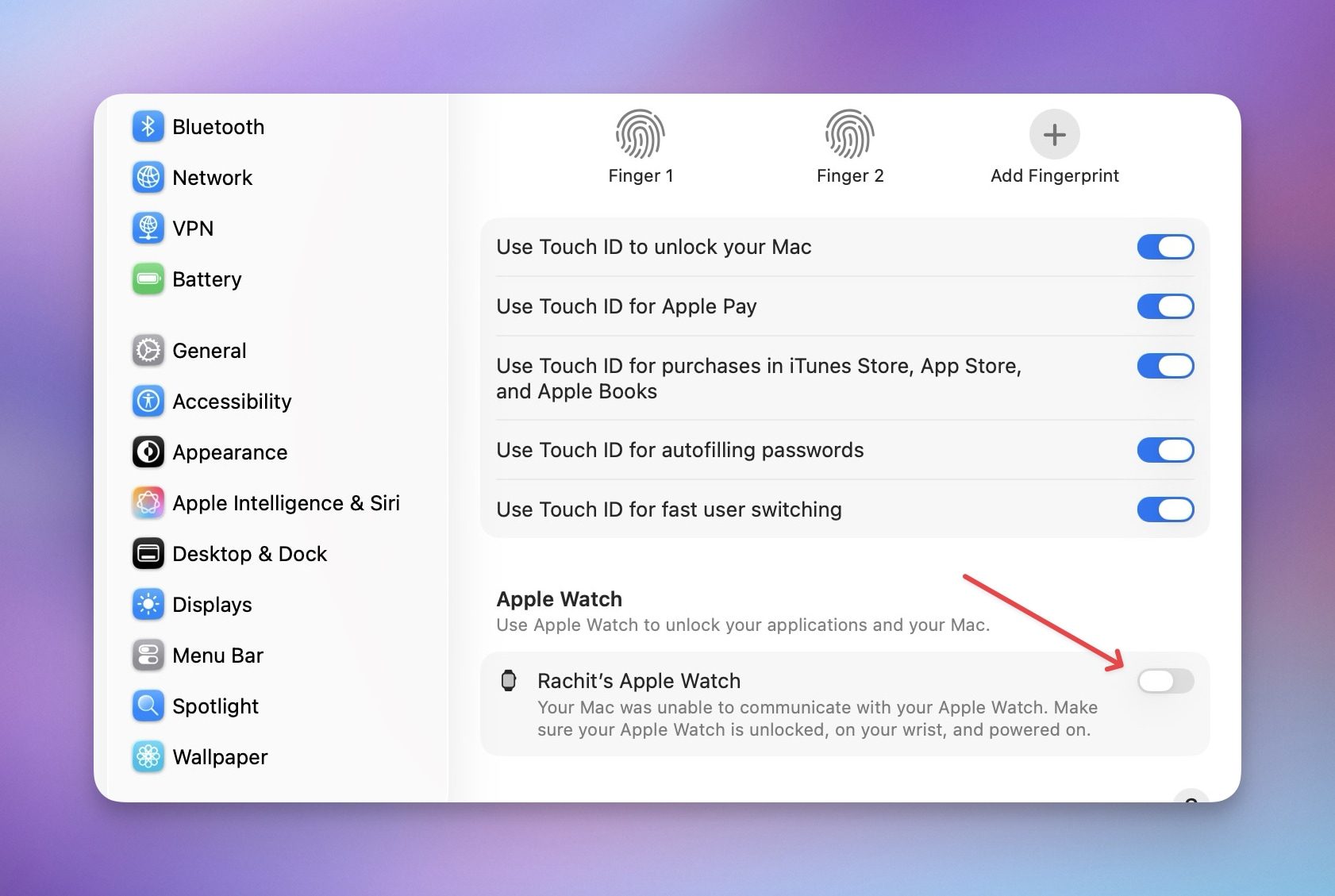
As soon as I wake my Mac up, it unlocks instantaneously. The unlocking is so seamless that most of the time, I don’t even realize that my Mac has a password. Similarly, you can use your Apple Watch to unlock your iPhone and vice versa.
AirPods auto-switching: it just works
This one requires zero setup, which is exactly how it should be. AirPods automatically switch to whatever device you are actively using. If you were watching something on your Mac and picked up a call on your iPhone, your AirPods follow.

It is not always instant and can occasionally catch you off guard, but it works well enough that you stop thinking about it. You can also manage your AirPods from any Apple device, check battery life, adjust settings, and find them in the Find My app if they go missing.
Why no other platform can match this, at least not yet
No matter how much Windows and Android have improved over the past few years, and they have improved a lot, replicating what Apple has built is a fundamentally different challenge.
Apple controls the hardware and the software across all its devices. Microsoft and Google do not have that luxury. They have to coordinate across dozens of manufacturers and bridge two completely different operating systems.
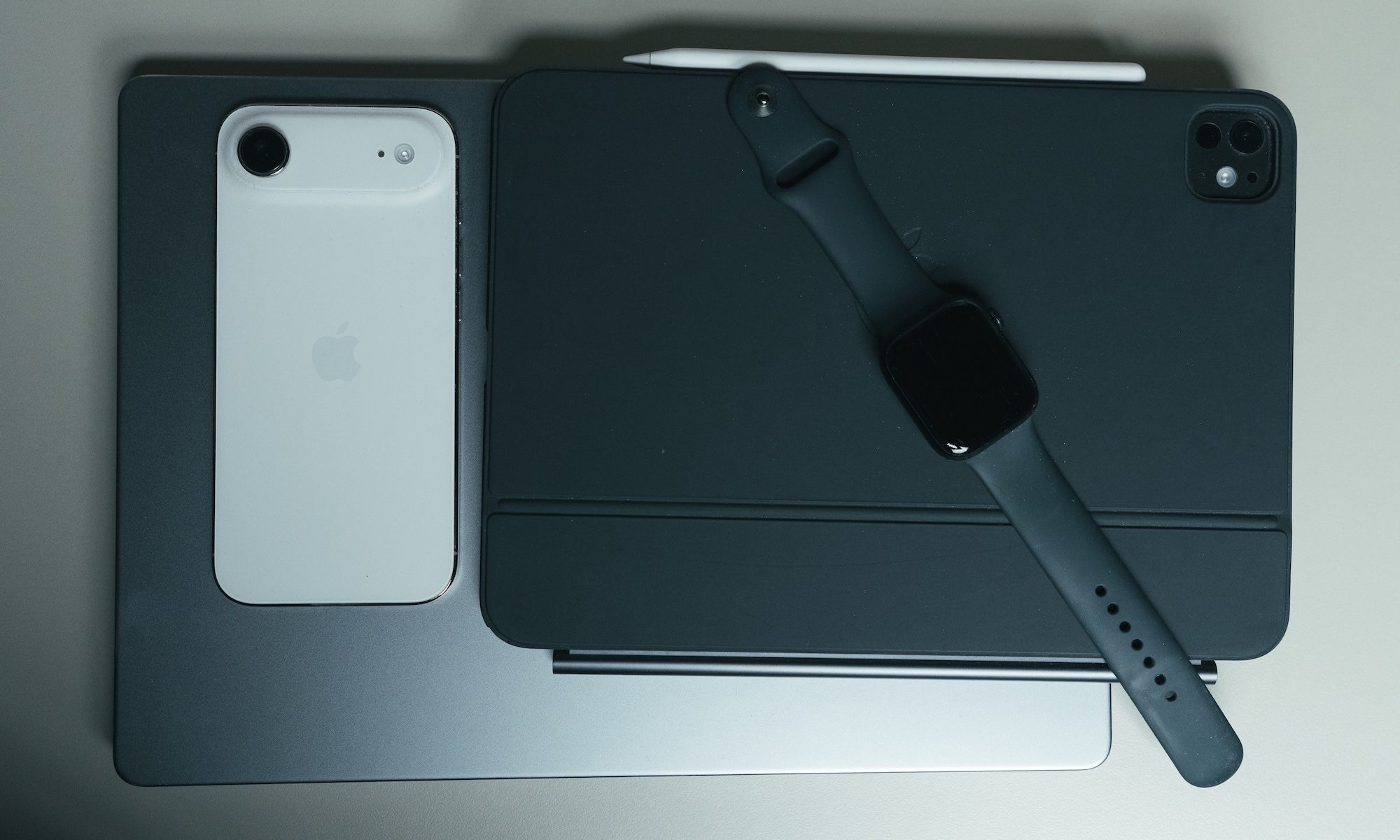
That is not a knock on either platform. It is just the reality of how they are built, and it means they will always be playing catch-up on this specific front.
Do I have frustrations with Apple? Absolutely. There are things I wish Apple did better, and the company is not shy about making decisions that annoy its users. But every time I think about switching, I remember that I would be giving up all of this. And that is a trade I am not willing to make.



