
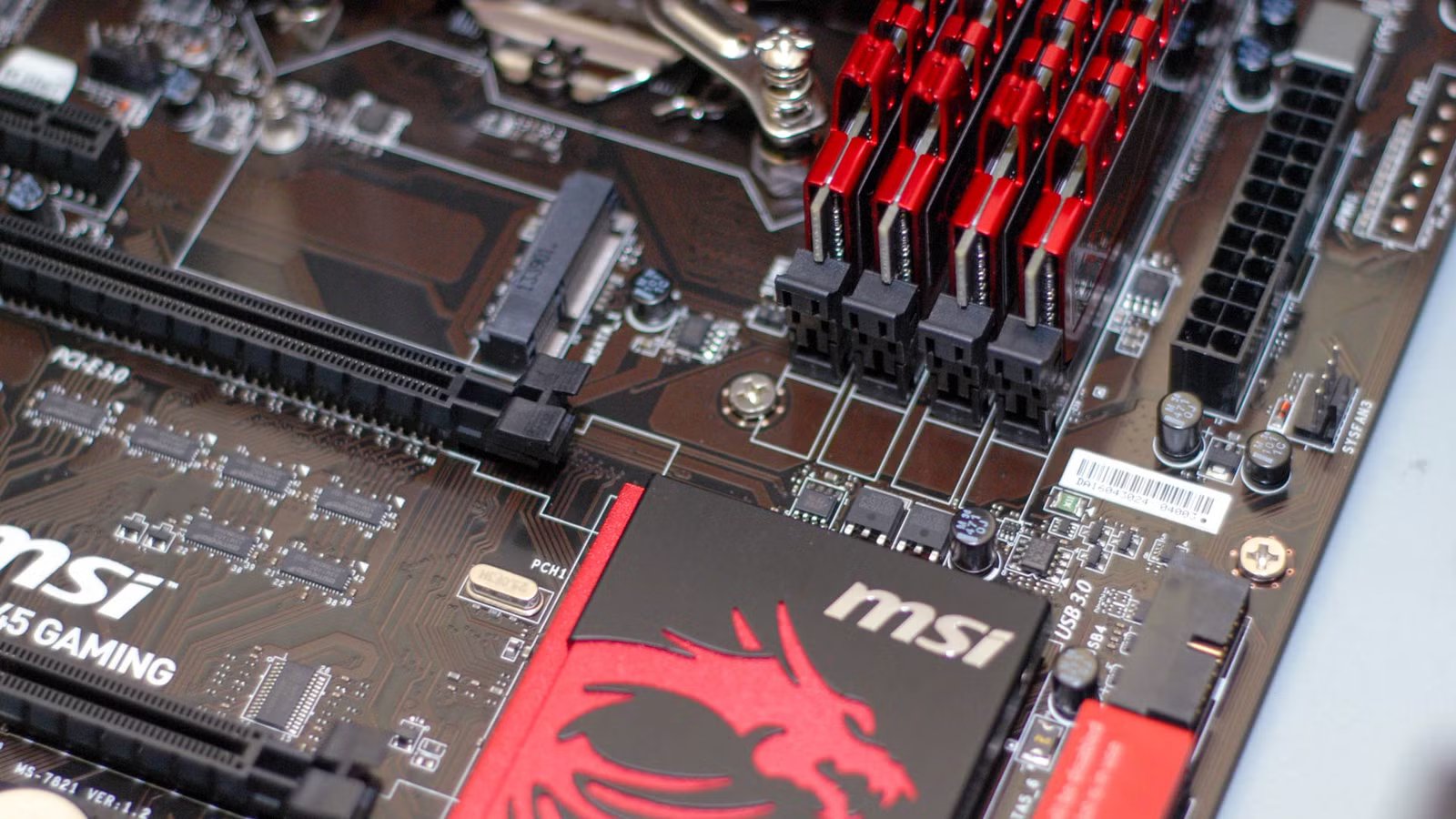
NAS units are great. They’re small, energy-efficient, and easy to get running right out of the box. If the only thing you want is a backup solution for your files, and you’re not picky about cost, they’re a good option. However, if you want a real homelab, you’re much better off picking up some secondhand components instead—your machine will be more powerful, and you’ll learn more in the process.
Fixing hardware is a valuable skill
New hardware doesn’t teach you much
No matter how expensive your setup is, something will eventually go wrong.
One of the most valuable things I learned by using old, self-refurbished hardware was how to troubleshoot my equipment effectively. Is that clicking the sound of a fan going bad, or is a hard drive about to die and take all of my data with it? How can this old GPU be fixed up so I can use it for transcoding? Is a bent CPU pin a dealbreaker?
Using secondhand gear teaches you how to deal with everything from questionable parts to weird boot issues. By fixing those problems, you’ll learn how to diagnose almost every problem a computer can throw at you.
If you just buy a new NAS, you skip the most valuable lessons about what is actually happening under the hood.
 Quiz
QuizUnique and creative DIY NAS setups
Trivia challenge
From old laptops to dusty routers — find out how well you know the wild world of homemade network storage.
HardwareNetworkingSoftwareDIY BuildsStorage
Which major advantage makes an old laptop a surprisingly good candidate for a DIY NAS build?
Correct! A laptop’s built-in battery acts like a mini UPS (uninterruptible power supply), protecting your data from sudden power outages. This is a significant perk that desktop-based NAS builds don’t get for free.
Not quite. The big hidden advantage of a laptop NAS is its built-in battery, which functions as a natural UPS. This keeps the system running briefly during power cuts, protecting data integrity without any extra hardware.
Which open-source firmware is most commonly flashed onto compatible routers to enable NAS-like USB storage sharing features?
Correct! OpenWrt is a Linux-based open-source firmware that replaces stock router firmware and adds powerful features, including USB storage sharing via Samba or NFS, turning a basic router into a lightweight NAS.
Not quite. OpenWrt is the go-to open-source firmware for repurposing routers. Once flashed, it supports USB drives connected to the router’s USB port, enabling basic NAS functionality like Samba file sharing on a very small budget.
Which NAS operating system is specifically designed to run well on low-power ARM-based single-board computers like the Raspberry Pi?
Correct! OpenMediaVault (OMV) is a Debian-based NAS OS that supports ARM architectures, making it a popular choice for Raspberry Pi NAS builds. It’s lightweight, free, and has a web-based GUI that simplifies setup.
Not quite. OpenMediaVault is the answer. Unlike TrueNAS or Unraid, OMV is optimized to run on ARM processors, which is why it’s the community favorite for Raspberry Pi-powered NAS projects.
When building a NAS using a Raspberry Pi, what is the most common bottleneck that limits file transfer speeds?
Correct! On older Raspberry Pi models (prior to the Pi 4), both the USB ports and the Ethernet port shared the same USB 2.0 bus, creating a significant bottleneck when transferring data between network and storage simultaneously.
Not quite. The real culprit on older Raspberry Pi models is the shared USB and Ethernet bus. Because both the network adapter and USB storage competed for the same bandwidth, real-world NAS speeds were often far below what the hardware theoretically promised.
What is a ‘Franken-NAS’ commonly referred to in DIY storage communities?
Correct! A ‘Franken-NAS’ is a beloved DIY term for a NAS cobbled together from spare and salvaged parts — old desktop cases, mixed hard drives, and recycled motherboards all stitched together into one functional (if ugly) storage machine.
Not quite. A Franken-NAS refers to a storage build assembled from mismatched, salvaged components — think old desktop parts, second-hand drives, and whatever case happens to fit. It’s a badge of honor in the DIY NAS community.
Which RAID level is recommended for a small 2-drive DIY NAS that prioritizes data redundancy over total storage capacity?
Correct! RAID 1 mirrors data identically across two drives, meaning if one drive fails, your data survives on the other. It cuts your total usable capacity in half but provides simple, reliable redundancy — perfect for a two-drive home NAS.
Not quite. RAID 1 is the right answer for a two-drive redundancy setup. RAID 0 stripes data for speed but has zero redundancy, and RAID 5 or 6 require three or more drives. RAID 1 mirrors your data across both drives for straightforward protection.
What protocol do most DIY NAS builders configure to allow Windows PCs on the local network to browse shared folders like a network drive?
Correct! Samba implements the SMB (Server Message Block) protocol on Linux and Unix systems, enabling seamless file sharing with Windows machines. It’s the standard choice for home NAS builds because Windows natively understands SMB shares.
Not quite. Samba, which uses the SMB protocol, is the standard answer here. It allows Linux-based NAS systems to present their shares in a way Windows PCs understand natively, so you can map them as network drives without any extra client software.
Which low-power x86 platform became extremely popular for DIY NAS and home server builds due to its fanless design and efficient Intel Atom or Celeron processors?
Correct! Compact Chinese-manufactured mini PC boards from brands like Topton and Cwwk, featuring Intel’s N100 or N5105 processors, became hugely popular in the DIY NAS community around 2022–2024. They offer multiple 2.5GbE ports, low power draw, and multiple SATA connections at a very low price.
Not quite. The Topton and Cwwk N100-based mini PC motherboards became a community favorite for budget DIY NAS builds. They pack multiple Ethernet ports, SATA connections, and efficient modern CPUs into a tiny, affordable package that traditional options couldn’t match at the price.
Your Score
/ 8
Thanks for playing!
You learn to squeeze more out of hardware
You choose the OS and every app

Since I was working with an older Intel i5, I had to be very selective about the software I used. I couldn’t just run a heavy operating system and a pile of apps and assume it would run smoothly.
A NAS is convenient because it’s mostly click-and-go, you don’t have to make too many decisions like that. Typically, the most you can do is log into your NAS and fire up a few containerized applications with Docker.

- Storage Capacity
-
2 – 26TB
- Workload
-
550TB/yr
- Suitable for
-
NAS
Western Digital’s Red Pro NAS hard drives come in sizes from 2TB to 26TB.
When you build your own system from scratch—especially if it is older hardware—you get unavoidable, valuable lessons in operating systems, background processes, and storage file systems. You learn exactly when a container is a better choice than a VM (which is most cases), and why a hypervisor OS like Proxmox should be your starting point for any home lab.
That extra effort isn’t for nothing either. Once you get a handle on things, a 5-year-old gaming PC will usually outperform even top-shelf NAS units and cost less.
You can build a scalable system

Working with older components also taught me how to build around what I already had instead of just replacing everything when it wasn’t enough.
Unfortunately, NAS units don’t have much of an upgrade path at all, if any. Sometimes you can add more drives, and if you’re willing to tinker, you might be able to add more RAM. If you need anything extra, you’re probably out of luck. The only takeaway is, “I have to replace this completely, it can’t do what I want.”
Eventually, all computers will become so outdated that they need to be replaced, but secondhand components usually give your homelab a longer lease on life than you’d expect. The Intel i5 was my starting point, but when I originally picked it up, it only had 4GB of RAM. I upgraded the RAM to 16GB (a lot at the time), tossed in an ATI Radeon 4890 for processes that could use a GPU, and the system soldiered on for many years.

Replace Spotify Premium with Jellyfin and these 3 plugins
“Mom, can we get Spotify?” “We have Spotify at home.”
Regardless of what you’re self-hosting, picking up second-hand PC components will teach you how to build a system that is adaptable. Need faster networking or an extra port? You can add a NIC. Want more storage? You can pick up two used server drives and set them up with RAID for redundancy.
You’ll be able to self-host anything
A NAS will feel limited by comparison

Once you pick up the ability to build, troubleshoot, and manage as a homelab, you’ll be able to self-host almost anything.
NASes do support other applications and services besides the simple backup options, but your choices are pretty limited. It usually isn’t super easy to just add a non-supported service and run it on your NAS. You’re mostly restricted to using the apps and services that you’re offered by your NAS unit’s operating system.
On the other hand, the home lab you cobble together from second-hand parts has taught you the ins and outs of the hardware and software that make up a homelab. Firing up a new service that was just released is often as simple as creating a new container, cloning a GitHub repo, and running the appropriate script.

Why Hardware Transcoding Is Important on a NAS
Should you buy a NAS with hardware transcoding? Here’s why—and when—it’s important.
Build your homelab yourself
Cobbling together a homelab for the first time is much harder than buying a NAS, but it is an adventure that pays off in the long haul. Every technical challenge will require you to learn something important that using a NAS completely misses.
That first generation i5 I started with powered some of my self-hosted services for more than 12 years, and survived RAM swaps, the widespread adoption of SSDs by the general consumer market, 20 or so different Minecraft servers, and one spilled coffee. Most NAS units that age would have been decaying in a landfill by that time.
Today, my self-hosted services live on a mixture of SBCs and yet another refurbished PC, and whatever replaces it will probably be refurbished components too.

- Storage capacity
-
2TB
- Hardware Interface
-
PCIE x 4
- TBW
-
7300 MB/s
- Compatible Devices
-
Laptop, Motherboards
- Brand
-
Western Digital
- Dimensions
-
3.15″L x 0.87″W x 0.09″Th
The WD_Black 2TB SSD is great for gaming. It offers read speeds of up to 7,300 MB/s and features an optional heatsink. The drive includes the wd_black dashboard software for monitoring health and customizing RGB lighting on compatible models.



