
Your CPU is throttling itself, and one BIOS toggle will fix it
Every new CPU comes with boost speeds that reviews and benchmarks make you expect. But that speed doesn’t always hold. Your systems might start strong under heavy workloads and then slow down noticeably after the first minute, even when nothing is overheating. The chip isn’t defective — a single setting buried in the BIOS is capping how much power it can draw, and it’s been active since the first boot.
The slowdown that starts sixty seconds in
You can watch it happen in real time
If your new CPU doesn’t feel as fast as the reviews suggested, a free monitoring tool, HWiNFO, can show you the throttle happening in about two minutes. Install it, skip the Summary screen, and click the Sensors button in the toolbar at the top.
Scroll down to the section labeled with your processor’s name, something like CPU [#0]: followed by your chip’s model number. That’s where you’ll find Core Clocks, your processor’s current speed. A bit further down, under a section labeled Enhanced, you’ll see CPU Package Power. That’s how many watts the processor is pulling.
Now run something heavy for more than a minute. A long video export or a CPU-heavy game will do. The readings will climb as the workload starts. For the first minute or so, they stay high, close to your chip’s maximum boost. After that window passes, they drop to a lower level and stay there for the rest of the task.
If your Package Power falls to half of what it peaked at, your chip isn’t struggling. A setting in your BIOS is responsible for that drop.

A power limit you never agreed to
This is what pulls it back

That wattage drop you just saw in HWiNFO has a name. Intel calls it Power Limit 1 and Power Limit 2, or PL1 and PL2 in BIOS shorthand. Two power caps in your BIOS decide the processor’s maximum wattage and how long it gets to hold it.
PL2 is the higher number, the maximum wattage the processor pulls when a heavy task begins. Once the burst window closes, the chip drops to PL1, the lower cap. Think of it like a car that accelerates to 150 mph, holds it for a minute, and then a built-in limiter drags it back to 90 even though the engine can handle the full speed just fine. On a Core i5-13600K, PL2 sits at 181W and PL1 at 125W. That’s a 56W drop mid-task, and you feel it when a task that started fast takes twice as long to finish.
Your motherboard manufacturer didn’t pick these values for your specific build. These values ship as conservative defaults meant to run safely on any board, from budget to flagship. Cheaper boards have weaker power delivery, so the spec stays low to cover them all. If your board can handle more, nothing adjusts that automatically.
Lift the limit your motherboard quietly set
Unlock what your chip can hold
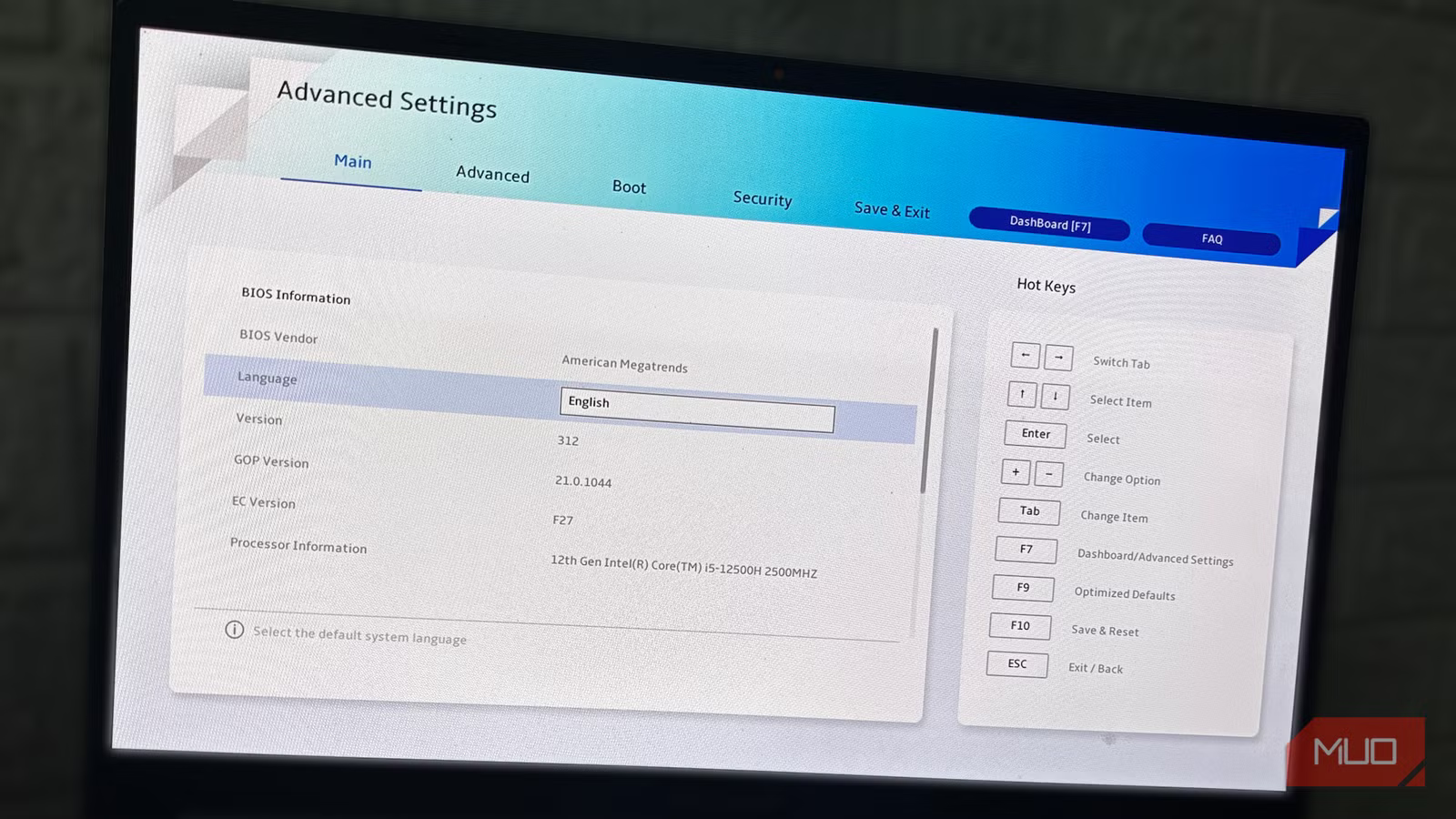
Restart your PC and press Delete or F2 during boot to enter the BIOS. On a Gigabyte board, go to the Tweaker tab, open Advanced CPU Settings, and scroll down to Turbo Power Limits. Double-click it and switch from Auto to Enabled. Once enabled, the fields for Package Power Limit 1 (PL1) and Package Power Limit 2 (PL2) unlock. Set PL1 to match your PL2 value, so the chip holds full power through the entire workload. If an Unlimited option is available, that works too.
On MSI boards, the same settings live under the OC tab in Advanced CPU Configuration, labeled as Long Duration Power Limit and Short Duration Power Limit. Match PL1 to PL2, save with F10, and reboot. ASUS users will find the same settings under Ai Tweaker in the Internal CPU Power Management submenu.

Once the system is back up, there’s one thing to check. Raising the power limit means your CPU runs hotter under sustained loads, so you’ll want to make sure your cooling can handle it. After rebooting into Windows, run a stress test for about ten minutes while monitoring your CPU temperature. If temps stay around 85 to 90°C or lower under load, your cooling is handling it fine for most desktop chips. If it pushes past that consistently, lower your PL1 value or upgrade to a better cooler.
AMD boards have the same setting under different names, so look for PPT, TDC, or EDC. BIOS updates will sometimes reset this to default, so recheck your power limit after any firmware update. If your board doesn’t expose the setting at all, you’re not stuck. Tools like Intel XTU or ThrottleStop can adjust PL1 and PL2 directly.
The speed was always there
If your wattage stayed steady during the HWiNFO test, your board may already ship with the power limit unlocked. Many mid-range and high-end motherboards from ASUS, MSI, and Gigabyte set PL1 to unlimited out of the box. For everyone else, the fix you just applied typically brings a 15 to 30 percent improvement in sustained workloads. The chip was always capable of that speed. Now it’s allowed to hold it.

- OS
-
Windows
- Developer
-
Martin Malik
- Pricing model
-
Free
HWiNFO is a free diagnostic tool that provides in-depth hardware analysis and real-time system monitoring.