
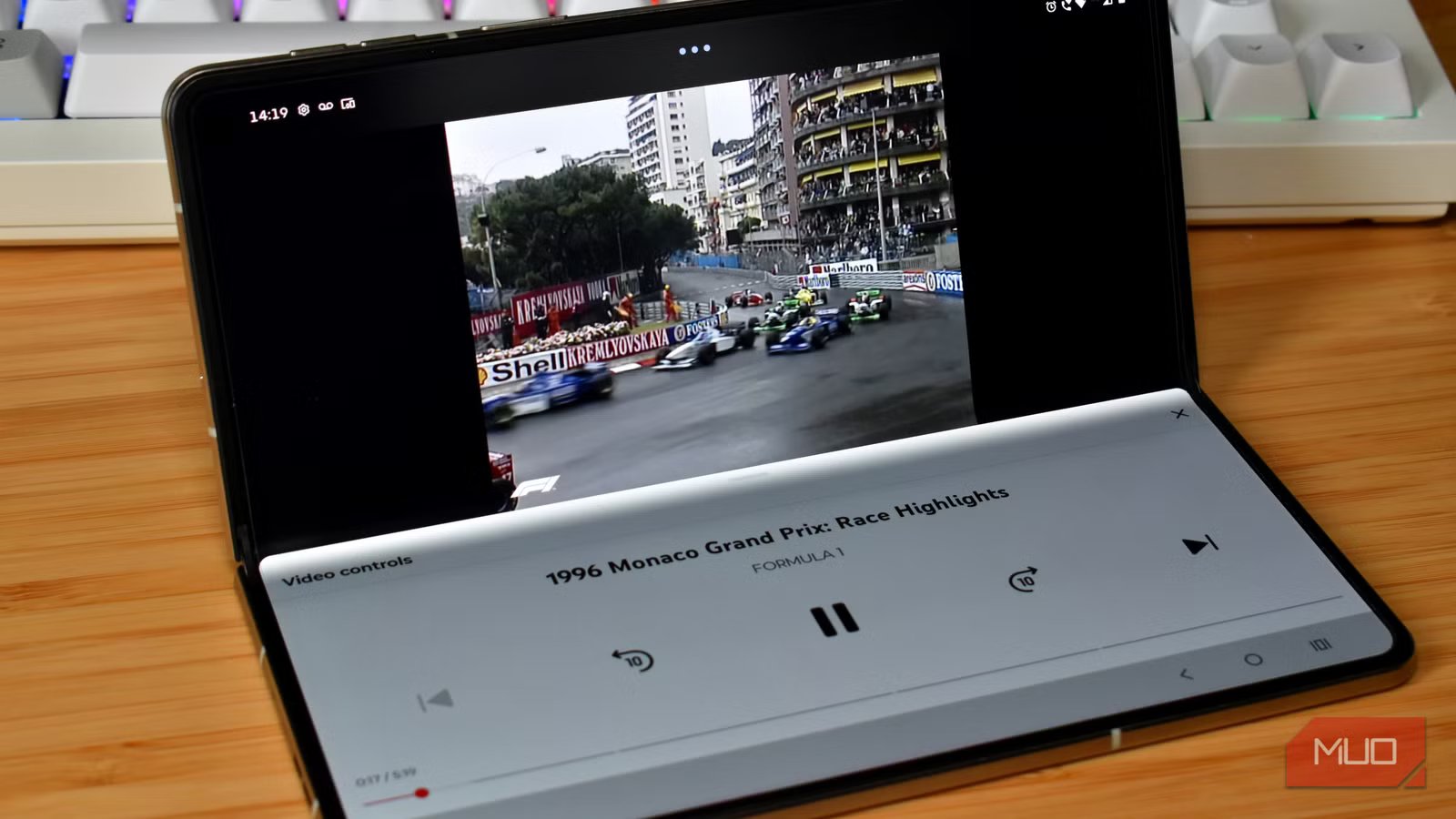
I picked up the Motorola Razr Fold 2026 expecting to use it in two states: closed or fully open. I mean, that’s generally how most folks use a foldable phone.
But let me tell you about the halfway state. The wonderful in-between land where your foldable jumps into mixed mode states hitherto unseen and unknown, packed with extra features you didn’t even know existed.
Well, okay, you maybe did, but I’d wager many folks out there don’t know about this half-folded mode and all of the excellent ways you can actually put it to use.

- SoC
-
Qualcomm Snapdragon 8 Gen 5
- RAM
-
16GB
- Storage
-
512GB
- Battery
-
6,000mAh silicon-carbon
- Operating System
-
Android 16
- Front camera
-
32MP external, 20MP internal
That halfway foldable mode has a name, you know
It’s just different on all phones

I’ve owned a few different foldables over the years, and each of them gives the halfway folding mode a different name. For example, on the new Motorola Razr Fold, it’s known as Flex View, while on Samsung and Honor’s foldables, it’s known as Flex Mode.
But whatever the name, it’s when you hold the phone between open and shut, parking the device at 90, 120, 150 degrees, and so on, and the hinge holds firm.
Then, the foldable jumps into life with a bunch of modes specifically designed for the half-fold. That’s because when you put the phone down, you basically get distinct halves: the top acting as the screen and the bottom acting as a stand, with the smartphone splitting the UI accordingly.
Laptop Mode
Change how you work
I was skeptical about foldable smartphones “Laptop Mode” for a long time. To me, it seemed somewhat pointless, as most of the time, messaging is easier in folded mode, or just unfolded using the larger keyboard.
However, given some time, I’ve really come around to Laptop Mode. On most foldables, you open the device to somewhere between 90 and 120 degrees, lay it down in landscape, and the phone behaves like a tiny clamshell laptop. The keyboard pops up on the lower half, your content sits on the upper half, and you’ve suddenly got a typing position that’s far more comfortable than hunching over a slab.
I’ve used Laptop Mode on my Motorola Razr Fold in a few different ways. For example, when I’m working on the go and need to send a longer Slack message, Laptop Mode’s keyboard and typing position are really useful. Similarly, I’ve used it to send longer emails that require a bit more typing and formatting, so it’s useful there, too.
I must admit, it’s not always smooth sailing, and some apps don’t support Laptop Mode properly. They’ll appear on the Laptop Mode list, but when you attempt the halfway open to prompt the mode to launch, nothing really happens.
But overall, the screen real estate on the Razr Fold’s 8.1-inch inner display means the upper half — your “monitor” — is large enough to read comfortably. It’s not a full laptop replacement, but it’s a great option that a regular phone simply can’t match.

Motorola’s Razr Fold offers the one thing Samsung and Google foldables miss, at a lower price
Motorola finally told us the Razr Fold’s release date and price. It undercuts the Galaxy Z Fold 7 while offering a feature Samsung just removed.
Split-camera view
Forwards and backwards

Another feature you’ll unlock when you half unfold your phone is split-camera mode. On the Razr Fold, when you unfold the screen to around 90 degrees with the camera open (or open the camera app), it’ll switch into a Flex View mode. This splits the viewfinder in half, with a live preview on the top half and shutter controls on the bottom.
It’s a bit like becoming its own tripod. For me, this has several uses. For one, no more really awkward moments trying to find something to prop up a smartphone when you use it for a timed shot. Split camera view makes the situation much easier.

Then, taking more professional-looking selfies is also very much on the table, as it makes positioning and balancing much easier.
You can also use it rear-camera-out for stable, balanced shots of whatever’s in front of the phone — food, a scene, a product — without needing to lean it against anything. If you want to be in that shot, you’ll still need a timer since the rear cameras are facing away from you, but at least the phone isn’t going to slide off the edge of the table mid-countdown.

Another split camera view use is taking photos at night, especially for anything that needs a longer exposure. With the split-camera mode, you can set the camera down, facing the target, hit snap, and everything stays nice and steady.
Moto Pen Ultra and Flex Mode
Photograph and annotation

Now, you can’t talk about the split-screen camera mode on the Razr Fold without mentioning the Moto Pen Ultra.
When you’re using the split-screen camera mode, you can use the Moto Pen Ultra as a remote control to take snaps and so on. It connects via Bluetooth once you remove it from its charging carrier, and can then trigger the shutter remotely.
That means you can set the Razr Fold down, take a step back, get aligned, and snap away without having to go back to the phone each time. It’s a small thing, but it’s the kind of detail that makes the halfway fold position feel like a properly thought-out system rather than a happy accident.
Not that the Razr Fold is the only phone with such functionality. The Samsung Z Fold 6 and earlier supported the S Pen, which had a similar remote shutter feature, as does the Oppo Find N series and OnePlus Open (which also supports the Oppo stylus).
In a folded position with the phone propped up, the upper half of the screen becomes a drawing or annotation surface. The pen supports pressure sensitivity and palm rejection, so you can rest your hand naturally. Sketching, marking up screenshots, annotating PDFs, and so on, all work better when the phone has a physical angle to it rather than lying flat. The lower half can hold your reference material, controls, or the page you’re annotating while you work on the upper half.

Samsung went for a flashy 200MP primary shooter, while Motorola opted for a well-rounded 50MP trio. I tested both foldables, and this is the winner.
It’s all about the balance and poise… and functionality
If you own a foldable and have never tried the middle ground, now is the time. There is a whole world of extra features and options waiting for you to use them!
My biggest issue with these “flex modes” is that often, you’re required to put the front-facing screen on the surface for stability. Giving a table a wipe is simple enough, but I do worry about the potential for scratches with the screen face down, even with the hardened glass and screen protectors you find on every foldable.
But if you can square that worry away, you’ll find yourself with heaps of new features to use, and another form factor from your foldable.



