
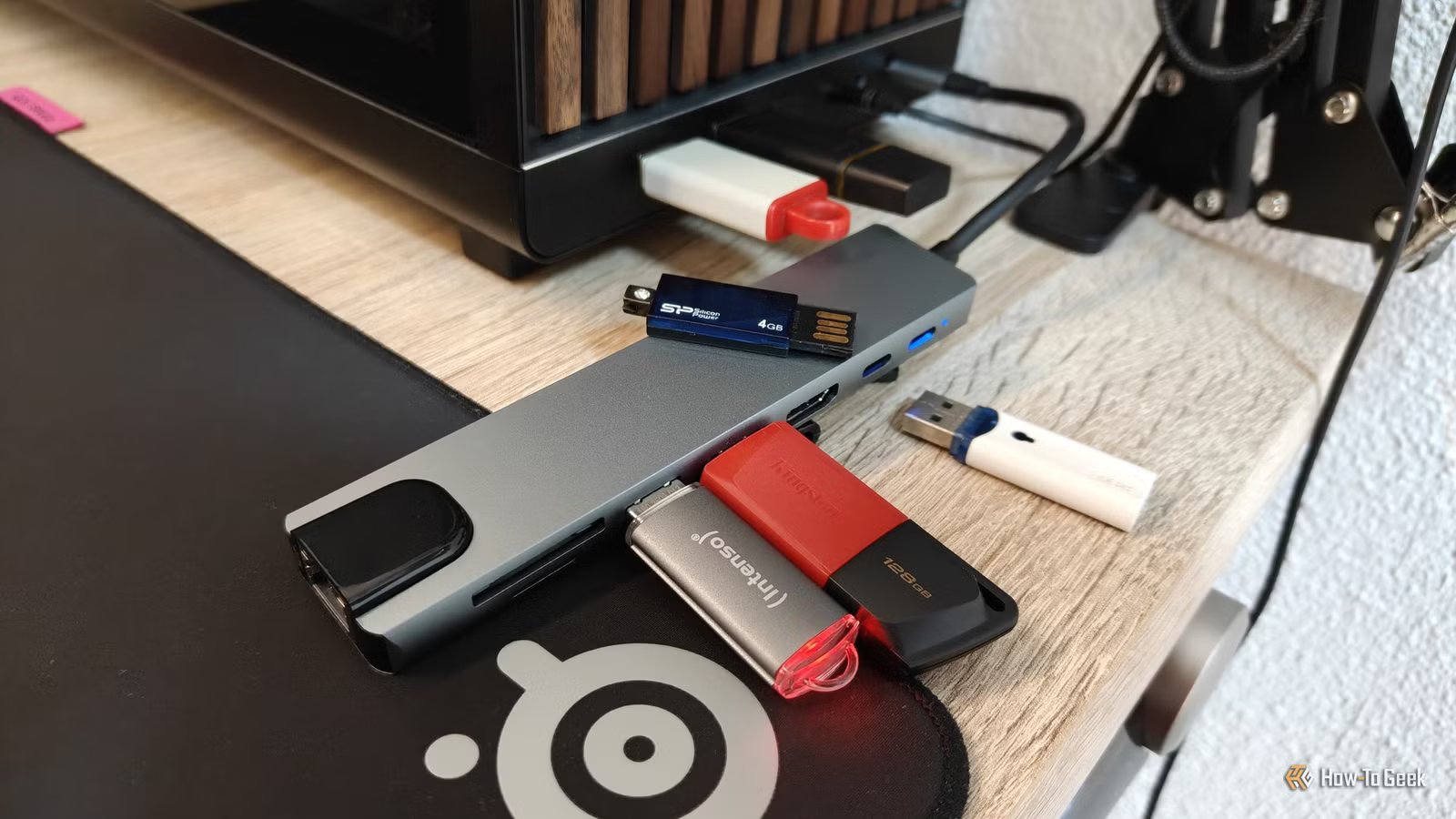
Few computing-related things seem as straightforward as a simple USB hub. It’s there, you grab it, plug it in, plug things into it, and voila: you suddenly tripled the number of your USB ports! Sounds great (and it is), but there’s also a reason why USB hubs are often treated as disposable tech. Those extra ports often tend to malfunction and die off one by one.
Or do they? Having done some testing, I recently realized that a lot of the USB hubs that we discard as broken aren’t to blame. We’re just using them wrong.
Your USB hub may not be dying just yet
It’s just having a hard time
When one port on a USB hub stops responding, it’s easy to assume the worst. I know I did (or do, because I’m still yet to shake that habit). I’d plug in a flash drive, an external SSD, or anything else of that sort, and get absolutely nothing. My PC would almost stare at me, silently making fun of me as I sighed and switched ports yet again.
And miraculously, despite the fact that all the ports belong to a single USB hub, the second port would work. Unsurprisingly, I’d just write off one of the ports as dead at that point.
That’s the wrong mindset, and it definitely doesn’t need to be the first and only step.
The thing about USB hubs is that they can fail in ways that look weirdly inconsistent. A device might refuse to work in one port, then work fine in another. It might work when plugged in alone but stop responding once you fill the USB hub to the brim. It might even disconnect mid-transfer, which can lead to data loss.
But all of that doesn’t mean your USB hub is broken, at least not necessarily. More often, it just means that you’re pushing it too hard.

Quiz
USB standards & connectors
Trivia Challenge
From clunky Type-A plugs to lightning-fast USB4 — test your knowledge of the universal serial bus revolution.
HistoryConnectorsSpeedsStandardsHardware
In what year was the original USB 1.0 specification officially released?
Correct! USB 1.0 was released in January 1996 by a consortium led by Intel, Compaq, Microsoft, and others. It aimed to replace the chaotic mix of serial ports, parallel ports, and PS/2 connectors that plagued early PCs.
Not quite — USB 1.0 launched in January 1996. It was developed by a consortium including Intel and Microsoft to simplify the frustrating tangle of legacy ports on personal computers at the time.
What is the maximum data transfer rate of USB 2.0, also known as ‘Hi-Speed’ USB?
Correct! USB 2.0 tops out at 480 Mbps, which is why it earned the ‘Hi-Speed’ label when it launched in 2000. That was a massive leap over USB 1.1’s 12 Mbps Full Speed ceiling, making it practical for external hard drives and cameras.
Not quite — the correct answer is 480 Mbps. USB 2.0 is branded ‘Hi-Speed’ and launched in 2000, offering a 40x improvement over USB 1.1’s Full Speed 12 Mbps mode, which made external storage far more viable.
Which USB connector type was specifically designed for use with mobile phones and cameras, featuring a distinctive 5-pin trapezoidal shape?
Correct! USB Mini-B was the go-to connector for early digital cameras and mobile phones before being largely replaced. It features a recognizable five-pin trapezoidal design and was formally specified in USB 2.0, though it has since been superseded by Micro-B and USB-C.
The correct answer is USB Mini-B. It was the standard connector for early digital cameras and many mobile phones, featuring a 5-pin trapezoidal shape. It was eventually displaced by the slimmer Micro-B connector, which allowed for thinner device designs.
USB 3.0 was later rebranded by the USB Implementers Forum. What is its current official name?
Correct! The USB-IF rebranded USB 3.0 as USB 3.2 Gen 1 to fit into a unified naming scheme. It still delivers the same 5 Gbps ‘SuperSpeed’ transfer rate — the confusing renaming was meant to streamline the standard’s versioning but arguably made it more complicated.
Not quite — USB 3.0 is now officially called USB 3.2 Gen 1. The USB Implementers Forum rebranded the entire USB 3.x family to create a unified naming structure, though the 5 Gbps SuperSpeed performance of the original USB 3.0 remains unchanged.
What key physical feature makes USB Type-C different from all previous USB connector types?
Correct! USB Type-C’s most celebrated feature is its symmetrical, reversible design — you can plug it in either way without fumbling. Introduced in 2014, it also supports far higher power delivery and data speeds than older connectors, making it a true universal solution.
The standout feature is its fully reversible design — you can insert a USB-C plug either way up, ending the frustration of guessing the correct orientation. Introduced in 2014, USB-C also supports higher power delivery and data speeds than its predecessors.
Which organization is responsible for developing and publishing the USB specification?
Correct! The USB Implementers Forum (USB-IF) is the non-profit organization formed by the original USB developers to maintain and promote the USB specification. Founded in 1995, it certifies compliant products and grants the right to use the official USB logo.
The correct answer is the USB-IF, or USB Implementers Forum. This non-profit was founded in 1995 by the companies that originally developed USB, including Intel and Microsoft. It maintains the specification, runs compliance programs, and certifies products to carry the USB logo.
What maximum power output did USB Power Delivery 3.1 introduce, enabling charging of high-performance laptops?
Correct! USB Power Delivery 3.1, released in 2021, dramatically raised the ceiling to 240 watts using Extended Power Range (EPR) mode. This is enough to charge even power-hungry gaming laptops and workstations over a single USB-C cable, replacing bulky proprietary chargers.
The answer is 240 watts. USB Power Delivery 3.1, introduced in 2021, added an Extended Power Range (EPR) mode that maxes out at 240W over a USB-C cable. Earlier PD versions were capped at 100W, which was insufficient for many high-performance laptops.
USB4, released in 2019, is based on which company’s proprietary technology that was donated to the USB-IF?
Correct! Intel donated the Thunderbolt 3 specification to the USB-IF, which became the foundation for USB4. This means USB4 at its fastest tier (40 Gbps) is technically compatible with Thunderbolt 3 devices, blurring the line between the two standards significantly.
The correct answer is Intel’s Thunderbolt 3. Intel donated its Thunderbolt 3 spec to the USB Implementers Forum, and it became the basis for USB4. The top USB4 speed tier of 40 Gbps mirrors Thunderbolt 3, and the two standards share a high degree of compatibility.
Your Score
/ 8
Thanks for playing!
It only juggles what it has

The easiest mistake to make with a USB hub is thinking that more ports mean more available power. That’s just not how it works.
If your hub doesn’t come with its own power adapter (and many don’t), it’s pulling power from one USB port on your PC (or any other device). And that port doesn’t magically triple in power delivery just because there are now more ports.
That means all those extra ports are drawing from the same limited pool. A keyboard and mouse probably won’t push it too far, but start adding things like various USB gadgets, adapters, external drives, charging cables, and so on, and you’ve got a lot to do for a tiny hub.
Power isn’t the only limit
Data can pile up too

Power (or a lack thereof) is the big problem with USB hubs, but it’s not the only one. All those ports still have to send their data back through one connection to your device. So, while a hub might physically give you four extra ports, that doesn’t mean each one gets its own private highway back to the system.
This matters most when you’re using a lot of devices that transfer a lot of data at once. Obviously, external SSDs are notorious for this, but so are card readers, capture cards, Ethernet adapters, and more.
Sending data back and forth through too many lanes and expecting it to pour cleanly into one single port isn’t always the right way to go. If you’re using a USB hub, the best way is to keep it balanced: let one, maybe two ports draw a lot of power and transfer a lot of data, while the other ports are there for less taxing tasks.
Don’t give up on your USB hub too soon
They’re cheap, but the cost adds up

When you plug something into a USB hub and it doesn’t seem to work, the logical conclusion is always to try another port on said hub. And in my experience, more often than not, that does the trick. Relocating the connection may imply that one of the ports is broken, but that’s not always the case.
USB hubs may be misleading
Don’t write your USB hub off as dead unless you’re 100% sure that it’s dead. If switching devices around, moving ports, and various other adjustments miraculously bring a seemingly “dead” port back to life, that most likely means your hub isn’t dead; it’s just having a really bad time. The solution, as I’ve outlined above, is simple: plan your ports out carefully and don’t overload any single one.
Another option? Get a powered USB hub. When it comes with its own power adapter, it doesn’t have to rely entirely on your PC; it gets a little juice from its own resources, too.



