
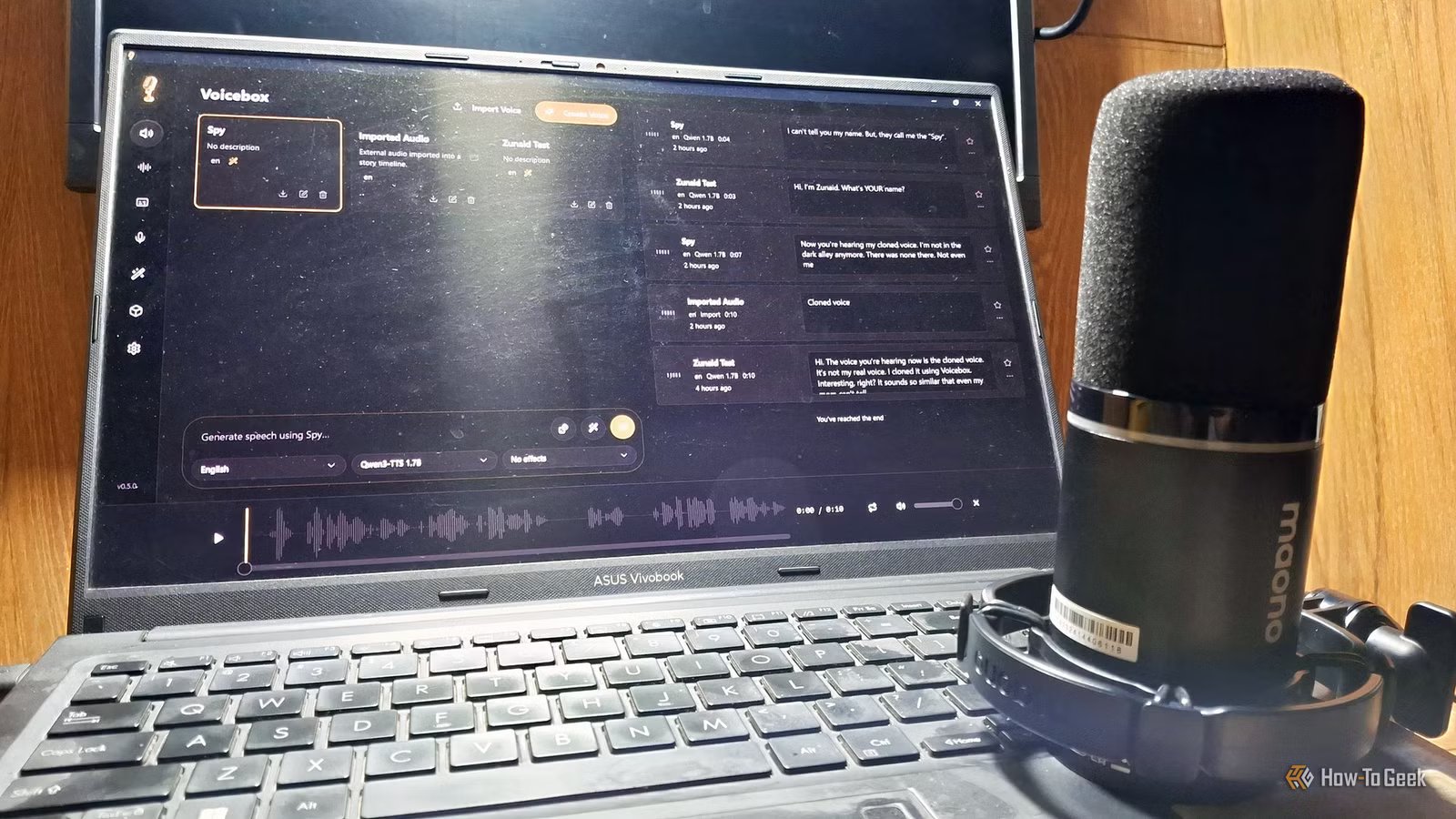
Who would’ve thought that a day would come when an AI could hear your voice and speak just like you. I’ve used speech AI tools before, such as ElevenLabs. While those are great for voice cloning, they come with a price.
That’s where Voicebox comes in. It’s an open-source, free, and local voice cloning app available on Windows, macOS, and Linux. When I was first browsing through some of the samples on the website, I was really impressed. I just had to download and try it for myself. What’s more interesting is that Voicebox isn’t just limited to voice cloning, as you’ll see as we explore it further.
Downloading, installing, and setting up for the first time
As easy as clicking a few buttons on the installation wizard

You need to first download Voicebox from the download page. The download will start automatically. After downloading the installation file, you install it like any other software: pick a folder and install.
After launching Voicebox, you’ll be welcomed by an initialization screen before landing on the main interface.

Soundcore’s AI audio recorder has taken over all my note-taking and I don’t regret it
The best part is that it will summarize recordings for faster oversight.
Cloning my voice
It was scarily good

With the setup done, we can now record some voice samples and clone them. To do so, you have to press the “Create Voice” button. You have three options here. You can upload an audio file from your computer, record a sample from within the software, or record your system audio. No matter which one you choose, the maximum length of the sample should be 30 seconds.
I’ll record using the software. To get clear audio, I’m using my handy Maono PD200X dynamic USB microphone. After recording, you’ll see a Transcribe button that will turn your speech to text and fill up the Reference Text section. After that, you can give this a name, a personality, choose a language, and you’re done. You now have a voice profile.
After creating a profile, you’ll be taken to a new window where you can generate speech using that voice profile. You have to type in the text for which you want to generate audio, choose a language, the model you want to use, and any fun effect you want to add.

It will take some time on your first attempt since it needs to download and load your chosen model. I went with Qwen3-TTS 1.7B since it’s such a great model. After the process is finished, you can play the audio to hear your cloned voice narrate the text you wrote. The first time I heard it, I was awestruck.
I mean, I did hear the samples of Linus Tech Tips and Fireship voices. But hearing your own cloned voice hits differently. For comparison, here’s a sample of my original voice, and here’s the cloned voice sample.
Create your own stories
It has multi-speaker conversations

Voice cloning isn’t the only feature Voicebox offers. In the Stories tab, you can create conversations between multiple speakers. To do so, you’ll need to create multiple voice profiles. After that, you can generate speeches using different voice profiles.
The cool thing is that there’s also a multitrack audio timeline just like the one you find in audio and video editors. You can arrange your different audio pieces, trim, split, or regenerate them here. You can even change the order of the speakers in the conversation by holding and moving the audio blocks in the upper right side of the section. Voicebox also allows you to upload your own audio files here.

Once you’re happy with the result, you can export the final audio. This seems like a great use case for podcasters, audiobook creators, and game developers who want to use AI voices.
My experience with Voicebox
Things you’ll like about the app
I had quite some fun playing around with this tool. Trying different effects, cloning different voices, creating conversations. It performed well. The clone quality is top-notch thanks to its collection of cutting-edge models. Being local first, I don’t have to worry about my audio being saved to some cloud server and used for AI training.
If you want good quality for the cloned voice, try to record your audio using a good microphone, in a quiet place, so no background noise interferes. Speak clearly and try to hit a recording time between 20 and 30 seconds. Longer audio samples tend to give better results. If you don’t like an output, you can always try the Regenerate option.
Now, at the end of the day, the app is a text-to-speech converter. So, while the cloning ability is excellent, the narrating quality isn’t so in my experience. That is, the generated speeches sound quite robotic. Not good use of punctuation, stress, or emotions in speech. So, if you listen carefully, you can easily detect whether the speech is human or AI-generated.
Other than that, it’s a solid app if you’re a content creator or just want to have some fun with voice cloning. Since it’s an open-source software, you can find it on GitHub. If you want to check out some of its advanced features, see the official docs.

How to Reduce Mic Echo and Suppress Background Noise on Your Mac
Isolate your voice and take video or audio calls even in noisy environments.
Voice cloning feels magical
What else can you do with Voicebox? For starters, giving voice to your home assistant sounds smart. You can refer to the API reference for that. And if you’re wondering about AI voice cloning scams, you can easily defend against them.



