
Obsidian might help you build a second brain, but it won’t help you collaborate with a second person. It’s famously a local-only tool. If you want to share your notes with someone else, you have to zip up your vault and email it over—which is a clunky solution. Alternatively, you can upload your vault to a cloud service like Google Drive—but then your local notes are exposed to a third-party server.
This has always been a troubling limitation for me, until now. I found this app that enables Google Docs-style collaboration on my Obsidian vault. The best part is that it’s completely free and barely takes five minutes to set up.

The Obsidian plugin that turned my notes into an actual second brain
Stop organizing your notes by folder; this Obsidian plugin does all of the grunt work of organizing your notes for you.
It’s all possible thanks to this one GitHub repo
Say hello to CollabMD

I was able to transform my Obsidian vault into a collaborative workspace thanks to CollabMD—a Node.js server that you run locally on your machine. You start the server by pointing it to a folder on your computer—in this case, your Obsidian vault—and it spins up a browser-based editor that anyone can access.
It will generate a URL, and anyone with the URL can now access your Obsidian vault through their browsers. They can make edits to your Obsidian notes from the browser, and the changes will be reflected in your actual vault. It gives you real-time edit syncing powered by Yjs—a CRDT (Conflict-free Replicated Data Type) library.
What this means is that multiple people can type in the same file at the same time—and all their changes get merged without one person’s edits overwriting another’s. It’s essentially the same collaborative experience you see in tools like Notion and Google Docs.

How the Obsidian notes are shared over the internet
For sharing over the internet, CollabMD uses Cloudflare Quick Tunnels. All you have to do is install cloudflared—a free CLI tool from Cloudflare. Once CollabMD starts, it automatically creates a tunnel and prints a public URL you can share. You don’t have to worry about creating a Cloudflare account or subscribing to a paid plan. The URL will look something like this: https://locking-effect-grove-learning.trycloudflare.com—it’s randomly generated and will be different for each session.
Coming to your Obsidian vault, CollabMD doesn’t move it to a cloud server—everything is still local. The MD files sit on your disk the whole time. Think of it like your system itself becoming the server, with your Obsidian vault as the database being served over the internet.

Cloudflare’s outage took down half the internet, but this open-source app saved my homelab
Don’t let a third-party outage keep you from accessing your self-hosted services.
How does CollabMD work
A quick overview of the features and interface
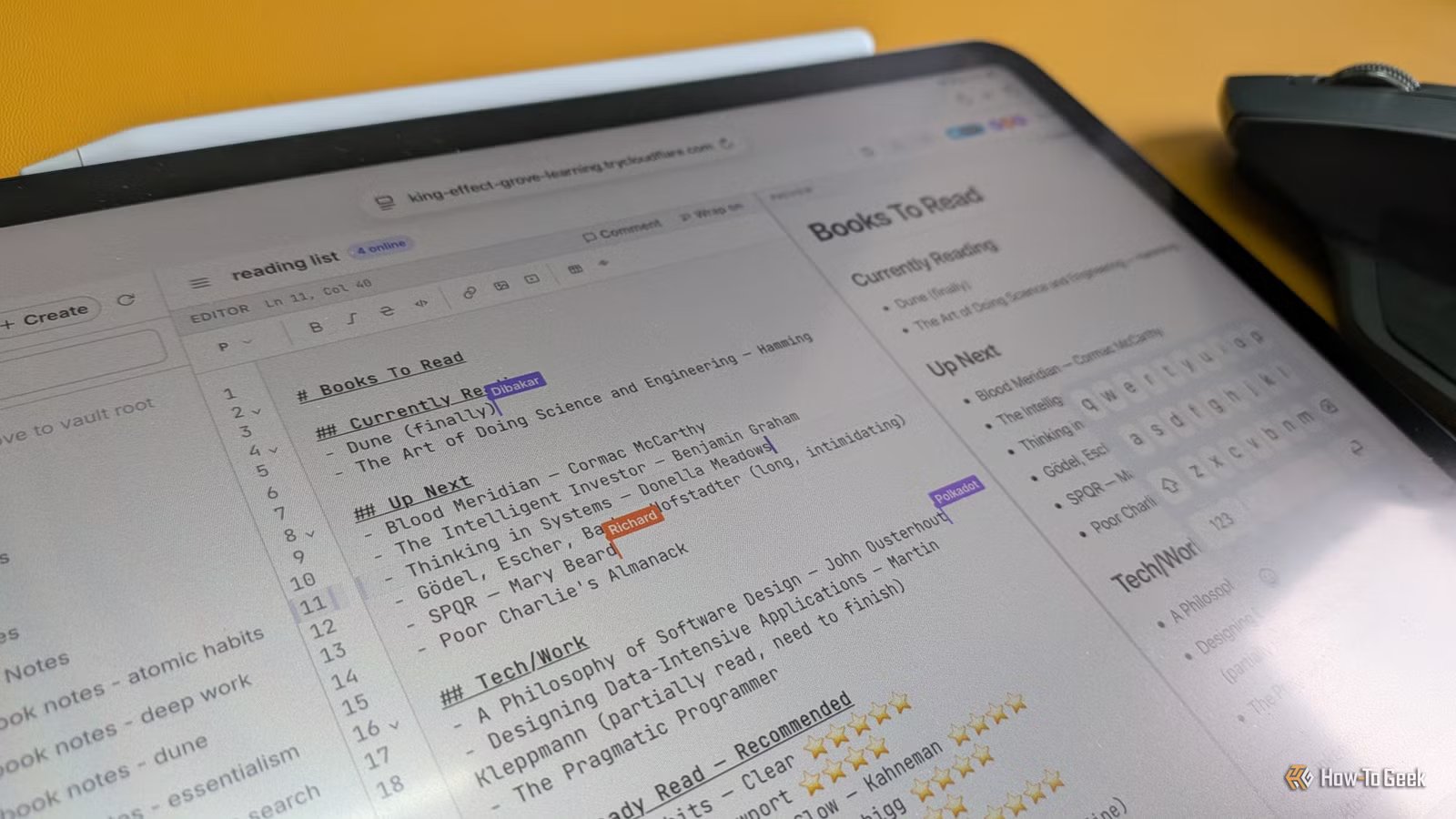
Once you open the URL in a browser, the first thing it asks you for is a username. That’s how other people in the session will see you. There’s a colored avatar indicator in the top right showing who’s currently online. Your name will also appear on the document based on the position of your cursor—similar to how it looks in Google Docs.
The interface itself is pretty minimal. You get a three-column layout by default. There’s a file and folder sidebar on the left, a Markdown editor in the center, and a rendered preview on the right. Of course, you can turn it into a two-panel layout by collapsing either the markdown editor or the rendered preview.
There’s a formatting ribbon at the top of the editor with the basics—bold, italic, code, links, tables. This is actually more useful than it sounds, especially when you’re sharing your vault with someone who doesn’t write in Markdown. That ribbon ensures they can still make edits without knowing any syntax.
On the topic of editing, the important thing to know is that anything you change in the browser gets written back to the actual file in your vault. These are real edits to real files—there’s no sandbox, no staging area, no “propose changes” mode. If your collaborator deletes a paragraph, it’s gone from the file.
That’s why, instead of directly editing the file, I personally recommend using the comment feature. It lets people highlight any line or piece of text and leave a note. The comment shows up as a small inline marker in the editor and a bubble in the preview. You can have full threaded conversations on specific lines without any of it carrying over into the source Markdown. The comments are exclusive to the CollabMD browser experience.
There’s also a team chat panel you can open from the top right. It’s just a basic chat feature that allows you to see who’s online and send messages to everyone online. It’s particularly useful for quick back-and-forth when you don’t want to clutter the document with comments.

- OS
-
Windows, iOS, Android, macOS, Linux
- Brand
-
Obsidian
Obsidian is a note-taking and database creation app that lets you store notes privately, so others can’t see them unless you share them. It also has robust third-party app support, so you can customize everything just the way you want it.
How to set up CollabMD and turn your Obsidian vault into a shared workspace
It’ll barely take 5 minutes

CollabMD natively works on Linux and macOS. If you’re on Windows, you’ll need to go through WSL 2 (Windows Subsystem for Linux). Here’s a detailed guide on how to install and set up WSL 2. For the best experience, I’d recommend that you install Ubuntu using WSL.
Once you have that in place, you’ll need Node.js version 24 and cloudflared to run CollabMD. For the purposes of this demo, I’m going to assume you don’t have either of them installed.
To install Node.js, enter the following commands into the terminal:
curl -fsSL | sudo -E bash -
sudo apt install -y nodejs #if you're using Ubuntu
Then verify it worked:
node --version
You should see v24.x.x.
Next, to install cloudflared, enter this command:
curl -L -o cloudflared && chmod +x cloudflared && sudo mv cloudflared /usr/local/bin/
To verify that it’s installed, enter:
cloudflared --version
Finally, it’s time to run CollabMD. Just enter the following command:
npx collabmd@latest "[path_to_obsidian_vault]"
Replace “[path_to_obsidian_vault]” with the actual file path.
If you’re on Windows, your Obsidian vault might be on C:\Users\YourName\Documents\my-vault. However, when accessing it using WSL 2, the path will change to /mnt/c/Users/YourName/Documents/my-vault.
The first time you run this, it’ll download CollabMD and then start the server. Watch the output for a line that looks like this: “https://some-random-words.trycloudflare.com”—that’s the shareable URL. Send it to whoever you want to collaborate with. They open it in their browser, pick a username, and they’re in—no install required on their end.
If you want to password-protect your vault before sharing, use this command:
npx collabmd@latest "/mnt/c/Users/YourName/Documents/my-vault" --auth password
It’s not a perfect system
There are still some limitations you need to be aware of

Lucas Gouveia/How-To Geek
While it’s wonderful that I can finally share my Obsidian vault with my friends and family and collaborate on it—the experience is far from perfect. The biggest limitation is that there’s no permission system. There’s no view-only mode, no comment-only mode, no way to restrict what a collaborator can touch.
As such, if you’re worried about someone wreaking mayhem across your Obsidian vault, the cleanest workaround is to duplicate the vault and then share the copy. This way, your main vault stays untouched and you don’t need to worry about someone making any destructive changes to your notes. And if you agree with the changes they made, you can just copy those changes over to your main vault.
Also, each collaboration session only lives as long as your terminal is open. Remember, CollabMD is basically turning your computer into a server. So if you close CollabMD, close the terminal, or power off the computer, your Obsidian vault is no longer online.
Other than this, there’s also the fact that the URL changes every single time you restart CollabMD. Cloudflare Quick Tunnels are meant for temporary sessions, not permanent shared workspaces. As such, you can’t just share a URL for your collaborator to access a month later.
It can potentially generate a consistent URL for your Obsidian vault, but that would require you to buy a domain name and set it up with a Cloudflare account. It’s possible, but more technically complicated, and a different setup entirely from what we’ve got running here.
It’s good enough for most Obsidian users
CollabMD won’t turn your Obsidian vault into a Notion database—but it never set out to do that in the first place. It’s designed to solve those moments when you want to share your vault with friends or family, and also collaborate with them in real time.
Related News



