
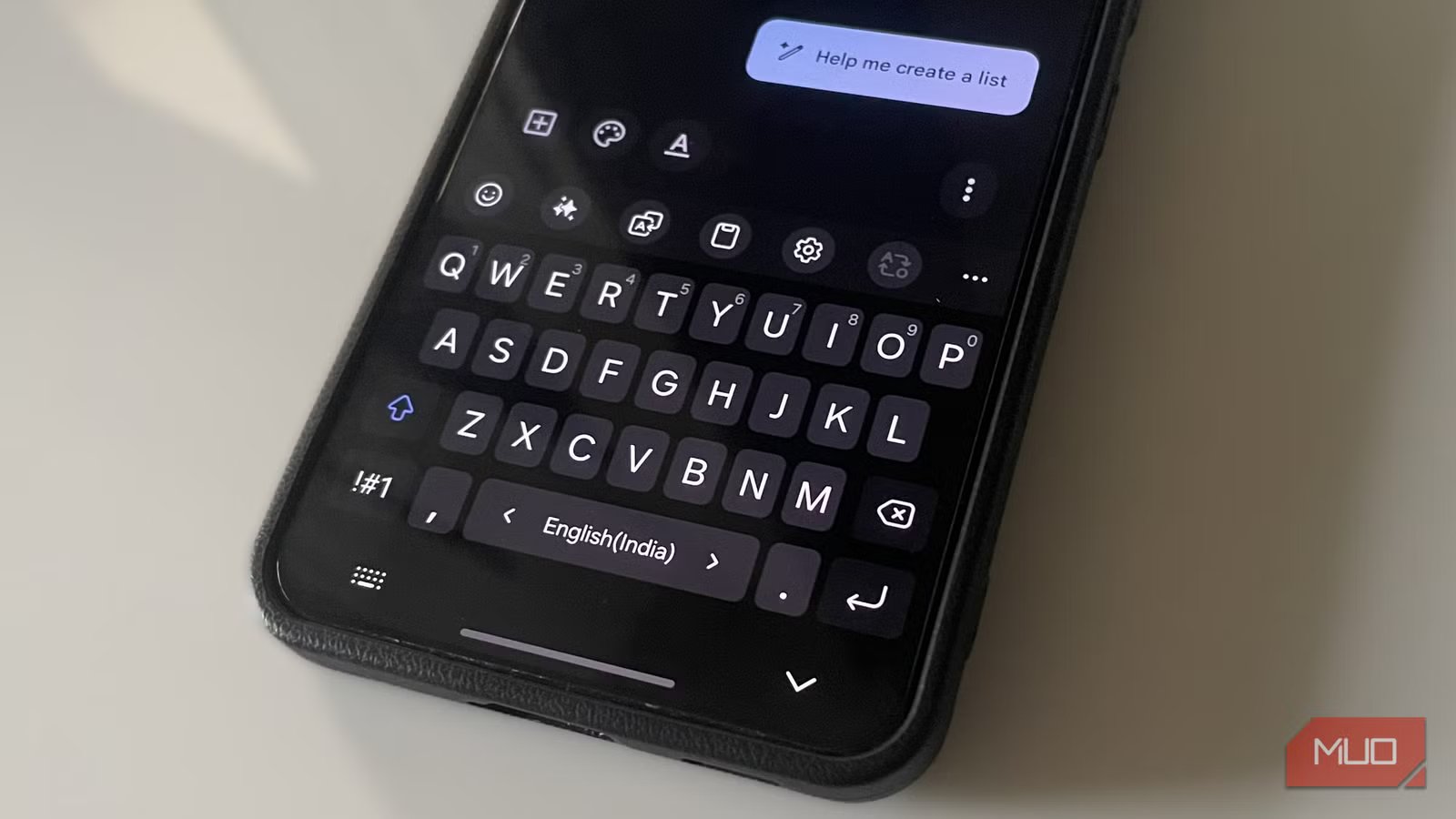
I’ve tried plenty of Android keyboard apps over the years, including free, paid, and open-source options. And honestly, most of them end up feeling more or less the same. Sure, there are a few differences here and there, but the overall experience barely changes. You get the usual typing features, some themes, maybe some AI tools, and that’s about it.
At first, the Samsung Keyboard feels no different. But once you try its Keys Cafe module, that perception quickly changes. It lets you customize the Samsung Keyboard in every way imaginable. The level of control it offers is so ridiculous that it makes every other keyboard strangely basic.

Samsung Keyboard becomes a different beast with Keys Cafe
Most keyboards stop at themes, Samsung doesn’t

Keys Cafe is part of Samsung’s Good Lock suite, and it’s exactly where Samsung Keyboard pulls ahead of the competition. Keys Cafe is all about customizing the keyboard. And when I say customization, it’s not just changing themes and adjusting the keyboard size. It goes far beyond that, and lets you tweak almost every aspect of the keyboard.
Installing Keys Cafe is as simple as it gets. First, install the Good Lock app if you haven’t already. Once done, get the Keys Cafe module, and you’re all set.
Fine-tune how your keyboard looks, sounds, and feels
The more you explore, the better it gets
Once you open Keys Cafe and head to Keyboard > MY, you’ll see three tabs: Colors, Effects, and Sound. This is where Keys Cafe gives you the level of customization you simply don’t get anywhere else.
The Colors section alone is kind of wild. You’re not just limited to just boring themes. From here, you can customize the keyboard background color, change the color of individual keys, and even the letters that appear on it. It almost feels like working on a blank canvas.
It gets even more fun once you switch to the Effects tab. Keys Cafe lets you add animations and visual effects that trigger while typing. You can customize key motion effects and play around with color animations to make the keyboard feel lively.
And yes, there’s the option to change typing sounds too. Instead of hearing the same old generic click sound, you can go for options like retro, calm, pink, fun, and more. And if you love swipe typing, you can even replace that boring trail line that follows your finger with emojis. Personally, I still prefer things clean and minimal, but having the option to customize every detail is what makes Keys Cafe so special.
Build a keyboard layout that works for you
You’re in charge

Customizing the keyboard’s look and feel is great, but where Keys Cafe really separates itself is with its layout editor. It lets you create your own keyboard from scratch, so you can decide exactly which keys appear and where. You can move keys around, resize them, remove ones you never touch, or even add shortcuts exactly where they make sense. This means if there’s a symbol or emoji you constantly use, you can place it where your thumb rests.
Keys Cafe even lets you add extra rows above the numbers row so you can access symbols, emojis, and custom shortcuts without switching pages. The sheer number of options here can feel overwhelming at first, but the more you spend time with it, the easier it gets.
Custom gestures, typing stats, mini-games, and more
There’s way more than just customization

One of my favorite things about Keys Cafe is not actually the customization, but the ability to set up keyboard gestures. Head to Keyboard > Gestures, and you’ll see options to set up two and three finger gestures in every direction: up, down, left, and right. That gives you up to eight different gesture shortcuts in total. You can set these up for undo, redo, copy, cut, paste, start or stop voice input, open Writing Assist, and plenty more. And once you get spoiled by these gestures, every other keyboard feels basic.
One of the newer features of Keys Cafe is Typing Stats. It racks things like your typing speed, delete count, and average input length. There’s even a typo analyzer that breaks down your common mistakes, so you can design your keyboard accordingly. If you constantly mistype certain letters, for instance, you can tweak key placement or sizing to compensate.
Finally, there are a couple of fun keyboard games too. You can create your own stickers and improve your typing skills with these. Of course, these extras aren’t essential, but you have to respect Samsung’s commitment.
Customization is a key part of any Android keyboard app, and Samsung nails it with Keys Cafe. More than anything, it truly shows the level of flexibility a keyboard app can and should offer. And this is all on top of the Samsung Keyboard’s already solid feature set. So yes, out of all the keyboards I’ve tried, Samsung’s built-in one remains hard to beat.

- OS
-
Android
- Developer
-
Good Lock Labs
- Price model
-
Free



