
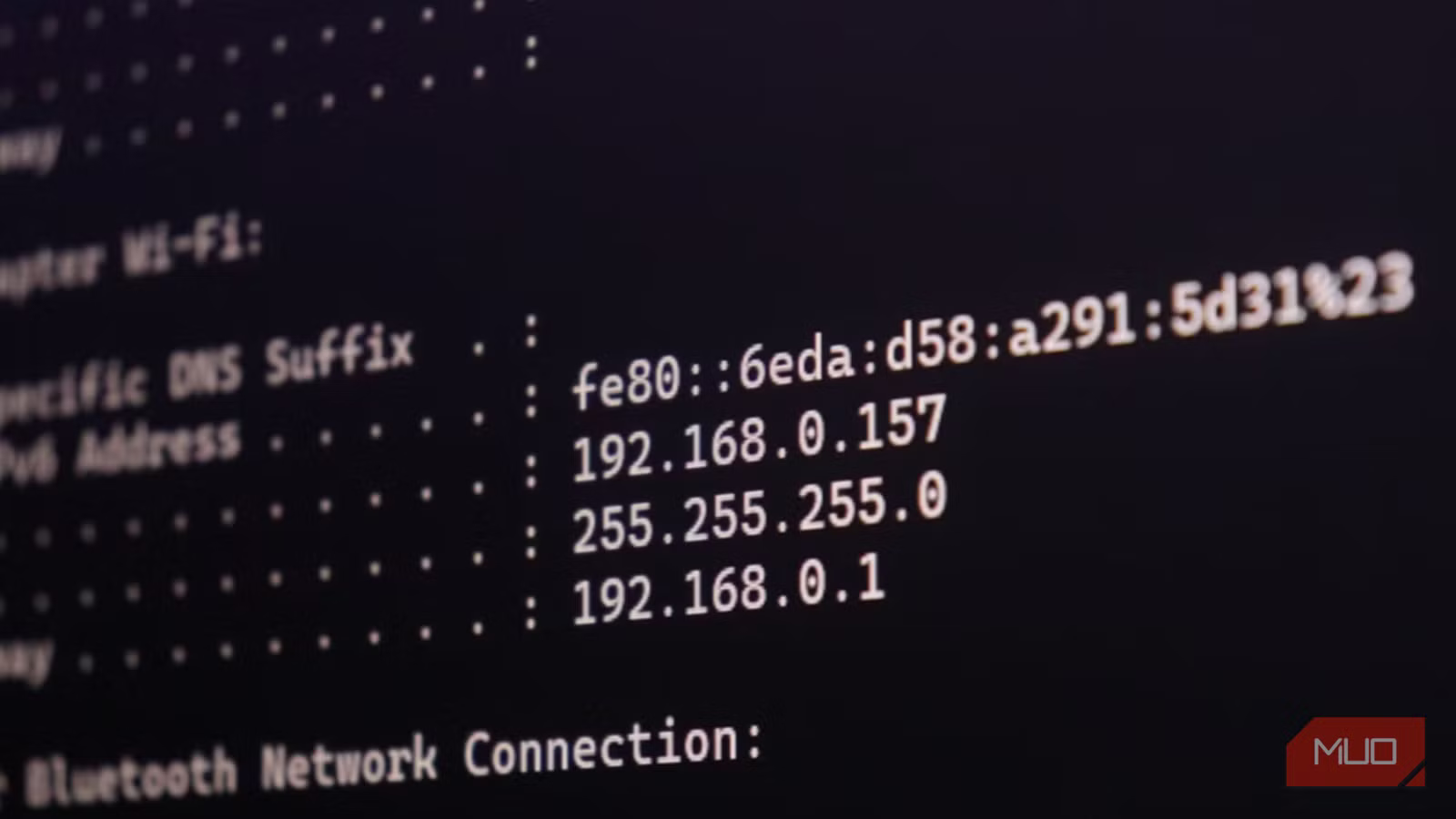
One of the best things about home networks is that they rarely need to be fiddled with. Designed to be used by people who aren’t technical, the under-the-hood networking is all automatic. Take IP addresses, for example. Most people don’t ever need to think about them. They connect their new device to their Wi-Fi, and Dynamic Host Configuration Protocol (DHCP) does its thing, handing out an IP address and showing it where to go for DNS services, etc. But if you spend any amount of time typing IP addresses into things, you’ll already know how difficult they can be to remember.
It doesn’t have to be this way. Instead, why not assign specific IP addresses to specific devices instead? That way, they’ll never change, and you’ll always know that a particular IP address relates to a very specific device. And if you want to get really fancy, you can go one step further and put some thought into things. Do it right, and you can arrange things so you can look at any IP address and instantly know whether it’s a router, a modem, a laptop, or even a phone.

Router vs. Computer DNS Settings: Here’s What Was Faster
Comparing DNS at the router versus PC level led to real improvements in my network’s speed and performance.
The chaos that comes with DHCP
Time to take back control

The thing about most home networks using DHCP is that it’s down to the router to handle things. In most cases, that’s the router that came with your internet package. That usually means that you’ll have limited control over how it works. Many consumer router DHCP implementations use simple, default settings that prioritize ease-of-use over granular control.
Many consumer routers default to addresses like 192.168.1.1 or 192.168.0.1, though some vendors use other defaults such as 192.168.0.254 or 192.168.68.1. That’s static, so it never changes. When a new device joins the network, the router’s DHCP service then gives it the next available IP address. That means your iPhone might be assigned 192.168.0.2, then your cable box is given 192.168.0.3. Next, your smart bulb comes online with 192.168.0.4. And while everything will work just fine, there’s no rhyme or reason to what’s going on.
As a result, you now have a phone, a home entertainment device, and a smart home accessory all mixed together. To make matters worse, because these IP addresses are dynamic, they’re liable to change. Because DHCP leases are time-limited, a device may receive a different address after its lease expires or if the DHCP server’s available pool changes, though many routers will attempt to reassign the previous address when possible. Now, the same device that used the 192.168.0.2 address may be all the way down at 192.168.0.14. It’s a recipe for confusion, and it’s entirely avoidable.
Assigning static IP addresses
Take the guesswork out of networking

There are a couple of different ways to avoid the chaos that DHCP can cause. One is to go into the settings for all of your devices and assign them a static IP address of your choosing. That approach will work, but it’s a pain to do. Instead, you can head into your router’s settings and configure the DHCP service to assign devices static addresses. That way, they’ll never change unless you want them to.
Personally, I went a different route. I already used Pi-hole as my DNS server, so it only took another click or two to also have it handle DHCP, too. That gave me an easy-to-use interface to give each device any IP address I wanted. But that’s just the beginning.
Taking things a step further, I also wanted to make sure things were consistent. That meant putting different devices into different zones of sorts.
Now, all of our infrastructure — Pi-hole instances and my router — use IP addresses from 192.168.0.1 through 20. From .21 through .50, we have laptops, phones, and tablets. 51 through .70 are home entertainment devices like game consoles and media players. There are more, but you get the gist.
As for any ad-hoc devices, like hardware I’m reviewing or friends’ phones, they all get random IP addresses in a range beyond our own devices.

I set up Pi-hole on my home network, and the internet feels like a completely different place
The many benefits of hosting your own DNS server and the control it gives you over your network.
When IP vanity meets network practicality
Troubleshooting’s never been simpler
While it’s easy to think that good IP address hygiene is about vanity, keeping everything nice and tidy, there is a practical aspect to consider. This approach makes it easier to identify problems, making them quicker to fix.
As an example, imagine that I notice my Apple TV isn’t working. I can check my Pi-hole dashboard and immediately spot that none of the devices in my “entertainment” IP range are online. With everything else working fine, it’s a safe bet that the failure is specific to our entertainment setup. A quick restart of the mesh Wi-Fi access point behind my TV, and everything’s back up and running. Pretty simple, right?
Remember, you don’t necessarily have to go the Pi-hole route to assign an IP address. Consider checking your router’s documentation and configuring DHCP there. Setting IP addresses on individual devices could also be a viable approach in homes with fewer devices, too.



