
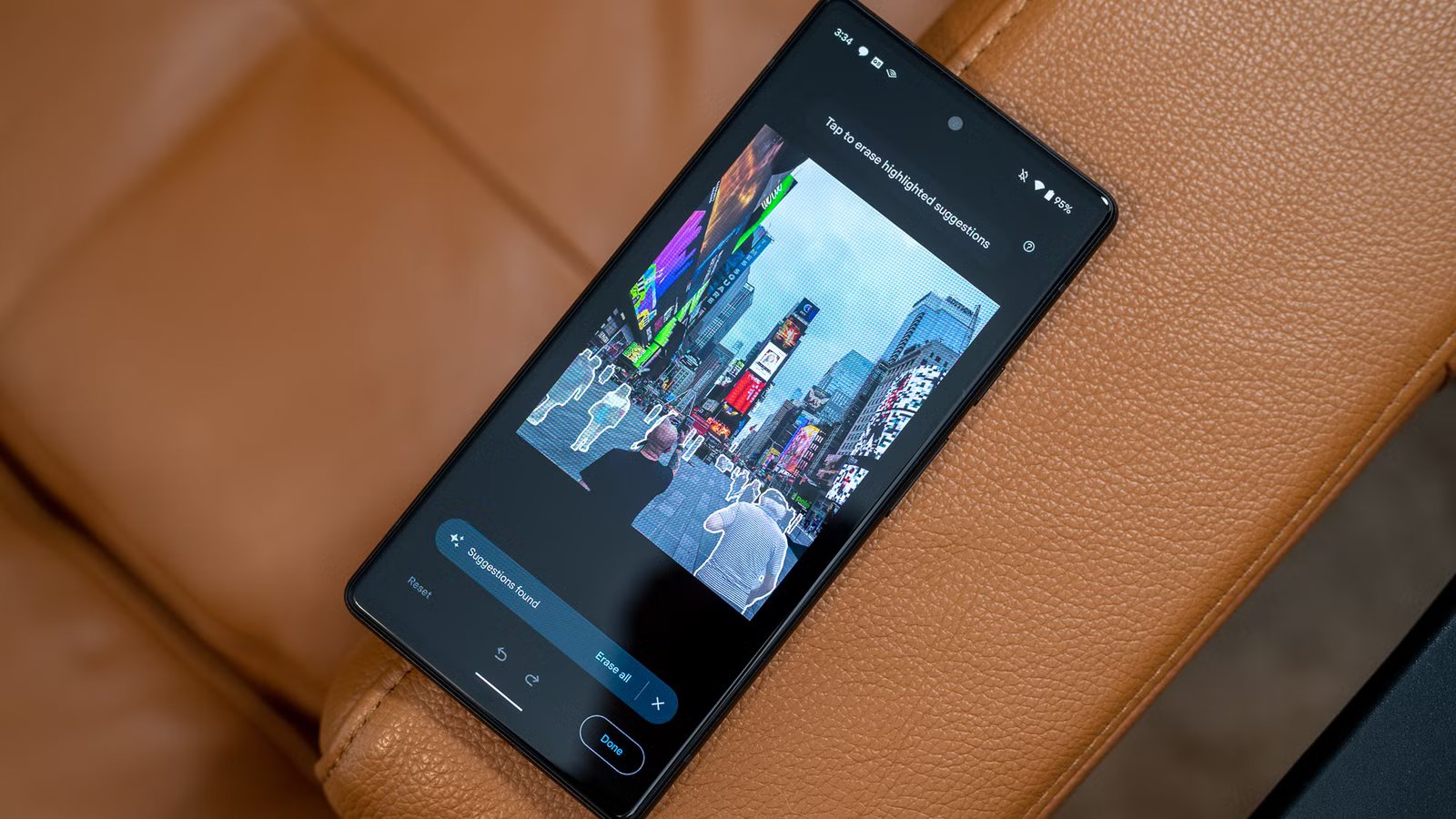
The camera experience has always been a big part of what sets Pixel phones apart from other Android devices. While some features are genuinely exclusive, others aren’t as stuck in the walled garden as you might think. For example: Magic Eraser.
Magic Eraser was originally a Pixel-exclusive feature, first announced with the Pixel 6 in 2021. It was assumed that the feature relied on Google’s Tensor chip, but a few years ago, Magic Eraser was released from Pixel jail and added to the Google Photos app. Now, it’s available on Samsung Galaxy devices and even the iPhone.
What is Magic Eraser?
A feature that lives up to the “magic” name
The setup for Magic Eraser is a situation we all know too well. You’re out and about, and you take some photos, not noticing anything wrong in the moment. However, you take a look at the photos later on, and you discover that there was something unintended in frame. Could be a random person in the background, your finger slightly covering the camera, or even just a distracting piece of hair.
Magic Eraser allows you to literally “erase” these things from the photo. Back before “AI” became the popular buzzword, Google explained it as a machine learning feature. Nowadays, it’s described as yet another marvel of AI, but the functionality remains the same.
Basically, when you highlight something in a photo, Magic Eraser will gather information from the surrounding area and attempt to predict what the background would look like. In the photos below, you can see how Magic Eraser removed a person and filled in the grass behind them (Louisiana Museum of Modern Art, Denmark).


However, it works for more than just “erasing.” You can also use Magic Eraser as a sort of “generative fill” tool, even if it doesn’t make sense for the photo. Below, I used Magic Eraser to completely remove the main focal point of a photo. So, you can really get creative with it.
Now, the thing to remember about Magic Eraser is that it doesn’t necessarily hold up to close inspection. If you look closely at the photo above, you can see that the grass doesn’t look quite right where the person was removed. However, it does successfully take your eye away from a random person, and that’s the point.

- Brand
-
Google
- SoC
-
Google Tensor G5
How to use Magic Eraser on non-Pixel phones
No more Google One requirement
For a little over a year, Magic Eraser was available to non-Pixel devices only if you had a Google One subscription. Thankfully, Google removed that restriction a couple of years ago. Now, it’s available for free to all Google Photos users.
To use Magic Eraser, open Google Photos on your Android phone or iPhone and sign in if you haven’t already. Find a photo—it doesn’t have to be backed up—and tap the “Edit” button in the bottom toolbar. Next, select “Tools” and choose “Magic Eraser.”
To erase or mask something in the photo, you need to either tap it, trace it, or brush the area. Magic Eraser will attempt to identify what you’re trying to remove, but if it’s not quite right, tap “Refine selection” to “add” or “subtract.” When you’re ready, tap the “Erase” button. When it’s done, you can tap the checkmark to save it or undo to start over.
As I said, this works exactly the same whether you’re on a Google Pixel, Samsung Galaxy, Moto, OnePlus, or iPhone. All you need is the Google Photos app and a Google account.
AI photo editing that doesn’t feel creepy
To be honest, some of the AI photo editing tools that have been shown off in recent years make me feel a little weird. After a while, the photo stops being a real moment captured in time and becomes completely fictitious. The big question is, where is that line drawn?
For ages, people have been removing blemishes and making colors appear more vibrant than they are in real life. One could argue that’s no different than fully adding a person into a photo—both don’t represent real life. Personally, I don’t think it’s that black and white.
Editing out a stray hair isn’t changing the narrative of the photo; it’s something that could have been done in real life. That’s how I see Magic Eraser in most situations. For example, the photo with the person walking up stairs that I shared above is all about the scenery. Removing the person doesn’t change that.
At the end of the day, it’s up to you to decide how much editing is too much editing, and Magic Eraser is a nifty feature to have at your disposal.

- SoC
-
Snapdragon 8 Elite Gen 5
- Display
-
6.3-inch Dynamic AMOLED 2x

AI Photo Editing Is Everywhere Now, but Should You Use It?
AI photo editing is becoming a standard feature on almost every new smartphone. From Samsung’s Galaxy S24 to Google’s Pixel 9, these new phones let you bend reality with just a few taps. But with great power comes great responsibility, so how can you use these tools without overdoing it?



