
NFC tags finally clicked for me once I knew which app to use
Shortcuts are the feature every tech enthusiast knows they should be using, but most of us never take full advantage of them. I’m the perfect example — I use a shortcut to skip now-playing media to the next track using my iPhone Air’s Action button. It’s the best use case I have for that button, but it’s hardly the most innovative way to make use of the Apple Shortcuts app. The truth is, we only have so many physical buttons to program and digital home screens to fill using shortcuts. There has to be a better way, and there is one, thanks to NFC tags.
For a while, NFC tags felt out of reach. Even as a tech journalist myself, I wasn’t quite sure how much they cost or what I’d do with them after making a purchase. I’ve seen basic uses for NFC tags, like running smart home automations or automatically connecting devices to home Wi-Fi networks. I had more ambitious plans for NFC tags, but never took the time to figure out how I could actually implement them. As it turns out, the entire process was easier than I thought. Apple Shortcuts is the key to iPhone users truly mastering NFC tags. It’s how I mastered mine, and Android users can do the exact same things using the Tasker app.

Yes, I automated laundry tracking with AI — and it suggests clothes to wear
What happens when you mix NFC tags, a local AI model, and a pile of dirty clothes? Surprisingly smart fashion advice.
NFC stickers are perfect for setting up home automations

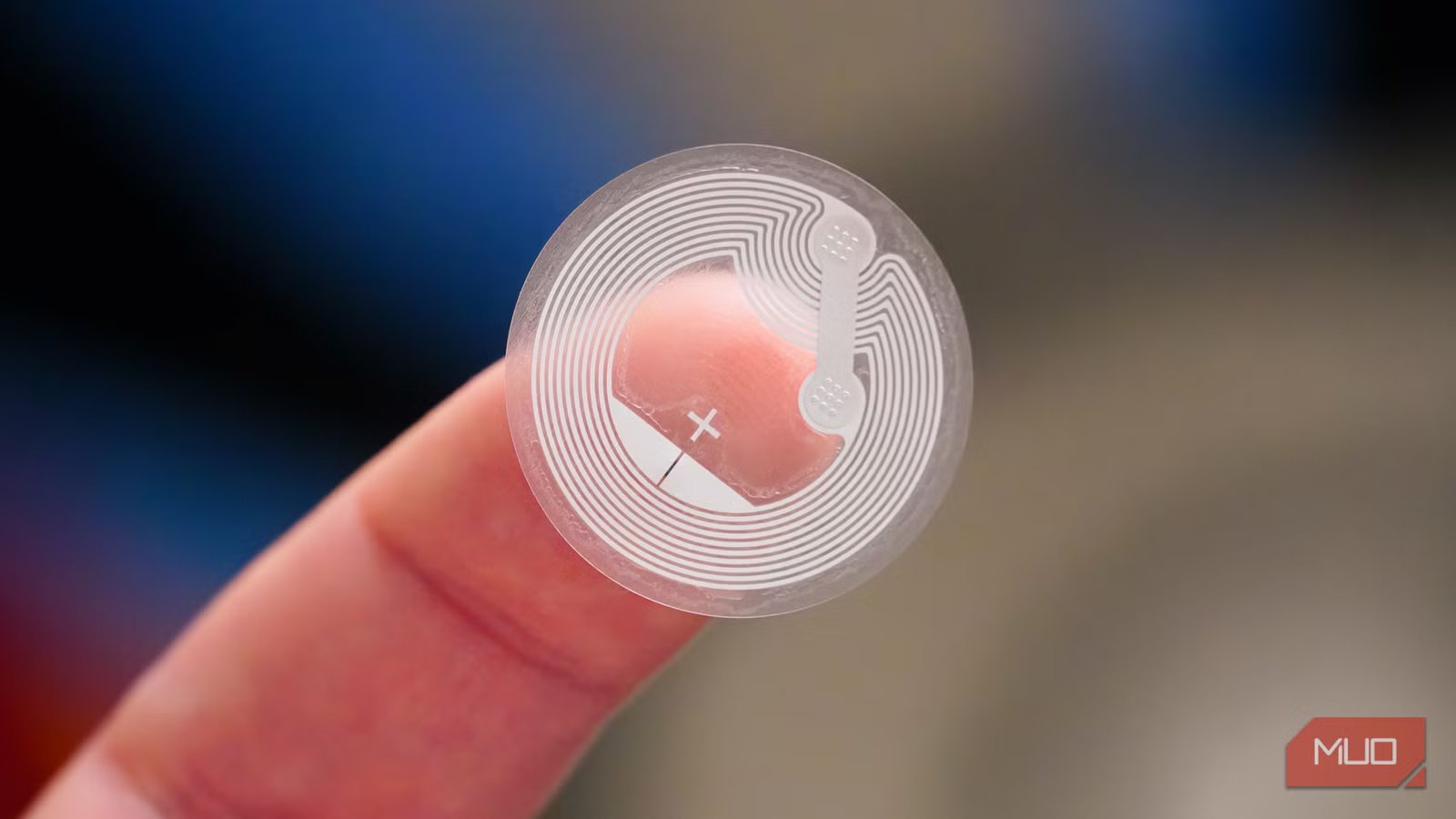
Finding an app that can handle shortcuts and automations triggered by NFC is the easy part — choosing the right tags is the hard part. There are fancy NFC tags available with plastic coverings, or keychain and card sizes. Since my plan for NFC shortcuts involved hundreds of NFC tags, I needed a much cheaper option. I went with basic NFC stickers from Amazon, costing only $9 for a pack of 50 individual tags. That comes out to less than 20 cents per tag, so it was the perfect solution for my needs. These low-profile NFC tags are just stickers, and they’re near-flat tags that can be placed basically anywhere.
Before we go any further, you should know exactly what NFC is and how it works. The acronym stands for Near-Field Communication (NFC), and the technology stores and shares information with devices within four centimeters of a tag. You’ve almost certainly used it to make digital payments with Apple Wallet or Google Wallet before. The technology is perfect for contactless data sharing, as it is quick, reliable, and secure (the 4cm operating distance makes it difficult to intercept).

NFC tags, then, are minuscule storage devices that contain just enough information to run an automation or open a link, for instance. The ones I bought can each store 504 bytes — that’s not megabytes or gigabytes, just bytes — and some support rewriting that data. What’s special about using NFC with Apple Shortcuts is that you end up writing zero bytes to the tag to run an automation. Instead of writing data to the NFC tag, Shortcuts stores the tag’s unique identifier in your phone. When it detects that tag’s identifier coming within 4cm of your phone, it runs the shortcut without ever having written an automation to the tag’s physical storage.
This implementation provides two key benefits. One, you can create extremely complex automations in Apple Shortcuts triggered by an NFC tag that it would otherwise be unable to store with just a few hundred bytes of available space. Additionally, you can write separate data to the NFC tag’s storage that can be used as an alternative to the Apple Shortcuts trigger.
Building shortcuts and automations
Scan a tag, and it’ll run on any iOS device immediately
Setting up a shortcut with your iPhone and an NFC tag requires only using the Apple Shortcuts app — no third-party apps or software tools. It’s easier than you might think. First, note the differences between “shortcuts” and “automations” in Apple Shortcuts. They mostly work the same, but to use NFC tags as triggers for scheduled actions, you need to work in the Automations tab. To start, tap the + and select a trigger. There are a ton of options here, but the one we want is NFC. Essentially, this automation will tell your iPhone what to do when an NFC tag comes within range of the device.
Before telling the Apple Shortcuts app exactly what you want to do, you’ll need to grab the unique identifier of the NFC tag. Tap Scan next to NFC Tag in the app and hold your iPhone near the tag. Then, decide whether you want the automation to Run After Confirmation or Run Immediately when the tag is scanned. There’s no wrong answer here. You might want a confirmation for mission-critical automations, like a smart home shortcut that turns off your Apple HomeKit security cameras, but not for simpler tasks. Then, hit Next to start assembling the nuts and bolts of the automation.
You’ll now see a screen that looks familiar if you’ve ever built basic shortcuts for your iPhone. You can arrange actions, or a combination of actions, that will be initiated by a scanned NFC tag. I’ll give you a real-world example of how this works. I’m becoming a vinylhead, whether I like it or not, and I’m all about streamlining my collection. I love the analog aspect of vinyl records, but also enjoy digitizing and learning about them through services like Apple Music, Discogs, and Genius.
So, I had a thought. Wouldn’t it be great if I could scan the back of a plastic record sleeve and access the exact pressing’s entries in Apple Music, Discogs, or Genius?
That’s exactly what I did. I used the Choose from menu action in the Shortcuts app to present a list of three, or more, links related to each vinyl record pressing. Then, I used the Open URL action under each menu item to link to Apple Music, Discogs, and Genius pages. For good measure, I threw in a hyperlink to a Last.fm scrobbler — this allows me to track the number of times I play a record using an NFC tag. After finishing the setup, I tapped the check mark to continue, and the automation was good to go.
Now, every time I scan a record, I get links to the album or pressing’s entry in my favorite music services. It’s a fun way to bridge the gap between my analog and digital music collections, and it wouldn’t be possible without Apple Shortcuts. Many NFC tags only support one link being written to them at a time. If they do support multiple links, iOS unfortunately only shows the first URL. Using the Apple Shortcuts app circumvents this limitation and enables more complex automations activated by NFC triggers.
It’s worth emphasizing that this is just one way to use NFC tags. If you’re not a collector like me, that’s totally fine. There are plenty more practical ways to automate your life using Apple Shortcuts, including enabling do not disturb modes, controlling smart home devices, starting timers, and beginning morning routines. You can take the process I’ve outlined for automating actions with NFC tags and apply it to whatever project or workflow you’ve been waiting to streamline.

Multistep actions are the best part
Let an NFC-based shortcut do multiple things with a single scan

The great part about using NFC tags with Apple Shortcuts is that the possibilities are virtually endless. Since you’re using the unique identifier of the tag rather than its onboard storage, you can have a long and complicated automation that isn’t restricted by the amount of available space on the tag. Additionally, the reliance on the Shortcuts app on the host means only you can run the automation. The tag doesn’t have any data on it, so if someone scans it without the automation already saved on their phone, it’ll do nothing. Finally, the ability to create menus with individual actions makes it easy to use one NFC tag for multiple tasks.
Adding NFC tags into my life was much easier, and cheaper, than I thought. You can do it too, with either the Apple Shortcuts app on iOS or the Tasker app on Android.

- OS
-
iOS
- Supported Content
-
Shortcuts, Automations, etc.
The Shortcuts app on iPhone lets users automate tasks by creating custom workflows that combine actions from apps and services into powerful, time-saving routines. Add a physical NFC tags to create automations that run shortcuts when they’re scanned.