
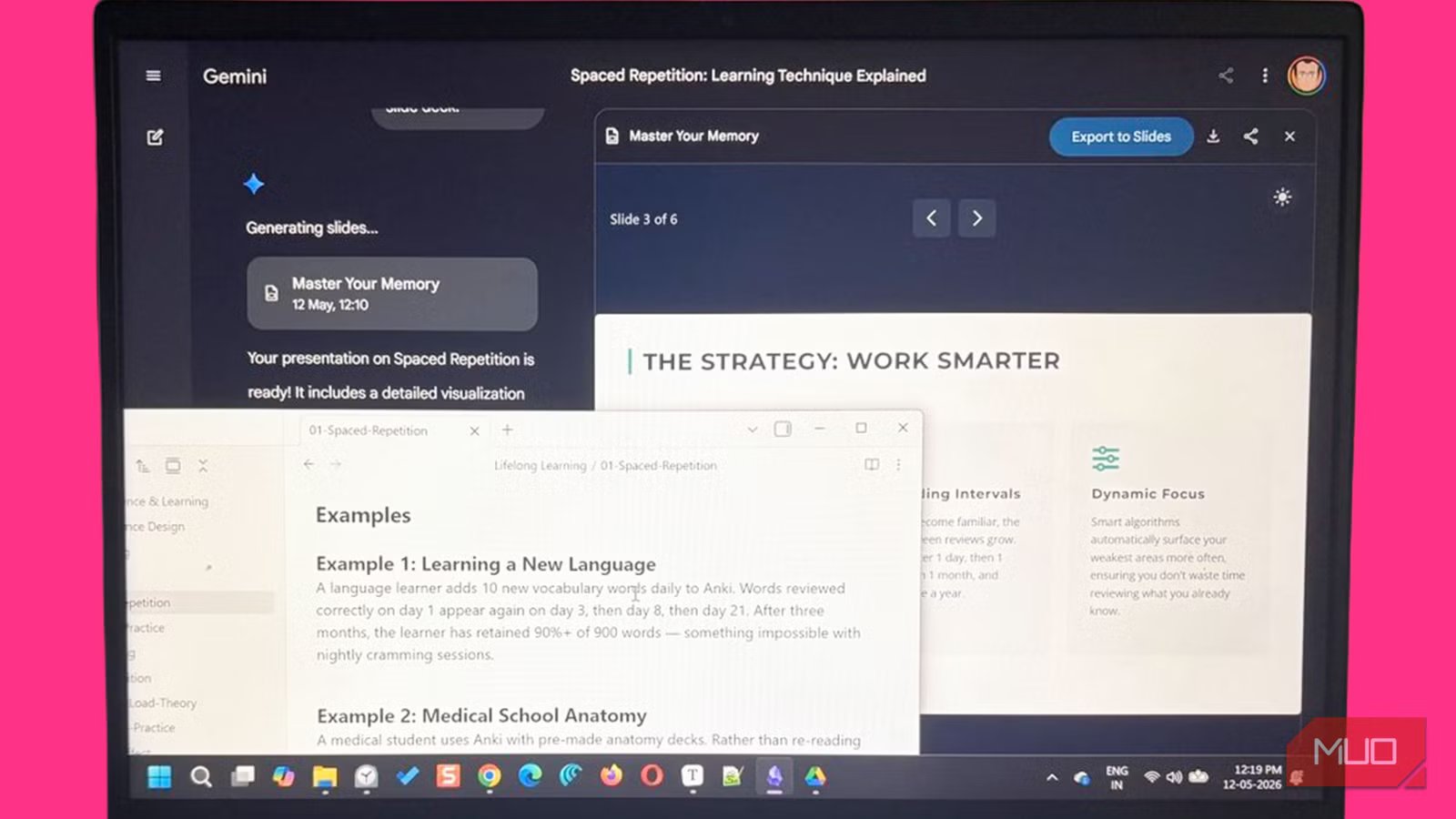
An AI presentation can start inside Google Slides. You type a prompt, Gemini generates a deck, and you tweak the results afterward. But I realized that my best ideas already lived inside Obsidian as research notes and connected thoughts. Instead of starting from a blank presentation, I began feeding them into Google Gemini and letting it turn raw notes into structured slides.
Google Slides has Gemini built in (Pro tier), but it can only work with what you give it at the moment. Obsidian flips that with the help of notes that have collected context over weeks and months. Do note that while Obsidian and Gemini have free tiers, Gemini is not free within Google Slides for standard, personal Google accounts.

I turned a Gemini Deep research report into an infographic and wasn’t expecting it to be this good
Take dense Gemini data and turn it into a stunning Canvas infographics instantly
Markdown notes already have structure
Your notes are the outlines for a presentation

Obsidian stores everything in plain Markdown. This format makes it easy to turn your notes into presentation outlines. Headers can become slide titles. While bullet points turn into talking points. The Markdown format also makes it easier for AI chatbots like Gemini to process, as Gemini doesn’t have to guess what’s important. A well-formatted note in Obsidian looks like a text slide.
When I come across a note that I want to turn into a slide, it changes the way I think about it. A clean, structured Obsidian note becomes my first draft. Gemini can only improve it as I move down the pipeline.
My notes are often messy; they look more like brainstorming dumps than polished documents. But giving it a few headings and other Markdown formatting makes Gemini handle the rough thinking surprisingly well. Even a loosely organized note with headings and short summaries produced better (and faster) slide outlines than many presentations I have manually built from scratch. It’s a method I learned when I paired Google Keep notes with Gemini to handle my shower thoughts.

- OS
-
Windows, macOS, Linux, Android, iOS, iPadOS
- Developer
-
Dynalist Inc.
- Pricing model
-
Free
- Initial release
-
March 30, 2020
Obsidian is a local-first, Markdown-based note-taking application that stores your notes as plain text files and lets you build interlinked “vaults” of knowledge. It supports plug-ins, graph visualisations, and full control of your data rather than locking you into a proprietary format.
Set up the connection between Obsidian and Gemini
The source for Gemini matters more than prompts
The real friction in this pipeline is getting your Obsidian Markdown into Gemini in the first place. You’ve got a few options: paste a note directly into Gemini chat, use an Obsidian plugin like the Gemini Helper to pipe notes via API, or sync your vault to Google Drive and use @Google Drive prompts in Gemini Workspace.
I tried the copy-paste approach first, and it felt clunky. I was constantly switching tabs, re-pasting updated versions, and breaking the flow that makes Obsidian useful in the first place.
Syncing your Obsidian folder to Google Drive is the easiest fix. Connect your vault folder to Google Drive (via Obsidian Sync, Obsidian Git, or even a simple folder sync tool), and Gemini’s Workspace connectors can treat that synced Drive folder as a knowledge base. I created a new folder in the Google Drive desktop app and moved my existing files there. That removes the repetitive copy-paste step completely.

- OS
-
Android, iOS, macOS, Windows
- Developer
-
Google
- Price model
-
Free, Subscription
Google Drive is a cloud-based storage service that lets you safely save your files, photos, and documents online so you can access them from any device. It also allows you to easily share these files with friends or classmates and work on projects together in real time.
Use Gemini for solid outlines and rough slides
Better notes create better slides

When I tested this with flatter, more rambling notes, the output was generic and thin. Also, there was a fair amount of hallucination. It’s obvious that if your note-taking is sloppy, your slides will be too, and it becomes tougher to spot the hallucinations.
Give Gemini a well-structured note with a clear thesis, subheadings, and supporting points. Ask it to generate an X-numbered slide deck for a specific audience in its Canvas. It’ll return a logical slide order, reasonable titles, and appropriate density for each section. The note is the context for the Gemini prompt. And context is the difference between a well-designed prompt and a poor one.
Gemini’s job is to structure your notes and not take them over completely like a ghostwriter. You have to do the final editorial pass. Once I started writing cleaner summaries and more focused note titles in Obsidian, Gemini generated significantly stronger presentation drafts that required far less editing afterward.
Gemini is especially good at extracting key points, reducing repetition, and organizing ideas in the slides. We can focus on clarity, storytelling, and visual elements.
Prompting with context is key
Give Gemini some background

A bare prompt like “Turn this note into a 5-slide presentation” produces adequate results. The moment you add context, the results shift to specific and better results. For instance, “Turn this note into a 5-slide deck for a busy high school teacher who has never heard of spaced repetition. Lead with why it matters to their students. Avoid jargon. End with one concrete action they can take tomorrow.”
Gemini is great at cutting jargon and front-loading the “so what” crux of your argument instead of burying it. Still, the note quality won’t carry everything. Tailoring every step to the audience is just as important. Also, asking Gemini for a specific slide count or presentation tone can be a good prep step.
Add a Summary section to your key Obsidian notes. Gemini often pulls this directly as the slide’s key takeaway, so you’re essentially pre-writing the most important line. It’s a tiny habit that can boost your slides.
Visual polish needs your attention
Add the finishing touches
Gemini’s Canvas can help you design slides with prompts. But with Google Slides, you can do it the old-fashioned way. Also, Gemini within Google Slides makes creating presentations a lot easier. Combine both to make your Slides presentations more eye-catching with sophisticated layouts, font pairing, animation, or imagery. Select Export to Slides. You might experience a loss of (some graphics) in the Google Slides version. But that’s okay if you want to keep the text and use your own graphics.
It’s still faster than creating slides from scratch. Think of the AI output as a wireframe, not a finished product. Sometimes, Gemini tends to pack slides with more text than they can carry. The art of professional presentation says: one idea, one stat, three supporting words. That’s it. Everything else belongs in your speaker notes, not on the screen.

- Developer
-
Google
- Price model
-
Free, Subscription
- OS
-
Android, iOS, macOS, Windows
Google Gemini is an AI assistant that can understand and generate text, images, code, and more. It’s designed to help people find information, solve problems, and create things more easily.
Start with one Markdown file
It sounds like a complicated workflow. But it isn’t, especially when you want to use your note-taking dumps to create polished presentations. The easiest way to test this workflow is to pick one well-structured Obsidian note, sync it to Google Drive, and ask Gemini to turn it into a five-slide presentation for a specific audience. Then compare the result to how you normally build slides.



