
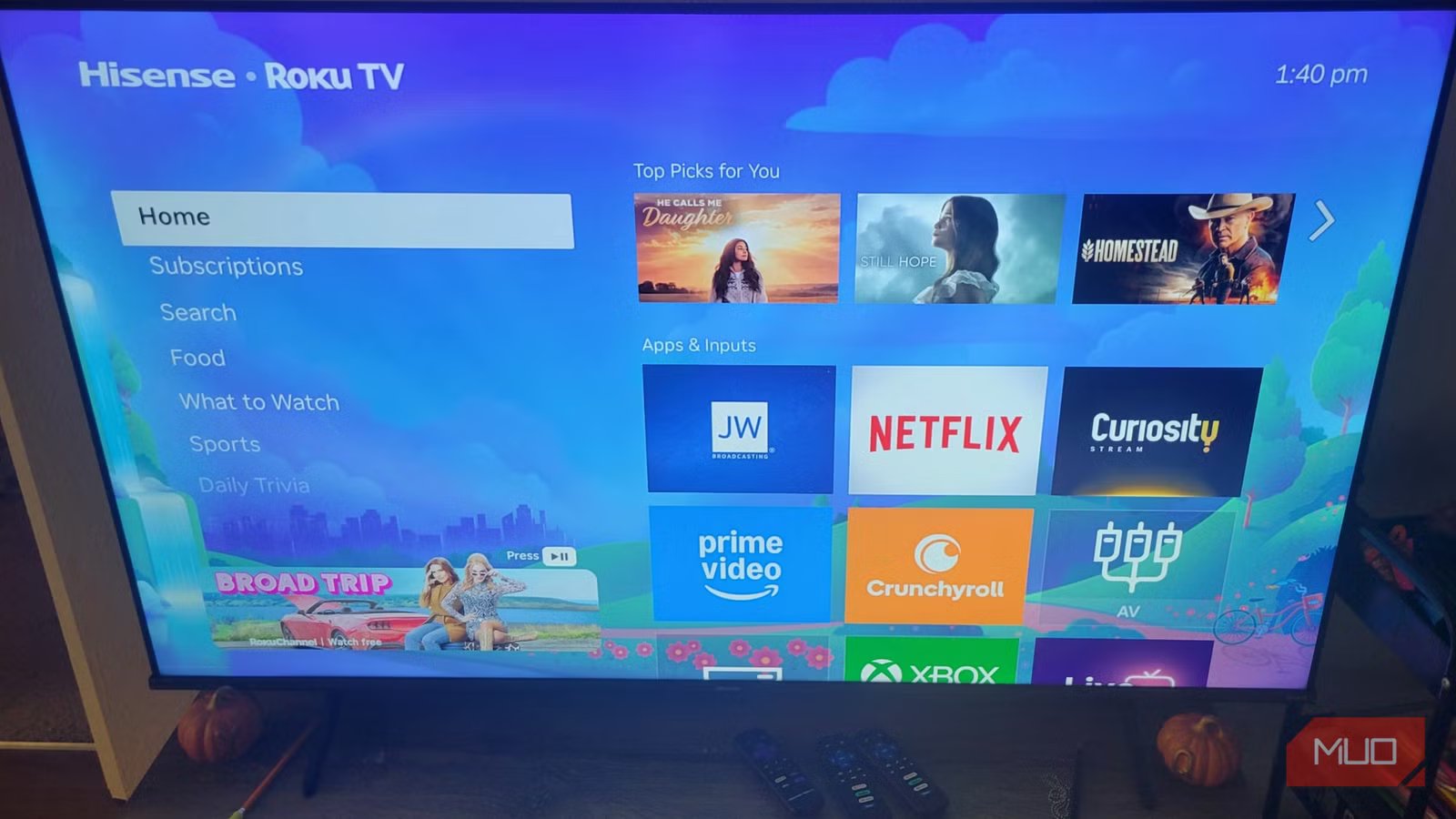
I have both a Fire TV Stick and a Roku, and one of the ways Fire is beaten by Roku is in its home screen customization. My Roku screen likely looks different from yours because I didn’t stick to the default look; I made real changes. If you are stuck on the out-of-the-box screen we’ve seen for years, you need to learn how to adjust it and make it your own. Otherwise, you’re just dealing with a slightly slower Fire TV Stick.
You don’t need everything the default settings give you

When you set up a streaming device today, the default interface is usually packed with features you might not actually want. Roku is guilty of this, too, by filling its sidebar menu with options that can easily turn into a visual mess over time. The good news is that Roku lets you fix this problem by completely removing the sidebar clutter.
If you go into Roku’s settings menu, you can manually hide sections like the Live TV row and the What to Watch row. Removing these specific menu options makes it much easier to navigate to what you want to do. Instead of being distracted by content suggestions you didn’t ask for, you get a direct path to the applications you actually use. This is a good idea for anyone who just wants to use their TV like a standard TV.
Go to Settings, then to the Home screen, and select Hide for everything you want to hide. It is easy to do. One of the worst parts about the Amazon Fire TV is how it feels like a giant billboard pushing advertisements and sponsored content at you constantly. It doesn’t give you the freedom to easily turn off the noise. Roku is great for me since it doesn’t force these things on me.
The recommendation rows and live television guides are usually filled with sponsored content and promotional images that take up a lot of screen space. Hiding them removes those ads from the equation and from your mind.
Since Roku gives you the tools to hide the bulk of its promotional rows, the TV interface feels a lot more like a personal space than a corporate billboard. You can strip it down to the essentials. When you remove the Live TV shortcut and the What to Watch suggestions, the device stops trying to act like a salesperson and goes back to being a helpful media player.
Just give me what I want

Roku adds new channels to the bottom of your home screen grid by default. This means that as you add more streaming services to your TV over time, your most recently downloaded applications end up buried at the very end of your list. Having to press the down arrow just to reach the application you want leads to scrolling fatigue.
Hunting through a massive wall of content takes away from the enjoyment of watching TV. It feels like you’re working harder when there are too many options scattered across the screen. You get a much better experience when you remove that clutter by moving your most important channels directly to the top.
You can move any channel in your Roku to a new location with just a few button presses. Go to the application you want to move, press the star button on your remote to open the Options menu, select the move channel option, and use the directional pad to drop the tile into a higher position.
I like to put the top three or four streaming services in the very first row. That way, I don’t have to move around when I just use the same services to watch TV. You make decisions faster when the entertainment options you actually care about are right in front of you.
Some people might argue that the default layout works perfectly fine for casual users who only watch TV occasionally. I disagree entirely.
That perspective ignores the reality of how people like me want media devices to work. I know plenty of people who use one main app, like Netflix or Hulu, and open it almost every time they sit down to watch a show. Putting that app at the bottom of a grid doesn’t help the user.
Manage your recommended rows and suggestions
Stop adding clutter to my screen
Roku has added many new features to its UI over the years, and a recent update added sections like What to Watch and Continue Watching right on the home screen. You might also notice rows dedicated to specific categories, like Sports or Live TV. While this might sound like a good idea on paper, it usually clutters the screen with suggestions that you don’t actually want to see.
I never liked having an operating system deciding what content gets placed front and center, especially since many of these prominent spots are directly driven by financial agreements. It feels less like a helpful guide and more like a situation where someone paid the company to put a specific movie or show on your TV.
Since Roku makes a massive portion of its money from advertising and platform partnerships, which most companies do, it has a strong incentive to push these sponsored suggestions. The interface can fill up with reality shows your family watches or random movies you won’t click on.
You can clean up this mess easily. Go to the Settings menu and select the Home screen option. You’ll find a list of all the menu items that are displayed. Do the same thing you did with the sidebar and hide the Recommendation rows completely. I have never regretted doing this, so don’t worry.
You can also turn off features that track your viewing habits to generate these suggestions, which I recommend. If you go to the Privacy menu inside your settings, you can limit advertisement tracking and turn off the smart television experience. This sounds bad, but turning off the smart television experience stops the device from using automatic content recognition to monitor what you watch through your cable box or antenna.
So now you can stop the TV from gathering data to feed into its recommendation algorithms.
Change your screen today
I don’t think a month has gone by that I haven’t adjusted the menu in one way or another. I like using different apps sometimes, and I’ll move my favorites to the top. Sometimes, my daughters will move theirs higher, which I will adjust. It’s just nice to know how to change it quickly, so I don’t need to deal with going through options I hate having. If you haven’t changed your home screen, you should do it as soon as possible.

- Connective Technology
-
HDMI
- Brand
-
Roku
- Wi-Fi
-
Yes
- Ethernet
-
No
The Roku Streaming Stick HD is a super handy way to transform any HDMI-enabled TV into your next entertainment hub, providing near instant access to more than 500 free TV channels in Full HD (1080p). The package also includes a handy remote you can use to control the Roku Streaming Stick, along with voice remote functionality.



