
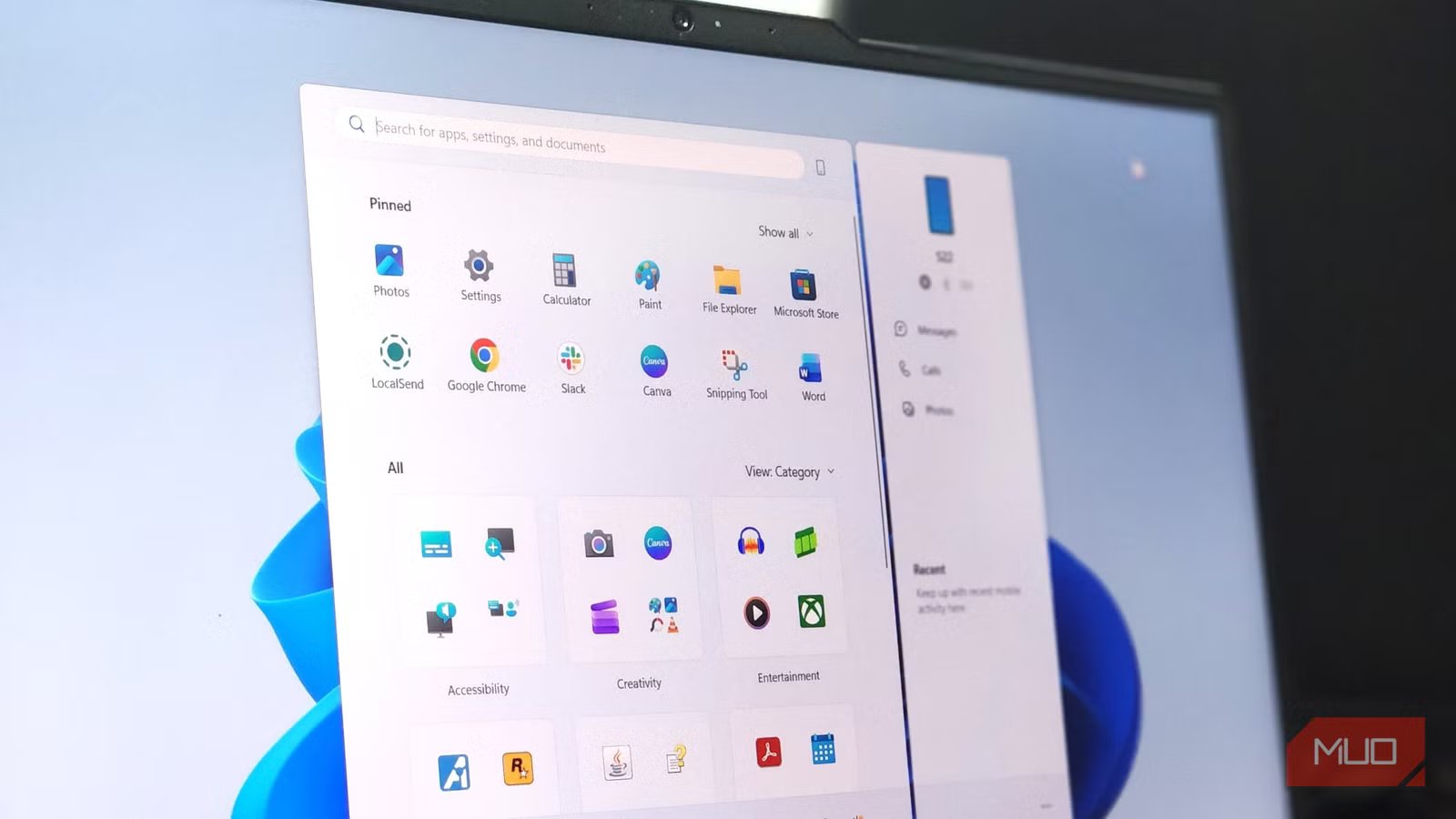
Installing a fresh copy of Windows 11 still gives me that rush of excitement. A brand-new system is full of possibilities, like a blank workspace waiting to be shaped around the way I actually use my computer. But beneath that polished surface, it ships with a collection of features and settings that serve Microsoft’s interests as much as yours. Features tied to Microsoft’s ecosystem pop up everywhere, some tracking your activity, others feeding you recommendations and content you never asked to see. And then there are the subtle annoyances you barely notice until you disable them.
The good thing is that most of it can be turned off once you know where to dig. I started disabling these features one by one, and I now pride myself on truly owning my PC.

7 Critical Steps You Must Take After Clean-Installing Windows 11
A fresh install is great, but don’t neglect these important steps.
Advertising ID
Microsoft knows your type — literally

By default, Windows 11 assigns your account a unique advertising ID that apps and advertisers can use to track activity across services. That identifier feeds into a personalization system, allowing installed apps to tailor ads and recommendations around your usage patterns. Turning it off doesn’t remove ads from Windows entirely, though it does cut off a major chunk of the profiling behind them. Apps can still display ads, but they just lose access to that behavior-linked identifier. This is also why reviewing your Windows 11 app permissions and changing privacy settings is crucial.
You’ll find the setting under Settings -> Privacy & Security -> Recommendations & Offers (though some Windows 11 builds place it under Settings -> Privacy & Security -> General instead). From there, disable Advertising ID. While you’re in the same menu, it’s worth switching off Personalized offers and Recommendations and offers in Settings as well, since both feed your activity into Microsoft’s recommendation and advertising systems.
I’d also disable Allow websites to access my language list. That setting can expose regional and language preferences to websites, which adds another small layer to fingerprinting and user profiling. Thankfully, none of these tweaks break core functionality. They just make the operating system a little less observant.
When I type into the Start menu on Windows 11, I want it to search my computer. That’s it. Instead, Windows blends local search results with Bing suggestions, often pushing web results right alongside — or even above — my own apps and files. For the way I use Start, mostly to launch programs or pull up documents quickly, it turns an otherwise fast workflow into unnecessary clutter.
Disabling it isn’t as straightforward as flipping a switch in Settings, which probably tells you how eager Microsoft is for people to keep those web results around. The cleanest fix involves a quick registry edit that stops Windows from searching the web, so your Start menu is instant. After a restart, the Start menu search experience should be sharper, with irrelevant web suggestions no longer crowding the results.
If digging around in the registry sounds a bit too surgical, you can use Winaero Tweaker to customize Windows. It offers a graphical alternative that handles the exact same tweak without forcing you to edit registry values manually.
The clickbait panel in your corner
The Widgets panel in Windows 11 ships pinned to the taskbar by default, serving up weather updates, sports scores, trending headlines, and an endless stream of curated content through Microsoft Start. It’s meant to be a quick-glance dashboard, but in reality, it’s a content feed that occupies prime real estate on your taskbar.
The bigger issue for me sits behind the scenes. Even when the panel stays closed, it still runs background components, consumes memory, and sends telemetry data. Part of that comes from its reliance on the Microsoft Edge WebView2 runtime, which effectively keeps a lightweight browser environment active in the background.
If you just want it gone visually, the quickest fix is to go to Settings->Personalization->Taskbar and disable the Widgets toggle. If you want to disable the feature at a deeper system level, you’ll need to use Group Policy or create a DWORD value in the Registry Editor named AllowNewsAndInterests set to 0 under: HKEY_LOCAL_MACHINE\SOFTWARE\Policies\Microsoft\Dsh Most people probably won’t need to go that far; removing the shortcut is sufficient unless you prefer to use a free Windows 11 debloating script to strip it all out automatically.
The “Recommended” section in Start
Microsoft’s idea of helpful suggestions

The bottom half of the Start menu in Windows 11 is dedicated to the Recommended section, where the system surfaces recently opened files, newly installed apps, and occasional Microsoft 365 suggestions pulled from OneDrive. Microsoft presents it as a productivity feature, though I’ve always found it distracting once my workflow and folder structure are already dialed in.
You can clean it up by heading to Settings -> Personalization > Start and toggling off the following options:
- Show recently added apps
- Show recommended files in Start, recent files in File Explorer, and items in Jump Lists
- Show recommendations for tips, shortcuts, new apps, and more
Once those are switched off, the Start menu becomes cleaner. It opens straight into your pinned apps without the extra distractions layered underneath.
Diagnostic data set to send optional data
Microsoft’s open invitation to your data

Windows 11 ships with the ability to send optional diagnostic data enabled, which goes well beyond basic telemetry. According to the setting’s own description, this includes data about websites you browse, how you use apps and features, and enhanced error reporting. The baseline required data tier still transmits hardware and stability information needed for updates and security patches, but the optional layer is a significantly broader harvest.
To pull this back, navigate to Settings -> Privacy & Security -> Diagnostics & Feedback, then toggle off Send optional diagnostic data. While there, also turn off Improve inking and typing, which sends additional input diagnostic data to Microsoft. Windows confirms that your device will remain equally secure and operate normally without the optional data, which makes the decision fairly uncomplicated. And if you want to clear what Microsoft has already collected from your device, the same page includes a Delete diagnostic data option that does exactly that with a single click.
Your wallpaper would like its space back

Windows 11’s lock screen is set to Windows Spotlight by default. It’s a feature that pulls in rotating Bing imagery alongside tips and content that are, well, thinly veiled ads and engagement prompts. Your lock screen is the first thing you see when you sit down at your machine; it shouldn’t be a billboard.
Head to Settings > Personalization -> Lock Screen and switch the background from Windows Spotlight to Picture or Slideshow. Then uncheck Get fun facts, tips, tricks, and more on your lock screen — this checkbox appears regardless of which background option you choose, so it’s worth confirming it’s unchecked either way. While on that page, also toggle off Suggest widgets for your lock screen, which surfaces Microsoft Start content you never asked for.

Notifications deserve the same audit. Go to Settings -> System -> Notifications and scroll to the very bottom to expand Additional settings. There you’ll find a Get tips and suggestions when using Windows checkbox that enables ongoing system-level prompts designed to nudge you deeper into Microsoft’s ecosystem. Uncheck it. Depending on your Windows version or how your device was set up, you may also see options to suppress setup suggestions and the Windows welcome experience — disable those as well if they’re present.
File Explorer cloud nudges
OneDrive would really like you to reconsider

File Explorer is a file manager. That should be the entire job description. In Windows 11, however, it periodically interrupts your workflow with sync provider notifications. You may see banner prompts encouraging you to back up folders to OneDrive, upgrade your storage plan, or engage with cloud features you may have already declined during setup.
To switch these prompts off, open File Explorer, click the three-dot menu (…) in the top toolbar, then select Options. Navigate to the View tab, scroll through the Advanced Settings list, and uncheck Show sync provider notifications. Click Apply, then OK. The change takes effect immediately without a restart.
Now breathe
Windows 11 is a solid operating system overall, and none of these default settings are catastrophic on their own. The issue is how they pile up over time. A handful of background features here, a feed you didn’t ask for there, a bit of data collection running underneath it all.
The tweaks above don’t ask for technical expertise or extra tools. They just require a moment of attention, a willingness to look at what arrives switched on by default and decide what actually earns its place.
Your PC is one of the most personal pieces of technology you own. It should feel that way.



