
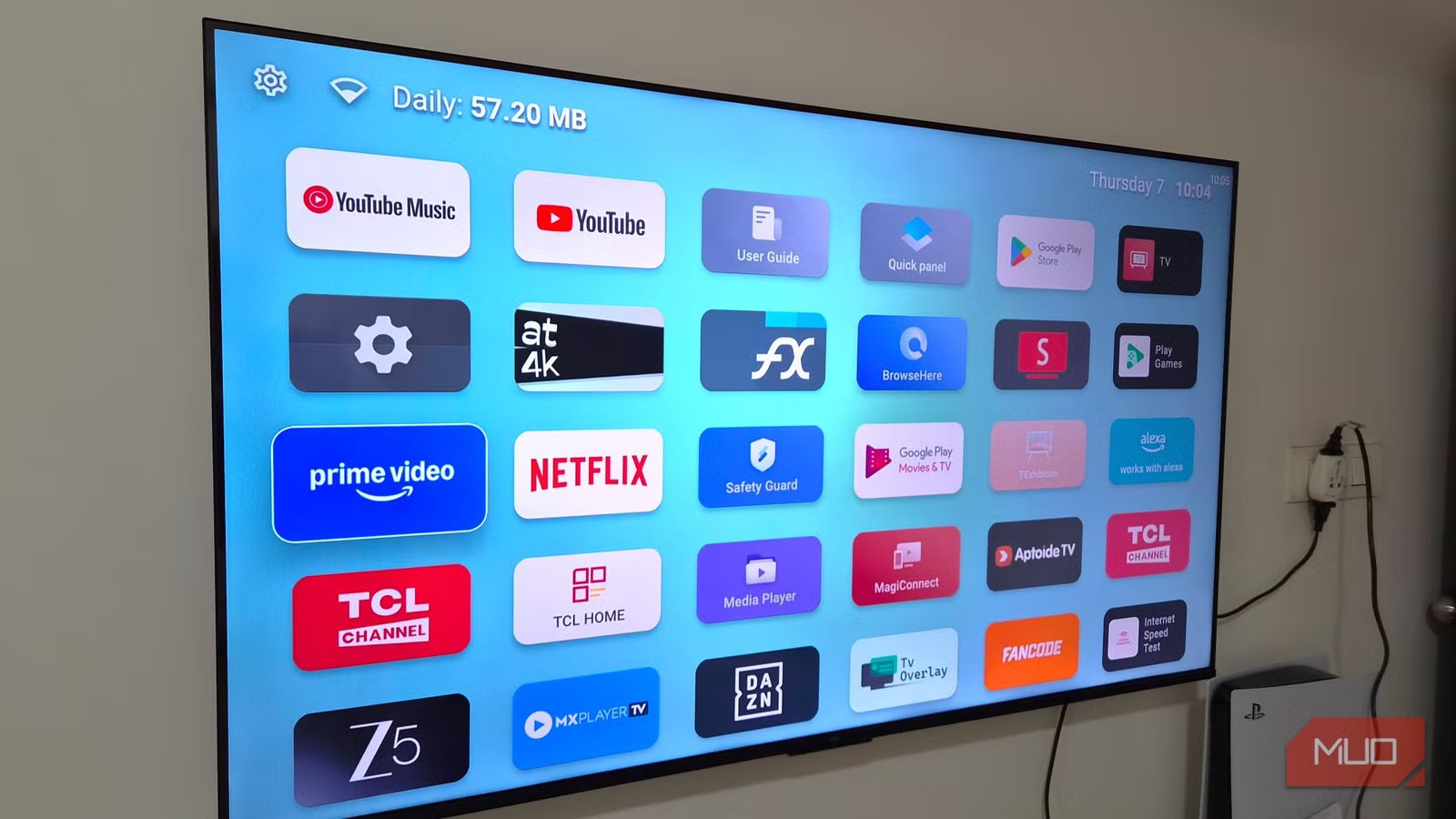
This free launcher made my smart TV feel like it should have all along
One of the biggest complaints users have with Google TV is the default home screen. It’s cluttered with ads, suggested content, and distracting sections that constantly compete for your attention. And it’s not something you can easily ignore either. Even when you know what you want to watch, you still have to navigate through all that noise just to get there.
Thankfully, you’re not out of options. An easy way to get around this is to replace the default experience with something like Arc Launcher. It’s a free, open-source launcher that gives your TV a minimal, customizable interface.

Arc Launcher gives your Google TV a cleaner makeover
A home screen that finally chills out

Arc Launcher strips your Google TV experience down to essentials. All you see is your apps, the status bar, and your wallpaper. That’s it. The lighter, distraction-free interface means you are no longer dealing with those autoplaying trailers, suggested movies, or rows of ads. You just turn on your TV, go to your app, and start streaming.
Navigation feels smoother too. Arc Launcher takes some inspiration from Apple TV here. You get a clean grid layout that’s easy to scan and even easier to use. You’re not scrolling a horizontal row endlessly to get to the app you want.
If this sounds similar to another launcher, there’s a reason for that. Arc Launcher is a custom fork of LTvLauncher, which itself is based on FLauncher. That means you get all the cool features of FLauncher, including an ad-free interface, solid customization, and support for sideloaded apps.
From sections to status bar — everything is adjustable
Customize sections, status bar, and more
Arc Launcher isn’t just about removing clutter from your home screen. Google TV’s Apps-Only Mode can already do that. What makes it useful is the control it gives you. And no, it’s not just about moving apps around, although you can absolutely do that too.
Head to Arc Launcher Settings > Interface, and you’ll see Sections. This is where you can group your apps into different sections. By default, everything sits under All Apps and Favorites, but you can create your own categories and arrange them depending on how you actually use your TV.
Arc Launcher also gives you complete freedom with the wallpaper. You can choose between a gradient, photo, and even a video on your TV’s local storage. Even better, you can pick different wallpaper for day and night, and Arc Launcher will automatically switch between them.
My favorite thing about the Arc Launcher is the status bar. Unlike Google TV, which only shows time and a few icons, Arc Launcher shows date, time, network indicator, and even data usage. And if that feels like too much, it’s possible to hide items you don’t want to see. In fact, you can hide the status bar, category titles, and app names for a super minimal interface.
It’s the small utilities that go beyond just looks
More than just a pretty interface

Customization is something that most TV launchers get right. The real charm of Arc Launcher, though, lies in the little details. Instead of manually tweaking the brightness throughout the day, for example, you can let Arc Launcher handle it. This way, your screen stays bright and vibrant during the day, then dials things down automatically at night.
The built-in screensaver is another highlight. It comes packed with a variety of clock styles, from minimal and bold to retro, elegant, neon, and even pixel-inspired designs. A thoughtful touch here is that the clock position shifts every 30 seconds to prevent OLED burn-in. Another thing I like about the Arc Launcher is how it shows data consumption right on the status bar. I do have an unlimited internet plan, but it’s still nice to see that stat at a glance.
Another way Arc Launcher is helpful is that when you long press any app on your home screen, it gives you more options than just Open, Move, and View Details. You can uninstall the app, assign a custom banner, or even hide the app directly.
Setting it as the default launcher isn’t tricky at all
Unfortunately, Google TV doesn’t give you any option to change the default launcher, which means every time you press the Home button or turn on the TV, you’ll still land on the stock interface. That doesn’t mean you’re stuck with it, though.
A simple workaround is to install the Button Mapper app and remap your remote’s Home button to launch Arc Launcher. That way, any time you press the Home button, your TV will take you to the Arc Launcher instead. The best part is that this feature is available in the free version of the app, so you don’t have to pay anything to make it work.
If you don’t want to use Button Mapper, another option is to use ADB commands to disable the default launcher. It works, but it’s a bit more involved and also risky. If you’re comfortable tinkering, Arc Launcher’s GitHub page has the detailed instructions.

- OS
-
Android TV
- Price model
-
Free
Arc Launcher is a free, open-source Android TV launcher that gives you an ad-free, customizable home screen.

- OS
-
Android
- Price model
-
Free