
I cleaned up a messy imported spreadsheet in minutes using an Excel tool I’d ignored for years
Imagine you’re a data analyst tasked with creating a master sales dashboard, but instead of starting with a clean dataset, you inherit a Monthly_Logs folder packed with 50 CSV files covering different regions and months, a PDF containing shipping cost data, and access to a Supabase PostgreSQL database storing product costs. You have to turn all of that into a single clean, normalized table that you can actually work with.
At first, it might seem like the only way to handle this kind of project is to manually copy and paste information across multiple files, but I found that wasn’t necessary at all. Using Power Query, I imported data from all three sources and merged everything into one unified dataset in just a few minutes. Along the way, I removed junk rows, split columns, added custom columns, and cleaned inconsistent text formatting without having to rebuild from scratch.
If you want to follow along, I’ve attached all the files you need to try the process yourself here.

Excel finally fixed its biggest data entry problem, and it’s a lifesaver
One click in the Data tab can catch almost all issues.
Cleaning and consolidating CSV files
Using Power Query to combine, clean, split, unpivot, and standardize 50 CSV files at once
In this case, the Monthly_Logs folder contains 50 separate CSV files, with one file for each region and month. Every file includes three junk rows at the top, 26 date columns spread horizontally, a Store_Info column that actually combines three different values into one field using entries like 101-Chicago-60601, 15 unnecessary Internal_Notes columns, and product names that look as though they were entered by different teams with different naming conventions.
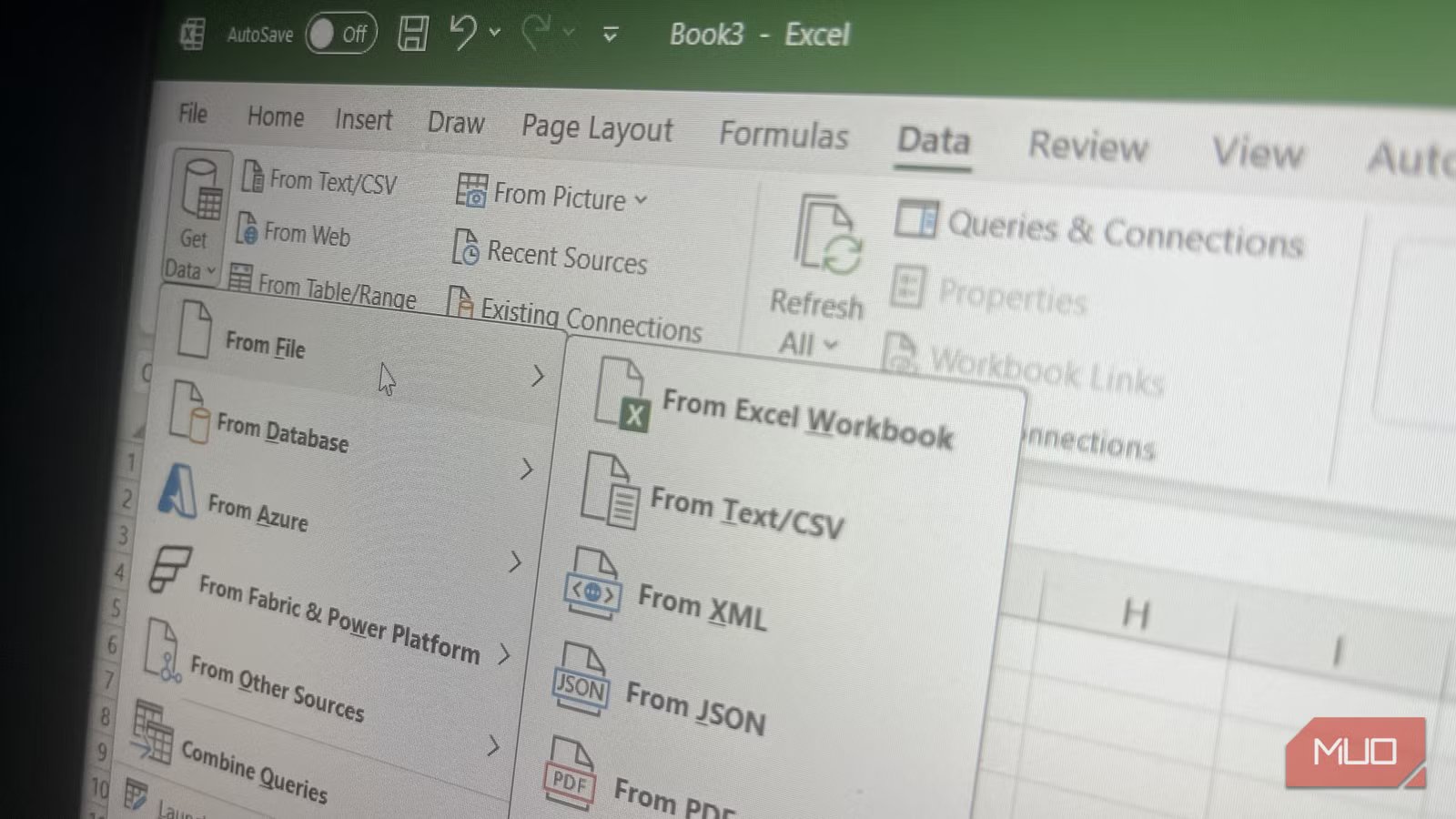
To start organizing everything, head to Data > Get Data -> From File -> From Folder in Excel, select the Monthly_Logs folder, and click OK. In the preview dialog, choose Transform Data, and Power Query loads a table where each row represents a separate file. From there, click the Combine Files button, which appears as the double-arrow icon in the Content column. Power Query immediately stacks all 50 CSV files into a single table.
Because every file starts with junk rows, though, you can’t combine them without cleaning them first. In the Queries pane on the left, Power Query automatically creates a helper query called Transform Sample File. This query acts as the template for how every CSV file will be processed before the merge happens. Open it and apply your cleanup steps there by going to Home -> Remove Rows -> Remove Top Rows -> 3, then select Home -> Use First Row as Headers. Once you return to the main Monthly_Logs query, Power Query automatically applies those same cleanup steps to all 50 CSV files before combining them, which removes the junk rows across the entire dataset in one go.
The next issue is the structure of the sales data itself. Having 26 separate month columns with headers like Jan-2023 and Feb-2023 makes analysis unnecessarily difficult, especially if you plan to build Pivot Tables or dashboards in Excel later. To normalize the data, hold Ctrl and select all 26 month columns, right-click, and choose Unpivot Columns. Power Query converts those wide columns into two much cleaner fields: one column containing the month name and another containing the sales value. You can then rename the columns to something clearer, such as Month and Sales_Amount.
The Store_Info column also needs attention because it combines multiple values into a single field. Select the column and go to Home -> Split Column -> By Delimiter. Choose the hyphen (–) delimiter and set it to split at Each occurrence. Power Query instantly separates the field into individual columns, which you can rename as Store_ID, City, and Zip.
At this point, the 15 Internal_Notes columns are just clutter. Hold Ctrl while selecting each unnecessary column, right-click, and choose Remove Columns to clear them out of the dataset.
The Product_Name column also needs standardization because inconsistent naming creates reporting problems. Start by selecting the column and going to Transform -> Format -> Trim to remove extra spaces before or after product names. Then use Transform -> Format -> Capitalize Each Word to standardize the text casing. After that, use Home -> Replace Values to consolidate naming variations. For example, you can replace “milk” with “Whole Milk” and “Milk-W” with “Whole Milk.” It’s also worth checking for accidental duplicates created during replacements, such as “Whole Whole Milk,” so you can clean those up as well.
To finish the cleanup process, remove duplicate transactions by selecting the Transaction_ID column, right-clicking, and choosing Remove Duplicates. Power Query keeps the first occurrence and removes repeated entries. Then filter the Quantity column and uncheck null values to remove rows with missing quantities.
Because the final combined dataset is fairly large, it’s better not to load it directly into a standard Excel worksheet. Instead, go to Home -> Close & Load -> Close & Load To…, select Only Create Connection, and check Add this data to the Data Model.

This pushes the dataset into Power Pivot, which handles larger datasets far more efficiently and helps prevent your workbook from slowing down or crashing.
Combining more data from everywhere
Power Query pulls it all together, whether that’s databases, PDFs, or spreadsheets
With the CSV files cleaned and consolidated, the next step is pulling in the rest of the data needed for the master sales dashboard. In this case, that means importing product cost data from a Supabase PostgreSQL database and shipping rates stored inside a PDF. Even though those are completely different data sources, Power Query handles both without much trouble.
For the database connection, I found it easiest to connect Supabase through ODBC first and then import the data into Power Query using that connection by going to Data -> Get Data -> From Other Sources -> From ODBC, entering your credentials, selecting the product_cost table in the Navigator window, and choosing Load To…. You can also install the PostgreSQL driver and connect directly through Data -> Get Data -> From Database -> From PostgreSQL Database. Either way, just load the data directly into the Data Model the same way you handled the CSV dataset.
Once the product cost table is loaded, you can merge it with the sales data. Open the Monthly_Logs query and go to Home -> Merge Queries. Select Product_Name as the matching column from your sales data, choose the product_cost query from the dropdown, and match it to the product_name column on the database side. Using a Left Outer join keeps every sales row while pulling in cost data wherever a matching product exists. After the merge finishes, click the expand icon on the merged column and select the fields you want to import, such as cost_per_unit, retail_price, gross_margin_pct, and SKU. Then use Close & Load… to apply the changes.
The PDF import works in a similar way. Go to Data -> Get Data -> From File -> From PDF, browse to Shipping_Costs_Invoice.pdf, and Power Query automatically scans the document for tables. In the Navigator pane, select the table containing the shipping data and load it into the Data Model.
Before you can merge the shipping information into the sales data, though, both datasets need a shared column. The shipping table organizes rates by region, while the sales data only includes city names. To bridge that gap, create a new Region column inside the Monthly_Logs query by going to Add Column -> Conditional Column. From there, build rules such as “if City equals Chicago, then Northeast,” repeating the process for every city in your dataset and leaving a catch-all Else condition at the bottom for anything that doesn’t match.

If your city list is large, manually creating conditional rules will become tedious. A more efficient approach is to build a simple two-column lookup table in Excel containing City and Region values. Convert the range into a named Excel table with Ctrl + T, import it into Power Query through Data -> From Table/Range, and load it into the Data Model. From there, use Merge Queries inside Monthly_Logs to match the City column from both tables and pull in the corresponding Region automatically.
With the Region column in place, merging the shipping data becomes straightforward. Go to Home -> Merge Queries, select the shipping table, match the Region column in both datasets, choose a Left Outer join, and expand the fields you want to include, such as Shipping Zone, Carrier, Avg Weight, Rate/lb, Fuel Surcharge, and Handling Fee.
By the end of the process, you end up with a single, clean Data Model containing all 50 months of stacked and unpivoted sales data, properly separated Store_ID, City, and Zip columns, standardized product names with duplicates and null values removed, product cost and margin information pulled directly from Supabase, and shipping cost data extracted from the PDF. From there, building a dashboard becomes much simpler because all the difficult cleanup and consolidation work is already finished. All that’s left is to head to the Insert tab and select PivotTable > From Data Model.
Alternatively, you can right-click the Monthly_Logs query, choose Load To…, and insert the dataset into a table on any Excel worksheet you want.
You only build the workflow once
Tasks that used to consume an entire workday can now be set up in just a few minutes. The next time new CSV files arrive in the Monthly_Logs folder, all I’ll have to do is go to Data -> Refresh All, and Power Query will rerun every transformation automatically. As long as the new files follow the same structure with matching headers and column counts, the entire cleanup process happens again in seconds.
That’s ultimately why I think Power Query is one of the most overlooked tools in Excel. It can pull data from almost anywhere, whether that’s an Excel spreadsheet or SQL server, handle cleanup tasks that would otherwise take hours manually, and process datasets large enough to overwhelm a normal worksheet. More importantly, it removes the need to repeat the same cleanup work every time new data shows up, which is extremely valuable.

- OS
-
Windows, macOS
- Supported Desktop Browsers
-
All via web app
- Developer(s)
-
Microsoft
- Free trial
-
One month
- Price model
-
Subscription
- iOS compatible
-
Yes
Microsoft Excel is a powerful spreadsheet application used for data organization, analysis, and visualization. It supports formulas, functions, pivot tables, and charts to process complex datasets efficiently. Widely used in business and education, Excel also integrates with other Microsoft 365 apps for collaboration, automation, and real-time data insights.