
Windows 11 has a DNS privacy setting I wish I’d checked sooner
One of the easiest privacy and security boosts you can make is to enable encrypted DNS on your operating system. It means that the DNS requests you make are protected and no longer sent in plaintext for anyone to read; it’s an immediate and easy upgrade that almost anyone can make.
But it turns out that unbeknownst to most folks, Windows 11 actually doesn’t always completely follow the rules you’ve set.
Instead, at times, Windows 11 will fall back to a plaintext connection, undermining your privacy, and all without ever giving you a warning.
While that sounds bad, and it is, the good news is that there is a fix available, and it only takes a couple of minutes to implement.

I didn’t know my ISP could see every website I visit until I checked this setting
Your ISP sees more than you think.
How DNS-over-HTTPS works on Windows 11
And why it sometimes doesn’t do what you think

On Windows 11, when you input a URL, your machine fires up the DNS database and connects the domain name to an IP address. Most of the time, that DNS request is sent in plaintext, meaning that anyone snooping on your network can take a peek at what you’re connecting to.
However, that doesn’t have to be the case, as we can encrypt DNS requests, making it impossible for anyone to see them. Encrypted DNS providers do exactly as it sounds: wrap your DNS requests in an encrypted connection, which gives you an instant privacy boost.
Better still, you can enable DNS-over-HTTPS (DoH) in your operating system, meaning you don’t have to configure every app and service on your system.
The problem is that, at times, Windows 11 DoH implementation doesn’t do the job properly. It can fail for a variety of reasons, like timeout, misconfiguration, incompatible networks, and so on, but Windows 11 doesn’t tend to alert you when that happens.
Instead, Windows 11 falls back to a plaintext request so that it can complete the connection. So, your connection may work and feel completely normal, but you won’t realize that your requests aren’t protected.
But I already have DoH enabled in Windows 11
Turns out that doesn’t matter

So, when I first read about this, I thought, “I’m all good, I have encrypted DNS set for both my providers.” But it turns out that even having DoH providers set for your network adapter DNS doesn’t stop this from happening.
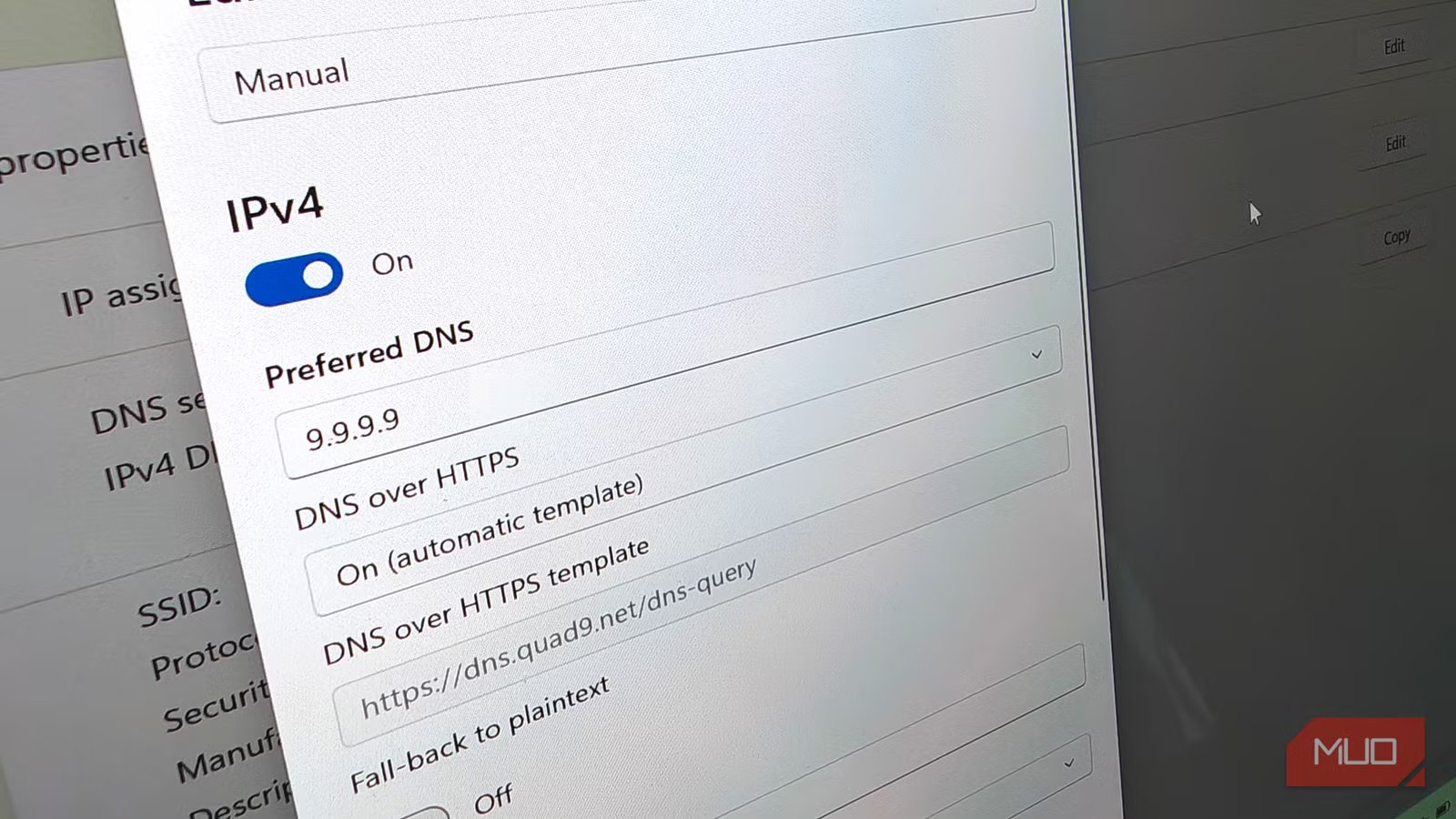
What I mean is that on my laptop, I’ve configured my network adapter to use either Quad9 DNS (9.9.9.9) or Cloudflare (1.1.1.1). Both DNS providers support DNS-over-HTTPS and protect my connection for most requests.
But at times, Windows 11 does its own thing and pushes my requests live in plaintext, regardless of those two encrypted DNS providers.
The reasons why it does this vary. As mentioned above, it could be that both of your preferred DNS providers are unreachable. Given the global availability of DNS, this is rare, but it does happen.
Another, more frequent reason is when you connect to a new network. Windows is basically programmed to trust networks, and at times, that means it’ll accept whatever network configuration is thrown at it, even if that means ignoring your network adapter’s DNS settings.
Basically, for a long, long time, it was pretty right-on for Windows to just work with the settings from the network. Network attacks and similar issues were a problem, but most of the time, whatever the network said was good enough. This was before most of us considered that a network we’re joining could be unsafe or that someone would want to pay very specific attention to our DNS requests, but the issue persists.
This problem is also why changing your network adapter DNS settings isn’t sufficient on its own — you have to go the whole hog and make some extra changes in Windows, too.
How to stop Windows 11 broadcasting your DNS in plaintext
It all depends on what version of Windows you’re using
Fixing this Windows 11 DNS problem isn’t particularly challenging, but the fix does depend on what version of Windows you’re using. That’s because Windows 11 Home and Windows 11 Pro/Enterprise expose different settings, namely, the Windows Group Editor.
Windows 11 (any version) — Cloudflare app

The easiest fix that applies to all Windows versions is to install a dedicated encrypted DNS app. Switching to an encrypted DNS in Windows is simple, but as we’ve seen, it doesn’t always do the job.
But Cloudflare has a dedicated desktop app with more settings — specifically, WARP, which makes sure every bit of your network has some level of protection. It’s not a VPN in the sense that you’re accessing the internet through an exit node in a different country. However, it encrypts your traffic and DNS and stops any local-level snooping, including the Windows 11 plaintext fallback.
Windows 11 Pro/Enterprise — Windows Group Policy
Windows Group Policy adjusts system-wide settings, but isn’t available to systems running Windows Home, at least, without some tweaks. But Pro/Enterprise owners can use the Group Policy to adjust an Administrative Template that specifically enforces DoH, and doesn’t allow the plaintext fallback.
- Press Win + R, input gpedit.msc, and press Enter
- Head to Computer Configuration > Administrative Templates > Network > DNS Clients
- Find and open Configure DNS over HTTPS (DoH), then set it to Enabled
- Under Options, select the dropdown and select Require DNS over HTTPS
- Now, select Apply > OK
Restart your PC, and the new Group Policy should be in place.
The only downside to this, weirdly enough, is that if there genuinely is an issue with your DNS, you won’t know, and you won’t be able to connect to anything. In that, if you choose this option, make sure you remember this policy when your internet stops working!
Windows 11 (any version) — browser-only configuration
Browsers configure DoH independently of Windows, which means that once set, they also avoid the plaintext fallback problem. The flipside is that DoH in your browser only protects DNS requests made there, rather than across your entire system.
You can enable DNS-over-HTTPS in all major browsers, and it only takes a minute or two.

I stopped trusting Cloudflare with my DNS and set up my own
Make your home network more secure and much faster.
Encrypted DNS is only as strong as you make it
And that means checking all the backdoors
Despite what’s written here, I’d still strongly advise anyone to turn on DoH in Windows 11, even if you don’t go the extra steps to protect the Windows 11 DNS plaintext fallback.
Just switching on DoH means you’ve already catapulted yourself way forward in terms of privacy, and your DNS queries are safer than most other folks in the entire world.
But the right fix really depends on your setup and Windows 11 version. The Cloudflare option is the easiest option by far, and doesn’t have the downside of accidentally cutting you off from the internet, so I’d suggest most folks go for that.