of a short series of focused article/tutorial posts going from zero to WebAssembly-based web apps, running entirely inside the web browser and allowing you to learn about all these topics as you go: GitHub, its Codespaces, WebAssembly (or “WASM”), C code, online Visual Studio Code, port forwarding, HTML, and JavaScript. I hope you will have as much fun as I had while preparing this, and that you will learn a lot and get your curiosity sparked up!
Some say the more you learn, the more you feel you know nothing and there’s more to learn. That was exactly my feeling here, a feeling that is actually good.
Let’s go!
As a long-time strong advocate for client-side web apps, I’ve always thought it was weird that I knew basically nothing about WebAssembly. But that started changing recently when I found motivation while trying to build my new web platform for in-browser analysis of molecular structures and simulations (preprint of its first version here, if you want to know more about it). Turns out there are highly efficient libraries and scientific applications written in languages like C that I found useful for my platform, such as Gemmi and FreeSASA. For both, someone had already went through the work of creating WASM ports that I could use right away.
But could I do that myself? I mean, could I grab say a piece of C code and compile it in a way that would run in the browser? The answer was YES! And moreover, faithful to my web advocacy, I could do it all strictly inside the browser, as I show here for FreeSASA.
Next in my learning process, I ran a self-tutorial starting from even before the C code. I bring it here with full explanations on how to go from zero to WASM-ready files, all inside your browser, for free, without having to download or install absolutely any software, and with nothing more than a free GitHub account.
What WebAssembly is, and why it matters —in a nutshell
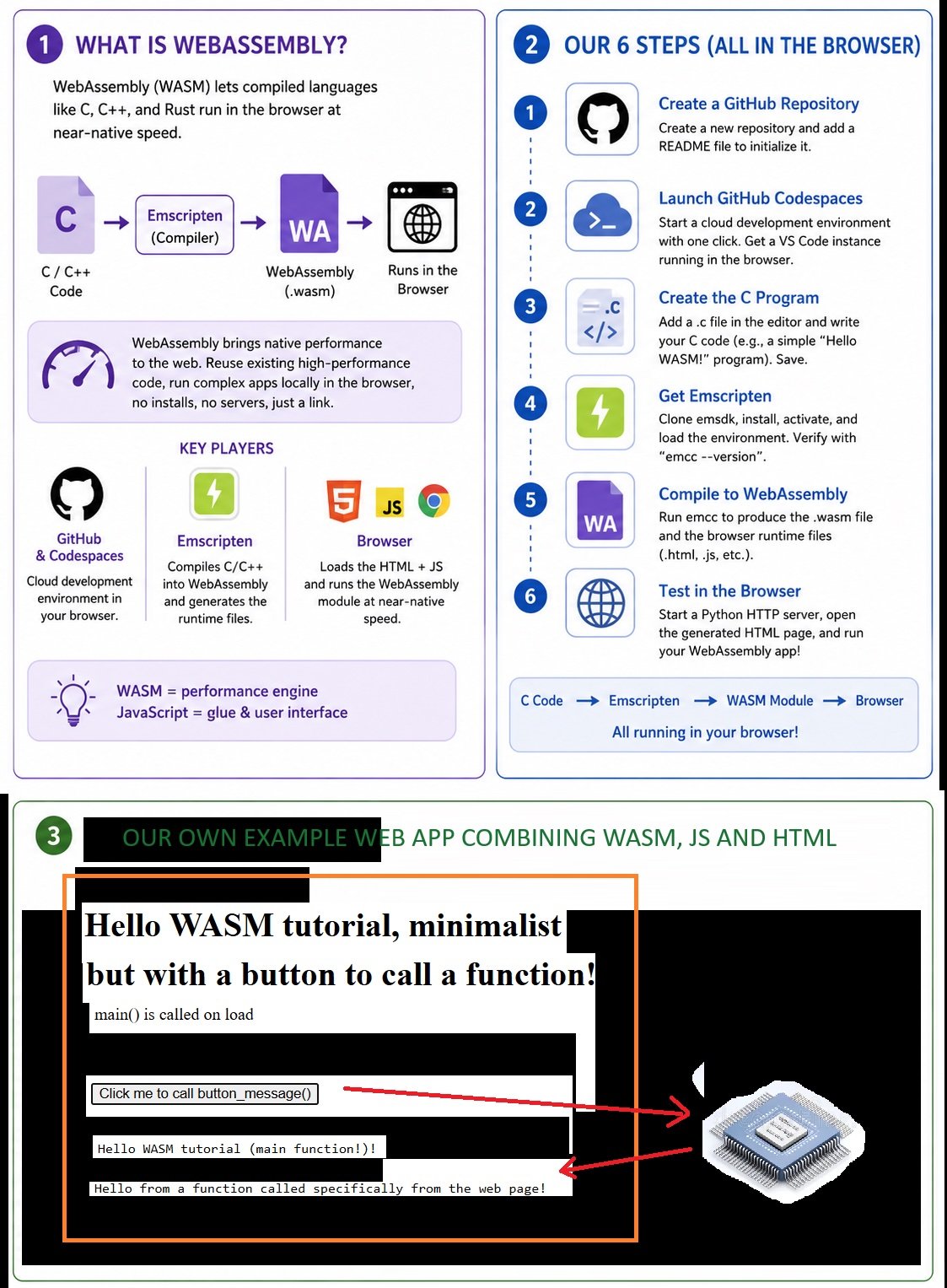
For years, the web browser was mostly a presentation layer: great for interfaces and lightweight interactivity, but not for serious computation. Heavy workloads typically required native applications, Python environments, or remote servers. WebAssembly (WASM) is changing that. It allows compiled languages such as C, C++, and Rust to run directly inside the browser at near-native speed, turning the browser into a real computational platform rather than just a display surface.
In practice, WebAssembly lets developers compile existing high-performance code into a compact binary format that browsers can execute efficiently. Instead of rewriting performance-critical logic in JavaScript, developers can reuse decades of optimized systems code while still distributing applications as simple webpages. The result is software that is faster, more portable, and dramatically easier to share: users can open a link and run complex applications locally without installations, dependency conflicts, or platform-specific setup.
This shift matters far beyond performance alone. WebAssembly bridges the gap between the accessibility of the web and the power of native software, enabling responsive browser-based tools for simulations, data analysis, media processing, scientific computing, and interactive visualization. JavaScript continues to handle the interface and user interaction, while WASM acts as the compute engine behind the scenes. This separation is reshaping what modern web applications can do-and even if you may not notice, it is commonplace in modern web development.
Cross-compiling to WASM
In practice, having WebAssembly around means we can:
compile native code into a portable binary format,
load it directly into a webpage,
and execute it at near-native speed right inside the browser
For data scientists and scientific developers, this opens a fascinating possibility: Scientific software can now run directly inside the browser without requiring users to install anything. No environments to install and load each time, no libraries to manage, no dependency conflicts, no OS limitations.
Just a webpage, making your tools available just an URL away!
A hands-on, detailed tutorial that you can run in your browser
In this tutorial, we will create the smallest possible WebAssembly application, which will print “Hello WASM!” on the web page and will be based on C code:
#include

int main() {
 printf("Hello WASM!\n");
 return 0;
}
We will compile this piece of C code into WebAssembly, generate the browser runtime files, and execute it directly inside the browser
Most importantly: everything will happen online, even the writing of C code itself. Once we start by logging into GitHub, we won’t leave the browser until it’s all running!
We will use GitHub Codespaces for browser-based development, Emscripten (right inside GitHub Codespaces) to compile C into WebAssembly, and a simple Python HTTP server (started from inside GitHub Codespaces too) to run the generated web app.
By the way: What is GitHub Codespaces? It is an instant, cloud-based development environment that uses a container to provide you with common languages, tools, and utilities for development. GitHub Codespaces is also configurable, allowing you to create a customized development environment for your project.
Setting our minds with a workflow
Conceptually, our workflow looks like this:
C code --> Emscripten compiler--> WebAssembly module --> Browser execution
And we will next see all steps as if we were following a book from the “For dummies” collection.
Step 1 — Create a GitHub Repository
(By the way, what is GitHub? GitHub is a web-based platform, kind of social media for coding, that serves as a cloud-hosted, collaborative home for software projects. It was born from Git, a software for version controling, to allow developers to store, track changes, and work together on code in real time.)
First, log into GitHub and create a new repository. For example, in my free account it looks like this as of May 2026 (see red arrow on the top left):
(All images by the author)
Then we give it a name and click “Create repository” with all other fields unchanged from the default:
At this stage, the created repository may initially appear empty. To initialize it, we have to create a file which could be simply a README file:
Then the next screen looked like this after I filled in the minimal things I needed:
You then trigger commitment of changes with the “Commit changes…” button on the top right, and then finally click “Commit changes” in the box that appears.
Step 2 — Launch GitHub Codespaces
We are now ready to go to Codespaces, where we will start writing the code!
(By the way, GitHub Codespaces is an “instant” web-based development environment that allows you to write, run, and debug code entirely in your browser through an online version of Visual Studio Code.)
You will find the button to launch Codespaces by clicking the <> Code button in the page where you got after having commited the changes above:
When you click “Create codepsace on main”, in a few seconds you get the online Visual Studio Code app, that will look like this:
You will see that the app creates an environment with a unique name, in this case I got “vigilant-space-rotary-phone” but you will get something different. If you check the URL as of now, you will see your environment’s name also shows up there, for example mine is “https://vigilant-space-rotary-phone-someunreadblestuff.github.dev/“
Step 3 — Create the C program
In the Explorer window (on the left) you will see more and more files populating a list as you develop the app. For the moment we have only one file, the README that we created earlier.
Now click on New file (see red arrow below) and call it something with a .c extension. This file will hold our app’s code:
Once the file is created, on the right we type the code, for example:
#include
int main() {
    printf("Hello WASM tutorial!\n");
    return 0;
}
With Ctrl+S (Cmd+S in Mac) you save the file, which is now ready to compile.
Step 4: Making Emscripten available in this online Visual Studio Code session
But to compile the C code into WebAssembly, we need Emscripten, which isn’t there yet in the environment. Emscripten is one of the core tools in the WebAssembly ecosystem. It compiles C and C++ code into a .wasm file accompanied by browser-compatible runtime files that will provide the interface between the app’s HTML+JS and the WASM file itself.
To “install” Emscripten (I use quotation marks because nothing really gets installed in your computer, as this is all happening somewhere in the cloud!) you have to type some commands in the terminal, as shown here for the first one:
The first command, which you see above in the picture, simply copies (or “clones”) the current version of Emscript from its GitHub repository:
You then cd into the emsd folder, which contains what we just pulled from GitHub, and then run the command to install it:
This will take some time to run, and if it all goes well (it should) then you will see this at the end:
We next activate Emscripten:
./emsdk activate latest
And finally load the environment variables:
source ./emsdk_env.sh
To verify the installation, type this:
emcc --version
You should now see version information for the Emscripten compiler.
Step 5 — Compile the program into WebAssembly!
Still at the terminal, we go up one level in the folder structure to get out of emsdk where we installed Emscripten, and then run THE compiling command emcc file.c -o file.html:
You will see some new files appearing in the Explorer on the top left:
The files as of now are the README and the c code which we had already created, plus the .wasm, HTML and JS files created by Emscripten. Super simple, you see!
Now what are these files, and what do they do?
hello-wasm-tutorial.wasm is the compiled WebAssembly binary, i.e. the core executable logic coming from the C program.
hello-wasm-tutorial.js is the JavaScript glue code that allows to interface the wasm file to the rest of the JavaScript code and thus the web app itself. This file loads the WASM module, initializes runtime memory, and manages communication between the browser and the WebAssembly module.
hello-wasm-tutoiral.html is a minimal webpage launcher generated automatically by Emscripten. Opening this page runs the compiled application.
Now let’s move on to test them!
Step 6: Testing (and wait for step 7 to move files out and into your own server!)
To test our wasm app inside the web page created by Emscripten itself, we need to start a “local” web server, where again “local” is within quotation marks because we will actually do it in the cloud (but being “local” for the Codespaces environment, hence the name!).
We need this because the app is meant and designed to be served through a web server. Fortunately, Python (which is already there in the cloud environment) provides a tiny built-in HTTP server. We can activate this server by running this on the terminal:
python3 -m http.server 8000
This is the output you get from that command, including a button that will launch the web app on a new window:
When you click that you get to see a directory listing that includes all the files we have so far:
And finally the magic: when you click hello-wasm-tutorial.html, you get to see load this page which in turn calls the wasm program and then shows its output (and I’m also showing the browser’s console for completion):
Understanding by simplifying the HTML (and recall there’s step 7 to move files out and into your own server!)
As you see in the above example (and in your own computer if you followed the tutorial!), when Emscripten compiled our code it generated a bulky HTML page with CSS, a whole UI including loading and other status messages, buttons, etc. This might be good for demos, but actually complicates learning.
What we can do then is, first of all, to get the minimal HTML code that will get the wasm code to run. And it turns out you need very little!
Just create a new HTML file in the explorer:
Hello WASM tutorial, the simplest!
Hello WASM, called from a buttonmain() is called on load
Now, this code is a bit complicated due to a problem in our very simple C program: it doesn’t return anything like a string that the web app could then properly sample, so we use a walkaround to grab the text printed by printf() and put it in a JS variable that we can then use at will. I will soon cover the right way to handle passing variables, but in a separate post!
For the moment, stay with this. When you load this new simple page with button-controlled function call, you see first this:
And then this after you click the button:
Finally, step 7: Download the relevant files and mount them in your server
As there’s no backend, the procedure is trivial: download the HTML, JS and WASM files, and upload them to your server making sure they are all in the same folder. For example, here’s how I moved my last combo of files to my website at Altervista (by the way my favorite free hosting platform by far, for the reasons I explain here):
First we need to download from Codespaces the three main files (HTML, WASM, JS) to the local computer:
Next, we upload them to the right folder in our website, here my in Altervista account where the folder ends up populated with:
Finally we just open the HTML file, and voilà it’s all running!
Contains information related to marketing campaigns of the user. These are shared with Google AdWords / Google Ads when the Google Ads and Google Analytics accounts are linked together.
90 days
__utma
ID used to identify users and sessions
2 years after last activity
__utmt
Used to monitor number of Google Analytics server requests
10 minutes
__utmb
Used to distinguish new sessions and visits. This cookie is set when the GA.js javascript library is loaded and there is no existing __utmb cookie. The cookie is updated every time data is sent to the Google Analytics server.
30 minutes after last activity
__utmc
Used only with old Urchin versions of Google Analytics and not with GA.js. Was used to distinguish between new sessions and visits at the end of a session.
End of session (browser)
__utmz
Contains information about the traffic source or campaign that directed user to the website. The cookie is set when the GA.js javascript is loaded and updated when data is sent to the Google Anaytics server
6 months after last activity
__utmv
Contains custom information set by the web developer via the _setCustomVar method in Google Analytics. This cookie is updated every time new data is sent to the Google Analytics server.
2 years after last activity
__utmx
Used to determine whether a user is included in an A / B or Multivariate test.
18 months
_ga
ID used to identify users
2 years
_gali
Used by Google Analytics to determine which links on a page are being clicked
30 seconds
_ga_
ID used to identify users
2 years
_gid
ID used to identify users for 24 hours after last activity
24 hours
_gat
Used to monitor number of Google Analytics server requests when using Google Tag Manager