
Your laptop’s USB port is probably slower than advertised — here’s how to verify it
USB ports used to be simple. You plugged something in, it worked, and that was about it. But modern laptops are packed with different USB standards, confusing naming schemes, and ports that all look identical despite offering wildly different performance.
All of that adds up to one problem: the USB port you’re using might not be as fast as it should be.
Modern laptops often mix fast and slow USB ports together, and manufacturers rarely explain the difference clearly. Some USB-C ports support blazing-fast Thunderbolt or USB4 speeds, while others only handle basic USB data or charging. Even worse, cables can reduce your speeds further without even a hint that they’re the problem.
The good news is that it only takes a few minutes to figure out which USB ports on your laptop are actually fast—and which ones you should avoid for high-speed storage.

I’ve ignored these symbols on my USB ports for so long and now I regret it
Those tiny USB symbols reveal more than you think.
USB naming has become ridiculously confusing
Let’s start with one of the biggest problems

How many times have you tried to figure out what a USB port does, only to meet a confusing mess of letters and numbers? USB naming schemes have long been criticized, yet they haven’t improved across generations. It’s a confusing mish-mash, not helped by the fact that some versions have even changed names within a single generation.
USB 3.0 became USB 3.1 Gen 1, which later became USB 3.2 Gen 1. Meanwhile, USB 3.1 Gen 2 became USB 3.2 Gen 2. Then USB4 arrived alongside Thunderbolt 3 and Thunderbolt 4, all using the same USB-C connector.
It’s no wonder that when we see a USB port, we generally have zero idea about its real capabilities, even if it adheres to a color scheme.
|
Standard |
Max Theoretical Speed |
Common Connector |
Typical Port Color/Symbol |
|---|---|---|---|
|
USB 2.0 |
480Mbps |
USB-A / USB-C |
Black or white insert |
|
USB 3.2 Gen 1 (USB 3.0) |
5Gbps |
USB-A / USB-C |
Usually blue |
|
USB 3.2 Gen 2 |
10Gbps |
USB-A / USB-C |
Blue, teal, or labeled “10” |
|
USB 3.2 Gen 2×2 |
20Gbps |
Mostly USB-C |
Rarely labeled clearly |
|
USB4 |
20–40Gbps |
USB-C |
Usually USB4 logo |
|
USB4 Version 2.0 |
Up to 80Gbps |
USB-C |
No consistent color yet |
|
Thunderbolt 3 |
40Gbps |
USB-C |
Lightning bolt icon |
|
Thunderbolt 4 |
40Gbps |
USB-C |
Lightning bolt + “4” sometimes |
|
Thunderbolt 5 |
Up to 80Gbps (120Gbps boosted mode) |
USB-C |
Thunderbolt 5 icon |
Those are theoretical speeds, though. Real-world performance is always lower because of controller overhead, SSD limitations, thermal throttling, and cable quality. Still, the gap between standards is enormous. A USB 2.0 connection might transfer files at roughly 40MB/s, while a fast USB4 or Thunderbolt connection can exceed 3,000MB/s with the right storage device.
Plugging into the wrong USB port can cut your transfer speeds by ten times or more. It’s no wonder we’re confused all the time.
USB-C doesn’t automatically mean fast
Is USB-C the most misunderstood connector of all time?

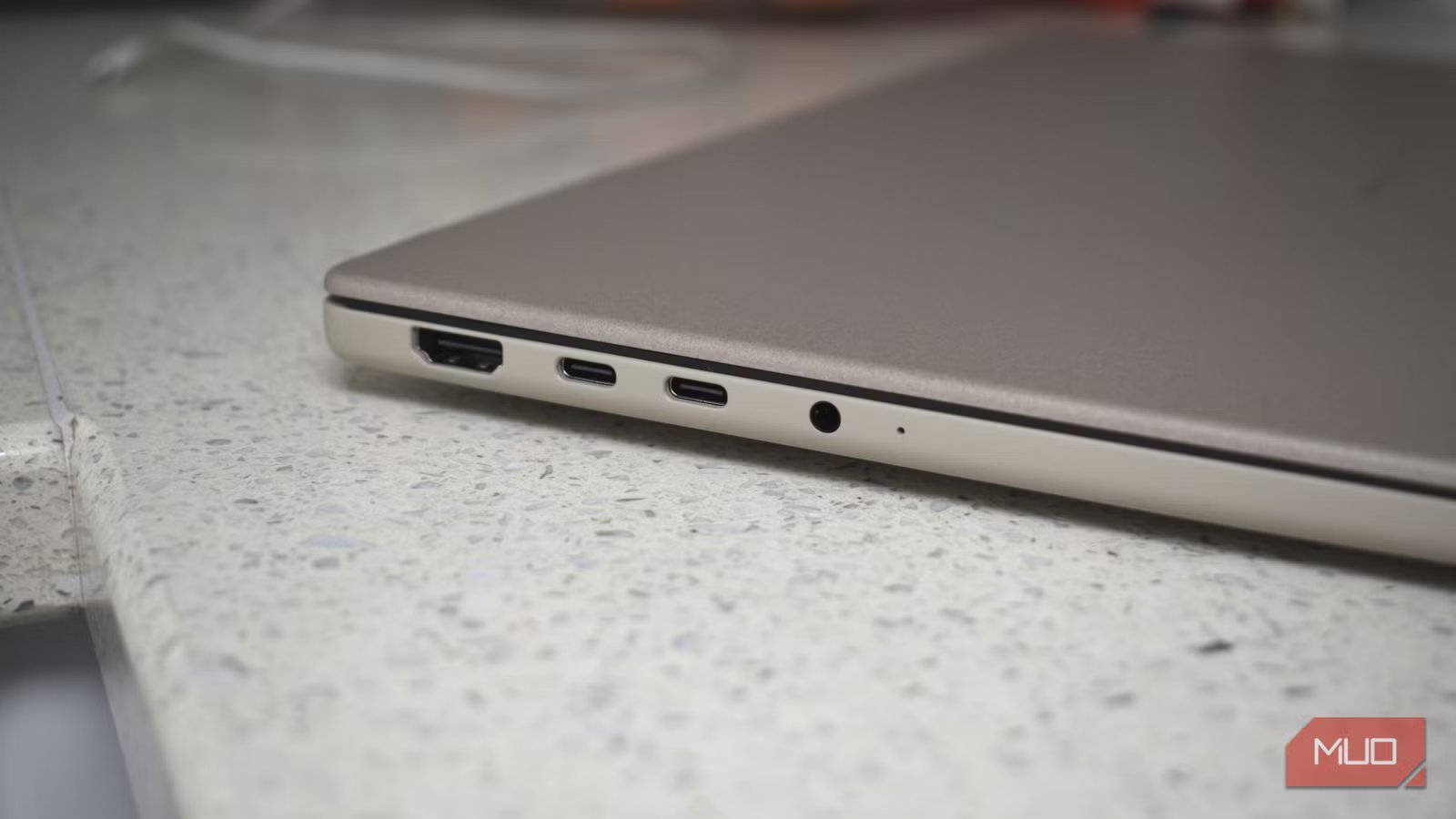
The sight of a USB-C port adds to the confusion. Most of us associate USB-C with faster data transfers, but USB-C ports can be completely different, even when situated alongside each other.
For example, one USB-C port might support USB4, Thunderbolt 5, DisplayPort, high-speed charging, and 40Gbps transfers, while the port next to it supports USB 3.2 Gen 1, 5Gbps transfers, and slow charging.
You might find the tell-tale lightning bolt that shows you’re using a Thunderbolt port, and some ports may use a USB color-scheme, but other than that, the information you need is hidden in a spec sheet.
How to check your actual USB speeds
There are a few ways to find out exactly what you’re working with
So, we know that USB ports are tricky. But how do you actually figure out what you’re going to get when you plug in?
Check the specs

Well, the first check is the most obvious: check out the specs for whatever device it is you’re using. Head to the manufacturer specification pages and check out the model number, or just go for an internet search for “[device name] usb port specs”.
Device spec sheets always have the information, and when it comes to laptops and motherboards, you’ll usually find a nice schematic to show you exactly which USB port is which.
But in fairness, that doesn’t always do the job; in that case, you’ll need to check the device directly, such as a laptop or PC.
How to check your USB ports on Windows

Your first port of call on Windows should be the Device Manager, which lists all of the various controllers active on your device.
- Press Win + X and select Device Manager.
- Once it opens, scroll down to Universal Serial Bus controllers and unfurl the dropdown.
- From here, it’ll show you the capabilities of each port on your device.
However, Device Manager can be a little confusing when it comes to checking USB ports because it doesn’t have an easy way to differentiate between them. If you double-click the USB device, it’ll reveal the location of the port… but that doesn’t actually make it any easier, because “PCI bus 47, device 0, function 3” (as an example) is as clear as mustard.
Instead, look for anything specifically labeled “USB 2.0”, then you can work from there. You’re likely going to end up doing a blunt action check anyway — plugging in and checking speeds — but this serves as a good way to know that at least one port actually is limited to slower speeds.
How to check your USB ports on macOS
It’s a similar process on macOS, where you can easily check your macOS settings to see each USB port.
- Click the Apple icon and select About this Mac > More Info > General > System Report.
- Now, select the USB section, which will reveal the labeling for each port, making it clear which is which.
Now, I actually wondered when the last time Apple shipped a device with a USB 2.0 port, because as someone who doesn’t ardently follow Apple hardware, I figured it must have dropped the older standard by now.
But no — I was completely wrong. The 2026 MacBook Neo ships with two USB-C ports: one USB 3.0 and one USB 2.0. Apparently, macOS alerts you when you plug a faster device into the slower port; given the ports aren’t labeled, this is a welcome notification.
How to check your USB ports on Linux

Checking your USB ports in Linux is relatively simple, using the lsusb -t command in the terminal. This creates a list of your USB controllers and connected devices, listing the speeds in Mbps.
Ideally, you’re looking at 480M (USB 2.0) versus 5000M or higher (USB 3.x).
-
Open a terminal and input
lsusb -t - Check through the list to see the USB controllers
For more details on a specific device, run lsusb on its own first to get the bus and device IDs, then run lsusb -v -s [bus]:[device] and look for the bcdUSB value — 2.00 means USB 2.0, 3.20 means USB 3.2, etc.
Now, you’ll have to forgive my screenshot above, which doesn’t completely convey the information — I had to fire up a quick Linux virtual machine to grab the shot, and that was using virtualized controllers. But the command works, and is exactly what you need.


9/10
- Brand
-
Baseus
- Connection
-
USB-C
- Ports
-
1x RJ45, 3x USB-A, 2x USB-C, 2x HDMI, 1x SD Card, 1x microSD Card
- USB-C Power Delivery
-
PD100
The Baseus Metal Gleam Series II 10-in-1 USB Hub adds ten ports to your laptop via a single USB-C port. This device will turn your PC into a connectivity powerhouse, giving you two 4K displays, gigabit ethernet, 100W power delivery, and 10Gbps USB transfer speeds.
Have you remembered to check the cable?
Cables also slow transfers down

The other part of the USB port confusion equation is the cable itself. I’ve got so many USB cables lying around the house. It’s a constant struggle to find one that does what I want, especially with other family members taking ones that I’ve put aside because I know they’re good.
Remember that a USB-C cable can carry USB 2.0 (480 Mbps), USB 3.2 Gen 1 (5 Gbps), USB 3.2 Gen 2 (10 Gbps), or Thunderbolt 4 (40 Gbps), Thunderbolt 5 (80 Gbps), and they all look identical from the outside.
In short, just because a cable fits your device, that doesn’t mean it’ll deliver high-speed transfers. Furthermore, many bundled cables are often “charge-only,” meaning that they physically lack the extra connectors to enable data transfers. If the cable comes with a smartphone, laptop, external hard drive, or similar, you can safely assume it’ll at least transfer some data. But otherwise, it’s likely to be only power.
Furthermore, the longer the USB cable, the more tech it needs. Specifically, cables over around one meter must be active, which basically means that it needs a signal boost to make sure the signal can travel throughout the entire cable.

Cables, then, are also misunderstood. But there are a couple of ways you can check:
- Look for USB-IF certification markings: a cable rated for SuperSpeed (5 Gbps) should carry the SuperSpeed logo; SuperSpeed+ for 10 Gbps
- Check the packaging or product listing for the actual rated speed, not just “USB-C to USB-C”
- If there’s no speed rating listed anywhere, assume USB 2.0
- Thunderbolt cables should have the lightning bolt icon
- Try a USB cable tester if you have one handy (appreciate not everyone does!)
If your transfer speeds seem suspiciously low, always test with another certified cable before assuming the port itself is the issue.

It’s time to label your USB ports and cables
As mentioned, my family regularly pilfers cables I know are good for specific uses. So, after a while, I started marking the USB cables instead, so I could easily figure out what they’d taken.
You can take this a step further, if you so wish, and mark the USB ports on your devices with a personal indicator as to what to expect. Don’t damage your device or add something that’ll stick out like a sore thumb, but a subtle colored dot from a marker with your USB labeling system can save all sorts of trouble.
Most of all, spending five minutes testing your ports can make a surprisingly large difference — and you may discover the fastest USB port on your laptop isn’t the one you’ve been using all along.