
Plex is one of the best ways to upgrade and reuse an old laptop, period. If you have an old laptop lying around, there is a very strong chance it’ll be able to host a Plex server, and in doing so, become your very own home media server.
It’s surprising how simple it really is. The specs required for standard 1080p streaming are hardly taxing, and Plex’s server software is compatible with a huge range of hardware, with accommodations for those older laptops still lurking in your cupboard.
So, it’s time to stop putting off your first Plex server. Dust off your old laptop, download Plex, and get cracking.
What you need to install Plex on an old laptop
Specs and hardware check

I’m basing this on a single laptop streaming to a single source, as that’s the easiest and least taxing configuration; it gives you maximum potential to reuse your old laptop as a Plex server.
Plex can stream to multiple devices at once and can also do so in 4K. But that requires a more powerful CPU, and realistically, decent graphics acceleration to boot. The integrated graphics on many modern CPUs can handle this without breaking a real sweat, but it really depends on your hardware and what you’re trying to convert.
It’s hard to get an exact rating for the “oldest” CPU feasible to run a Plex server, but Plex’s guidelines give a better indicator:
- 4K HDR (50Mbps, 10-bit HEVC): 17000 PassMark score (being transcoded to 10Mbps 1080p)
- 4K SDR (40Mbps, 8-bit HEVC): 12000 PassMark score (being transcoded to 10Mbps 1080p)
- 1080p (10Mbps, H.264): 2000 PassMark score
- 720p (4Mbps, H.264): 1500 PassMark score
In real-talk, that translates to a 2010-2012 Core i3 CPU, which gives you about 15 years’ worth of old laptops to play with. However, while these old CPUs can run a Plex server and competently stream 1080p, they’ll struggle with anything encoded in H.265 (HEVC) — which is increasingly common in modern rips and downloads. That’s where hardware acceleration becomes relevant.

How to Watch Plex in VLC (and Why It’s Worth Doing)
As if I really needed another reason to love VLC.
Hardware acceleration and transcoding
Use case | CPU | RAM | Storage | Hardware Acceleration |
|---|---|---|---|---|
Personal, local only (direct play) | Any dual-core, 1.2GHz+ (Intel Atom or ARM) | 2GB | HDD or SSD | Not needed |
Single 1080p software transcode | Intel Core i3 or equivalent (~2,000 PassMark) | 2–4GB | HDD or SSD | Not required |
2–4 simultaneous 1080p streams | Intel Core i5 / Ryzen 5 (~4,000–8,000 PassMark) | 4–8GB | HDD or SSD | Helpful |
5+ simultaneous streams | Intel Core i7 / Ryzen 7+ (10,000+ PassMark) | 8–16GB | SSD recommended | Recommended |
Single 4K SDR software transcode | High-end desktop CPU (~12,000 PassMark) | 8GB | Fast HDD or SSD | Strongly recommended |
Single 4K HDR software transcode | Very high-end CPU (~17,000 PassMark) | 8–16GB | SSD preferred | Essentially required |
1080p hardware transcode | Intel Celeron J4125+ with Quick Sync | 4GB | Any | Intel Quick Sync / NVENC (Plex Pass required) |
4K hardware transcode | Intel i5-12600K / i5-13500 (UHD 770 iGPU or dGPU) | 8–16GB | SSD preferred | Intel Quick Sync gen 12+ or Nvidia RTX/GTX 10xx+ (Plex Pass required) |
The other consideration is transcoding, which needs hardware acceleration.
When Plex streams a video to your device, one of two things happens: either your device can play the file exactly as it’s stored on the server (called direct play), or it can’t — and the server has to convert it on the fly into a format your device understands. That conversion process is called transcoding, and it’s where your old laptop’s hardware starts to matter.
The solution is hardware acceleration. Most Intel Core processors going back to 2011 include a dedicated video processing block called Quick Sync, which Plex can offload transcoding work to instead of burning through your CPU.
For H.264, Quick Sync support goes back to Sandy Bridge (2011). For H.265, you’ll need a 7th-Gen Intel CPU (Kaby Lake, 2016) or newer; anything older falls back to software for H.265, which may or may not be fast enough depending on your CPU.
You also need a Plex Pass to access hardware acceleration, which comes at a cost.
However, with all of that said, if you’re repurposing an old laptop, you’re more than likely opting for a single server to single device configuration, which means you may not need acceleration at all.
Set up your old laptop for Plex
All you need is some software and some storage

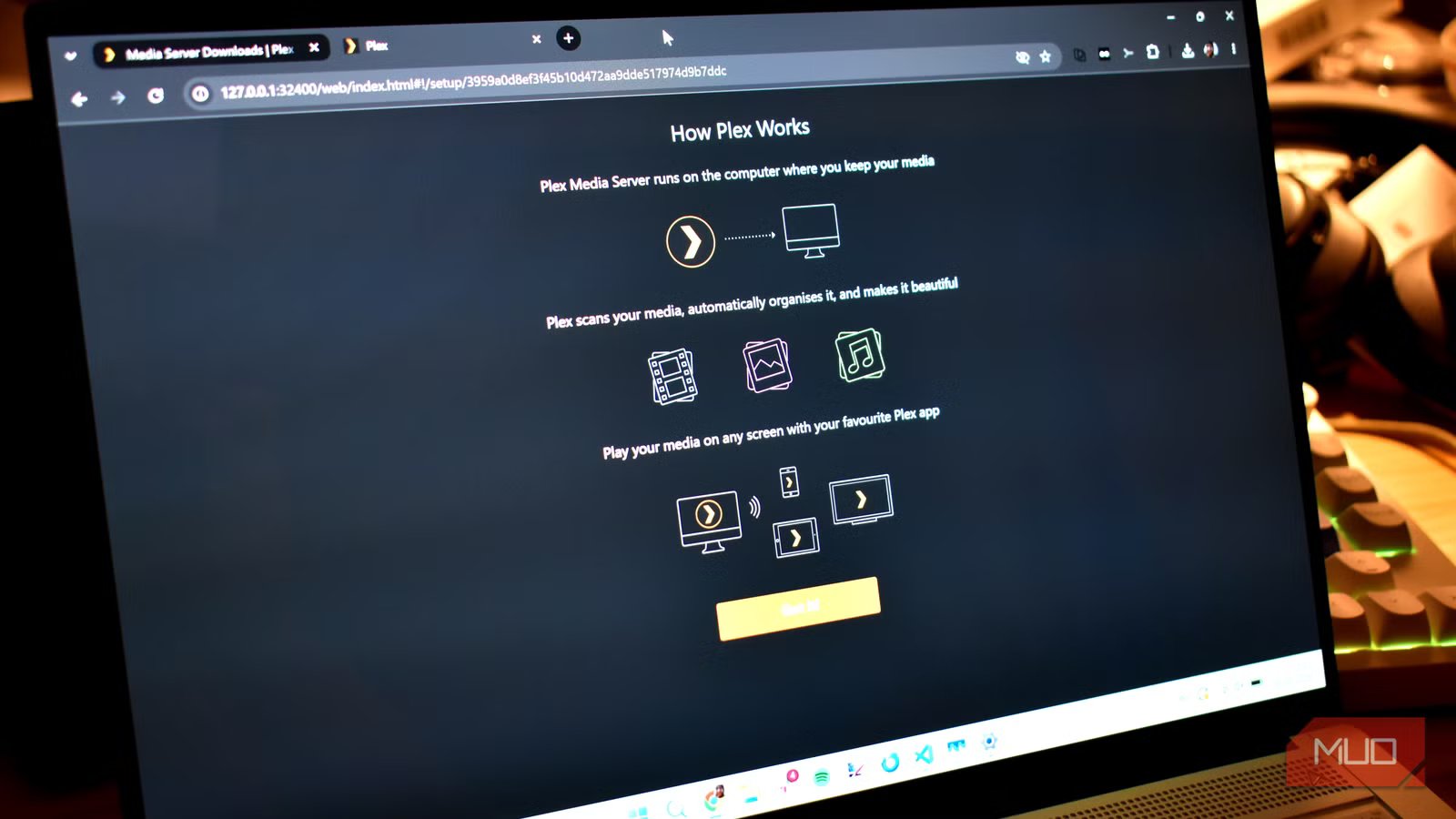
Once you’ve figured out if your old laptop can run Plex, it’s time to do the actual installing.
On your old laptop, your first port of call is the Plex Media Server download page. The dropdown box defaults to Windows, which is what we’re using in this example. However, Plex Media Server is also available for macOS, Linux, Docker, and many NAS platforms.
But for now, we’re sticking with Windows, as that’s mostly likely what’s running on your old machine.
Once downloaded, it’s time to get installing. It’s a fairly standard installation; choose where you want the Plex Media Server installed, and it does the job. In this case, you don’t really need to worry about moving it to a separate drive or partition as you select your media files from within Plex itself, which comes after installation.
Add your local files, start streaming
When you first launch the Plex Media Server, you’ll be asked if you want to upgrade to a Remote Watch Pass or a Plex Pass. You don’t need either if you’re streaming locally, i.e., from your old laptop to your PC, streaming stick, smart TV, or similar on your home network.
Want to access your Plex server remotely? Then you’ll need to upgrade. But this can come later. Next, add a server name to make it easy to identify.
Now, you’re adding your media.
- Select Add Library, then browse to the media you want to add.
- Choose the library type from the selections, depending on the media you’re going to stream. On this, it’s better to organize your Plex media into distinct types, such as Movies, TV shows, Music, etc.
- Next, select Add folders > Browse For Media Folder, then browse to the specific media folder you want to add.
- Press Add Library, and your media folder will be added to your Plex Media Server.
Now, select Finish > Done, and you’re good to go.

Connect to Plex, and start streaming
Once you have your media connected to Plex, you can start to stream from other devices on your network. For example, in my household, the Plex server remains up and running, and we have the Plex app installed on the Fire TV Stick in the living room.
From here, you can expand your Plex library as you see fit. I’d also suggest checking out some Plex apps to expand and improve your streaming quality, add new features, and more!



