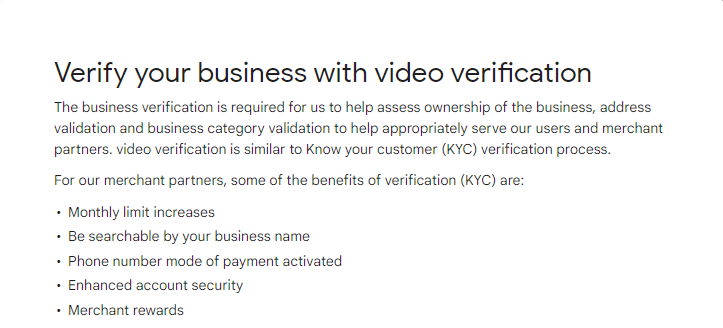
If Google has asked you to complete a video verification, you are not alone. This is now the only method of Google Business verification, and passing this can be confusing if you are not sure what to show.
To be successful, a verification video must prove three things to Google:
- Location of the business
- Business has the required equipment
- Management (i.e. your association with the business)

Your video must show all these things in a single, continuous shot with no edits. It can only be a few minutes long, and when you’re done shooting, it gets uploaded directly to Google, so be sure to plan ahead!
General Tips for Passing Google Business Profile Video Verification
- Record in One Continuous Take. Your video must be recorded in one continuous shot. Do not edit or combine clips. Google wants to see a real, uninterrupted recording.
- Do Not Show People’s Faces or Sensitive Information. Your video needs to prove that you exist at your location, but should not include faces or any other private information about employees (or customers). This might include bank statements, tax documents, or your Social Security Number.
- Do Not Focus on Narration. Do not talk during the video. No one at Google will hear your narration. The video needs to show, not tell.
- According to Brad Wetherall, Founder & CEO of The GBP Experts and former Google employee, “You don’t need to talk through the video. The agents reviewing these videos don’t even have speakers on their computers, so any audio in the video will not be heard. It is much more important to show than to tell.”
- Don’t Use Gmail to Verify Listings. This is one of the most common mistakes we see. Google wants to see a real connection to the business. A Gmail account doesn’t prove you’re affiliated, and it can raise red flags.
- ✅ Use a branded email like hello@yourbusiness.com.
- ✅ Make sure the account has history: listings managed, edits made, and ideally some ownership in Search Console.

9 Easy Steps For Google Business Profile Video Verification
The good news is that once you understand what Google is looking for, it becomes much easier to pass.
Every successful Google business profile video verification comes down to three things:
- Location
- Operations
- Affiliation
In simple terms, Google wants to see where your business exists, that it is a real business, and that you are actually connected to it.
Below is a complete checklist you can follow to pass GBP Video Verification on the first try. From a practical perspective, how you prove these three things to Google is a little different for a storefront than it is for a service area business (SAB), so we’ve made sure to indicate which business type each step applies to.
Location Tips for GBP Video Verification
1. Start by Showing the Area Around Your Business
Applies to: 🏪Storefronts & 🚐 SABs
Begin your video by showing the area outside your business or nearby surroundings. This can include street signs, intersections, nearby businesses, or building numbers.
This helps Google tie your listing to a real-world location.
2. Show Permanent Signage or Use the “Elevator Hack” to Prove Location
Applies to: 🏪 Storefronts & 🚐 SABs
If you have a storefront, clearly show your signage. This could be a storefront sign, door sign, or building directory. Make sure the business name matches your profile.
If you are not able to go outside or do not have signage, you can start inside and point your camera out a window. Try to capture a street sign, intersection, or recognizable landmark.
This approach is often called the “elevator hack,” shared by Brad Wetherall. It helps you show location without risking signal issues that can arise from going into an elevator.
“Keeping a continuous, unedited take is the rule, but elevators are notorious for killing the upload. Here’s a workaround: You don’t have to start outside on the street. You can start the video inside your office, but you must point the camera out the window to show a recognizable landmark, street sign, or intersection. This gives Google the “geographical context” it needs to pin your location in the real world without risking a signal drop in the lobby.”
Operations Tips for GBP Video Verification
3. Show Your Workspace or Where Work Happens
Applies to: 🏪 Storefronts & 🚐 SABs
Show the place where your business operates. This could be an office, shop, job site, or home workspace.
Service area businesses can show a garage or home office.
4. Show Tools, Equipment, or Inventory
Applies to: 🏪 Storefronts & 🚐 SABs
Include the tools or materials you use to do your work. This helps prove the business is active.
If the business is a barbershop, you should show barber chairs. A restaurant should have a kitchen. An administrative office should have desks and computers. If you’re a traditional retailer, show some of your products.
For service area businesses, this could mean showing tools or equipment required to perform your job.
The goal is simply to prove to Google that you are operating at this location.
5. Show Branded Assets
Applies to: 🚐 SABs primarily
Former Google employee Brad Wetherall recommends showing branded uniforms, vehicles, or equipment.
For service area businesses, these act as your storefront.
To strengthen your submission, you may also show some branded marketing materials. (E.g. business cards, brochures, etc.)
6. Open Your Vehicle or Equipment
Applies to: 🚐 SABs
Open your work vehicle and show what is inside, such as tools or supplies. Brad also says:
“Since an SAB typically doesn’t have a storefront with a permanent sign, your employees and vehicles are the signage. Showing a team member in a branded uniform or opening a branded van to show job-related tools (like ladders or specialized equipment) proves existence and affiliation simultaneously.”
This is one of the strongest ways to prove your business exists in the real world

Affiliation Tips for Google Business Verification
7. Show That You Can Access the Location
Applies to: 🏪 Storefronts & 🚐 SABs
Show that you have control over the business location.
- For storefronts, unlock the door and enter.
- For service area businesses, unlock your vehicle or access secured equipment.
Brad Wetherall shared on a recent webinar that realtors can film themselves unlocking a house they’re selling with a for sale sign in front.
▶️Watch our full webinar with Brad here
8. Show Official Business Documents
Applies to: 🏪 Storefronts & 🚐 SABs
Brad Wetherall also recommends showing physical documents such as a business license or tax registration.
Hold the document steady so it is readable. This is a strong signal that the business is legitimate.
9. Show Access to Business Systems
Applies to: 🏪 Storefronts & 🚐 SABs
Another tip from Brad Wetherall is to show access to industry-specific software.
Examples include:
- CRM systems
- QuickBooks
- MLS for real estate
“Showing access to industry-specific tools is a massive “Extra Credit” signal for affiliation. For a realtor, showing a login to the MLS software is great; for a contractor, pulling up a CRM or QuickBooks for the business is a strong “affiliation” signal.”
Video Verification Process:
Once you have planned out what you are going to show in the video, navigate to your Google Business Profile on your mobile device. The easiest way to do this is in the Google Maps app.
Your mobile device might ask you to allow Google Maps to access your location, camera, and microphone. The process won’t work if the app doesn’t have the right permissions, so follow the on-screen instructions.
Note: If you start the verification process on a computer, you can continue and complete the verification process on your mobile device by scanning the QR code.
 Tip: You must be signed into Google Maps with the same account that you use to manage your Business Profile.
Once you’re logged in on your mobile device, you need to:
- Tap ‘Get verified’ and then ‘Capture video.’
- Tap ‘Start recording.’ Follow the steps and record your video.
- Once your recording is complete, tap ‘Stop recording’ and then ‘Upload video.’
To complete video verification, you must record and upload your video on location, in real-time. You cannot use a pre-recorded video.
Tip: The upload process is notoriously buggy. If your video upload fails, try again, at least a few times. If the upload fails several times, try making the video shorter. Often, a very short video (60 – 90s) solves the problem.
The GBP Video Verification Waiting Game
All that’s left to do at this point is wait. After you upload your video, Google will review it. Reviews can take up to five business days, so be patient! Don’t try to speed up the process by uploading another video.
- If your video is accepted, your profile becomes verified, and you get a notification letting you know.
- If your video is rejected, you might be notified, but don’t count on it. Instead, check your profile in the Google Maps app each day.
- If you find a “Review issues” warning, your video was rejected and Google is sharing the reason(s) why. Tap the warning to learn why your video verification failed and then try again.
- If you find a “Get verified” button and you have the option to video verify again, your video failed and Google is not telling you why. Try again.
- If you find a “Get verified” button and you don’t have the option to video verify again—but you have other verification options—your video was accepted and now Google wants you to verify by another method. (Sometimes Google asks businesses to complete the verification process more than once.)
- If your video has been under review for more than one week, something is broken. Use the verification status tool to contact the support team.
Use Google’s Verification Troubleshooter Tool
If you’re stuck mid-verification, use Google’s verification status tool:
🔗Check your verification here
Make sure you’re logged in with the right account. Then select the business and click through until you find the “Contact Us” link. This link takes you straight to Google’s support team. If something’s broken, they can fix it.


How to Get the Blue Tick on Google Business Profile
Common Google Business Profiles Verification Failure Reasons
Wondering why Google Business Profiles verifications fail? If you’re resolving issues with your Google Business Profile, understanding the Google Business Profile verification failure reasons is crucial.
Verification problems often happen when you don’t have your address on your website, or the address on your website doesn’t 100% match your GBP address. Common causes include inaccurate business information, missing proof of business details, and technical issues.
In some cases, business owners even report that their Google Business Profile disappeared entirely after repeated verification failures or policy violations. This can happen when Google automatically suspends or removes profiles that appear unverified or inconsistent with its guidelines.
By recognizing these common issues with Google Business Profiles, you can take proactive steps to avoid verification problems and ensure your business profile is accurate, verified, and visible to potential customers. Here’s how to spot the most common issues – and what you can do to avoid them.
- Your business name, address, or phone number doesn’t match across your website, online listings, and official documents.
- The address you provided is incomplete, inaccurate, or doesn’t match what Google expects for your business type.
- Your business name includes unnecessary keywords, extra promotional language, or doesn’t match your real-world name.
- Your video verification didn’t clearly show your location, signage, business operations, or proof that you manage the business.
- Your Google Business Profile is missing clear photos of your office, signage, team, and actual business activities.
- There are duplicate profiles for your business on Google, which causes confusion and may lead to rejection.
- Your profile gets flagged if you frequently change your business name, address, or other important details.
- Google doesn’t allow businesses to use PO boxes, virtual offices, or mailbox stores like UPS or PostNet for verification.
- If Google can’t find your business listed with the same address on other trusted sites like Yelp or Facebook, that can raise red flags.
- Your profile might be rejected if you accidentally violate Google Business Profile policies, even if the violation seems minor
Why Does Google Require Re-verification of a Recently Verified Business Profile?
This question recently came up on the Local Search forum. A user had recently verified a Google Business Profile (GBP) by phone and a few days later it said that they needed to verify it by video as well. There are multiple ways Google allows you to verify a listing (phone, text, email, video recording, live video call, or postcard).
At first, it looks like something at Google is broken (we all know they break stuff a lot with GBP), but it’s actually working as intended. In their help center article on verification, it states “You may need to verify with more than one method.”
Google requiring more verification might seem like a pain, but it actually is a good thing because it helps them combat SPAM and fake listings on Google Maps, which is a huge problem. If you got an easy option for the first verification like phone or text, you will likely have to verify the listing by video or postcard later.