Google Business Profile (GBP) relationships are entity connections that define how distinct business listings are physically or organizationally nested within one another. Because Google now views the world as a map of entities rather than just addresses, defining these relationships ensures your local authority isn’t “lost” inside a larger building or overshadowed by a parent brand.
In the early days of Local SEO, these were simply called “Relations.” Today, they are sophisticated Entity Relationships within Google’s Knowledge Graph. There are four primary types you need to know. Some are visible to customers on Google Maps, while others exist only in the “backend” API data.
1. Co-Location: “Located In” vs. “Department Of”
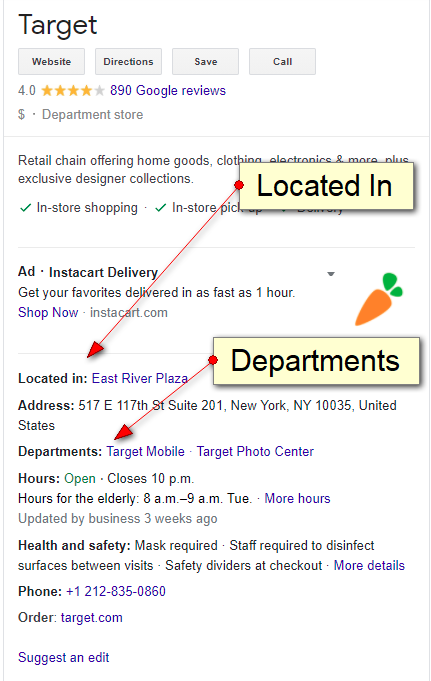
The biggest change in recent years is how Google distinguishes between a brand-aligned department and an independent business sharing the same roof. GBP Department listings belong to a parent brand, sharing the same management and location while maintaining unique attributes like hours and categories. In the API, this is defined by the DEPARTMENT_OF relationship.
DEPARTMENT_OF (The Internal Relation)
This represents two listings that share a physical area and the same brand/management, but have different attributes like hours or categories. In technical terms, Google treats these as sub-properties of the main entity.

- Example: A Toyota Service Center is a DEPARTMENT_OF the primary Toyota Dealership.
- UI Impact: These typically appear in a dedicated “Departments” section within the Knowledge Panel, as seen in the Toyota Orlando example above.
INDEPENDENT_ESTABLISHMENT_IN (The Co-Located Relation)
This is for different companies sharing a space where there is no shared brand ownership. For instance, a FedEx office located inside a WalMart, or a Starbucks inside a Safeway.
- UI Impact: This triggers the “Located in: [Business Name]” text on the listing and, most importantly, the “Directory” tab on mobile Maps.
2. The Mobile “Directory” Tab
When your relationships are set up correctly, Google Maps displays a Directory tab. This is a powerful UX feature that allows users to see every business inside a specific building (like a mall or a large medical complex) without leaving the parent listing.
If your business is inside a plaza but doesn’t appear in the directory, it’s usually because your relationship is set to the plaza rather than the specific building entity.
3. “Works At” (Practitioner Connections)
This remains an “invisible” relation that connects a professional (like a doctor, lawyer, or real estate agent) to a firm. This is now handled via the memberOf schema and backend entity matching.
If a practitioner leaves a firm but the “Works At” relationship isn’t severed in the API, the old firm’s ranking power can be diluted, or worse, the practitioner’s profile might continue to show the old firm’s address in the Knowledge Panel.
4. The “Chain” Relation: The Knowledge Graph Backend
The most critical relationships are often the ones you can’t see in the standard dashboard. To see these, you must look at the Google Business Profile API data, specifically under the placeRelationshipContext and subProperty fields.
Chain IDs verify brand affiliation across the global Knowledge Graph. In the API, a relationship will often appear as a unique string, such as chains/ChIJ7Qlr1nrZoYcRqD0DfHM2Sas (which identifies a specific brand entity, like McDonald’s).
Why the API Data Matters
- Chain ID: If this field is missing, your listing is orphaned from the brand. It may not appear in “Brand + City” searches or show up in the brand’s local carousel.
- Voice of Merchant: The API also tracks a boolean field called hasVoiceOfMerchant. If set to True, you are in active control of the listing. If False, the listing is marked as suspended, duplicate, or closed; you must re-verify to regain “Voice of Merchant” status.
- Service Area Relations: Even Service Area Businesses (SABs) have relationships. The API lists these as a group of objects with a placeId and placeName. If these don’t match the geographic boundary of your parent brand, your prominence may be limited.
How to Check and Update Your Relationships
You no longer have to wait for Google Support to fix these in most cases. You can suggest an edit using the “Edit Profile” tool on Maps to manually link a business to its parent. Always ensure the sub-entity marker is nested within the footprint of the parent entity’s marker.
Ultimately, correct relationships enhance local prominence by ensuring Google’s Knowledge Graph accurately maps your business entity. This prevents your ranking power from being diluted and ensures you appear in the mobile Directory tab.
Why Relationships Are the Key to Local SEO
Google has moved beyond simple business listings to a complex Map of Entities. Understanding and defining your business’s relationships, whether it’s a DEPARTMENT_OF a hospital or an INDEPENDENT_ESTABLISHMENT_IN a shopping mall, is no longer optional.
By correctly mapping these connections, you ensure your local authority is preserved, your Directory presence is active, and your brand remains tethered to the global Knowledge Graph. In the world of AI-driven search, properly defined relationships enhance local prominence and guarantee that your business is found exactly where it belongs.