
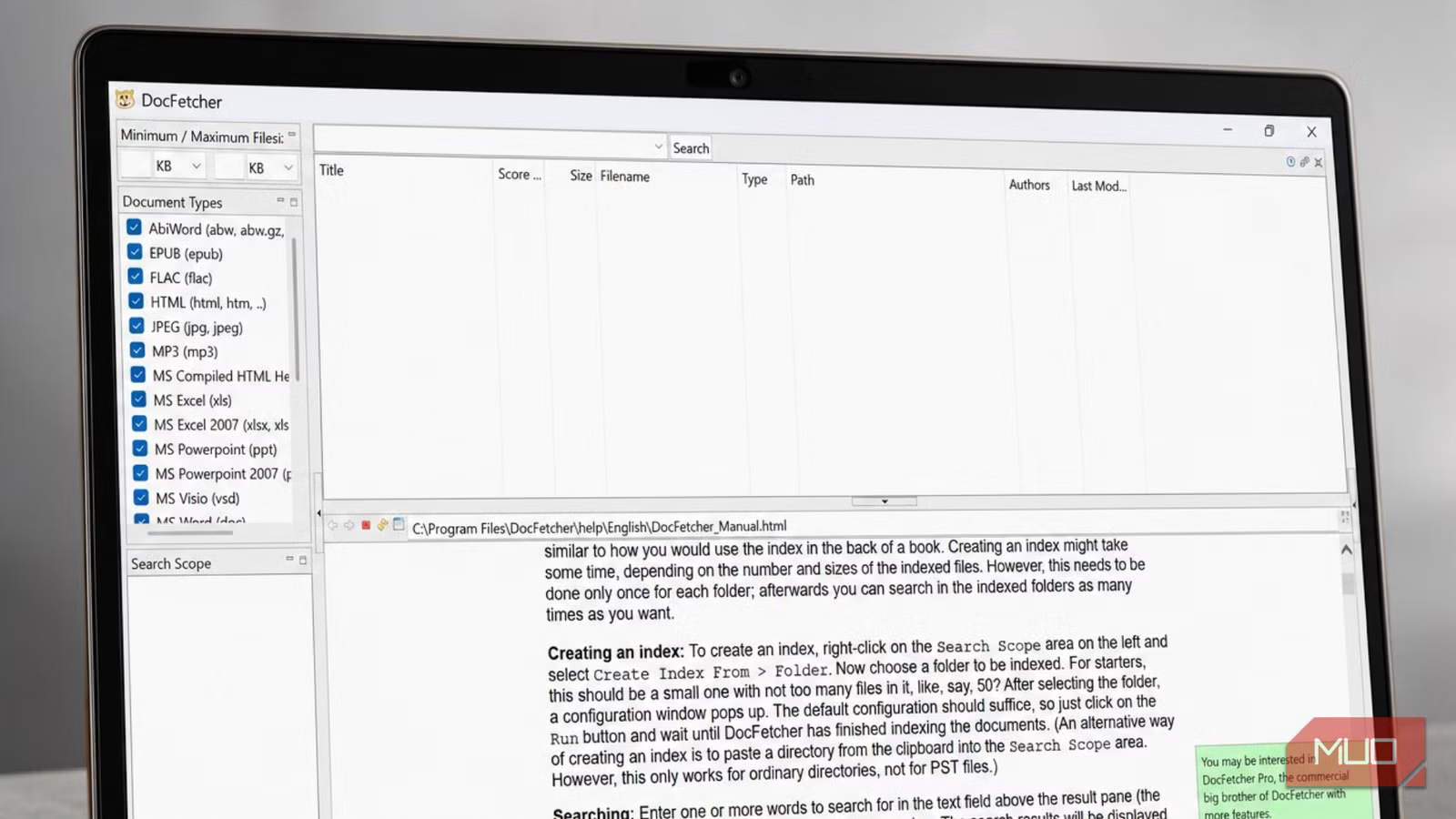
I tried a file search tool that actually searches inside documents — it changed how I work
I like to think I’m fairly organized. I use folders within folders, descriptive filenames, and sometimes even date prefixes when I’m feeling particularly disciplined. For the most part, the system works. Or at least it did until I needed to find something I’d written about eighteen months earlier, a document I could only remember through one stray half-sentence buried somewhere in the middle of it. Despite applying a few simple tweaks that make Windows search better without replacing it, I got nothing useful. I suspect Spotlight on a Mac would’ve reacted with the same indifference. I spent twenty minutes (it could have been more) opening files one by one before giving up entirely. The file was definitely on my computer somewhere, but functionally, it might as well have vanished into the ether.
It was that experience, repeated often enough, that sent me down a rabbit hole, and what I found at the end was DocFetcher. It’s free, it’s open source, and it searches inside your files, not just in them.

How to Find Anything on Your PC Faster With the Everything App
Find things on your Windows PC better with Everything.
The problem with “normal” search
Your files are in there, but Windows Search doesn’t care

The search built into your operating system is mostly a filename scanner with a few tricks bolted on. It knows a file exists and where it lives. What it does not do well — at all — is tell you what’s inside. While it is technically possible to tweak index settings to search file contents natively in Windows, the experience is generally slow and resource-intensive. Instead of looking at filenames, DocFetcher looks inside files: PDFs, documents, spreadsheets, notes, code, archives, and even eBooks. That single distinction reframes the whole problem.
Consider the typical situation: you need a document, but you don’t know what you called it, where you saved it, or what year you created it. You remember a phrase — maybe a client’s name, a project title, a specific sentence. Standard search has nothing to offer you here. With DocFetcher indexing your folders, you can type out fragments of a document or phrases, or keywords that you might remember, and DocFetcher will pull them out with no issues.
How the indexing actually works (and why it’s fast)
It reads everything once, so you never have to hunt again
DocFetcher is an indexing search tool, which means it doesn’t scan every file from scratch each time you search. It has a local database of file contents that it checks, rather than scanning all files on your machine. This means search results are instant. The search engine underneath is built on Apache Lucene, a widely used open-source engine that powers search in tools far more expensive than this one.
The trade-off is that you have to do some upfront work. When you first open DocFetcher, you point it at whichever folders you want to search, and it indexes them. Depending on the size of your collection, that can take a while (a good rule of thumb is roughly 200 files per minute). Once it’s done, though, you’ll almost never wait again. And when files change, DocFetcher updates its index automatically in the background, so your results stay current. The indexing process happens in the background and can be configured to run automatically.
DocFetcher indexes nothing by default, leaving the selection of data to be indexed to you, which is a deliberate choice that keeps things lean and respects the fact that most people don’t actually need their entire hard drive searchable. You decide what goes in, which means the results you get out are correspondingly cleaner.
What it can search (the list is longer than you’d expect)
If a file has text in it, DocFetcher is already interested

DocFetcher supports a broad range of file types, including PDFs, Word documents, Excel spreadsheets, HTML files, and more — over 50 formats in total. It handles modern Office formats (docx, xlsx, pptx) alongside older ones, OpenOffice and LibreOffice files, RTF, plain text, EPUB, and even MP3 and JPEG metadata. One of the first things I tested was whether DocFetcher could actually find a word buried inside a PDF, which is the kind of document that Windows Search either ignores or pretends does not exist. It found it instantly.
One feature I didn’t expect to care about as much as I do is archive support. It can search within compressed archives such as ZIP, RAR, and 7z files, eliminating the need to manually extract the contents before searching. It also supports nested archives — a zip containing a 7z containing a rar, and so on — which sounds edge-case until you realize how many downloaded files end up sitting in compressed folders and never get unpacked.
There’s also a nice touch if you’re a developer or work with source code: you can customize which file extensions DocFetcher treats as plain text, effectively turning DocFetcher into a code search tool for whatever language or framework you happen to be using.

In actual use, the speed is what grabs you first. Once your files are indexed (remember, this can take a really long time), searching is really fast, and results appear in milliseconds. DocFetcher also provides a preview panel that highlights your search terms in the document, so you don’t have to open each file to check them. Instead, you can click the file and see a preview on the side, which gives you immediate context.
The search syntax is deeper than the interface initially suggests, too. Beyond basic keywords, DocFetcher supports wildcards, phrase searches, fuzzy matching for approximate terms, and proximity searches that let you find words appearing near each other within a certain range. Most people probably won’t use those every day, but when you need precision instead of approximation, they’re there waiting for you.
I have a few gripes with it
Where the rose has its thorns

No tool is honest with you until you have also read about what it cannot do. DocFetcher does not search images, so if you are hoping to find a scanned receipt, you are out of luck. And of course, it does not index the audio or video content within video files. However, it can index metadata (tags, artist, title) for audio files such as MP3 and FLAC, as well as EXIF metadata from JPG and JPEG images. It also lacks real-time indexing, meaning it updates the index when you tell it to, or when the application detects file changes while it is running, rather than continuously in the background.
The interface is not pretty. DocFetcher looks like it was designed in 2009, which is about right, and the first time you open it, you might briefly wonder whether you have made a mistake. But thankfully, I’ve been able to push past that.
So, should you actually use DocFetcher?
If your work involves a lot of documents (research, writing, legal, medical, development, archiving, along those lines), DocFetcher is worth it. Even compared to some of the best desktop search tools for Windows 11, it holds its own uniquely well for this specific use case. The interface will not win awards; the initial indexing requires patience; and it will not replace a proper file-organization habit. What it will do is make the files you already have findable in a way that nothing else on your desktop currently manages.

- OS
-
Windows, macOS, Linux
- Developer
-
Christian Schmieder
- Price model
-
Free / open source
DocFetcher is a desktop search tool that indexes documents on your computer so you can instantly search inside PDFs, Word files, spreadsheets, and more. It works like a private offline search engine for your files, making buried information much easier to find.